

How to connect SmartPMS to the Revenue Agency (Agenzia delle Entrate) for sending receipts
How to connect SmartPMS to the Revenue Agency to send receipts (online commercial document): obtain the legal representative's Fisconline/Entratel credentials (tax code, personal password, PIN), align the company's tax data from the Billing section of the Smartness platform (platform.smartness.com/account/billing), enter and verify the credentials in SmartPMS, check receipts on the Revenue Agency website, and resolve common errors.
You are in the right place if…21 cases
- “Entratel credential verification fails”
- “I can access the Revenue Agency website but validation in SmartPMS does not work”
- “How do I connect the Revenue Agency to send fiscal receipts”
- “Where do I find Fisconline user, password, and PIN”
- “Receipts are not sent to the Revenue Agency”
- “Where do I change the company's VAT number, name, or address”
- “I corrected the company data in SmartPMS but they revert to before”
- “Auth Error or expired Entratel password”
- “Authentication failed AUTH_ERROR INVALID_CREDENTIALS 401 when I send the receipt”
- “PASSWORD_EXPIRED error on receipts”
- “FAILED_LOGIN_ATTEMPTS error after renewing the password”
- “Invalid or unauthorized work account”
- “I changed the Revenue Agency password but SmartPMS does not recognize it”
- “Receipts appear sent but do not appear in the tax drawer”
- “503 Revenue Agency error during receipt sending”
- “User type and subtype: Authorized representative, Myself, or delegation?”
- “Is SmartPMS an accelerator for electronic receipts?”
- “The Revenue Agency blocks accelerators: are my receipts from SmartPMS compliant?”
- “Entratel credential verification error: The subject is not present in the work environment, but my VAT number is in the list”
- “Fisconline credentials correct and authorization active but verification in SmartPMS fails with available Tax Code/VAT number”
- “Connection with the Revenue Agency for sending receipts”
By connecting to the Revenue Agency (Agenzia delle Entrate), SmartPMS sends receipts (online commercial documents) directly to your tax drawer. To do this, two things are required: the Fisconline/Entratel credentials of the legal representative and the company's tax data, which must be identical to those registered with the Agency. If even one of these two is not aligned, the credential verification and receipt submission will fail.
Before you begin
- Use the personal credentials of the legal representative. The Revenue Agency does not issue PINs or passwords to a company: it is the natural person (legal representative or authorized person) who, with their own credentials, acts on behalf of the company. Therefore, the tax code (codice fiscale) of the person, not that of the company, is used as the "user".
- Credentials with a PIN are required, not SPID. SmartPMS accesses using the tax code, personal password, and 10-digit PIN. Being able to enter the Agency's website with SPID or CIE is not enough: those credentials cannot be used in SmartPMS.
- If you act on behalf of a company, an active authorization for your person is required. In the Agency's reserved area, your user account (your tax code) must be enabled to act for the company's VAT number (Partita IVA) for Electronic Invoicing and Fees (Fatturazione elettronica e Corrispettivi). An authorization given to another company (e.g., a firm or a management company) is not enough: the natural person who will use the credentials must be enabled.
- Every company that issues receipts must have its own credentials. If you manage multiple companies (including sub-companies) in SmartPMS, enter and verify the credentials in each one from which you issue receipts: receipts will not reach the Agency from a company without credentials.
- Keep the official tax data handy (company name, VAT number, company tax code) exactly as they appear at the Revenue Agency, for example in Invoices and fees (Fatture e corrispettivi).
1. Obtain Fisconline credentials
The easiest way is to ask your accountant, who usually has a copy. Alternatively, if you have SPID, CIE, or CNS, you can obtain them yourself from the Revenue Agency website:
- Access the Revenue Agency Reserved Area with SPID, CIE, or CNS.
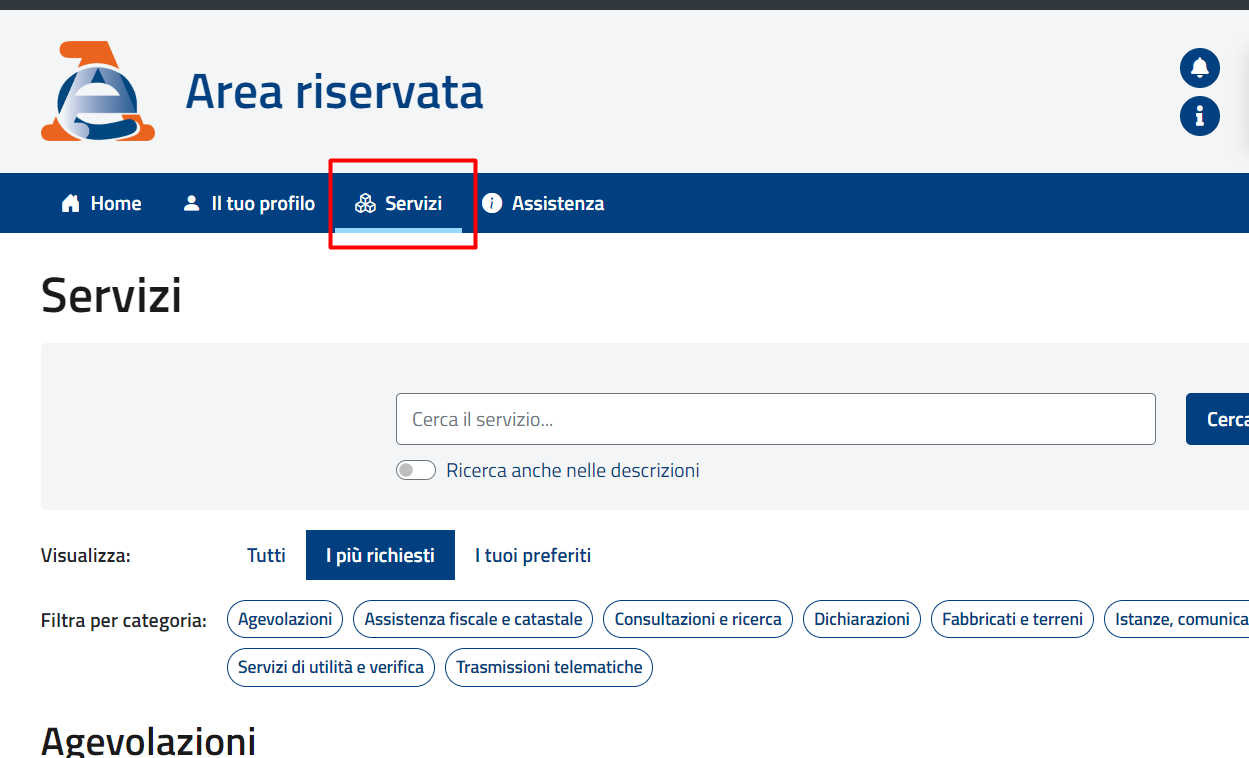
- In the main menu, click on Services (Servizi).
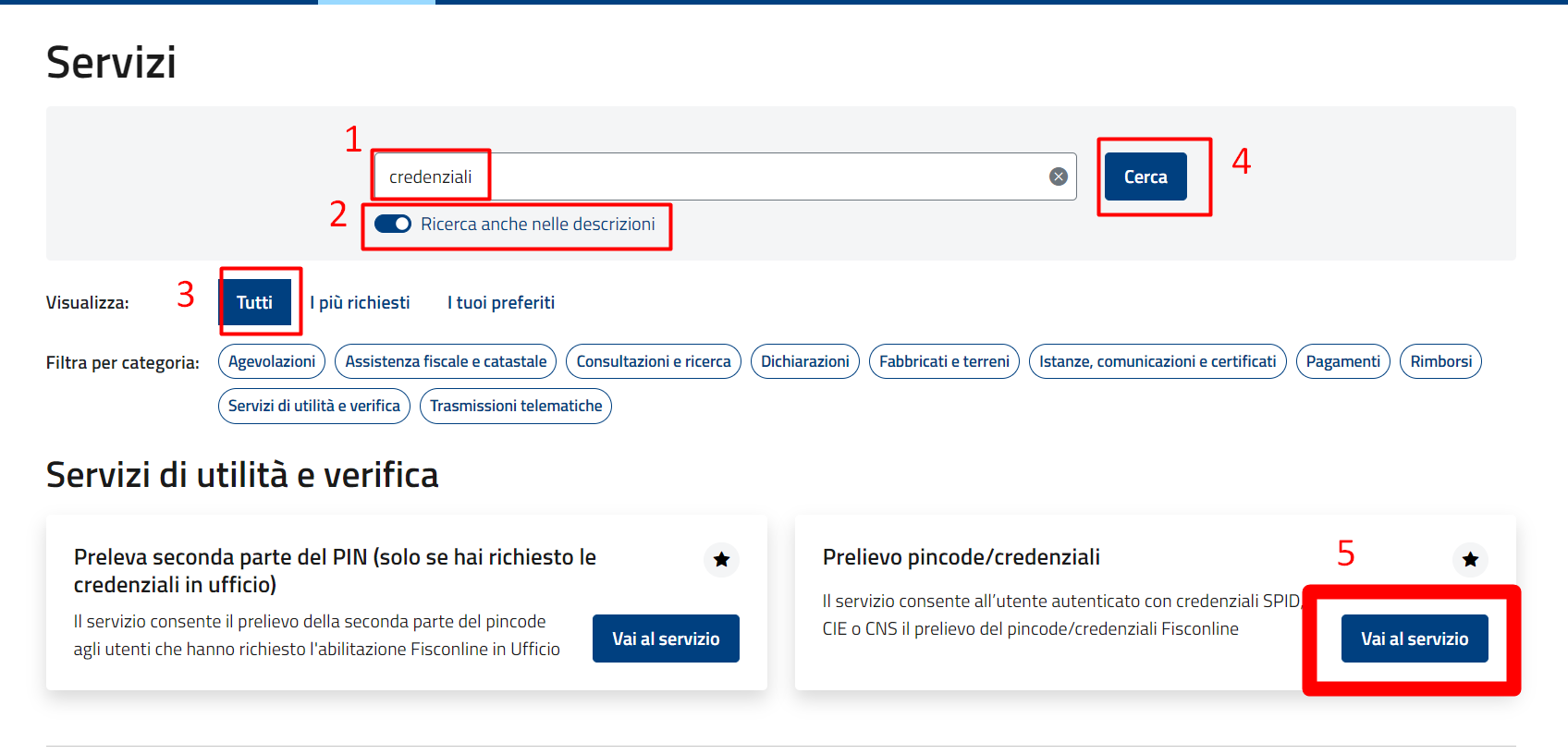
- Search for "credentials", activate Search also in descriptions (Ricerca anche nelle descrizioni), select All (Tutti) and click Search (Cerca). In the PIN code/credentials retrieval (Prelievo pincode/credenziali) tab, click Go to service (Vai al servizio) (you can also open the Credentials retrieval (Prelievo credenziali) page directly).
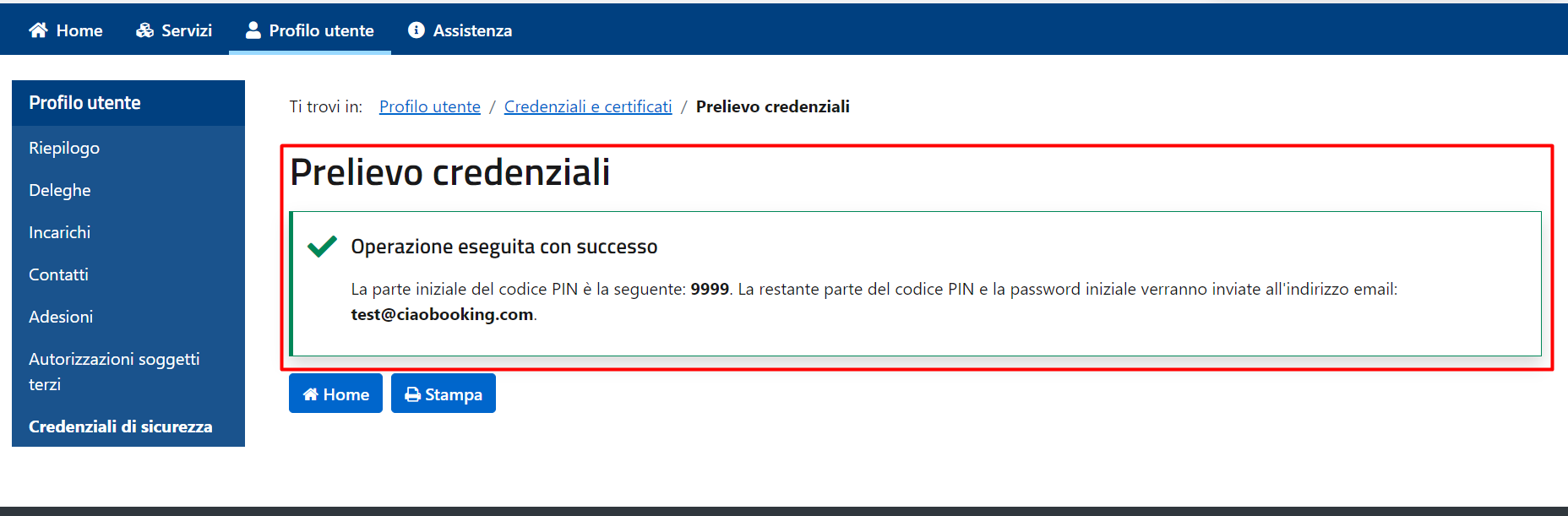
- Click the blue Credentials retrieval (Prelievo credenziali) button. After a few moments, you will see the first part of the PIN (4 digits): write it down.
- Check your email inbox: you will receive a message with the second part of the PIN (6 digits) and the initial password. The complete PIN is formed by the 4 digits from the screen followed by the 6 digits from the email.
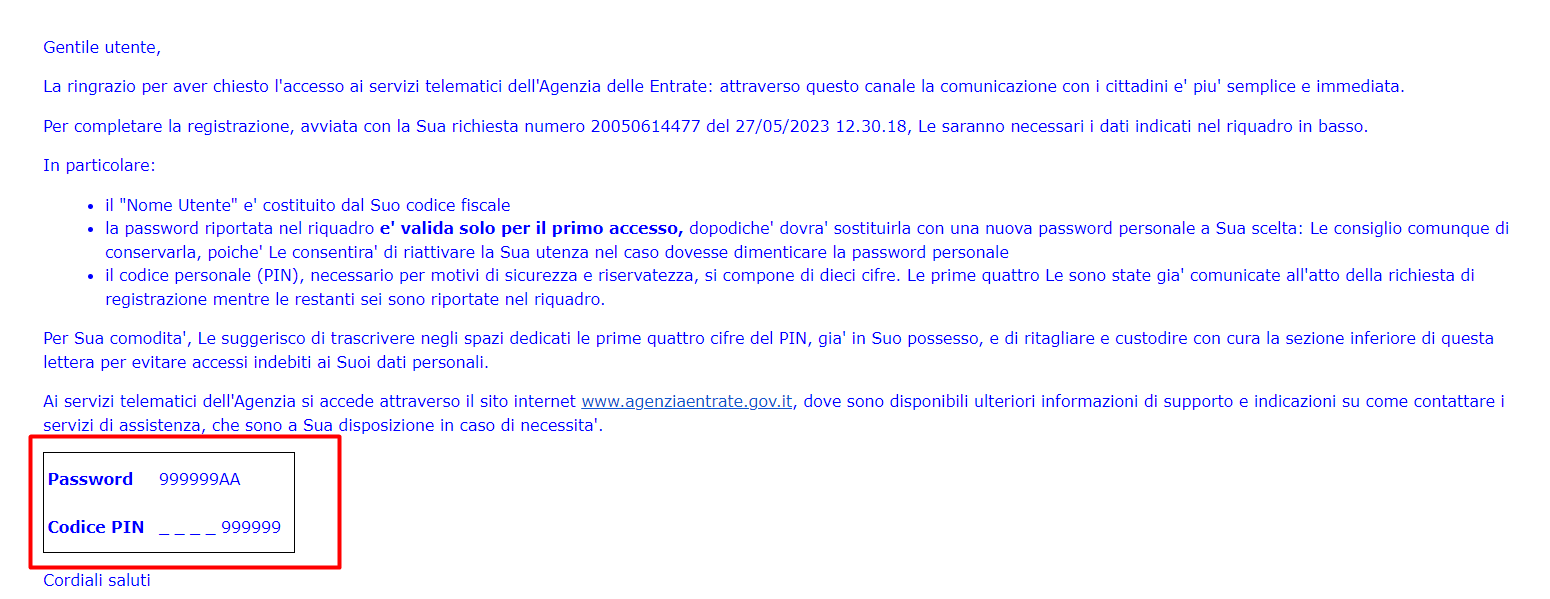
If your inbox is not a PEC, the text of the Agency's message is in an attachment called "postacert.eml" (or similar), which you can open with any email program.
2. Create your personal password
The password received via email is valid only for the first access: for SmartPMS, you need a personal password, which you choose yourself.
- If you are still connected to the Agency's site, click Exit (Esci).
- Open the Reset password (Ripristina password) page and fill in: tax code, 10-digit complete PIN, initial password, and new personal password (8 to 15 characters). Click Send (Invia).
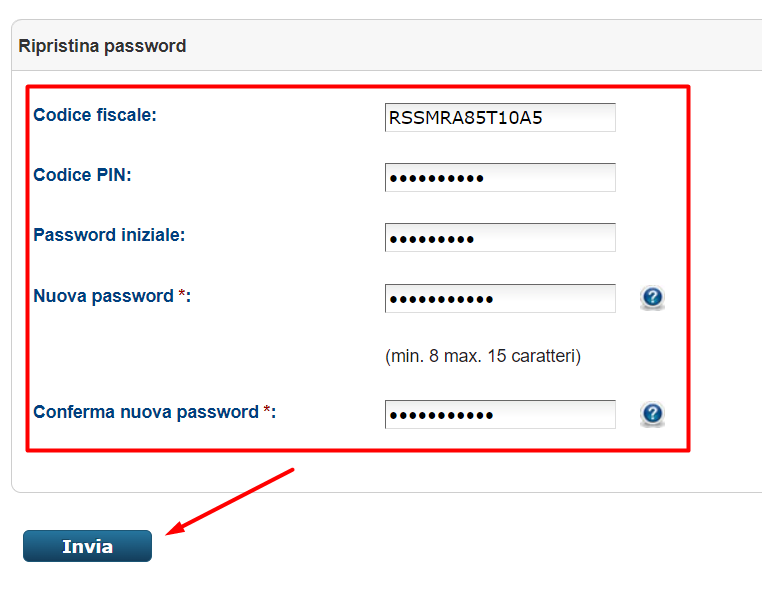
The personal password expires every 90 days. Upon expiration, repeat this procedure (you can use the initial password received via email again) and update the password in SmartPMS as well (step 4). With an expired password, receipt submission will be blocked.
Before proceeding, verify the credentials on the Agency's website: open the Revenue Agency login page, select the Fisconline/Entratel tab (not SPID, CIE, or CNS) and log in with your tax code, personal password, and PIN. This way, you also complete any requests the Agency shows upon first access. If access fails here, the credentials are incorrect: correct them on the Agency's website before entering them in SmartPMS, where they will not work.
3. Check the company's tax data on the Smartness platform
To send receipts, SmartPMS accesses using your credentials and then selects the company you are acting for by searching for its VAT number (Partita IVA) or tax code among the subjects linked to your access. The comparison is exact: if the saved data differs from those registered with the Agency, even by a single character, the verification will fail even with correct credentials.
Company name, VAT number, address, email, PEC, and recipient code are modified from the Smartness platform, not from SmartPMS. SmartPMS receives this data automatically: a change made directly in SmartPMS will be overwritten by the next update.
- Open platform.smartness.com/account/billing (menu Administration → Billing → Overview).
- In the Master Data (Anagrafiche) box, select the master data of the company issuing the receipts.
- Click the edit pencil in the top right.
- Correct the data so that they are identical to those registered with the Revenue Agency (company name with the same legal form, VAT number, address) and save. Type the VAT number and tax code by hand: if you copy and paste them from another document, invisible characters may enter, which are not visible on screen but cause the comparison with the Agency to fail.
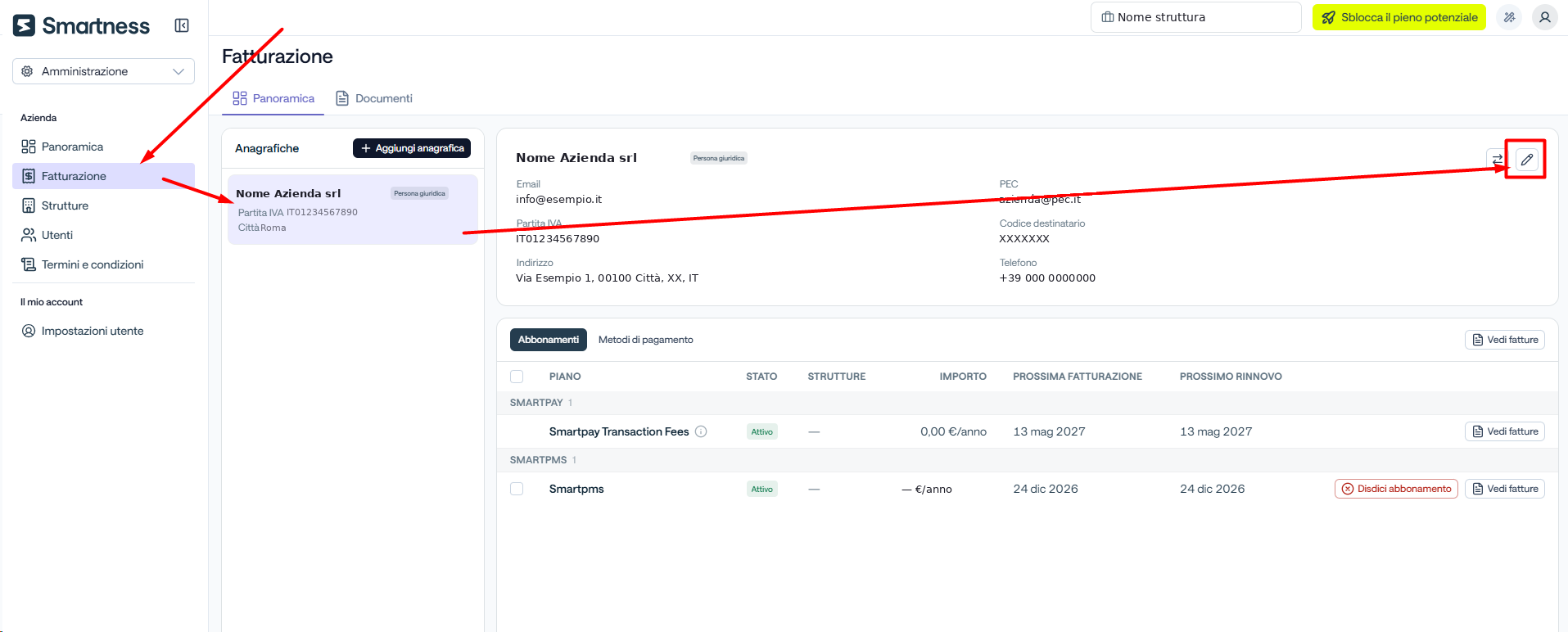
- Wait a few minutes: the updated data will arrive in SmartPMS automatically.
Company tax code. If the company is registered as a private individual, the tax code is also modified from the platform. For companies, it is filled in the company details in SmartPMS (Settings → Companies → Actions → Edit → Details):
- for a company (Srl, Snc, Sas...) enter the company tax code, which usually coincides with the VAT number, and not the personal tax code of the legal representative;
- for a sole proprietorship (ditta individuale), the tax code is that of the owner.
4. Enter and verify credentials in SmartPMS
- From the SmartPMS main menu, go to Settings → Companies.
- Locate your company, click Actions, and select Edit.
- Scroll to the Entratel/Fisconline section and click on the title to expand it.
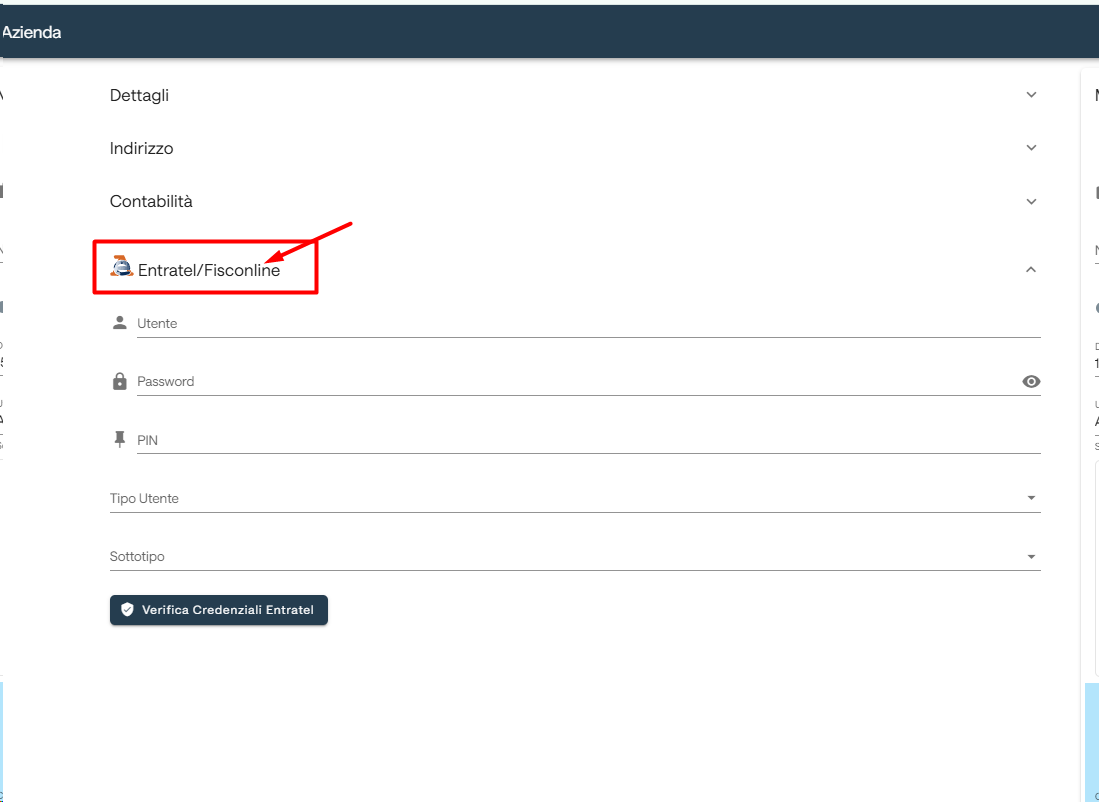
- Fill in the fields:
- User: the personal tax code of the legal representative;
- Password: the personal password created in step 2 (for security, once saved it will no longer be visible, not even with the eye icon: this is normal);
- PIN: the complete 10-digit PIN;
- User type and Subtype: if you act on behalf of a company (Srl, Snc, Sas...) choose Authorized (Incaricato) and Direct authorized (Incaricato diretto);
- if, on the other hand, you are the owner of a sole proprietorship and act for yourself, choose Myself (Me stesso) and Subtype None (Nessuno).
User type and Subtype must correspond to the work user you choose on the Agency's website when you enter Invoices and fees. A wrong combination (e.g., Myself with Subtype Direct authorized) will cause the verification to fail with the error "Invalid or unauthorized work user".
- Save with the Edit button in the top right of the card (if you don't see it, scroll the page up).
- Reopen the company edit and, in the Entratel/Fisconline section, click Verify Entratel Credentials. Wait for the green confirmation message.
Always save before verifying. The verification uses the already saved company data, not the ones just written in the form: if you click Verify Entratel Credentials before saving, you are checking the previous credentials and the verification may fail even if the new ones are correct.
From this moment on, you can issue receipts from SmartPMS and send them to the Revenue Agency: for the procedure, see the guide "How to issue a tax receipt and send it to the Revenue Agency".
5. Check receipts on the Revenue Agency website
You can verify at any time that the receipts sent by SmartPMS have arrived:
- Access the Revenue Agency Reserved Area and, among the services, open Electronic Invoicing (Fatturazione elettronica).
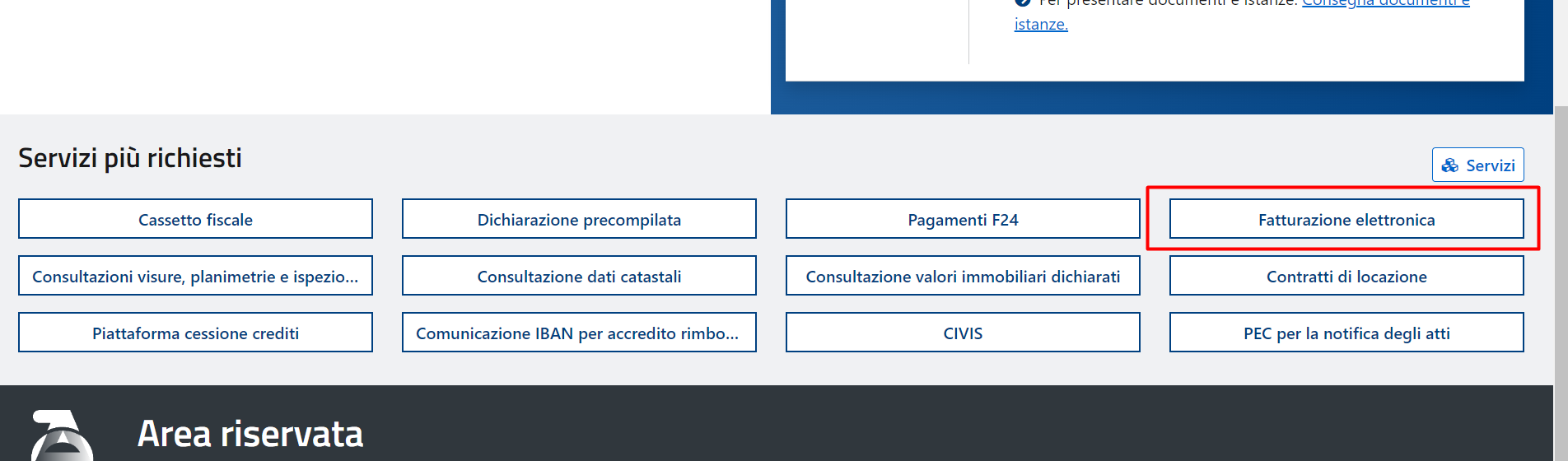
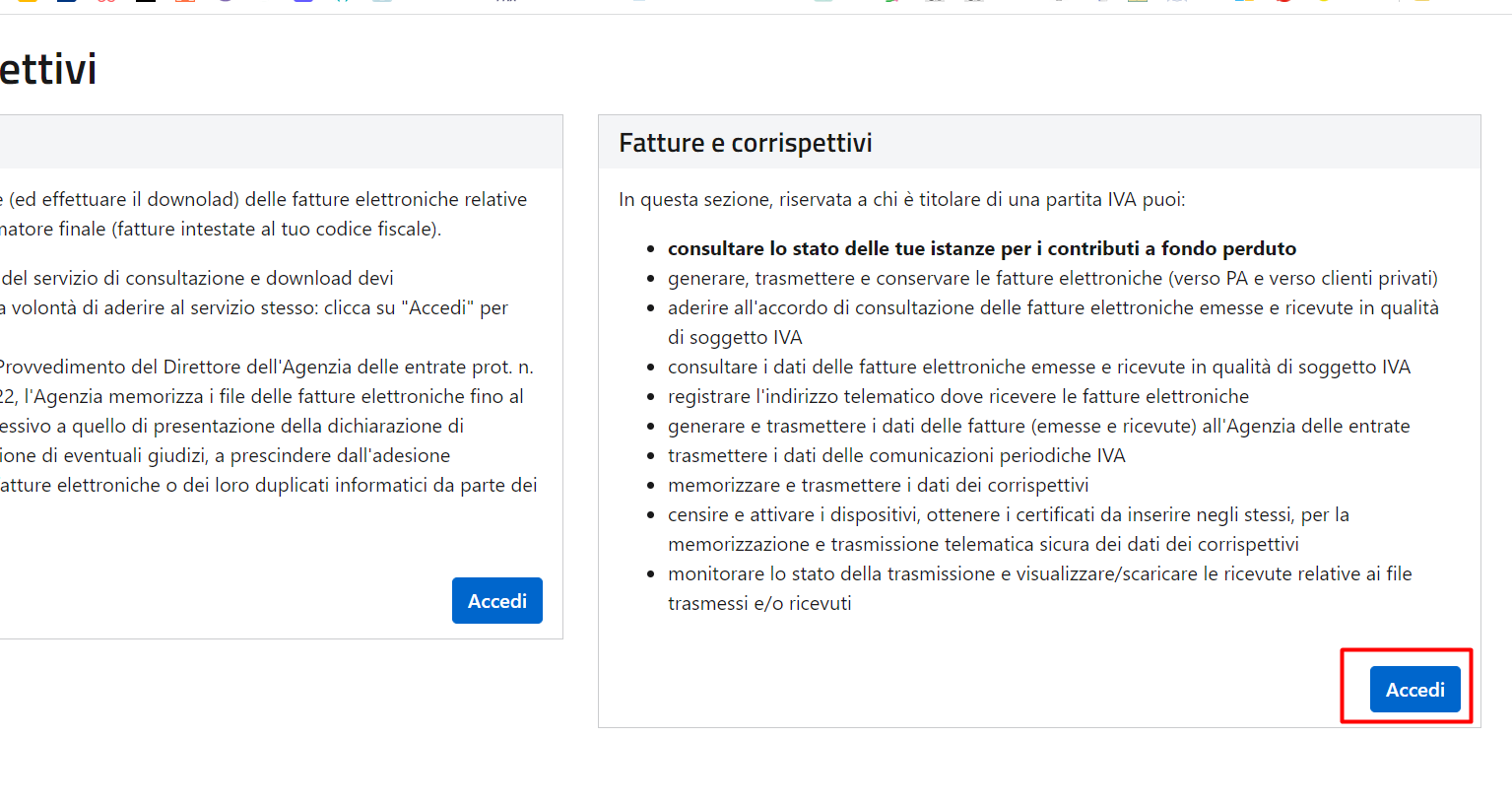
- In the Invoices and fees (Fatture e corrispettivi) tab, click Access (Accedi) and choose whether to act for yourself or as an authorized person for the company.
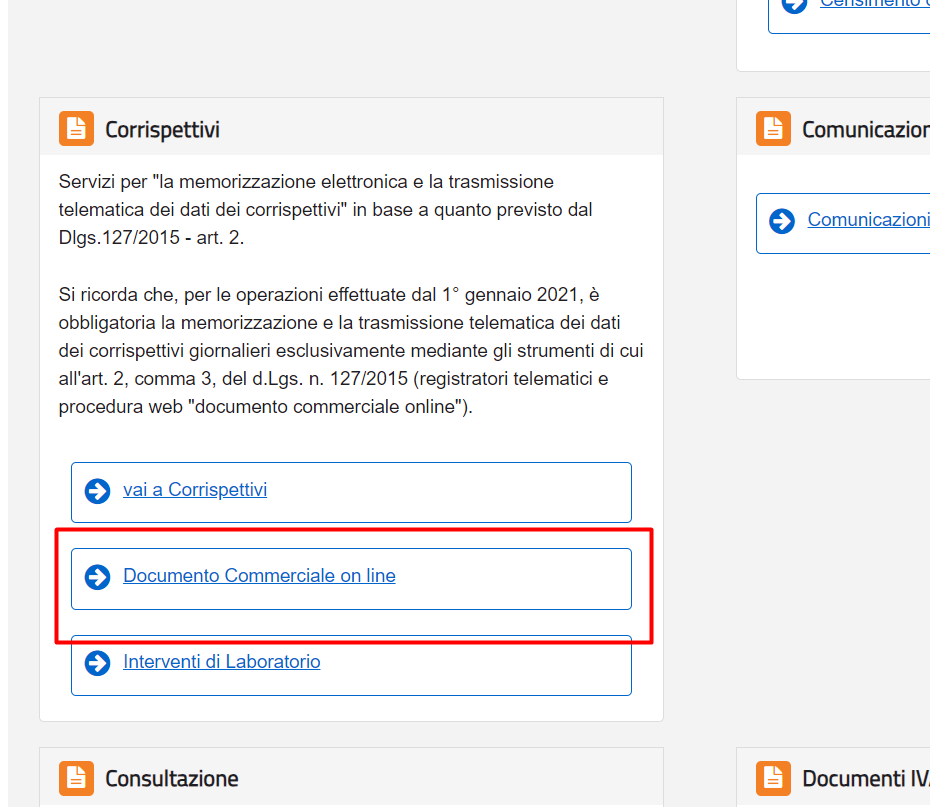
- In the Fees (Corrispettivi) section, click Online Commercial Document (Documento Commerciale on line).
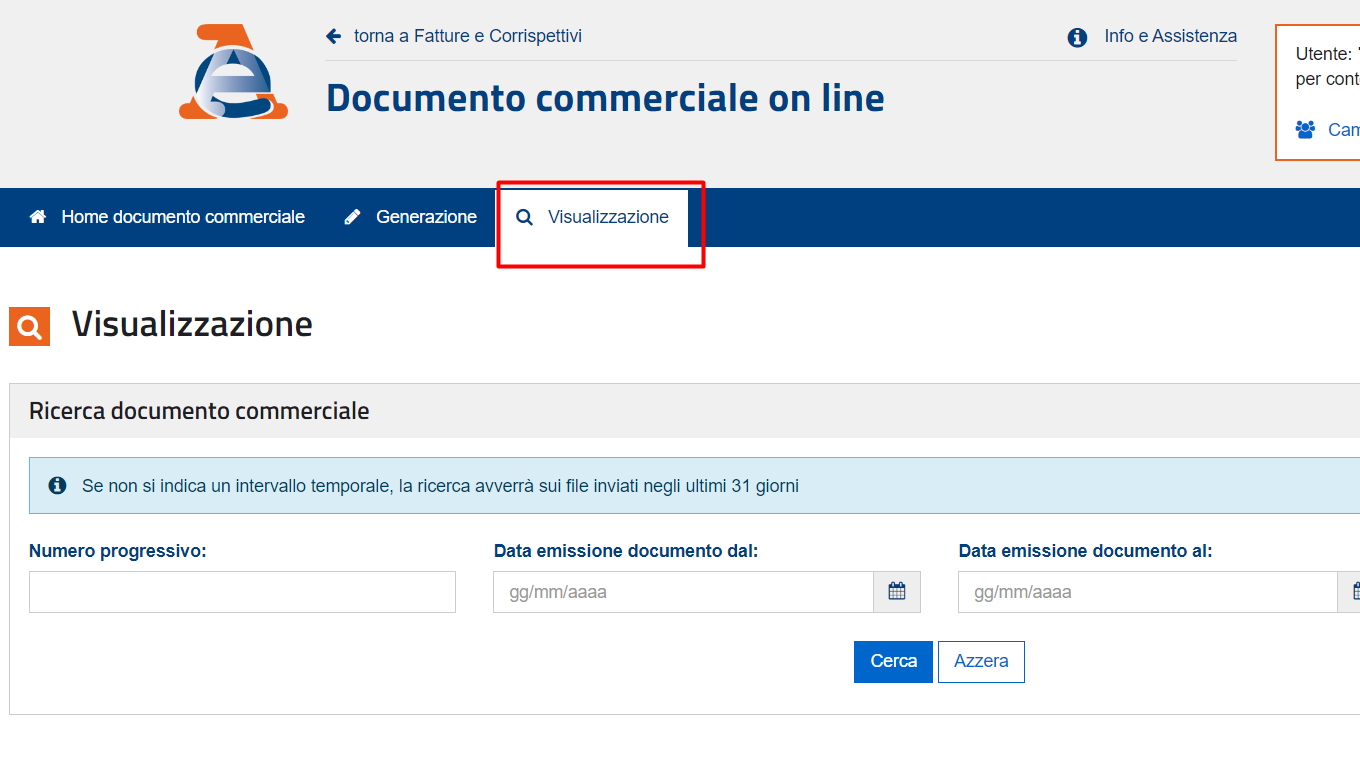
- In the top bar, click View (Visualizzazione), set the search criteria (e.g., issue dates), and click Search (Cerca). Without dates, the search shows documents from the last 31 days.
To cancel a receipt, always use Cancel Receipt (Annulla Ricevuta) in SmartPMS: a cancellation made only on the Agency's portal does not update the receipt status in SmartPMS (see the guide "Correcting an already issued invoice or receipt").
In SmartPMS, the daily summary of receipts and cancellations is in the Fees Register (Registro Corrispettivi) (Accounting > Report > Fees Register): see the guide "Tax documents and Fees Register: searching, exporting, printing, and sending by email".
Most common errors
Message | What it means | What to do |
|---|---|---|
PASSWORD_EXPIRED | The personal password has expired (lasts 90 days). | Renew it on the Agency's website (step 2), update it in SmartPMS, save, and verify again. |
Authentication failed / AUTH_ERROR / INVALID_CREDENTIALS (401) | The Agency does not accept the saved tax code, password, or PIN. | Check that you have entered the personal password (not the initial one) and the complete 10-digit PIN. Try to log in with the same credentials from the Agency login page, Fisconline/Entratel tab: if they don't work there, they are incorrect and must be corrected on the Agency's website. If they work and you have just changed your password, update it in SmartPMS as well. Save and then verify. |
FAILED_LOGIN_ATTEMPTS | Too many failed login attempts: the Agency has temporarily blocked the user. | Do not try again immediately. Log in to the Agency's website with tax code, password, and PIN or reset the password, then update SmartPMS and verify only once. |
Invalid or unauthorized work user (422) | User type/Subtype or VAT number do not correspond to the user with which you can act. | Correct User type and Subtype (step 4) and check that your tax code has the authorization for that VAT number. |
INVALID TAX IDENTIFIERS | The company's VAT number or tax code does not match those of the Agency. | Correct them as indicated in step 3. |
The subject … is not present in the work environment of … | The VAT number or tax code saved for the company does not match, character by character, any of the subjects for which your user can act (the list is in the message). If your VAT number appears in the list, the saved one contains invisible characters, usually entered via copy and paste. | From the Smartness platform (step 3), delete the VAT number field entirely and rewrite it by hand, without copy and paste; do the same with the tax code. Save, wait a few minutes, and verify again. If your VAT number is not in the list, check the authorization (question on "Invalid or unauthorized work user"). |
EF0 'Denomination' invalid | The Agency rejects the company name, often due to an unsupported character (e.g., € instead of &). | Correct the company name from the Smartness platform (step 3), wait a few minutes, and create the receipt again. |
EF0 'Address' invalid | The Agency rejects the address of the company issuing the receipt (not the guest's). | Correct the company address as indicated in step 3: street and house number separated by a comma (e.g., "Via Roma, 12"), 5-digit postal code, 2-letter province. Save, wait a few minutes, and create the receipt again. |
EF0 inconsistent amounts / 'VATRate' invalid | The Agency does not accept the amounts or VAT rates of the receipt lines. | Check that the sum of the lines matches the total and that the rates are 0, 4, 10, or 22% (the only ones allowed on receipts). If everything is correct, contact support. |
Error 503 | The Revenue Agency service is temporarily unavailable. | It does not depend on your configuration: wait and create the receipt again later. |
Other cases:
- Verification fails but you can access the Agency's website: see the frequently asked questions below.
- Receipts appear sent but do not appear on the Agency's website: check that the company from which you issued them has the credentials entered and verified, and search for them in Online commercial document → View (step 5), not among electronic invoices.
- In SmartPMS, the company's tax fields are gray or non-editable: if the "This company is connected to Smartness" box appears at the top of the company card, the fields are managed by the platform: modify them from platform.smartness.com/account/billing (you can also get there with the Edit in Smartness button in the box). If the box is not there but the Validated billing data switch is active, the data has been validated and can only be corrected via support: write to us with the correct data.
Frequently asked questions
12I can access the Revenue Agency website, but credential verification fails in SmartPMS: why?
The most frequent causes, in order:
- You did not save before verifying. The verification uses the company data already saved: save, reopen the company edit screen, and click Verify Entratel Credentials again.
- You logged into the website using SPID or CIE. SmartPMS uses tax code, personal password, and PIN: try logging in from the Agency login page, Fisconline/Entratel tab, using exactly these credentials. If they do not work there, they are incorrect and will not work in SmartPMS either.
- The company's tax data does not match the Agency's data. SmartPMS selects the company you are operating for by comparing the VAT number and tax code with the subjects linked to your login. Check the company name and VAT number on the Smartness platform (platform.smartness.com/account/billing) and correct them so they are identical to those registered with the Agency. Save, wait a few minutes, and verify again.
- The company's tax code is the personal one. For a company, the tax code field in the company details must contain the company's tax code (usually the same as the VAT number), not the legal representative's personal one.
- The credentials do not have an assignment for this company. If you log in as an authorized representative, your user account must be enabled to operate for that VAT number. Verify this with your accountant or in the Agency's reserved area.
If verification continues to fail after these checks, contact support, indicating the exact error message that appears below the button.
Where do I change my company's name, VAT number, and address?
From the Billing section of the Smartness platform: open platform.smartness.com/account/billing (menu Administration → Billing → Overview), select the profile in the Profiles box, and click the edit pencil in the top right. After saving, the data is automatically updated in SmartPMS within a few minutes.
From there, you can manage the company name, VAT number, address, email, PEC, and recipient code. The company's tax code, however, is filled in the company details within SmartPMS.
I corrected the VAT number (or company name) in SmartPMS, but after a while, it reverts to the previous value: why?
This data is managed by the Smartness platform, and SmartPMS receives it automatically: every update from the platform overwrites changes made directly in SmartPMS. To correct them permanently, use platform.smartness.com/account/billing, then wait a few minutes and repeat the credential verification.
What does the error "INVALID TAX IDENTIFIERS" mean?
The VAT number or tax code saved for the company does not match those expected by the Revenue Agency for the user account you are operating with. This often happens when, for a company, the company's tax code field contains the legal representative's personal tax code.
How to resolve:
- In the Agency's reserved area, open Invoices and Fees (Fatture e corrispettivi), choose how to operate (as yourself or as an authorized representative), and note the VAT number and tax code of the selected company.
- Correct the company name and VAT number on the Smartness platform (platform.smartness.com/account/billing).
- Correct the tax code in the company details in SmartPMS (Settings → Companies → Actions → Edit) and save.
- Reopen the company edit screen and click Verify Entratel Credentials; if the green confirmation appears, create the receipt again.
Can I use company credentials instead of personal ones?
No. The Revenue Agency does not issue PINs or passwords to a company: you always log in with the personal credentials of a natural person (legal representative or authorized representative) who operates on behalf of the company. In SmartPMS, the User field must contain that person's personal tax code.
I changed the password on the Agency's website (or it expired) and now receipts are not being sent: what should I do?
The personal password expires every 90 days: when it expires, the error PASSWORD_EXPIRED appears, and receipt sending is blocked. Even when you change it on the Agency's website, SmartPMS continues to use the old one until you update it.
- If it has expired, create a new one from the Agency's Reset password page (tax code, full PIN, initial password, and new password).
- Check that the new password works: from the Agency login page, Fisconline/Entratel tab, log in with tax code, new password, and PIN. If access fails, the credentials are incorrect and must be corrected on the Agency's website before proceeding.
- In SmartPMS, open Settings → Companies → Actions → Edit, Entratel/Fisconline section, and enter the new password.
- Save using the Edit button in the top right.
- Reopen the company edit screen and click Verify Entratel Credentials.
- Create the receipts that could not be sent again.
If you manage multiple companies with the same credentials, update the password in each one.
I operate for a company via delegation: why does the verification give me "Invalid or unauthorized work account"?
The Agency checks that the person accessing (the tax code entered as User) is authorized to operate for the company's VAT number. The error usually appears in three cases:
- User type and Subtype do not correspond to the work account: for a company, you need Authorized representative and Direct authorized representative; for a sole proprietorship operating for itself, Myself and None.
- The delegation was given to another company (a firm, a management company) and not to the natural person using the credentials: that person's tax code must be enabled.
- The assignment does not cover fees: in the Agency's reserved area, under Invoices and Fees, verify that you can "operate for" the company's VAT number and that the delegation for Electronic Invoicing and Fees is active on your tax code.
After correction, save, reopen the company edit screen, and click Verify Entratel Credentials. If the error persists, send support a screenshot of the error and the "Choice of work account" screen from the Agency's website.
I renewed the password but "FAILED_LOGIN_ATTEMPTS" appears: what does it mean?
The Revenue Agency has recorded too many failed login attempts with your tax code and has temporarily blocked the account. Repeating the verification in SmartPMS does not help: every failed attempt can prolong the block.
- Wait before trying again and log into the Agency's website with tax code, personal password, and PIN (not with SPID) to verify that the account is unblocked and the password is correct.
- If access fails, reset the password from the Reset password page.
- Update the password in SmartPMS, save, reopen the company edit screen, and click Verify Entratel Credentials only once.
Also, check that you do not have the same account configured with an old password in other companies or other programs: their failed attempts count toward the same block.
Receipts appear sent but I cannot find them in the tax drawer: why?
Check two things:
- Does the company from which you issued the receipts have the credentials? If you manage multiple companies (including sub-companies) in SmartPMS, each company that issues receipts must have its own Entratel/Fisconline section filled out and verified. If they are missing, enter them, save, verify, and create the receipts that do not appear transmitted again.
- Are you looking in the right place? Receipts sent from SmartPMS are commercial documents, not electronic invoices: you find them in Invoices and Fees → Fees → Online Commercial Document → View. Without dates set, the search only shows the last 31 days.
- Was the receipt actually transmitted? In SmartPMS, the receipt must have the status Receipt Sent and the Revenue Agency No. field filled in (you can see this with Actions > Edit). If the receipt has no status, it was created as a non-fiscal receipt and was never transmitted to the Agency: see the guide "How to issue a fiscal receipt and send it to the Revenue Agency".
When creating the receipt, "EF0 'Denomination' invalid" appears: how is it resolved?
The Revenue Agency rejects your company's name. The most frequent case is an unsupported character, such as the € symbol typed instead of & (they are on the same key), or a trade name instead of the official company name.
- Open platform.smartness.com/account/billing, select the profile, and click the edit pencil.
- Write the company name exactly as registered with the Agency (e.g., "Rossi SAS di Mario Rossi & C."), without symbols, emojis, or added text, and save.
- Wait a few minutes for the new name to arrive in SmartPMS and create the receipt again: when the Agency rejects it, the receipt is not saved.
During sending or verification, a 503 error from the Revenue Agency appears: do I need to change anything?
No. The 503 error indicates that the Revenue Agency's telematic service is temporarily unavailable: it does not depend on your credentials or the company's data. Wait and, later, create the receipt again or repeat the credential verification. If the error continues for several hours, contact support, indicating the account or booking for which you were creating the receipt and the time of the attempt.
Related guides
Configuration
Configuration
Configuration
Configuration
Activation
Configuration