

How to configure Revenue Share for Property Managers
How to set up VAT, owner profiles, management percentages, dynamic costs, and documents to correctly calculate the net amount due to owners when you collect bookings on their behalf.
You are in the right place if…38 cases
- “How do I configure revenue share to pay owners?”
- “I need to calculate the net amount to be paid to the owner”
- “Revenue Share calculations are not aligned”
- “Revenue share settlements are all zero after regeneration”
- “Booking extras do not increase the owner's share”
- “I recorded a payment but the revenue share amount does not change”
- “The surname is missing from the document for the owner”
- “The amount paid by the guest on Booking is different from the amount collected”
- “The OTA commission in the guest invoice appears without VAT, how do I make it appear with VAT?”
- “We are an SRL, we collect and invoice the guest: how do I add VAT to the OTA commission?”
- “OTA commissions are not deducted from the owner's net even if I checked OTA charge”
- “Why does the owner's net not deduct Booking or Airbnb commissions?”
- “The property does not take the owner's profile settings in the revenue share”
- “The owner's share in the invoice does not match the owner's net”
- “What is the rental amount collected on behalf of the owner composed of?”
- “Why does the owner have a higher amount on the invoice than what I pay them?”
- “Where do the unit costs in the Revenue Share report come from?”
- “I moved the property to another company and the revenue share is no longer correct”
- “The owner's net is different between the owner portal and the Revenue Share report”
- “How do I create a custom formula for revenue share?”
- “I want to calculate my commission with a formula”
- “My management percentage changes based on the nights of the stay”
- “I want a guaranteed minimum per night on the management fee”
- “How do I set the 26% flat tax or on the gross paid by the guest?”
- “Where do I create the property owner?”
- “How do I link the owner to the property from the revenue share?”
- “The revenue share formula turns red”
- “How do I copy revenue share settings to multiple properties?”
- “Revenue share must be calculated on the taxable amount without VAT”
- “The net owner amount in the contract does not match the one in the Revenue Share report”
- “In the report, the cleaning cost is deducted, but in the booking, the owner amount is higher”
- “I added a dynamic cost after the booking, and the Revenue Share - Net owner amount field in the contract does not change”
- “I added an extra cost to a booking. Why is this amount not included in the Revenue Share calculation and the owner's share does not increase?”
- “Why does the revenue share amount not update after adding a payment?”
- “Can I charge a different revenue share percentage for direct bookings to owners?”
- “Why are the Revenue Share calculations not aligned?”
- “Are cancelled bookings with a penalty or No-show included in the Revenue Share report?”
- “Property Costs and how to set them up”
This guide is dedicated to Property Managers using SmartPMS. In this role, you manage listings on behalf of owners with your VAT number: you collect the full amount of bookings from guests and pay each owner a net amount, retaining your management fee and any costs, commissions, and flat tax (cedolare secca) according to the agreements made with them.
Correctly configuring Revenue Share allows you to automatically calculate the net amount due to each owner, generate reliable reports for accounting, and prepare the basis for issuing fiscal documents to the guest and summary documents to the owner.
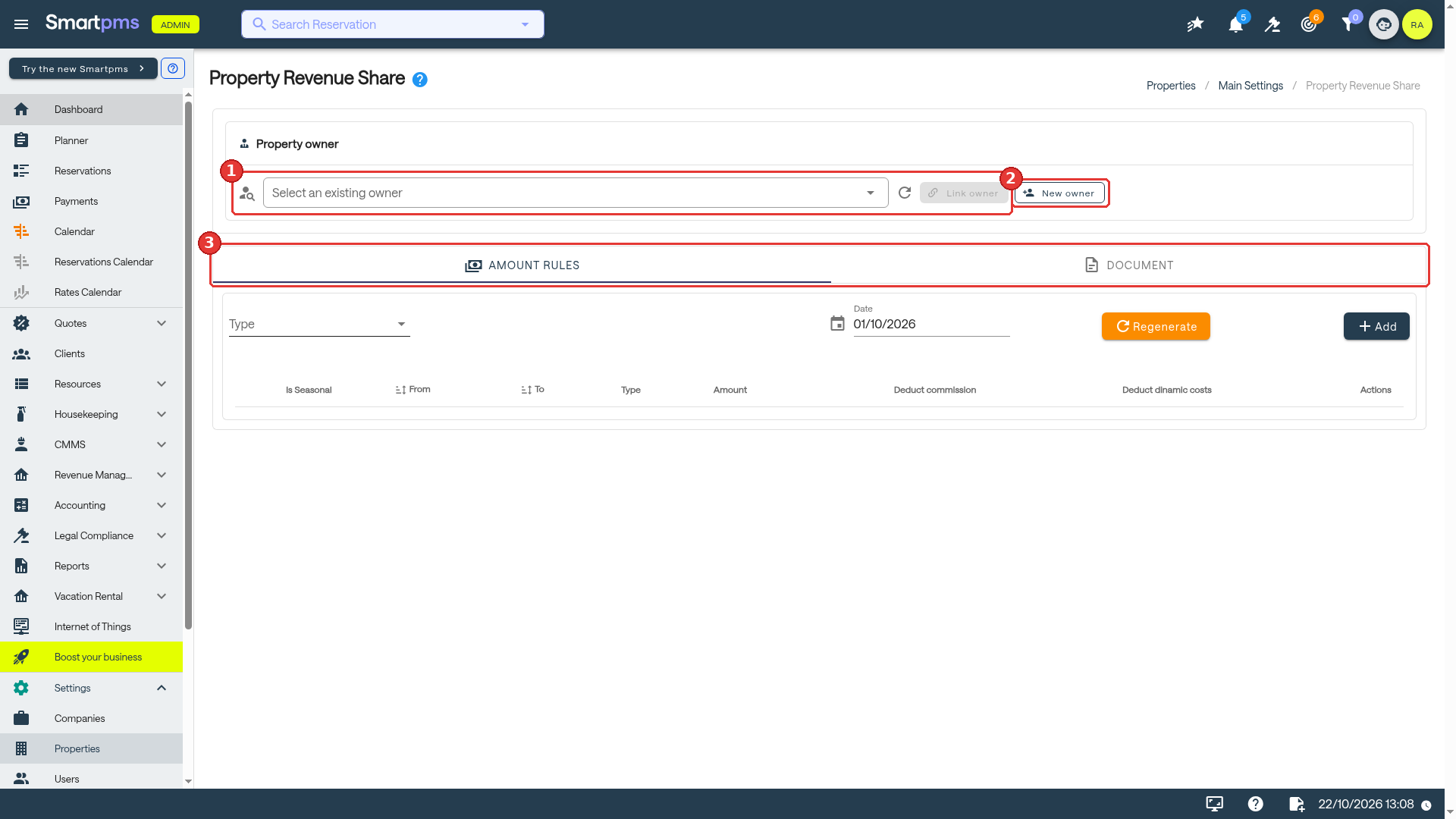
The entire configuration is located on a single page: Settings > Properties, Settings button next to the property, Revenue Share card > Configure. The page has three parts:
- at the top, the Owner section, where you link or create the property owner;
- the Amount rules tab, where you establish how much your share is worth (as a percentage, a fixed amount, or with a custom formula);
- the Document tab, where you decide how items appear in the invoice to the guest and in the document to the owner.
Important note: fiscal settings (VAT rates, exemptions, withholdings) depend on your tax regime and specific agreements with each owner. SmartPMS provides you with the tools to manage them, but does not provide tax advice: always verify the correct configuration with your accountant.
Step 1: verify the property's preferential VAT
The VAT rate set at the property level affects the Revenue Share calculation, so check it before anything else.
- Access your SmartPMS account and go to Settings > Properties.
- Click the Settings button next to the property you want to configure.
- Preferential VAT and Default VAT Exclusion: on the Main Settings page, scroll to the sections related to VAT. Preferential VAT (in property settings) is the default rate for rows in documents. In the Property Manager model, it should generally be set to 22%, because what you invoice in your name are services: your management fee, cleaning, OTA commission. The VAT for the row with the owner's amount is decided in the Revenue Share Document tab, at Step 7. For different rates per item, use the Advanced Settings of the property (custom VAT rates). In the Property Manager model, the same rate applies, in the guest invoice, also to the OTA commission rows and your Revenue Share share, and it is the VAT that is added when you activate the Commission VAT excluded and % Revenue Share VAT excluded switches (Step 7). In the Revenue Share report, however, the VAT on the OTA commission is the one indicated in the owner's tab (Step 2). In Default VAT Exclusion, choose the nature that SmartPMS automatically assigns to rows with 0% VAT when you create the bill and, from this, the invoice or receipt. Do not modify it on the single row unless you need to change it from the default. The city tax row always receives the N1 nature, regardless of this setting. For different rates per item (room, cleaning, extras) see the guide "VAT in fiscal documents: rates, exemption natures and city tax".
- Verify that Separate portal commission VAT and Sum portal commission VAT are not selected: these are options designed for the Manager model, not for the Property Manager.
- Click EDIT at the top right to save.
Repeat this step for every property you manage.
Step 2: link or create the owner
To calculate the net and generate reports, each property must be linked to the owner you are reporting to. A property has only one owner; an owner can have multiple properties.
- Go to Settings > Properties, click Settings next to the property and then Configure in the Revenue Share card.
- In the Owner section at the top:
- if the owner already exists (for example because they have other properties with you), choose them in Select an existing owner and click Link owner;
- if it is a new owner, click New owner.
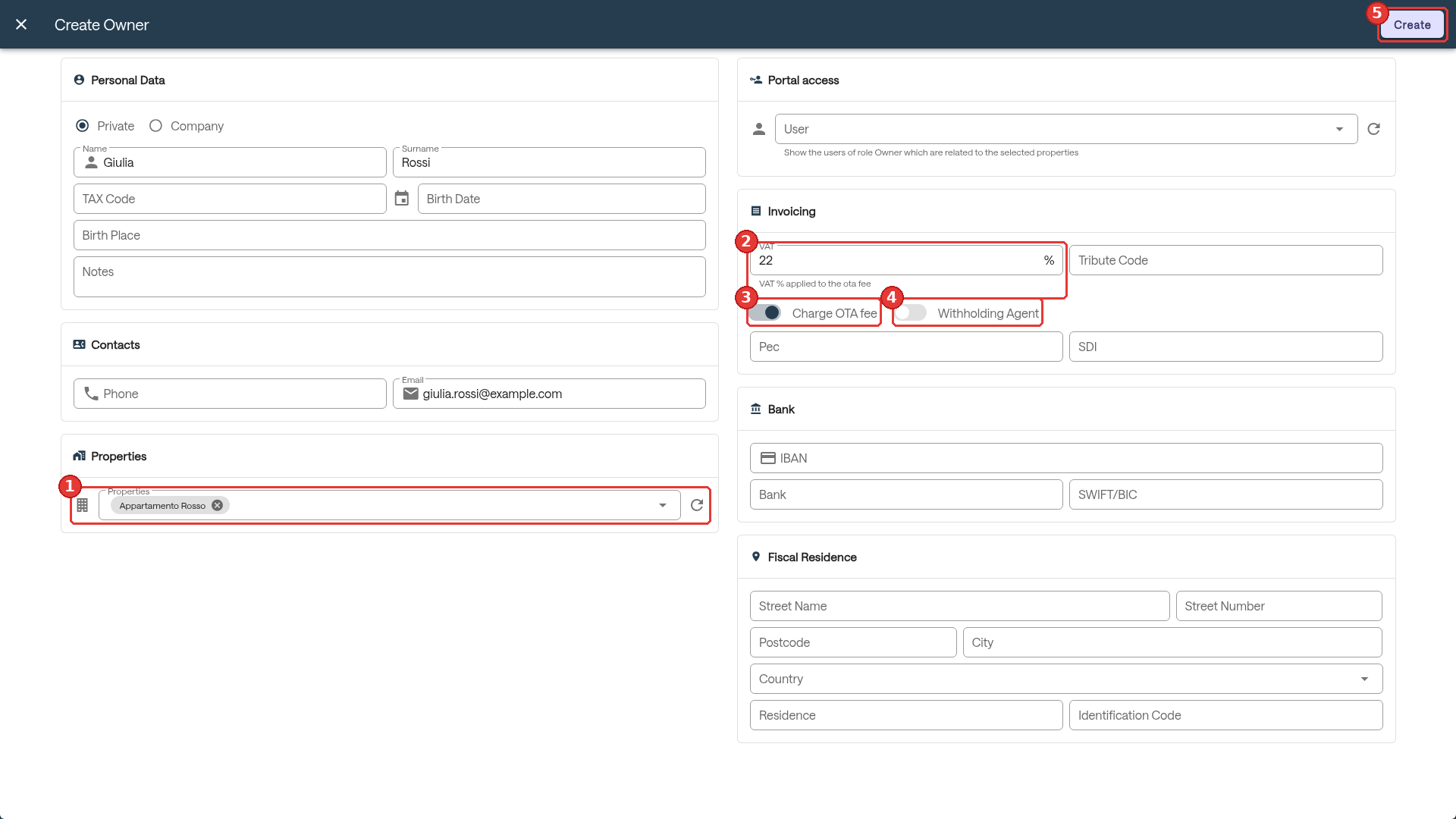
- In the Create Owner form, the property is already selected in the Property field (1): you do not need to associate it manually. Fill in the Personal Data: specify if the owner is Private or Company and fill in at least Name and Surname (or Company Name), which will appear in the documents.
- Billing:
- in VAT (2) enter the percentage you apply to your share and, if provided by the agreements, on the OTA commission that you recharge to the owner;
- activate OTA commission charge (3) if you have agreed to deduct from the owner's net the cost of the commissions you pay to the portals;
- activate Withholding agent (4) if you need to withhold the flat tax (cedolare secca) on the net amount due to the owner.
- Optional: in Portal access associate a SmartPMS user with the Owner role if you want the owner to consult bookings and reports.
- Click Create (5) at the top right. The owner is created and linked to the property.
Flat tax (cedolare secca) calculation
When you activate Withholding agent, the Flat tax calculation field appears, with which you can indicate how to calculate the withholding to be deducted from the owner. If you leave it empty, 21% of the owner's amount applies.
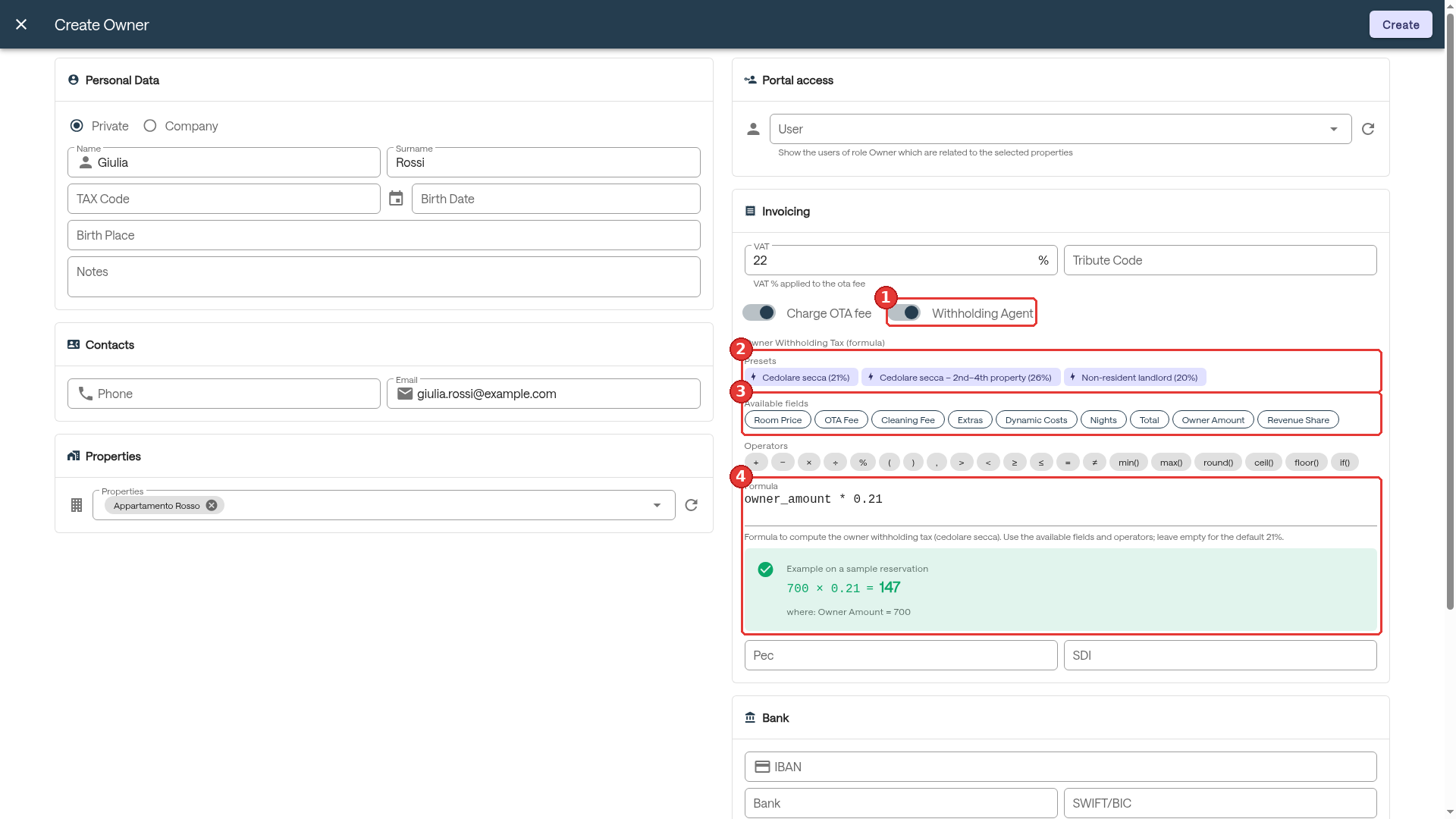
- Preset (2): one click fills in the formula for the most common cases: 21% Flat tax, Flat tax for 2nd-4th home (26%), Non-resident owner (20%).
- Available fields (3): in addition to the booking fields, you will find Owner Amount (the base on which the flat tax is usually calculated) and Revenue Share.
- Formula and preview (4): the green preview shows the calculation on an example booking, so you can immediately see if the formula is written correctly.
The writing of formulas is explained in the "Custom formula" section below.
The Revenue Share report calculates the flat tax with the same formula.
Linked owner
When the owner is linked, the Owner section shows the name and email (1). From here you can open their profile with Edit Owner (2) or replace them with Change (3).
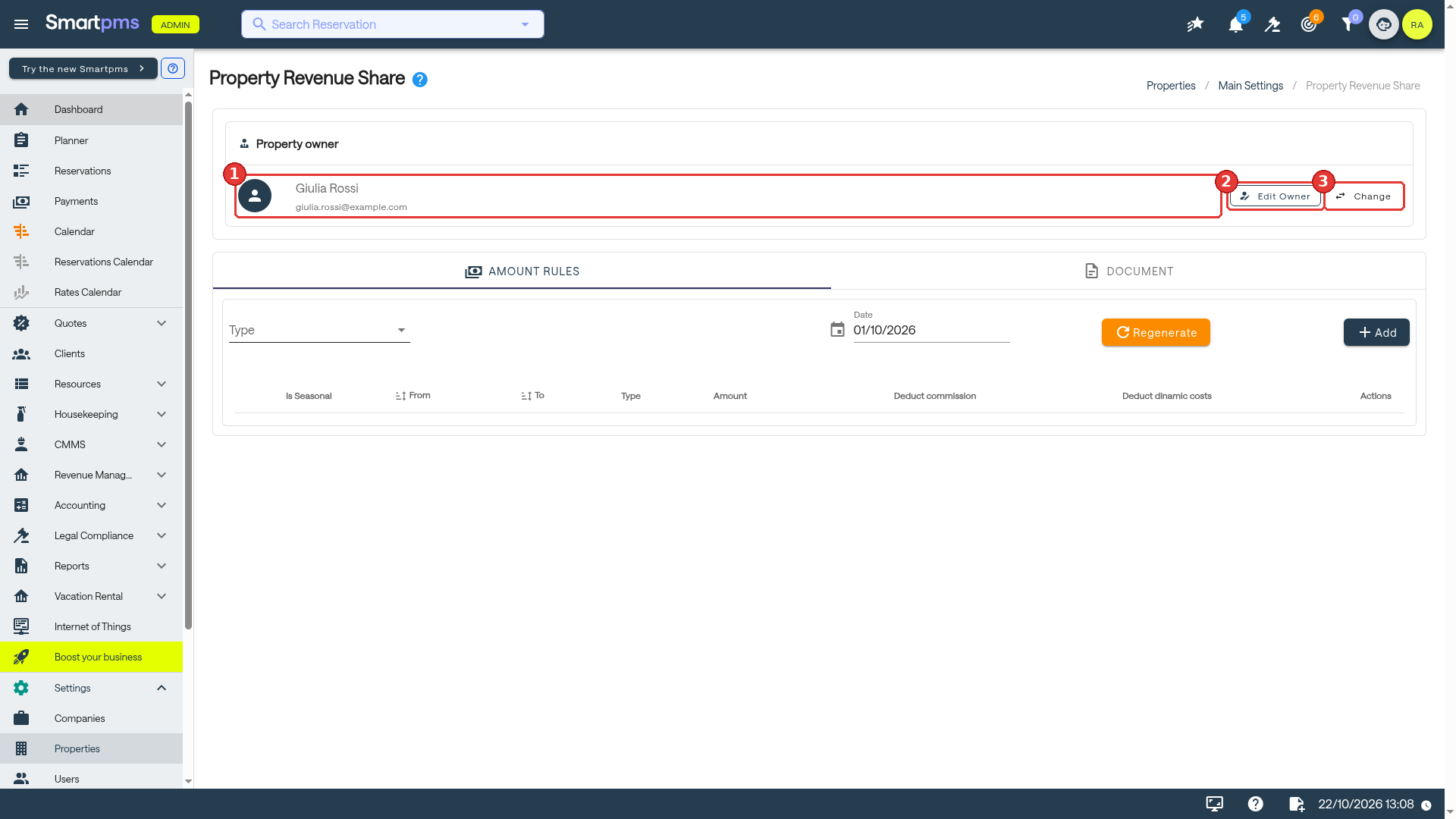
In the Property field of the owner profile, only properties that do not yet have an owner appear. You can also manage owners from Settings > Companies > Settings of the company > Configure next to Owner Registry: there you will find the complete list, useful for modifying or deleting an owner. Without a linked owner, the system does not apply billing settings (OTA commission charge, VAT, withholding) and OTA commissions are not deducted from the owner's net.
Step 3: define amount rules
In the Amount rules tab, establish how much your management fee is worth. Click Add to create a rule.
- Period: activate Seasonal and indicate the From and To dates if the rule is valid only for a period (the check-in date counts). You can create multiple seasonal rules; if multiple rules apply to the same booking, the shares are added together.
- Calculation > Type: choose between Percentage, Amount (fixed, per night or per booking, to be indicated in Calculated on) and Formula.
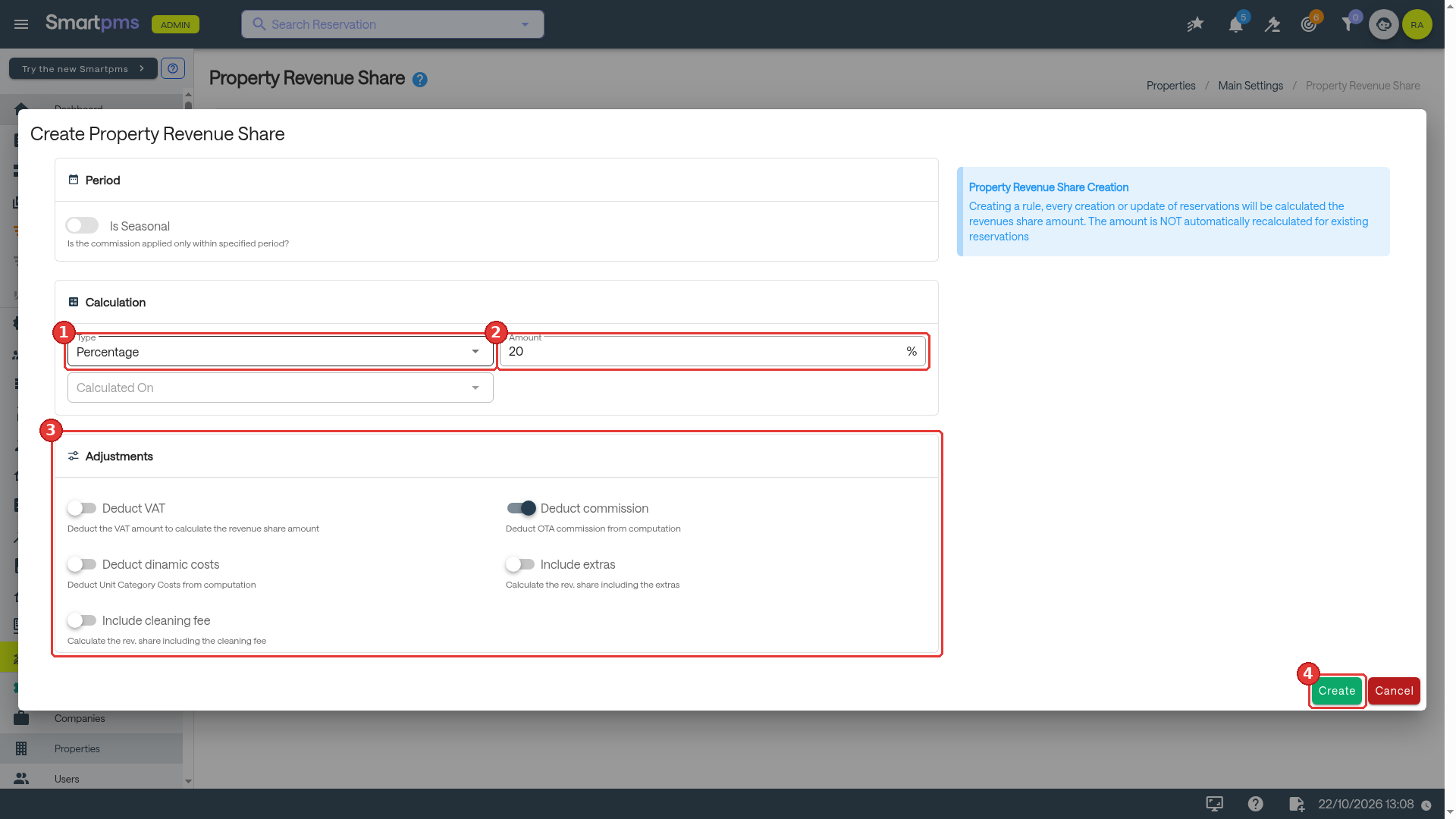
Percentage or fixed amount rule
Choose the Type (1), enter the Amount (2) (for example 20 for 20%) and adjust the calculation base with the Adjustments (3):
- Separate VAT: calculates the percentage on the amount without the property's VAT.
- Deduct commissions: calculates the percentage net of the OTA commission. If you indicated a VAT in the owner's tab, the commission increased by that VAT is deducted.
- Deduct dynamic costs: calculates the percentage net of the booking's dynamic costs.
- Include extras and Include cleaning price (only for percentages): add to the base the extras sold to the guest and the cleaning. In the Property Manager model, extras usually remain yours and are not needed (see FAQs).
Click Create (4).
(€1,000−€150)×20%=€170.00
Custom formula rule
With the Formula type, you write how to calculate the share, combining booking data: useful when the agreement with the owner is not a simple percentage (brackets, guaranteed minimums, caps, different shares based on the length of stay).
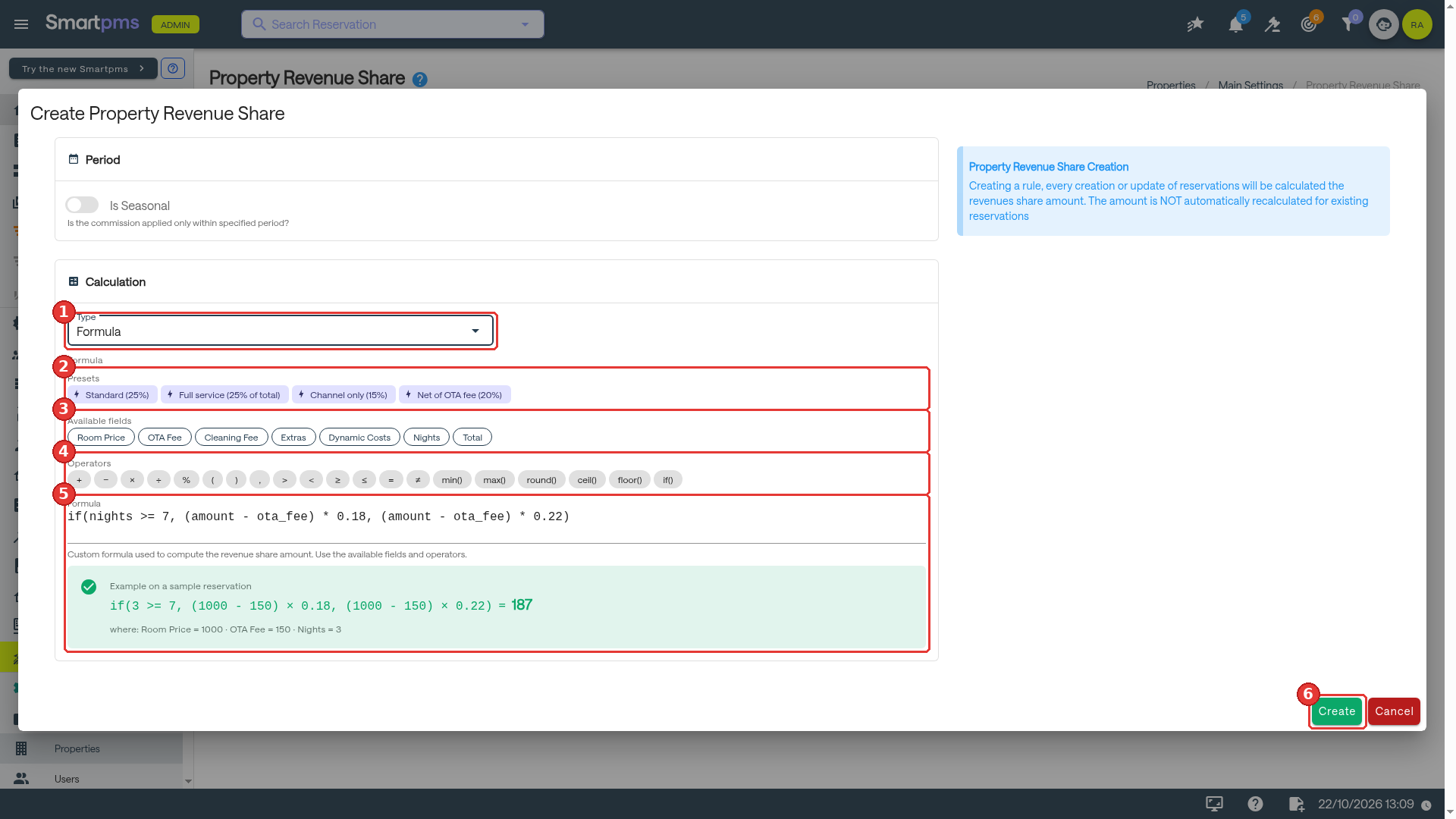
- In Type choose Formula (1). The Adjustments disappear: with the formula, you decide what goes into the calculation.
- Start from a Preset (2) or write the formula from scratch.
- Enter the booking data by clicking on the Available fields (3) and the Operators (4): the chip inserts the correct field name into the formula.
- Check the preview (5): it shows the calculation on an example booking. If the formula contains an error, the field turns red and indicates the part to correct.
- Click Create (6).
Custom formula: how to write it
The formula returns your share without VAT. VAT is then added as for other rules, with the % Revenue Share VAT excluded switch in the Document tab and with the VAT of the owner's tab in the report.
Available fields (clicking the chip inserts the name in parentheses):
Chip | Name in formula | What it contains |
|---|---|---|
Room Price | amount | Stay price |
OTA Commission | ota_fee | Portal commission, as saved in the booking (without owner VAT) |
Cleaning Price | cleaning_fee | Cleaning paid by the guest |
Extras | extras | Total of extras |
Dynamic Costs | unit_category_costs | Booking dynamic costs |
Nights | nights | Number of nights |
Total | total_gross | Room price + cleaning + extras, without city tax |
Operators and functions: + - * /, parentheses, comparisons (> < >= <= == !=) and the functions min(), max(), round(), ceil(), floor() and if(condition, value if true, value if false).
Examples (4-night booking: room €1,000, cleaning €80, extras €50, OTA commission €150):
Agreement with owner | Formula | Share |
|---|---|---|
20% of room price | | €200.00 |
20% net of OTA commission with 22% VAT | | €163.40 |
24.4% net of OTA commission | | €207.40 |
20% on taxable amount, separating 10% VAT | | €181.82 |
18% for 7-night stays, otherwise 22%, net of OTA | | €187.00 |
20% net of OTA, but at least €30 per night | | €170.00 |
25% of room price, maximum €300 | | €250.00 |
€15 per night plus 10% of room price | | €160.00 |
20% of room price plus cleaning, which you keep | | €280.00 |
22% net of OTA, rounded to 2 decimals | | €187.00 |
4 nights are less than 7, so 22% is used
(€1,000−€150)×22%=€187.00
Errors to avoid:
- Write percentages as a decimal number:
0.20, not20%(the%symbol in the formula is not the percentage). - Use the dot for decimals:
0.244, not0,244. - Use the field names as the chip inserts them (
amount,ota_fee…): a manually written name that is different will be flagged in red. - Only the listed functions are allowed: other functions (e.g., square root) are rejected.
- The OTA commission in the formula is the one saved in the booking: if you want to deduct it with VAT, multiply it yourself (e.g.,
ota_fee * 1.22). - The formula does not distinguish the booking channel: to treat direct bookings differently, see the FAQs.
Step 4: add dynamic costs charged to the owner
You can configure costs such as final cleaning or maintenance to be charged to the owner: they will be automatically subtracted from their net in the report.
- Go to Settings > Properties, open the property and click CONFIGURE for the Costs card, then CONFIGURE next to Dynamic Costs.
- Click + ADD.
- Choose the Accommodation Type to which the cost applies and the Type, i.e., when it is applied (e.g., Per Checkout for final cleaning), and assign a Category (e.g., Checkout Cleaning).
- Competence: always select Owner. This is the step that tells the system that the cost must be deducted from the owner's net.
- Fill in Description and Amount and choose if the amount is VAT included or VAT excluded. Attention: with VAT excluded, in the Revenue Share report the cost is increased by the property's Preferential VAT and the amount with VAT is deducted from the owner: for example, €50 VAT excluded with 22% VAT becomes €61. For final cleaning, usually choose VAT included: if the guest pays €50 for final cleaning, those €50 are already inclusive of VAT.
- Click CREATE.
Repeat for every dynamic cost and for every type or property to which it applies.
The rules and costs you configure apply themselves to new bookings and those that are modified. To recalculate existing bookings, you need to regenerate the data.
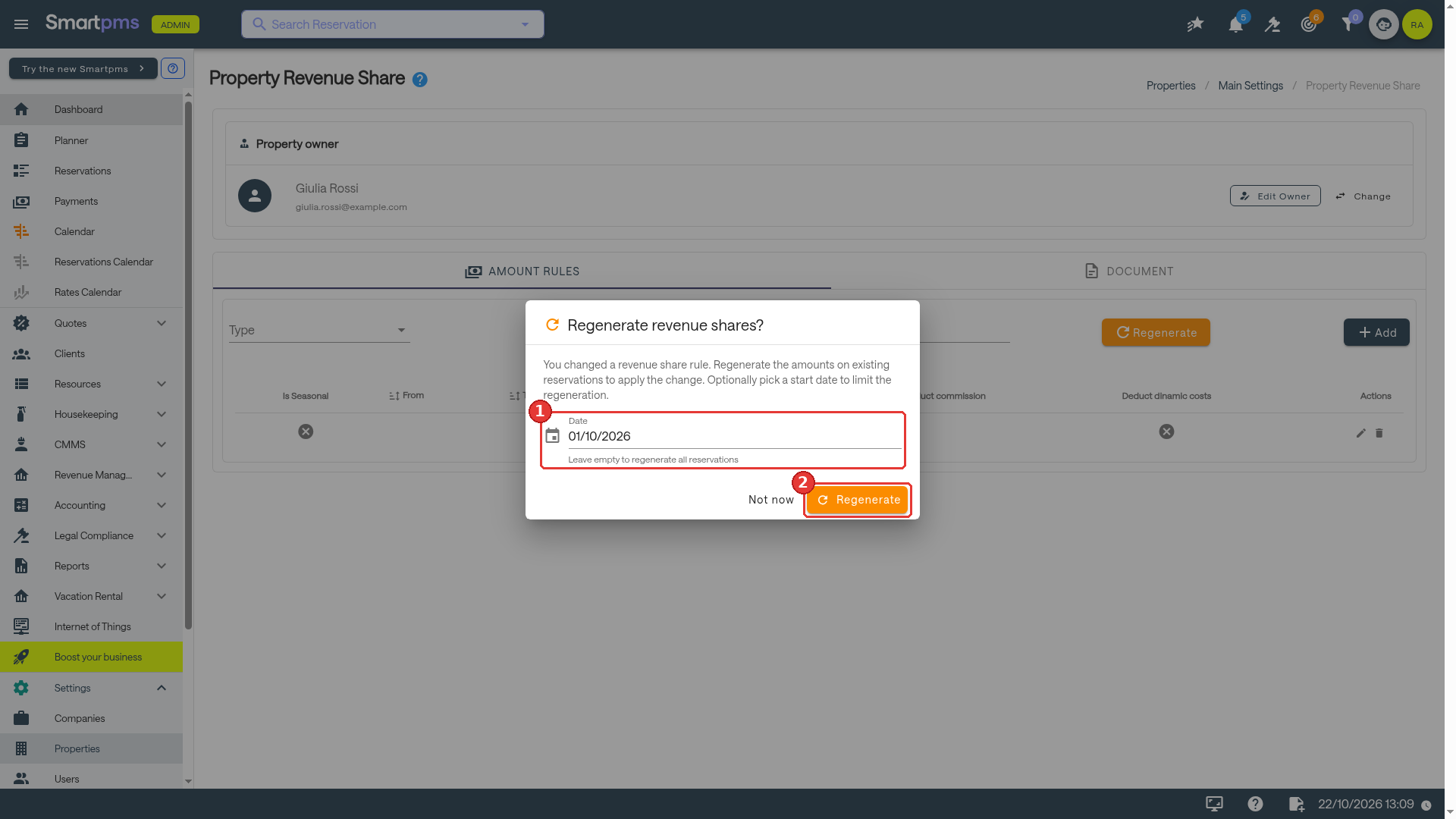
- Revenue Share: every time you create, modify, or delete an amount rule, the Regenerate revenue shares? window appears. Enter in the Date field (1) a date prior to the check-in of the bookings to be recalculated (e.g., January 1st of the current year) and click Regenerate (2). Always enter a date: bookings with check-in equal to or later are recalculated. If you choose Not now, you can regenerate at any time from the Amount rules tab with the Date and Regenerate fields above the list of rules.
- Dynamic Costs: go to Settings > Properties > Settings > Costs > Dynamic Costs, set a date in the Date field equal to or prior to the one used for Revenue Share and click REGENERATE.
Regeneration can take a few minutes depending on the number of bookings involved. The report in Report > Revenue Share is only for consulting data: it does not have a button to regenerate them.
- Go to Report > Revenue Share.
- Select Property, Period (From/To) and Date Reference, then click APPLY.
- Analyze the Bookings table: check the Room Price, Cleaning Price, OTA Commission (if deducted), Unit Costs/Limits, R. Share, Flat tax (if you configured the withholding agent) and Owner Net columns.
- Verify that the Owner Net corresponds to: Total Booking Price minus OTA Commission (if deducted), minus Dynamic Costs charged to the owner, minus your Revenue Share share, minus the Flat tax (if applied).
- The summary at the top (Revenues and Costs) and the chart give you an aggregated view of the breakdown between owner net, revenue share, and retained costs.
You can export the report to Excel for custom calculations, or print it directly.
Step 7: configure documents in the Document tab
In the Document tab of the Revenue Share page, you prepare the system for issuing fiscal documents to the guest and the summary document to the owner.
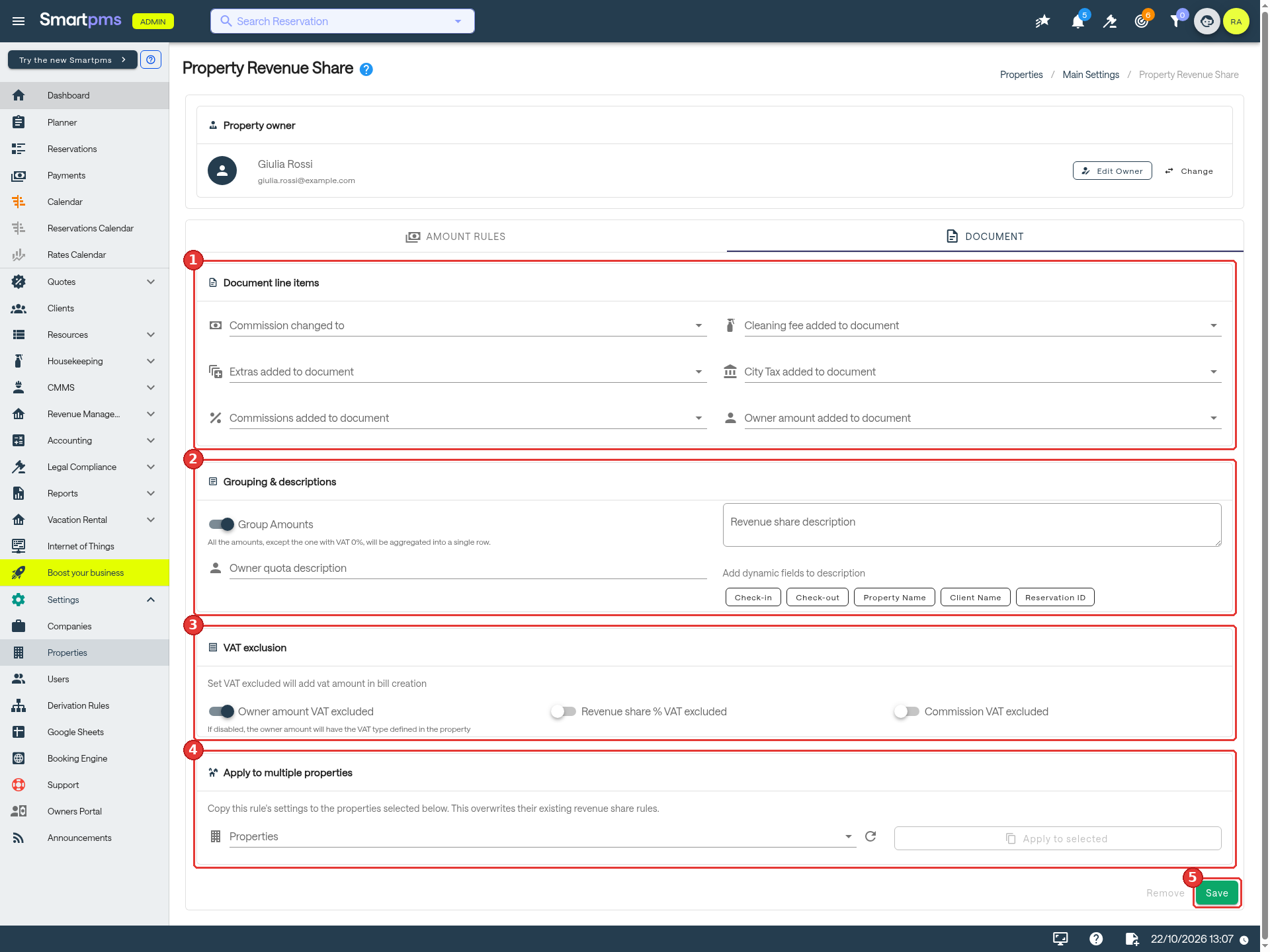
- Document items (1): for each item (Commissions, Extras, Cleaning, City tax, Owner amount) choose whether it goes into the Property Manager document (the invoice you issue in your name to the guest) or the Owner document. Usually, Extras, Cleaning, and City tax are included in the Property Manager document. Your Revenue Share share always goes into the Property Manager document. The owner amount is what remains of the stay total after the other items and goes into the document you choose: if you assign an item to the Owner (e.g., cleaning), it leaves your invoice and appears in the owner's document. In Commissions charged to you indicate who bears the OTA commission.
- Grouping and descriptions (2): Group amounts sums into a single row, that of the Revenue Share, your share and the items assigned to the Property Manager document: cleaning, OTA commission (with VAT, if you activated Commission VAT excluded) and extras with the property's default VAT. The owner amount, city tax, and extras with a different rate remain on separate rows; items assigned to the Owner are never grouped. With the option off, each item has its own row, with the description you set here (Cleaning description, Commission description, City tax description). In the Revenue Share Description you can add the dynamic fields Checkin and Checkout (in day/month format), Property Name, Customer Name, and Booking ID: in the invoice they are replaced with booking data, for example "Casa Aurora property management services from 08/12 to 08/16". The owner share description is instead a fixed text.
- VAT Exclusion (3):
- Owner amount VAT excluded: the owner's row comes out VAT exempt instead of with the property rate;
- % Revenue Share VAT excluded and Commission VAT excluded: activate both if in the owner's tab you provided for 22% VAT on share and OTA commissions. If you leave one deactivated, invoice and report treat that item differently (e.g., the OTA commission is taxed in the report but not in the invoice). Use the same setting on all properties; the invoice uses the configuration valid when it is created, so after a change, already issued documents must be reissued.
- Click Save (5).
Apply to multiple properties (4): if you manage many properties with the same settings, select the properties in the Properties field and click Mass application: the Document tab settings are copied to those properties, replacing theirs. Amount rules and the owner remain those of each property.
Step 8: generate and verify documents
At this point, you can generate a test document to check that the final appearance corresponds to what was configured, before making it operational on all bookings.
Frequently asked questions
18In the documents to the owner, only the first name appears, not the surname: how do I correct it?
Go to Settings > Companies > Owner Registry, open the owner's profile and check the Personal Data field: if it is set as Private, verify that the Surname is also filled in and not just the Name; if it is a Company, check that the Company Name is complete.
After correcting the registry, subsequently generated documents will show the updated data; to correct already issued documents, it might be necessary to regenerate them.
A booking appears without the summary document for the owner: what should I check?
Verify that the property had, on the date of the booking, an active Revenue Share rule and an owner correctly associated in the Owner Registry: without these prerequisites, the summary document is not generated.
If the configuration was correct but was modified after the booking was created, the document might simply not have been recalculated yet: regenerate the data from Settings > Properties > CONFIGURE next to Revenue Share, setting a date in the Date field prior to the booking check-in and clicking REGENERATE.
Why is the amount the guest paid on Booking.com different from the amount collected?
If in the Owner Registry you activated Charge OTA commission, or in the Revenue Share rule you activated Deduct OTA commissions, the commission withheld by the portal is separated from the amount before calculating the net: it is therefore normal that the amount paid by the guest and the amount collected differ by the exact value of the commission.
You can verify the withheld figure in the OTA Commission column of the Revenue Share report, which shows the detail for each individual booking.
When I create the invoice for the guest, the OTA commission appears without VAT: how do I make it appear with VAT?
In the Property Manager model, the OTA Commission field that you see in the Booking Totals must contain only the taxable amount, as it comes from the portal: it is correct that it appears without VAT and should not be modified manually.
To make VAT appear on the OTA commission in the invoice, act on the configuration. In Settings > Companies > Owner Registry, set 22% VAT and activate Charge OTA commission; then in Settings > Properties > Configure Revenue Share, activate the Commission VAT excluded and % Revenue Share VAT excluded switches. From that moment, the system automatically adds 22% to the OTA commission during the report and guest invoice phase.
Do not activate Sum portal commission VAT or Separate portal commission VAT (they are designed for the Manager model) and do not multiply the amount by 1.22 directly in the booking field: you would get double VAT. After each change, regenerate the data from Settings > Properties > CONFIGURE next to Revenue Share, setting a date in the Date field prior to the check-in of the bookings concerned and clicking REGENERATE. The VAT configuration depends on your tax regime and agreements with the owner: always verify with your accountant.
Are bookings cancelled with a penalty or marked as no-show included in the Revenue Share?
No, as long as they remain cancelled. The Revenue Share report includes only confirmed bookings. Cancelled bookings, including those marked as no-show (which in SmartPMS are cancellations with a no-show reason), are excluded even if you collected a penalty.
Portals (Booking.com, Airbnb, etc.) only communicate the cancellation, to free up the calendar, and do not send the penalty amount: SmartPMS does not know how much you actually collected.
If you want the penalty to appear in the Revenue Share report, you must return the booking to confirmed. You have two ways.
1. On the jolly unit of the same property (recommended). Bookings assigned to a unit with the Jolly option remain in the Revenue Share report, but are not counted in statistics (Production Report, Daily Production, Revenues, occupancy, dashboard). This way the penalty enters the owner's report without appearing as a stay.
- Wait for the expected arrival date to pass.
- Verify the actual penalty amount: on Airbnb in the host's payment area; on Booking.com, if you collect with a virtual card, in the Payment Cash Flow report of the Accounting section, otherwise in the Booking.com extranet.
- Restore the booking from its profile (see the guide "Managing a booking: the profile and what you can do in each tab").
- Move it to a jolly unit of the same property. It must remain a booking: a date block on the jolly unit does not enter the Revenue Share.
- Bring the Room Price to the amount of the collected penalty and save.
- If the report does not update, regenerate from Settings > Properties > CONFIGURE next to Revenue Share, with a date prior to the check-in in the Date field, and click REGENERATE.
In the report, the booking appears under the property and its owner. If you filter the report by single unit, choose the jolly unit and not the original apartment.
2. On its unit. Follow the same steps without moving it. In this case, the booking returns to appear as an actual stay and counts in the occupancy and revenues per night for that period.
Alternatively, you can leave the booking cancelled and manage the penalty in the report to the owner, separately from the automatic calculation. In all cases, issue, if necessary, the fiscal document for the amount actually collected.
Why is the OTA commission in the guest invoice different from that of the Revenue Share report?
Report and invoice add VAT to the OTA commission based on two different settings:
- in the Revenue Share report, the commission is increased by the VAT set in the Owner Registry (e.g., 22%), if you activated Charge OTA commission or Deduct OTA commissions in the rule;
- in the guest invoice, the commission is increased by the property's VAT only if the Commission VAT excluded switch is active, in the Document tab of the Revenue Share page (Settings > Properties > CONFIGURE next to Revenue Share).
If in the registry the owner has 22% VAT but the Commission VAT excluded switch is deactivated, in the report you see for example €274.29 (€224.83 + 22%) and in the invoice only €224.83.
How to align them:
- Go to Settings > Properties, open the property and click CONFIGURE next to Revenue Share.
- In the Document tab, VAT Exclusion section, activate both Commission VAT excluded and % Revenue Share VAT excluded and save.
- Regenerate the data from the same page (Settings > Properties > CONFIGURE next to Revenue Share): in the Date field, set a date prior to the check-in of the bookings concerned and click REGENERATE.
- Reissue the documents of the bookings to be corrected: those already issued do not change by themselves.
Check this setting on all properties: if it is different from one property to another, the same booking produces different invoices. Never multiply the commission by 1.22 manually in the booking: you would get double VAT. The choice of rate depends on your tax regime: verify with your accountant.
My management percentage already includes VAT (e.g., 24.4% = 20% + 22% VAT): how do I set it in the Revenue Share rule without counting VAT twice?
The % Revenue Share VAT excluded option (Settings > Properties > CONFIGURE next to Revenue Share, Document tab) tells SmartPMS that the rule's percentage is without VAT: when active, the property's VAT is added to your share in the guest document and the Owner Registry VAT in the Revenue Share report. If therefore you enter a percentage in the rule that already includes VAT and leave the option active, the VAT is added twice: your share appears higher than it should be and the owner's row lower.
Choose only one of the two ways:
- Percentage without VAT and option active (recommended): in the rule enter 20 and leave % Revenue Share VAT excluded active. It is the setting consistent with the Commission VAT excluded option, which is usually also active (Step 7).
- Percentage with VAT and option off: in the rule leave 24.4 and deactivate % Revenue Share VAT excluded.
Do not change both things: with 20 and the option off, your share would become 20% VAT included.
Percentage 20 with option active: 1,000×20% = €200, in the document 200×1.22=€244 (€200 + €44 VAT)
Percentage 24.4 with option off: 1,000×24.4%=€244 VAT included (€200 + €44 VAT)
Percentage 24.4 with option active (to be avoided): 1,000×24.4% = €244, in the document 244×1.22=€297.68
The two correct settings give the same amount in the guest document and, if in the Owner Registry the owner has 22% VAT, also in the Revenue Share report.
After the change:
- On the same page (Settings > Properties > CONFIGURE next to Revenue Share) set in the Date field a date prior to the check-in of the bookings to be recalculated and click REGENERATE. Repeat for every property with the same rule.
- Already created bills do not update by themselves, because they copy the amounts at the time of creation: if you have not yet issued the document, delete the bill (and the relative document to the owner) and recreate it from the booking.
- Already issued documents do not change: to correct them see the guide "Correcting an already issued invoice or receipt".
The rate to apply to your share depends on your tax regime: verify it with your accountant.
Can I calculate the flat tax with a rate other than 21% or on a base other than the owner amount?
Yes. In the owner's tab, with Withholding agent active, the Flat tax calculation field appears: there you write the withholding formula. If you leave it empty, 21% of the owner amount applies.
- Go to Settings > Properties, open the property and click CONFIGURE in the Revenue Share card.
- In the Owner section click Edit Owner.
- In Billing, with Withholding agent active, choose a preset or write the formula, check the preview and save.
Some examples:
Case | Formula |
|---|---|
21% flat tax on owner amount | |
26% flat tax (from second to fourth unit) | |
Non-resident owner 20% | |
21% on the stay price plus cleaning paid by the guest | |
After the change, regenerate the data from the Amount rules tab (Date field and Regenerate button).
The Revenue Share report shows the flat tax calculated with this formula. Which base and which rate to use depends on the owner's situation: verify it with your accountant.
I added a dynamic cost (e.g., final cleaning) to an existing booking: why does the Revenue Share report deduct it from the net owner amount, while the contract or the net amount saved on the booking does not?
When a booking is created or modified, SmartPMS calculates the manager's share, the owner amount, the flat-rate tax (cedolare), and the net owner amount and saves them on the booking. The report in Reports > Revenue Share, on the other hand, recalculates every time you open it, using the dynamic costs present at that moment.
If a dynamic cost charged to the owner is applied after the saved calculation, the report deducts it immediately, but the values saved on the booking remain as they were. Everything that reads the saved values, such as the dynamic fields Revenue Share – Owner amount / net in contracts, therefore shows the net amount without the cost.
Example. 6-night stay: room 297 €, cleaning paid by the guest 35 €, OTA commission 62.78 €, manager's share 68.58 €, dynamic cost "Final cleaning" 35 € charged to the owner, flat-rate tax 21%.
Saved values (cost not yet considered): 297+35−62.78−68.58 = 200.64 € owner amount; 200.64−21%=158.51 € net
Report (cost considered): 297+35−62.78−68.58−35 = 165.64 € owner amount; 165.64−21%=130.86 € net
How to align the saved values
- Go to Settings > Properties, open the property, and click CONFIGURE next to Revenue Share: in the Date field, set a date prior to the booking check-in and click REGENERATE.
- Go to Settings > Properties > Settings > Costs > Dynamic Costs, set the same date (or an earlier one) in the Date field, and click REGENERATE.
- After a few minutes, the booking will show the same amounts as the report. If the contract had already been generated, generate it again.
Tip: if you add or modify dynamic costs on existing bookings, regenerate as described above before generating contracts or closing the month, so that saved values and reports match.
Can I invoice the owner for my commission including the withholding tax?
You can issue an invoice from SmartPMS addressed to the owner for your commission, portal fees, and City tax. First, add the owner in Customers as a Company, with VAT number and SDI code. Then go to Accounting > Fiscal Documents > Add > Invoice and add a line for each item, with its VAT rate.
The withholding tax cannot be indicated on the invoice: the document always shows taxable amount + VAT, and the file sent to the SDI does not contain withholding tax data. Do not add a negative line to simulate it: it would be treated as a discount, the taxable amount would decrease, and the invoice would not be fiscally correct. If you need the withholding tax, issue this invoice with your accountant or another invoicing program.
The Tax substitute and Withholding tax calculation fields in the owner's profile serve a different purpose: they calculate how much to withhold from the net amount to be paid to the owner in the Revenue Share, and they do not add the withholding tax to the invoices.
If the guest must receive the invoice from the owner's management software, do not create documents from the booking account for those properties: you can pass the booking data to the owner by exporting the Revenue Share report.
Related guides
Configuration
Configuration
Configuration
Configuration
Configuration
How it works