

Accounting series: how to number invoices, receipts, and folios
How SmartPMS accounting series (Folio, Invoice, Receipt) work: creating a series, setting the default, associating it with a property, and understanding which series is proposed when issuing a document. Includes Italian regulations on progressive and unique numbering and how to restart from 1 with the new year.
You are in the right place if…16 cases
- “I want separate invoice numbering for each property”
- “How do I change the series or the starting number of invoices?”
- “Can I restart numbering from 1 in January?”
- “The invoice number is not accepted”
- “When I issue a receipt, it proposes the wrong series”
- “What are accounting sections (sezionali) in property settings?”
- “With the arrival of the new year, how do I restart the invoice numbering from number 1?”
- “I have set the 2026 series as default, but when I prepare a bill or an invoice, it still suggests 2025”
- “In the accounting series, I have two 2026 series both set as default”
- “It suggests number 40, but the last invoice I issued was 37”
- “The credit note took the next number from the invoice instead of starting from 1”
- “Invalid ID error when I create the bill”
- “The receipt number is already in use”
- “I would like a different invoice numbering for each property”
- “I deleted an invoice and the next one does not pick up that number”
- “How do I associate a specific numbering to a section?”
What are accounting series
Every document issued by SmartPMS has a number and a series, for example 15/A2026. The accounting series is the counter that assigns that number: it keeps track of the last number issued and suggests the next one.
There are three types of series, one for each document family:
Series type | Documents it numbers |
|---|---|
Account | Accounts (non-fiscal documents, the guest's expense summary) |
Invoice | Invoices and credit notes |
Receipt | Receipts (commercial document) and related cancellations |
Credit notes therefore use the same numbering as invoices, and cancellations use the same as receipts.
You can have multiple series of the same type: for example, an Invoice series A2026 for the hotel and an Invoice series B2026 for the residence. For each type, one series is default: it is the one suggested when there are no more specific indications.
Why numbering is important
In Italy, every invoice must have a progressive number that identifies it uniquely (art. 21 of DPR 633/72). The Revenue Agency (Agenzia delle Entrate) allows both numbering that restarts from 1 each year and continuous numbering, which continues from one year to the next, provided that no two documents with the same number ever exist in the same series.
Using different series is especially useful if you manage multiple properties with the same VAT number: each property has its own sequence, and the Exchange System (SdI) never receives two invoices with the same identifier. To choose the most suitable setting for your accounting, consult your accountant.
Always include the current year in the series code (for example 2026, A2026, B2026) and use a new series each year. If you use a code without a year, such as A or B, and the numbering restarts from 1 in January, the first invoice of the new year will have the same number and the same series as an invoice already transmitted (for example 1/A): the Revenue Agency's system will reject it as a duplicate (error 00404).
Series fields
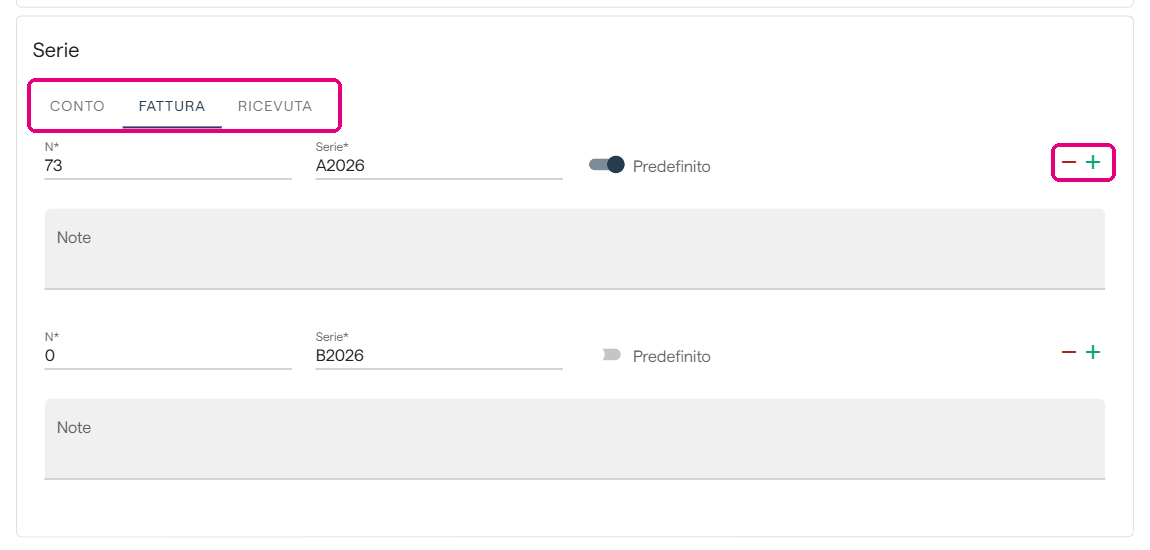
- Type: Account, Invoice, or Receipt, chosen via the ACCOUNT, INVOICE, and RECEIPT tabs.
- Series: the code that appears after the number (e.g.,
2026,A2026,HOTEL2026). Only letters, numbers, and the characters_.-are allowed, without spaces. Always include the current year, as explained above. - N (number): the last number already issued with this series, not the next one. The next document will receive the following number: if the last invoice issued is 73, write 73 and the next one will be 74.
- Notes: text that is pre-filled in the document notes when you use this series.
- Default: the series proposed by default for that document type.
1. Create or modify series
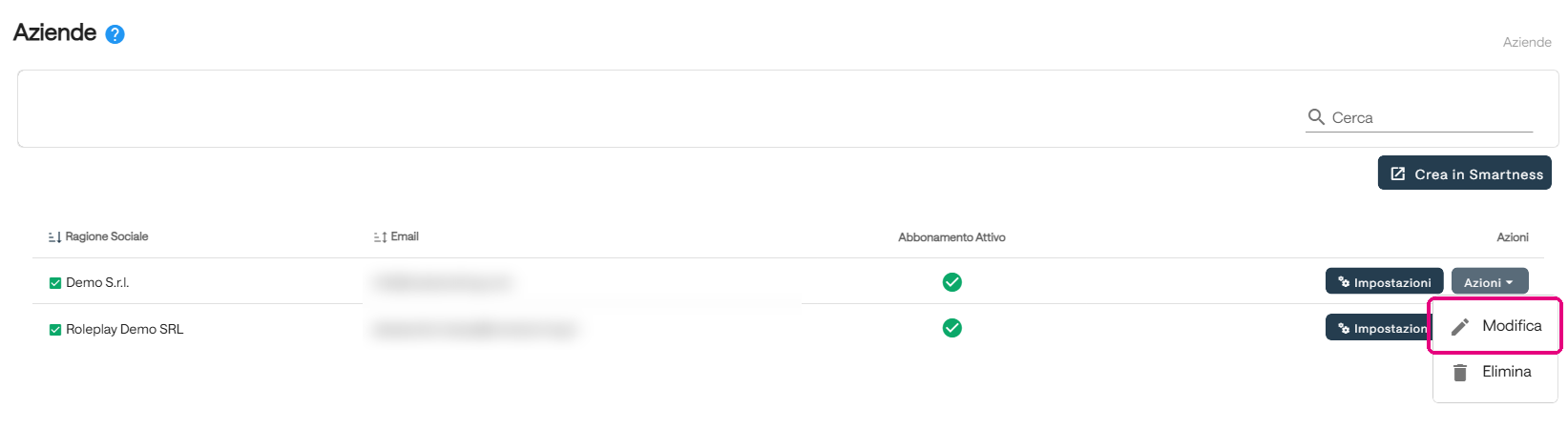
Series are managed in the master data of the company issuing the documents: go to Settings > Companies, on your company's row click Actions > Edit and open the Accounting panel, Series box. To modify the company, you need a user with company management permissions: if the item is not visible or saving is denied, ask your account administrator.
- Choose the type tab (ACCOUNT, INVOICE, or RECEIPT) and click + on a row to add a series, then write the code in the Series field. Use − to remove the row.
- Indicate in the N field the last number already issued with this series. For a new series, leave
0: the first document will have number 1. - If needed, write the Notes to be included on the documents.
- Activate Default on the series to be proposed by default for that type.
- Click Edit to save.
For each type (Account, Invoice, Receipt) there must be a default series: if missing, saving is blocked with a message. Keep only one default series per type, so the proposal during issuance remains unique.
2. Associate a series with a property
If each property must have its own numbering, associate the series with the property:
- Go to Settings > Properties and, on the property row, click Settings.
- In the Accounting section, on the Accounting Series tab click Configure, then click Assign.
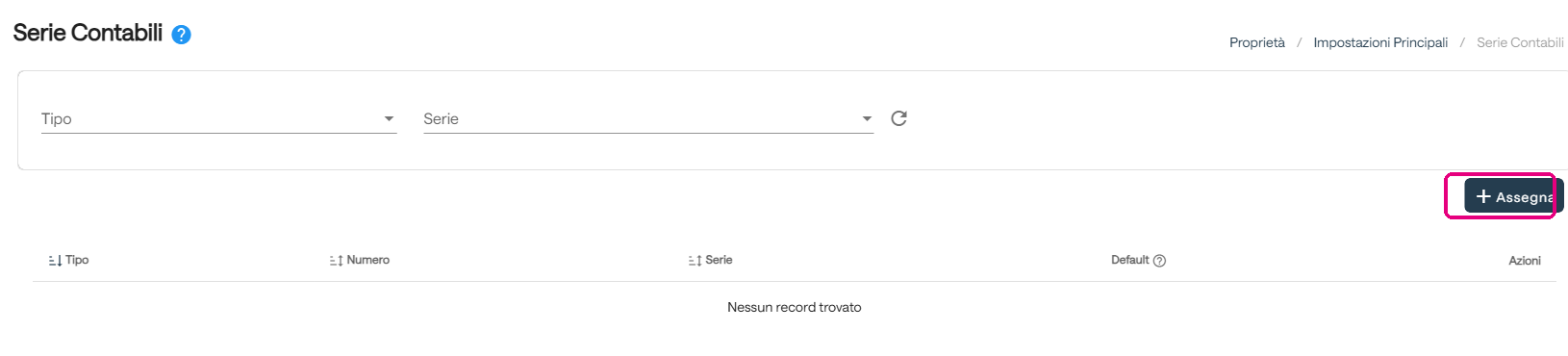
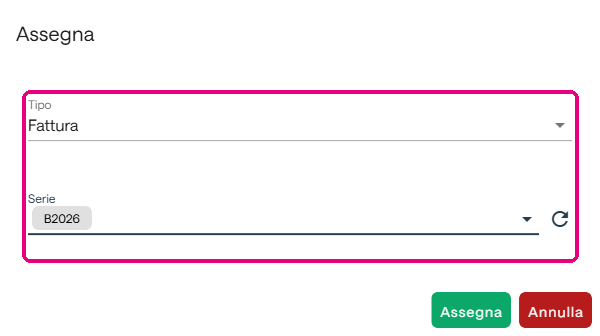
- Add the series to be used for that property, only one for each type you want to customize (for example, Invoice series
B2026and Receipt seriesB2026): in the Assign window, choose Type and Series and confirm with Assign.
- To remove an association, use the removal action next to the series: the series remains available for the company, only what is proposed for that property changes.
3. Which series is proposed when you issue a document
When you create an invoice or a receipt from a booking or an account:
- if the property has an associated series of the correct type, that one is proposed;
- otherwise, the default series for that type is proposed.
The Default checkbox applies to the company: if multiple series of the same type are assigned to the property (for example 2025 and 2026), the first one assigned is proposed, even if it is not the default one. For this reason, assign only one series per type to the property and, at the beginning of the year, remove the assignment of the previous year's series.
The proposed number is the last number of the series plus one. In invoices and receipts, you can choose another series from the Series field before saving; in accounts, the number and series appear together in the ID field (for example 41/2026), which can be modified after clicking the padlock icon.
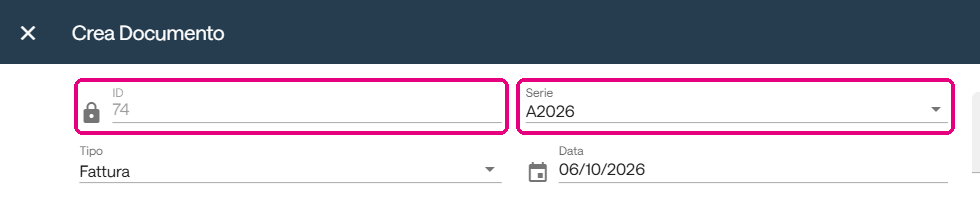
After issuance, the series counter updates with the number of the document just created.
Rules on the number
When you save a new document, SmartPMS checks that:
- the number is greater than the last number recorded in the series;
- a document with that number does not already exist in the same series and for the same type.
If one of the two checks is not met, the document is not saved and the number is flagged as invalid. This way, the sequence remains progressive and without duplicates.
Frequently asked questions
6How do I restart numbering from 1 with the new year?
The duplicate check compares the document number, series, and type, not the year: if you reset the counter of an already used series to zero, document number 1 would already exist in that series and would not be accepted.
For this reason, at the beginning of each year, SmartPMS automatically creates a new series for each company with a code equal to the year (for example 2027) for Account, Invoice, and Receipt, with N 0 and set as default: from January 1st, documents restart from 1 (e.g., 1/2027). In the first issuances of the year, check that the new year's series is proposed in the Series field.
If you use your own codes, include the year in those as well (for example A2027): you can create the new series yourself with N 0 and set it as default instead of the previous one, deactivating Default on the old one.
If you have associated series with properties, the associated series takes precedence over the default one: in Settings > Properties > Accounting Series, remove the previous year's series and assign the new year's ones, otherwise accounts, receipts, and invoices will continue to propose the old series: with multiple series of the same type assigned to the property, the first one assigned is proposed, even if the new one is set as default. You do not need to delete the old series: just remove its assignment to the property.
For a document with a date from the previous year (for example, an invoice from December 30th issued in January), manually select the previous year's series: the number will adjust to that series.
Alternatively, you can continue with the same series without resetting it: continuous numbering is allowed by the Revenue Agency. In this case, never set N to 0: an invoice with the same number and the same series as one already transmitted would be rejected as a duplicate.
I have already issued invoices with another program: how do I continue the numbering in SmartPMS?
Create (or edit) the series with the same prefix you were using and enter the last number issued with the other program in the N field. The first document issued by SmartPMS will have the next number.
Do credit notes have their own numbering?
No: credit notes use Invoice type series and share the numbering with invoices. For example, if the last invoice is 38, a credit note issued with the same series receives number 39: this is correct and the document is valid. If you prefer separate numbering, create a second Invoice type series (for example NC2026) and select it in the Series field when issuing the credit note. Similarly, receipt cancellations use Receipt type series.
The credit note is created from the invoice via Actions > Credit Note: see the guide "Correcting an already issued invoice or receipt...".
The receipt number in SmartPMS is different from the one I see on the Revenue Agency portal: is this an error?
No. In the SmartPMS document list, you see the number issued by SmartPMS, which is your internal numbering (number and series). When the fiscal receipt is transmitted to the Revenue Agency, the Agency assigns it its own sequential number (for example DCW2026/1234-5678), which from that moment appears on the receipt PDF instead of the internal number. As long as the receipt has not been transmitted, the PDF shows the SmartPMS number and series. The same applies to receipt cancellations. These are two different identifiers and it is normal that they do not match. You can also find it by opening the receipt with Actions > Edit, in the Revenue Agency No. field.
When I create an invoice, a receipt, or a bill, the number appears as "invalid" or "already used": what should I do?
The message indicates that the series counter is behind the documents already issued: the proposed number already exists in that series, or it is not greater than the last one recorded.
- In the document, check the Series field: it must be the series you actually use for that type of document (for example, the one for the current year).
- Search for the last number issued with that series (including among bills and documents already created).
- Go to Settings > Companies > Actions > Edit > Accounting > Series, open the series, and enter that last number (not the next one) in N. Save.
- Return to the document, reopen the creation process, and let SmartPMS suggest the next number.
If you need to issue the document immediately, you can unlock the ID field with the padlock icon and manually enter the first available number in the series. If you do not see the Companies entry or the save is denied, your user does not have the permissions to modify the company: ask the account administrator or support.
I deleted the last invoice: why doesn't the next one resume that number?
When you delete a document, the series counter does not go back on its own: the series still remembers the last assigned number.
If the deleted documents have never been downloaded in XML nor sent to the SdI or the Revenue Agency and you want to reuse the number, open the series in Settings > Companies > Actions > Edit > Accounting > Series and write the last remaining valid number in N. For example, if you deleted invoice 8 and want the next one to be 8, write 7: the N field indicates the last number issued, not the next one.
Before doing so, verify that a document with the number you want to reuse does not already exist in the same series: in that case, the number would be rejected. The same applies to resetting a series after deleting test invoices: you can set N back to 0.
If, on the other hand, the documents had already been downloaded in XML or sent to the SdI, do not reuse those numbers: create a new series with a different code (for example 2026N), with N 0, and set it as default.
You can only delete documents that have never been sent or downloaded: if the invoice is in Error status (rejected by the SdI), it cannot be deleted; it must be corrected and re-sent with the same number (see the guide "Correcting an already issued invoice or receipt...").
Related guides
Configuration
Configuration
Configuration
Configuration
Configuration
Configuration