

How to connect ISTAT Campania via Sinfonia Turismo SMART
Guide for connecting SmartPMS to the Sinfonia Turismo SMART portal of the Campania Region: retrieving CUSR and API KEY, creating the ISTAT Campania Smart account, activation date, associating units, automatic and manual submission of movements, and troubleshooting frequent errors (skipped dates, closed property, invalid credentials).
You are in the right place if…7 cases
- “How to connect ISTAT Campania Sinfonia Turismo to SmartPMS”
- “Where do I find the CUSR and the API KEY for SmartPMS”
- “Error It is not possible to skip dates when sending movements”
- “Error It is not possible to insert movements if the property is closed”
- “Sinfonia sends me reminders because movements are not showing”
- “How to recover days not sent to Sinfonia Turismo”
- “ISTAT Campania Smart”
How to connect ISTAT Campania via Sinfonia Turismo SMART
This guide explains how to configure the automatic submission of tourist movements (arrivals, departures, and stays) to the Sinfonia Turismo SMART portal of the Campania Region in SmartPMS.
📌 Before you start: what you need
Unlike other regional portals, Sinfonia Turismo SMART does not use a traditional username and password: the connection requires two property codes.
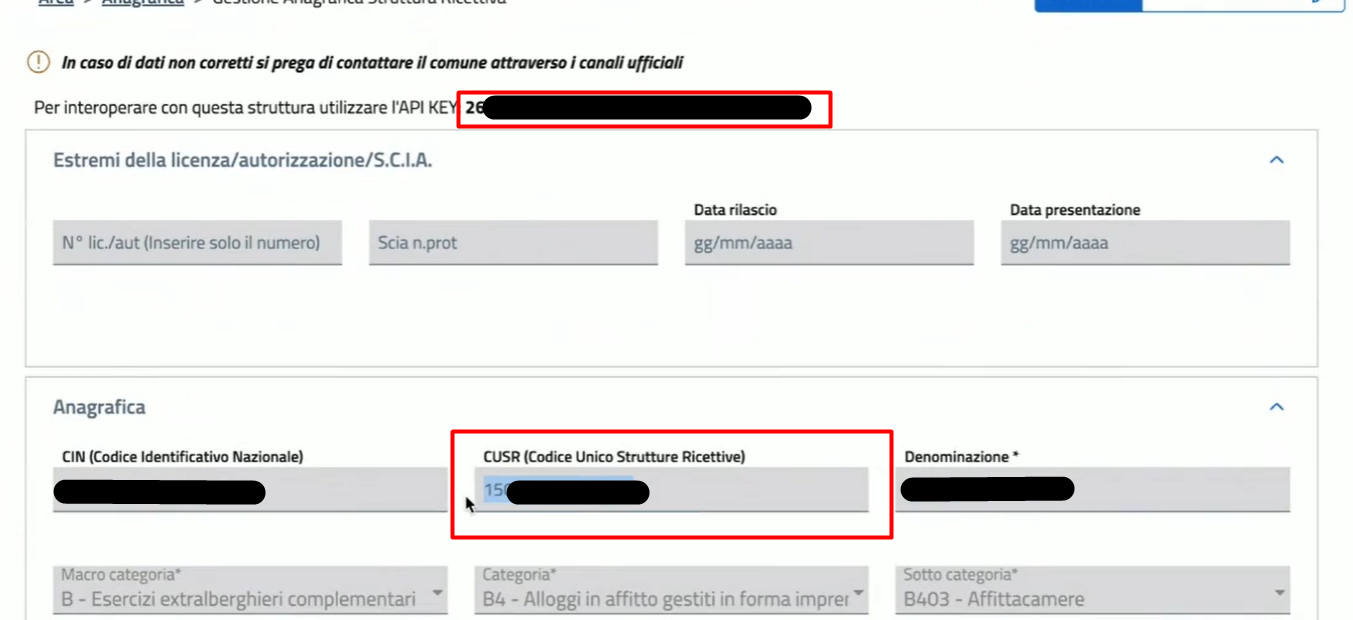
- CUSR (Codice Unico Strutture Ricettive): identifies the property on the portal.
- API KEY: the key that authorizes SmartPMS to send data for that property.
SPID, CIE, or CNS credentials are only used to access the portal via a browser: they should not be entered in SmartPMS.
You also need to know the last day already reported on the portal (in the Customer Movements section of Sinfonia): you will use this to set the activation date and any necessary recovery submissions.
How to retrieve CUSR and API KEY
- Access the Sinfonia Turismo SMART portal: https://turismo.regione.campania.it/turismoweb/fe-portale-turismo/login
- Log in using SPID, CIE, or CNS.
- Select the accommodation property for which you want to activate the integration.
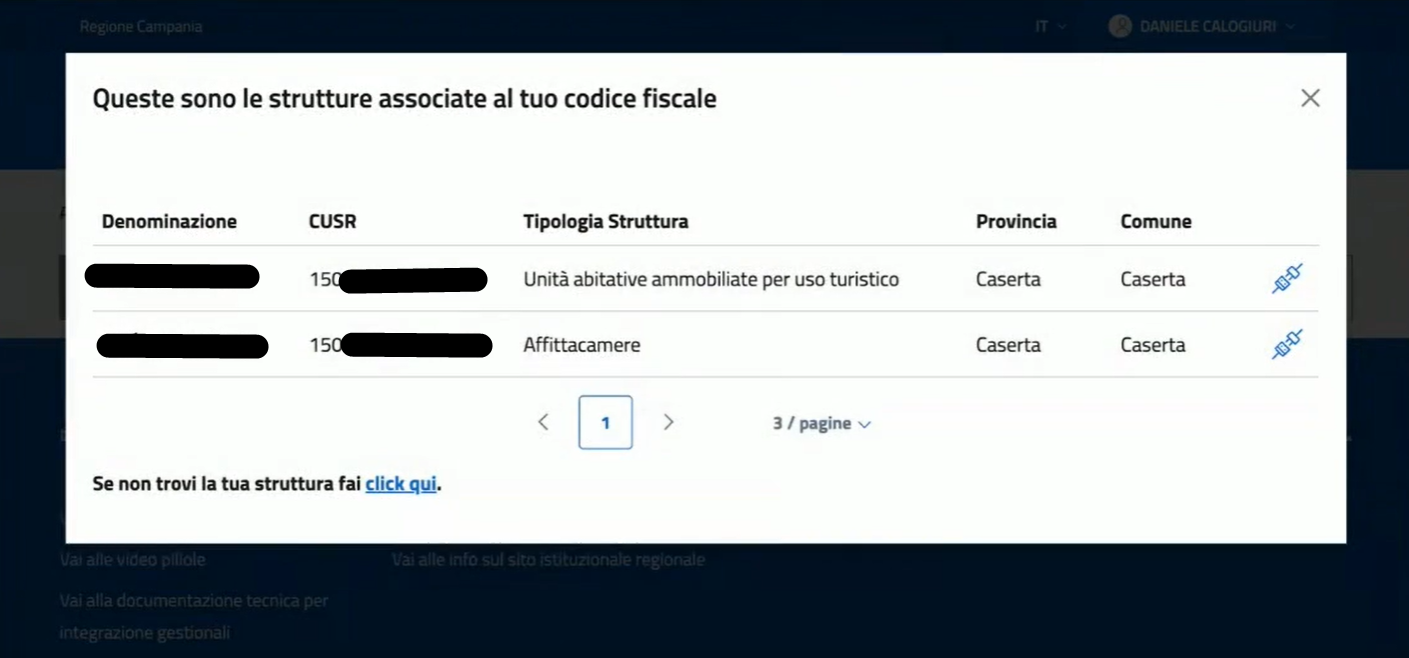
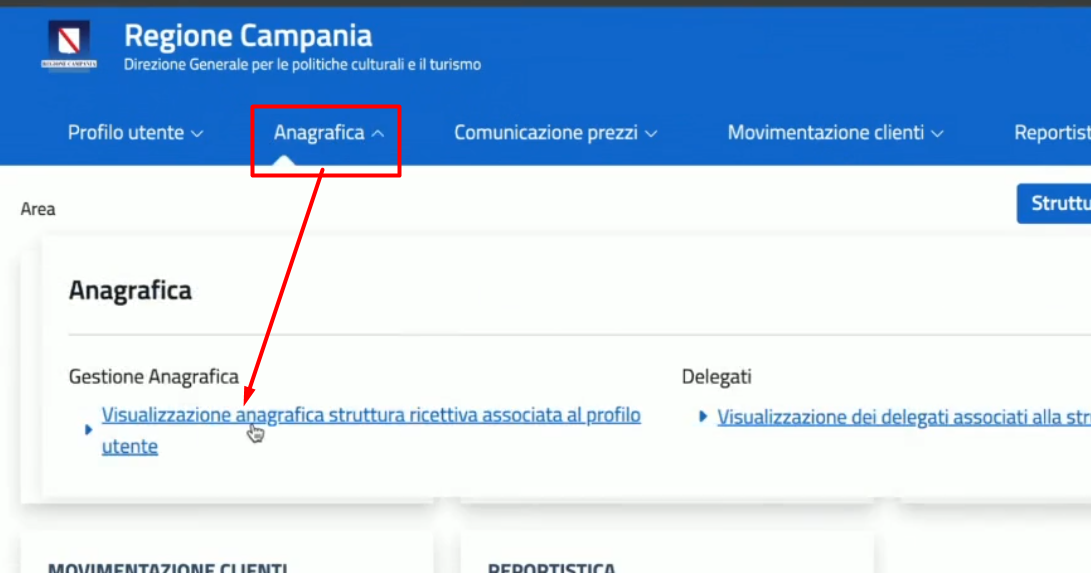
- Go to Registry > Accommodation Property Registry Management.
- In this screen, you will find the CUSR and the API KEY: copy both in full.
⚙️ Configuration in SmartPMS
Step 1: Create the ISTAT account
- Go to Bureaucracy > Account > ISTAT.
- Click on + Add.
- Fill in the fields:
- Company Assignment: the company to which the property belongs.
- Label: a name to identify the configuration (e.g., Sinfonia - Property Name).
- Type: ISTAT Campania Smart.
- Username: the CUSR.
- Password: the API KEY copied from Sinfonia.
- Automatic Submission: activate this to send data every day without manual intervention.
- Activation Date: align it with the last day reported that you see on Sinfonia, in the Customer Movements section. This date remains only in SmartPMS and is not transmitted to the Region, but it serves to restart submissions exactly where the portal left off: guests who arrived before this date are not considered.
- Property closure with sales closure: leave it deactivated (see FAQ for the reason).
- Click on Validate: if the CUSR and API KEY are correct, the green SUCCESS message will appear.
For Campania, you do not need to fill in Portal ID, rooms, or available beds: the portal recognizes the property via the CUSR.
Step 2: Associate units with the CUSR
- Click on Linked Units to expand the section.
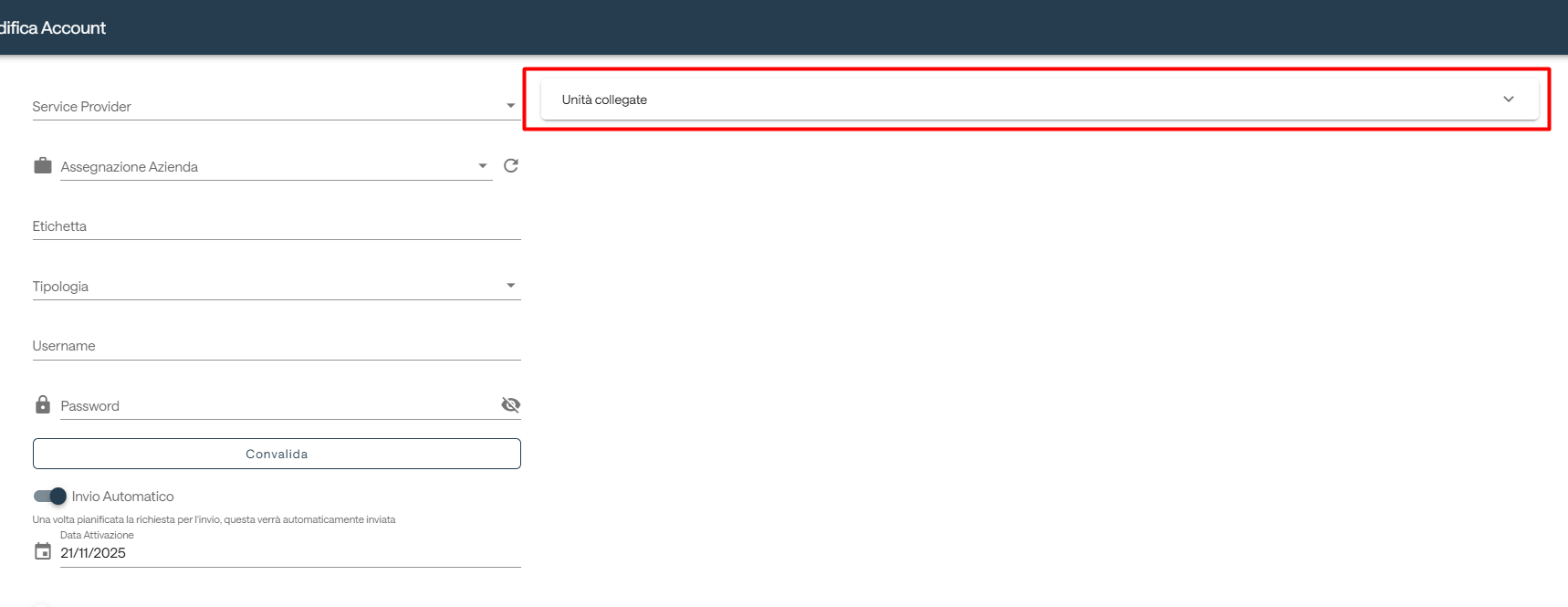
- Choose how to associate the accommodations:
- + Bulk Add: associate all units of a property at once. This is the recommended option for hotels and residences with many rooms under a single CUSR. Select the property and click CREATE.
- + Link: associate one unit at a time by selecting the accommodation from the menu.
- Link only the units that belong to that CUSR: data for an unlinked unit will not be sent.
Step 3: Save
Click on CREATE in the top right to save the configuration.
🔄 How the submission works
- With automatic submission active, SmartPMS transmits completed days to Sinfonia every night, one day at a time, in chronological order.
- For each day, it sends: occupied rooms, any indication of property closed, and, for each origin, the number of arrivals, departures, and guests present the previous night.
- Guests are grouped by province of residence (residents in Italy) or country of residence (residents abroad). Data is taken from the guests present in the Check-in tab of the booking, whether entered by the guest via Online Check-in or by you. A guest without a country of residence, or a resident in Italy without a recognized municipality of residence, is not counted.
- Sinfonia does not accept "gaps": every day must follow the last communication registered on the portal.
🚀 Manual submission and recovery of missing days
Use manual submission for an initial send, to recover past days, or to resend after a correction:
- Go to Bureaucracy > Account > ISTAT and, on the Campania account, click on Actions > Manual submission.
- In Start date, set the day following the last day registered on Sinfonia.
- In End date, set it to yesterday at the latest.
- Click on SEND.
- After a few moments, open Actions > Logs to check the outcome of each day.
To recover long periods, it is advisable to proceed one week at a time, checking the logs before moving on to the next.
🛠️ Common errors
"It is not possible to skip dates when submitting movements"
Sinfonia does not accept communications with missing days: if the last day registered on the portal is the 10th and SmartPMS tries to send the 15th, the portal will reject the submission.
How to fix:
- Access Sinfonia (Customer Movements) and verify the last day reported.
- If that month is closed or validated on the portal, reopen it before proceeding.
- In SmartPMS, align the Activation Date of the account to that day and perform a Manual submission from the following day until yesterday. For the data to be correct, guests must be present in the Check-in tab of the bookings.
"It is not possible to enter movements if the property is closed"
The portal rejects a day marked as closed if it contains movements, for example, a guest's departure. This happens when the Property closure with sales closure option is active on the account and sales were closed on that date.
How to fix:
- In Bureaucracy > Account > ISTAT, click on Actions > Edit on the Campania account, uncheck Property closure with sales closure, and save.
- Perform a Manual submission from the first day in error until yesterday.
"Invalid CUSR" or "The property with CUSR ... is not registered"
The CUSR or API KEY entered does not match those of the property. Copy them in full from Registry > Accommodation Property Registry Management on Sinfonia, ensure you have not entered the portal password instead of the API KEY, and repeat Validate.
Frequently asked questions
10I manage multiple properties with different CUSR: can I use a single ISTAT account?
No. Each CUSR requires a separate ISTAT Campania Smart account, with its own API KEY and linked units. A unit must be linked to only one account.
Do I still need to manually upload the C59 form or a file to Sinfonia?
No. With the ISTAT Campania Smart account active, SmartPMS sends the movements directly to the portal: there is no need to download files or upload the C59. You can verify receipt on Sinfonia, in the Customer movements section, and in SmartPMS under Actions > Logs.
Guests do the online check-in, or I enter the data myself: are they sent to Sinfonia anyway?
It depends on where the guests are registered. SmartPMS transmits the guests present in the Check-in tab of the reservation: those filled out by the guest via the SmartPMS online check-in and those entered by you. If the online check-in is managed by an external service, such as Vikey, the guests registered there remain in that service and do not arrive in SmartPMS: to send them to Sinfonia with SmartPMS, they must be entered manually in the Check-in tab. The important thing is that the data exists in the Check-in tab before sending.
Why should I leave the "Close property with closed sales" option disabled?
With this option active, SmartPMS communicates to Sinfonia the days when all sales are closed as "property closed". If there is still movement on that day, for example, a guest's departure, the portal rejects the submission with the error "It is not possible to insert movements if the property is closed" and, by not accepting skipped dates, it also blocks subsequent days. By leaving it disabled, the property appears open on days when there are rates or reservations. The option does not change the calendar: it only interprets the closure to be communicated to the portal.
I closed sales for a date and now the ISTAT submission is in error: what should I do?
You have two options, depending on how you want to manage the Close property with closed sales option:
- If you want to disable it: open the account in Bureaucracy > Account > ISTAT > Actions > Edit, uncheck Close property with closed sales and save. Then perform a Manual submission from the first date in error up to yesterday. The option does not affect the calendar: reopen or leave sales closed based on how you want to manage those dates.
- If you want to keep it active: reopen sales in the calendar from the first date in error up to two days ago, so those days are no longer communicated as "property closed". Then perform a Manual submission from the first date in error up to yesterday and check the result in Actions > Logs.
In both cases, until the first day in error is accepted by the portal, subsequent days also remain blocked.
Sinfonia sends me reminders because movements are missing: what should I check?
Check in this order:
- The account is validated (SUCCESSFUL) and has Automatic Submission active.
- The units are linked in Linked Units.
- In Actions > Logs, there are days in error.
- On Sinfonia, in Customer movements, what is the last recorded day.
Then align the Activation Date to that day and recover the missing days with the Manual submission, from the following day until yesterday.
If I resend a period already communicated, are duplicates created?
No. SmartPMS sends each day as an update of the movement already present on the portal, so a new submission replaces the data for that day instead of adding to it. It is useful, for example, after correcting guest data in the Check-in tab.
The logs show "Non è possibile saltare date… The date of the last survey is …": from which date should I restart the manual submission?
The date indicated in the message ("The date of the last survey is …") is the last day that Sinfonia has recorded. The manual submission must start from the day following that date, even if you see successful submissions in more recent days in the SmartPMS logs.
Be careful not to confuse the date on which a submission was made with the day communicated: for example, a successful submission on August 16th may concern the day of August 14th. If the last survey is 14/08, the manual submission must be done with Start Date 15/08: starting from the 16th or 17th, the portal will reject all days again.
- In Bureaucracy > Account > ISTAT, on the Campania account, click Actions > Manual submission.
- Set Start Date = day following the last survey and End Date at most one week later, then click SEND.
- Check in Actions > Logs that the days are sent and continue one week at a time until yesterday.
If the months to be recovered are closed or validated on Sinfonia (Customer movements), reopen them before submitting.
ISTAT submission errors: how to read the logs and what to check before contacting support?
Where to read the logs
- Go to Bureaucracy > Account > ISTAT.
- On the Campania account row, click on Actions > Logs.
- For each day you will find Date, Property ID, Result (green check if Sinfonia received the data, red icon if there was an error), Message and Errors returned by the portal, and Submission Date. If a day has been sent multiple times, the most recent row counts.
- Identify the last successful submission and the days in error, copy the exact message, and note the dates. Attention: the Date is the day communicated, the Submission Date is the moment of transmission.
More recent days without logs may simply not have been transmitted yet: they are not an error.
Then check, in this order
- Retry the submission: Actions > Manual submission, starting from the day following the last day recorded on Sinfonia (see the FAQ on "It is not possible to skip dates"). If the message indicates that the portal was unreachable, the error is temporary: just resend later.
- Credentials: Actions > Edit > Validate. The Validation only checks CUSR and API KEY: if it succeeds but submissions fail, the cause is in the linked units, account options, or the sequence of days on the portal.
- Access to the portal: log in to Sinfonia and check that the property is active and that the API KEY entered is the current one. If you have generated a new one, update it in SmartPMS.
- Linked units: in Actions > Edit, the property's units must be linked to the account. If no unit is linked, there is nothing to send.
What to send to support if the problem continues
- the error message copied exactly from the logs;
- the dates involved and the last day recorded on Sinfonia;
- the result of the Validation;
- whether or not you can access Sinfonia directly;
- whether the manual submission fails or works.
Guests left earlier (or extended their stay): I changed the reservation dates, but the old dates arrived at Sinfonia. Why?
The check-in request dates follow those of the reservation only until the check-in is completed. Once completed, if you change the reservation dates, the check-in remains with the old ones, and the check-in dates are always sent to Sinfonia.
For an early departure or an extension:
- Change the reservation dates.
- Open the Check-in tab of the reservation, click Actions (at the bottom of the guest card) > Edit, correct the check-in and check-out dates, and save.
- Do it immediately: the automatic submission transmits each day two days later, so you have about two days before it starts with the wrong dates.
If the dates in the Check-in tab cannot be changed, or the day has already been sent, contact support before performing a manual submission: remember that resending a day replaces the data present on Sinfonia, including any manual corrections made on the portal.
Related guides
Activation
Activation
Configuration
Configuration
Activation
Activation