

How do I connect Smartpms with Vikey?
How to connect Smartpms to Vikey: partner authorization from the subscription owner's account, activation of the integration in the Vikey portal, and unit mapping in ROOMS mode. It describes the two operating modes (check-in managed entirely by Vikey, or check-in on Smartpms with keys sent by Vikey) and includes FAQs on authorization errors, missing units or bookings, guest messaging, and synchronization times.
You are in the right place if…13 cases
- “I want to connect Vikey to the PMS”
- “Vikey does not see my properties or does not receive bookings”
- “The Vikey authorization link gives a 'Failed to authorize access' error”
- “Vikey sends keys even to those who have not completed the check-in”
- “The guest has checked in but has not received the keys from Vikey”
- “Vikey can no longer send messages to guests”
- “Vikey shows the error 'Forbidden, the user is not part of this partner'”
- “I want to send guests the Vikey access code or link from the SmartPMS guest portal”
- “Can Vikey perform visual verification with the check-in documents from Smartpms?”
- “Does Vikey receive guest document photos and selfies from Smartpms?”
- “Vikey messages arrive broken in the Airbnb chat”
- “Vikey text on Airbnb has line breaks in the middle of sentences”
- “Vikey message formatting is not respected on Airbnb”
The integration between Smartpms and Vikey allows Vikey to read bookings from Smartpms to manage check-in and send access keys to guests. The connection is made via a dedicated API user, generated automatically when you authorize Vikey: you do not need (and it will not work with) an API key.
It is no longer necessary to manually create the API user: the subscription owner (the first administrator account of the company) just needs to follow these steps:
- Log in to Smartpms with the main administrator account, in the same browser where you will open the link. *⚠️ ONLY the Smartpms subscription owner account can perform this operation. Authorization will fail with secondary administrator accounts or those added later.*
- Click on the authorization link: **👉 Smartpms-Vikey authorization link
- Confirm the access authorization for Vikey.
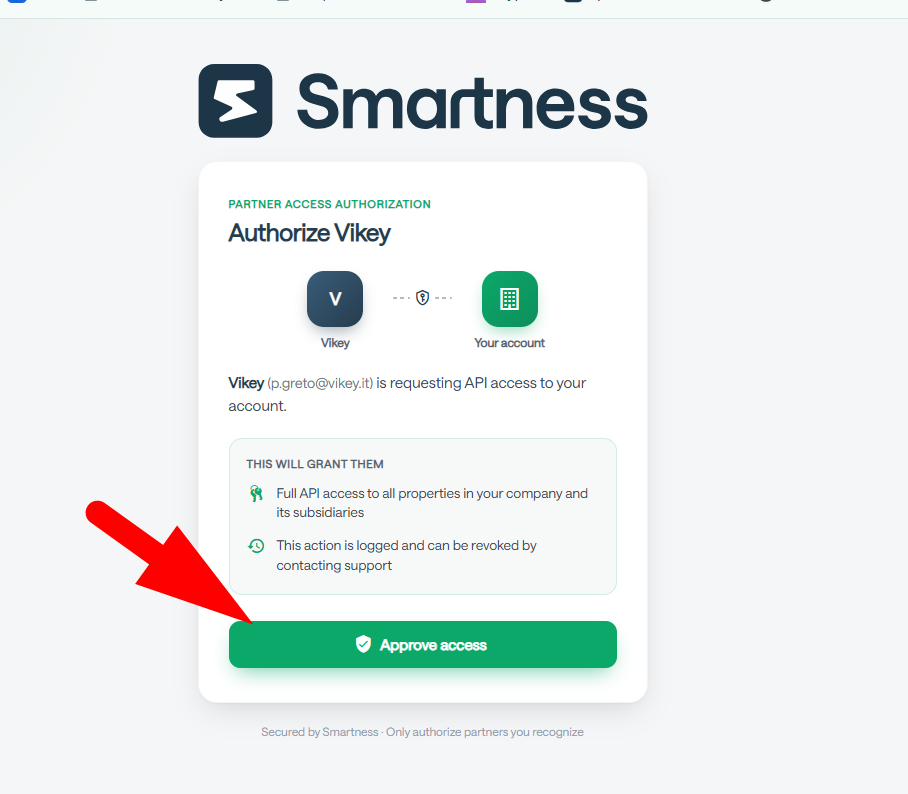
- After authorization, both Vikey support and the subscription owner will receive the dedicated API user credentials (email and password to be entered in Vikey) via email.
⚠️ Note on property management:by default, this procedure authorizes Vikey to access all properties present on the account. You can limit or expand access at any time from the API user permissions, as described below.
To exclude some properties from Vikey:
- Go to Settings → Users.
- Locate the automatically created API user (the email is the one received after confirmation in step 3).
- Click on Actions → Edit and deselect the properties you do not want to give Vikey access to.
- Save the changes.
ℹ️ If you add new properties to connect to Vikey in the future:
- Go to Settings → Users and open the Vikey API user.
- Click on Actions → Edit, select the new properties, and save. It is not necessary to repeat the authorization.
- In Vikey, complete the mapping of the new units (see point 3).
2. Activate the integration from the Vikey administrative area
After receiving the API credentials, go to the Vikey portal. In the Vikey portal, the integration with Smartpms may still appear under the name Ciaobooking (the previous name of Smartpms).
- Log in to the Vikey administrative area.
- Go to Administration → Integrations.
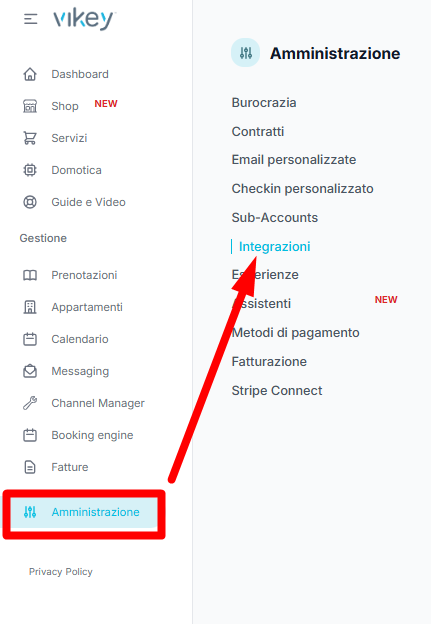
- Click on ADD INTEGRATION and select Ciaobooking from the list.
- Select the Vikey account to connect and enter:
- USERNAME: the API user email received via email.
- PASSWORD: the API user password received via email.
- Click on ACTIVATE.
3. Associate Smartpms units with Vikey accommodations
Once the integration is activated, you must map the accommodations between the two systems. This step allows Vikey to know which unit is assigned to each booking and therefore which lock to open.
⚙️ Set the Integration mode to ROOMS.
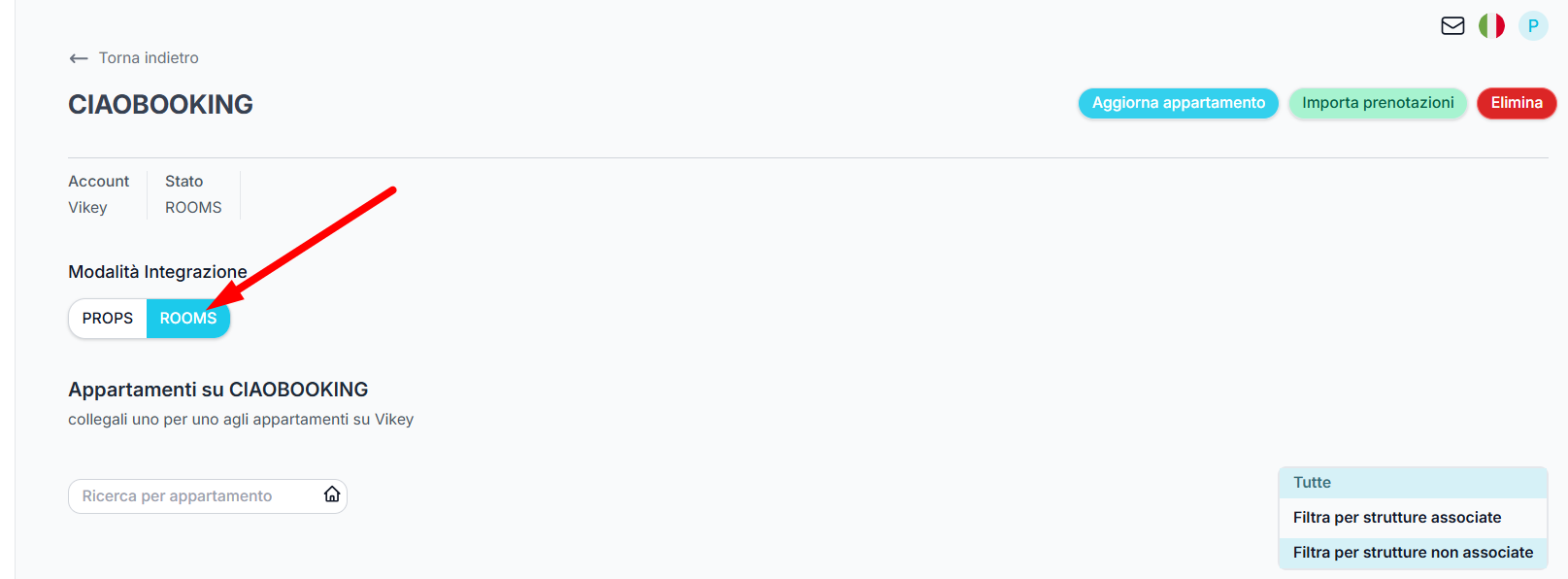
- On the left, you see the list of Smartpms units (green background).
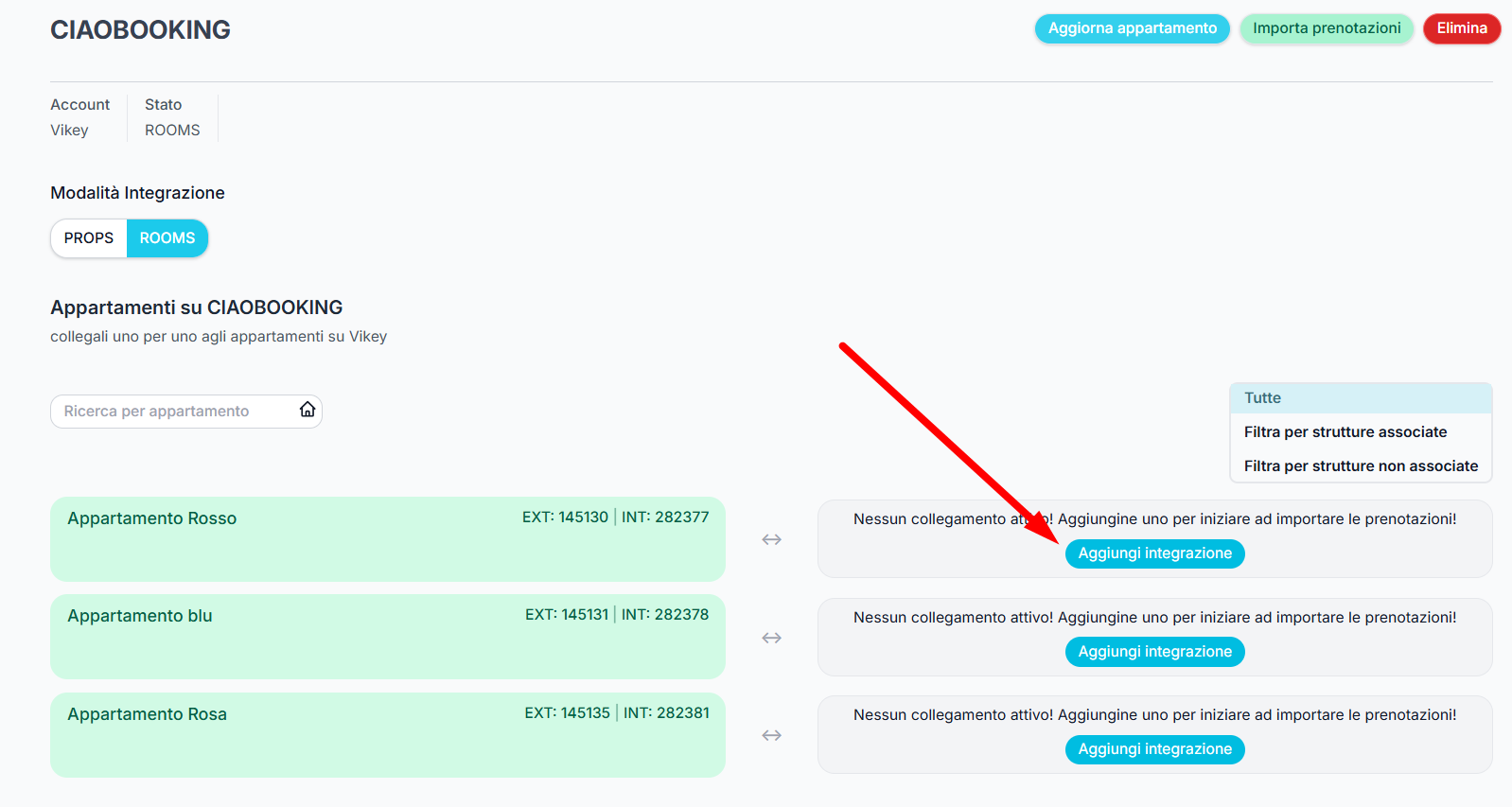
- For each unit, click on ADD INTEGRATION and associate it with the corresponding Vikey accommodation, with a 1:1 match (one Smartpms unit = one Vikey accommodation/lock).
- If a category contains multiple physical units, the list shows a row for each unit: these are not duplicates, they must all be mapped individually.
- When finished, click on Save and then on Force synchronization. Verify that no unit remains without an association.
Then complete the information requested by Vikey, indicating which data to collect from the guest and how to manage the check-in.
🔗 For further details on the Vikey-side configuration, consult the official Vikey guide.
💡 Supported integration modes between Vikey and Smartpms
Vikey offers two operating modes for check-in management. Choose the one best suited to your workflow.
Mode 1 – Vikey manages the entire online check-in process
This is the default mode: no further action is required beyond completing the integration as described above.
How it works:
- Vikey retrieves booking data (including guest email and phone number) from Smartpms.
- Vikey manages communication with the guest directly from its platform: document collection, payments (including any City tax), and sending access codes or links.
Limitations:
- Smartpms does not receive the personal data or documents filled out by guests on Vikey.
- Submissions to Police guest registration (Schedine Alloggiati) and ISTAT, as well as City tax calculation, must be managed directly in the Vikey portal.
Mode 2 – Smartpms manages check-in, Vikey sends keys
How it works:
- Smartpms collects documents and other information required based on your Self Check-in configuration, manages payments (e.g., via Stripe), and handles submissions to Police guest registration (Schedine Alloggiati) and ISTAT.
- Once the online check-in on Smartpms is completed, Vikey automatically sends the email or message with the access link to the guest.
- To customize the content of the message sent by Vikey, contact Vikey support.
⚠️ ATTENTION: if you choose Mode 2, contact Vikey support to enable it and indicate when their system should send access instructions:Option 1: immediately after the guest completes the online check-in on Smartpms.Option 2: only after your manual verification of the data (in this case, you will need to confirm and save the data in the booking's check-in tab on Smartpms).If you do not specify this, Vikey might send the access link even to guests who have not yet completed the check-in.
⏱️ Synchronization times
Vikey reads data from Smartpms at intervals: new bookings and check-in completion may be detected with a delay of approximately 30 minutes. The IMPORT BOOKINGS button in Vikey requests a new read but does not guarantee an immediate update. Take this delay into account, especially for last-minute bookings.
Frequently asked questions
13I already have a Smartpms API key: can I use it to connect Vikey?
No. The integration with Vikey does not use an API key: it uses the email and password of a dedicated API user, which are generated and sent via email when the subscription owner authorizes Vikey (point 1 of the guide). If you have other personal API keys, these are completely separate from Vikey management and its connection.
I activated the integration, but I don't see some properties in Vikey or the unit list is empty. Why?
Vikey only sees the properties enabled for the API user. Check, in order:
- In Smartpms, Settings → Users: open the Vikey API user and verify that the property is selected. This often happens with properties created after authorization.
- After updating permissions, reload the page and wait up to an hour: Vikey updates the list at intervals. You can optionally force the update from the integration page in Vikey.
Vikey shows bookings for only one unit and not the others. How do I fix this?
The mapping in Vikey's integration section is incomplete: Vikey receives bookings only for units associated with one of its accommodations.
- In Vikey, open Administration → Integrations → Ciaobooking and verify that the mode is ROOMS.
- Associate each unit from the list on the left with the relative Vikey accommodation, until none remain without an association.
- Click on Save and then on Force synchronization.
In the Vikey mapping, I see multiple rows with the same name: are they duplicates?
No. If a category includes multiple physical units, ROOMS mode shows a row for each unit, because each corresponds to a different door/lock. Associate each row with the correct Vikey accommodation or lock (unit 1 → door 1, unit 2 → door 2, and so on), then save and force synchronization. Multiple 'Rooms' (Smartpms units) can be associated with the same Vikey accommodation/lock.
I sell a single listing on Airbnb for multiple rooms: how does Vikey know which room Smartpms has assigned?
Vikey must read the booking from Smartpms, not from the portal. With the integration in ROOMS mode and each physical unit mapped 1:1 with a Vikey accommodation, Vikey also receives the assigned unit, regardless of the source channel (Airbnb, Booking.com, or others).
For assignment, Smartpms attributes the first available unit among those linked to the category to the booking; this criterion is not customizable.
Why can't Vikey send messages to guests via Smartpms or portal chats anymore?
To protect properties and guests from unauthorized sending, third-party platforms (including Vikey) can no longer send messages through Smartpms. This is not a block specific to Vikey and it is not possible to restore the previous behavior.
Now, Vikey contacts guests directly using the contact details found in the reservation:
- Booking.com and other portals: Vikey receives the email alias provided by the portal; the portal then forwards the message to the guest.
- Airbnb: Airbnb does not provide any email (not even an alias), so Vikey only receives the phone number and can contact the guest via SMS or WhatsApp, not via email.
If Vikey is still connected to Smartpms using the old method, i.e., with a user created manually before the authorization link, it can still write in the portal chats via Smartpms. To use the new connection, repeat the authorization (point 1 of the guide) and enter the new credentials received via email into Vikey (point 2). From that moment on, for Airbnb reservations, Vikey will contact guests via SMS or WhatsApp.
For message settings on the Vikey side, please contact their support.
Vikey sends the access link even to guests who have not completed the check-in on Smartpms. How do I avoid this?
The timing for sending keys is set on the Vikey side. Write to Vikey support asking to send keys only after the check-in on Smartpms is completed, or only after your manual approval in the booking's check-in tab (Mode 2).
The guest has completed the check-in, but Vikey has not yet sent the keys (or a last-minute booking does not appear). Is this normal?
It can be: Vikey reads data at intervals and may detect new bookings or completed check-ins with a delay of about 30 minutes. The IMPORT BOOKINGS button in Vikey does not guarantee an immediate update. Before reporting the problem, verify that:
- in the booking's check-in tab, the check-in appears as completed (or confirmed and saved, if you use manual approval);
- the booking unit is mapped in Vikey;
- a valid guest contact (email or phone) is present in the booking.
If the keys have not been sent after 30 minutes, contact Vikey support.
In Vikey, the error 'Forbidden – The user is not part of this partner' appears. What does this mean?
It indicates that Vikey is using credentials not linked to the partner authorization, for example, a manually created user or a password that is no longer valid. Repeat the authorization from the subscription owner account (point 1 of the guide), enter the email and password received via email following your authorization into Vikey (step 1 of this guide), then update the integration in Vikey (step 2 of this guide).
Can I use Vikey only for opening doors and manage check-in, Police guest registration (Schedine Alloggiati), and ISTAT on Smartpms?
Yes, this is Mode 2. Complete points 1–3 of the guide, then ask Vikey support to activate the mode where Smartpms manages check-in and Vikey only sends keys, indicating whether to send them immediately after check-in or after your approval. Online check-in, Police guest registration (Schedine Alloggiati), and ISTAT remain managed by Smartpms.
With Mode 1, however, Smartpms does not receive guest data collected by Vikey: submissions to Police guest registration (Schedine Alloggiati) and ISTAT must be done from the Vikey portal.
My guest received a message from Vikey that I don't recognize among my Smartpms templates. Where does it come from?
Vikey can communicate independently with your guests, not just for sending keys: it periodically re-reads bookings from Smartpms via API to stay updated. If, during one of these reads, it interprets an update as a new or modified booking, it may generate its own automatic message to the guest, independent of the templates you have configured in Smartpms.
Smartpms, for its part, never sends active notifications to Vikey: it is always Vikey that reads the data at intervals, not the other way around.
To understand if the message really comes from Smartpms:
- Go to Settings → Property → Message templates and compare the exact text received by the guest with that of every active template (Email, Instant Messaging, Portal Extranet).
- If no template matches word for word, the message was not generated by Smartpms.
In this case, contact Vikey support, reporting the text received: they will be able to explain which event on their side generated the sending and potentially deactivate or customize this communication.
Can Vikey use the documents and selfies collected in the Smartpms Self Check-in to verify the guest upon arrival (in person)?
No. With the integration, Vikey only reads the booking data from Smartpms (dates, units, amounts, guest contacts) and the information that the Online Check-in has been completed. The photos of the documents, selfies, and personal data collected in the Smartpms Self Check-in are not sent to Vikey.
Therefore, if you use Mode 2 (check-in on Smartpms, keys from Vikey), Vikey does not have your guests' documents and selfies to compare them with the person arriving.
If you need guest verification at the time of entry, ask Vikey support what solutions they offer and whether they also work with check-in done on Smartpms, or if they require the Online Check-in to be managed by Vikey (Mode 1). In that case, the submission to Alloggiati Web and ISTAT must also be done from the Vikey portal.
Related guides
Activation
Activation
Activation
Activation
Configuration