

How to connect Smartpms to Chiavistello
How to connect Smartpms to Chiavistello with partner authorization: approval via the dedicated link by the subscription owner, entering API credentials in Chiavistello (Linked calendars → Ciaobooking), and mapping the units. Chiavistello reads bookings and independently manages online check-in, documents, payments, and PINs, which are not synced back to Smartpms.
You are in the right place if…6 cases
- “I want to connect Chiavistello to the management software”
- “Chiavistello is not downloading bookings from Smartpms”
- “The PIN generated by Chiavistello does not appear in Smartpms”
- “Guest documents collected by Chiavistello do not arrive in Smartpms”
- “Do I still need to manually create the API user for Chiavistello?”
- “How do I connect Ciaobooking with Chiavistello?”
The integration between Smartpms and Chiavistello allows Chiavistello to read bookings from Smartpms and handle the entire online check-in process: communication with the guest, document collection, payments, and sending access codes (PINs) or access links.
The connection is established via partner authorization: you no longer need to manually create an API user with the "Third-party Self Check-in" role.
- Log in to Smartpms with the main administrator account (the subscription owner), in the same browser where you will open the link. If you are not logged in, the link will first take you to the login page and then return to the authorization request.
- Open the authorization link: **👉 Smartpms-Chiavistello authorization link
- On the Authorize Chiavistello page, click Approve access. The Access granted confirmation will appear.
- After authorization, a dedicated API user is automatically created: both Chiavistello and the subscription owner who authorized it will receive its credentials (email and password) via email, to be entered in Chiavistello at step 2.
⚠️ Access to properties: the authorization gives Chiavistello access to all properties of the company. To exclude some, go to Settings → Users, open the Chiavistello API user (the email is the one received after authorization), click Actions → Edit, deselect the properties, and save. You can use the same procedure to add properties created later, without repeating the authorization.
2. Connect the account on Chiavistello
- Log in to your Chiavistello private area.
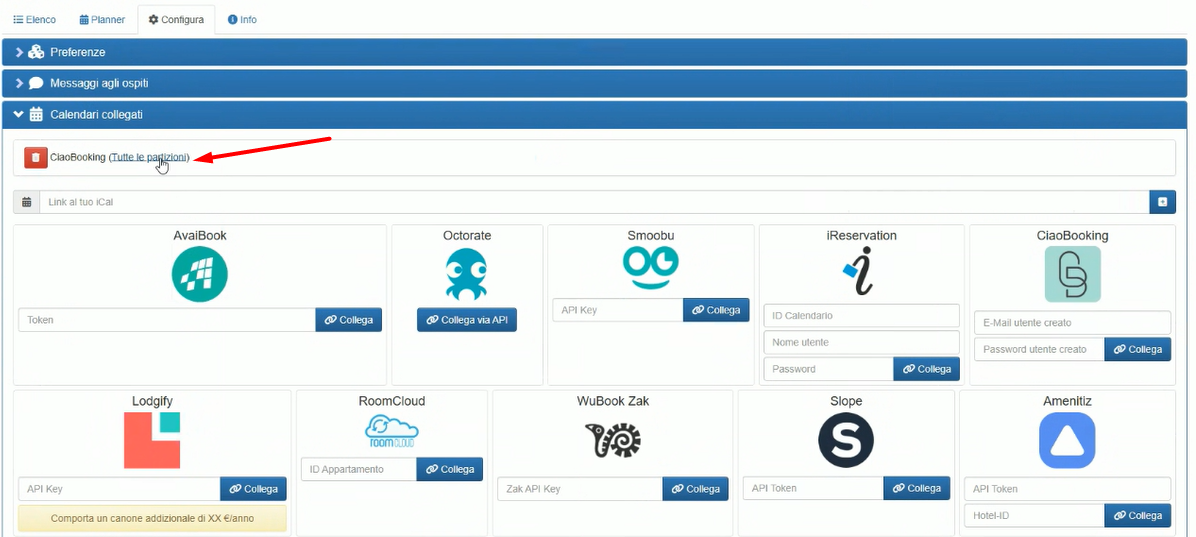
- Go to the Bookings section, open the Configure tab, and select Linked calendars.
- Locate the Ciaobooking integration (the previous name of Smartpms) and enter the credentials received after authorization in the Created user email and Created user password fields.
- Click Connect.
3. Map the units
After connecting, you must map each Smartpms unit to the corresponding room or apartment on Chiavistello: this is how Chiavistello knows which access to enable for each booking.
- At the top, the clickable title All partitions appears: click it.
- For each unit, use the dropdown menu on the right to select the corresponding room on Chiavistello.
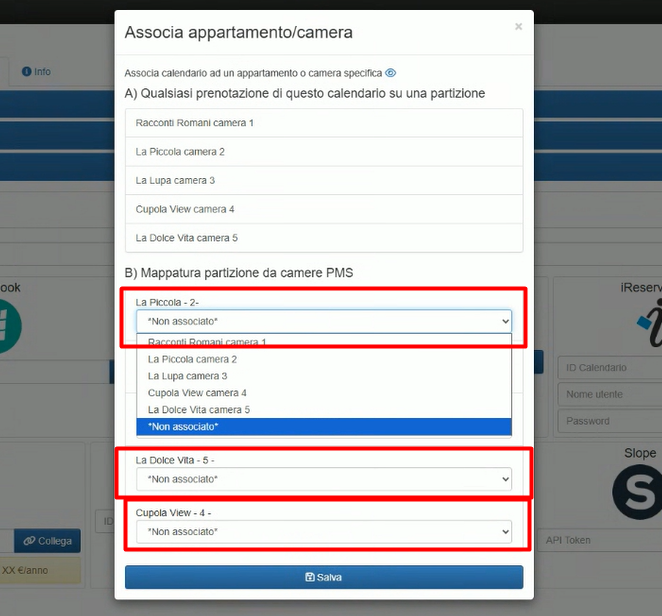
- Verify that all units are mapped and save the configuration.
How the integration works
- Check-in managed by Chiavistello: Chiavistello downloads bookings (dates, units, guest with email and phone, amounts) and manages all communication with the guest, document collection, payments, and sending PINs or access links.
- One-way flow: data collected by Chiavistello (guest documents, generated PINs) remains in Chiavistello and is not transmitted to Smartpms. Consequently, reporting data collected by Chiavistello to Police guest registration (Schedine Alloggiati) and ISTAT must be managed via the Chiavistello portal.
- Where to see bookings: on Chiavistello, bookings imported from Smartpms appear in the iCal Bookings list in the List section.
- Synchronization times: reading is not instantaneous. For last-minute bookings, consider a delay of up to about 30 minutes.
Frequently asked questions
4Chiavistello is not downloading bookings from Smartpms. What should I check?
- Active API user: in Settings → Users open the Chiavistello API user and verify that it is active. If it is deactivated, the integration stops working.
- Enabled properties: on the same user, check that the booking property is selected (this often happens with properties added after authorization).
- Credentials in Chiavistello: in Bookings → Configure → Linked calendars verify that the email and password are the ones received after authorization.
- Associated units: the booking must be on a unit associated with a Chiavistello room.
- Timing: reading is not instantaneous; for last-minute bookings, wait about 30 minutes.
Imported bookings appear on Chiavistello in List → iCal Bookings.
The PIN and guest documents collected by Chiavistello do not appear in Smartpms. Is this normal?
Yes. The integration is one-way: Chiavistello reads bookings from Smartpms, but the data it collects (documents, PIN, check-in payments) remains on Chiavistello and does not return to the management software.
Consequently:
- the PIN field of the booking in Smartpms remains empty: access codes and instructions are sent to the guest by Chiavistello;
- if you use the Chiavistello check-in, the communication to Alloggiati Web and ISTAT of the collected data must also be managed by Chiavistello, because the Check-in tab in Smartpms is not filled in.
I had already connected Chiavistello with a manually created API user: do I need to redo the connection?
If the existing connection works, you do not need to take any action. For new connections, or if you need to reconnect Chiavistello (user deactivated, password no longer valid), use the authorization link in this guide: the API user is created automatically. Then enter the new credentials in Chiavistello (Linked calendars → Ciaobooking) and deactivate the old manually created user.
Related guides
Activation
Activation
Activation
Configuration
Configuration