

How to connect Salto KS locks to SmartPMS
How to connect Salto KS locks to SmartPMS from the Internet of Things section: credentials and Salto KS Site, associating locks to units with common doors and the room door. Explains when the 6-digit PIN is generated and activated on the locks, how to send it to the guest, validity times, remote opening, and opening history. Integration is distinct from Nuki: account, gateway, and activation rules are specific to Salto KS.
You are in the right place if…14 cases
- “How do I connect my Salto KS locks to SmartPMS?”
- “The guest code is still not working on the Salto KS lock”
- “The booking PIN does not appear in my Salto KS site yet”
- “How do I send the Salto KS code to the guest in the automatic message?”
- “A Salto KS lock does not appear in the list to be associated with the unit”
- “I see many Smartpms Guest users on the Salto KS site: what are they?”
- “Can I also give the guest access to the main door or common doors?”
- “I have Salto KS Lite: does the integration work?”
- “The Smartpms Guest user is created in Salto KS but without a PIN”
- “Is the Salto KS Pro subscription required to use SmartPMS?”
- “Which Salto KS user should I enter in SmartPMS?”
- “In the Digital Key I only see Unlock and not the Entry Code”
- “The guest does not see the access code in the portal before arrival”
- “Can I send the PIN to the guest before they leave, so they can save it without internet?”
The integration between Salto KS and SmartPMS automatically generates an access code (PIN) for each booking, activates it on the unit's locks for the duration of the stay, and allows doors to be opened remotely. You can give the guest access to both the room or apartment door and common doors, such as the main building entrance, with a single code.
Requirements
- A Salto KS Pro subscription. Each guest's code is created by SmartPMS and sent to Salto KS: the Salto KS Lite plan does not accept codes created by external systems, so with Lite, the guest user is created in Salto KS but without a code.
- A Salto KS user dedicated to the integration (e.g., SmartPMS), with the Site Admin role on the Site of your locks. Create it from your Salto KS account and use its credentials in SmartPMS instead of your personal account credentials: this way, the integration works independently of you, and in the Salto KS history, you can distinguish between what SmartPMS does and what you do.
- The Salto KS Site to which the locks belong, with the locks already configured and functioning.
- The locks connected to the cloud via an online IQ gateway: without a reachable IQ, the PIN cannot reach the lock.
Phase 1 – Create the Salto KS account on SmartPMS
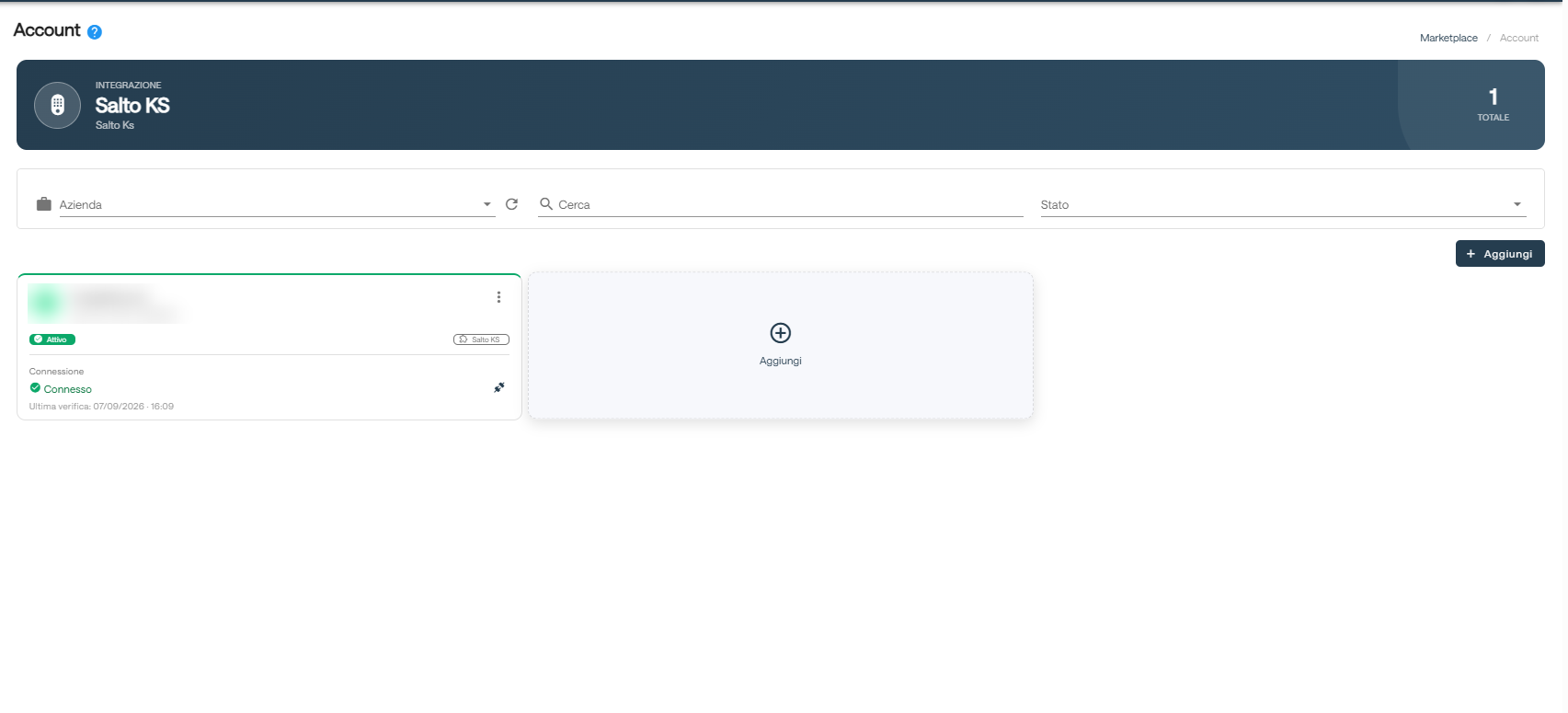
- From the left menu, open Internet of Things.
- Find the Salto KS card and click Configure (or Manage if you already have an account).
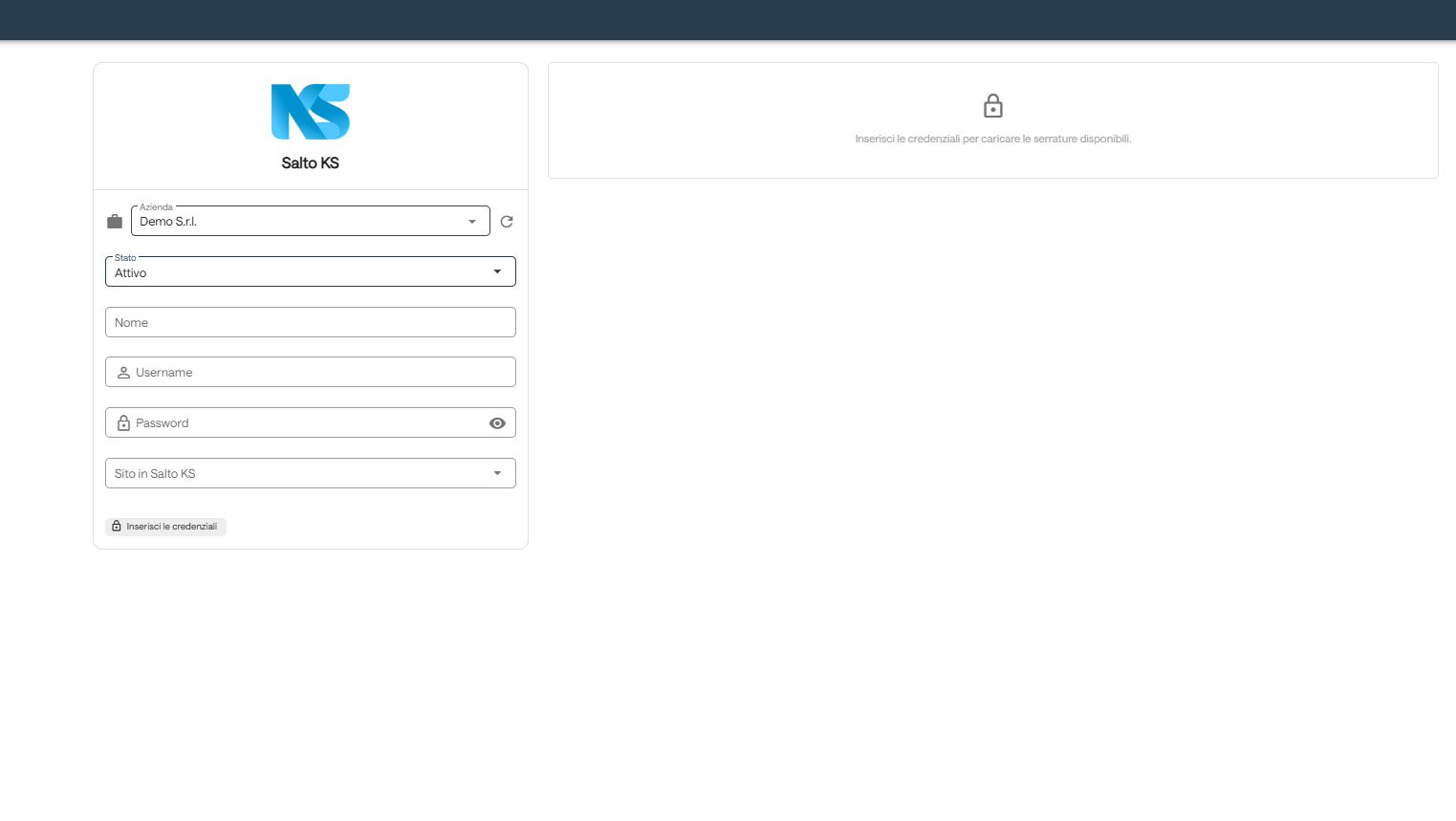
- Click + Add and fill in:
- Company: the company to which the units belong.
- Status: Active.
- Name: a recognizable name (e.g., Salto KS – Property Name).
- Username and Password: the credentials of the Salto KS user dedicated to the integration, with the Site Admin role.
- Site in Salto KS: the Site to which the locks belong.
When the credentials are correct, SmartPMS reads the available Sites and locks from Salto KS.
Phase 2 – Associate locks with units
After saving the account, the Units configuration opens.
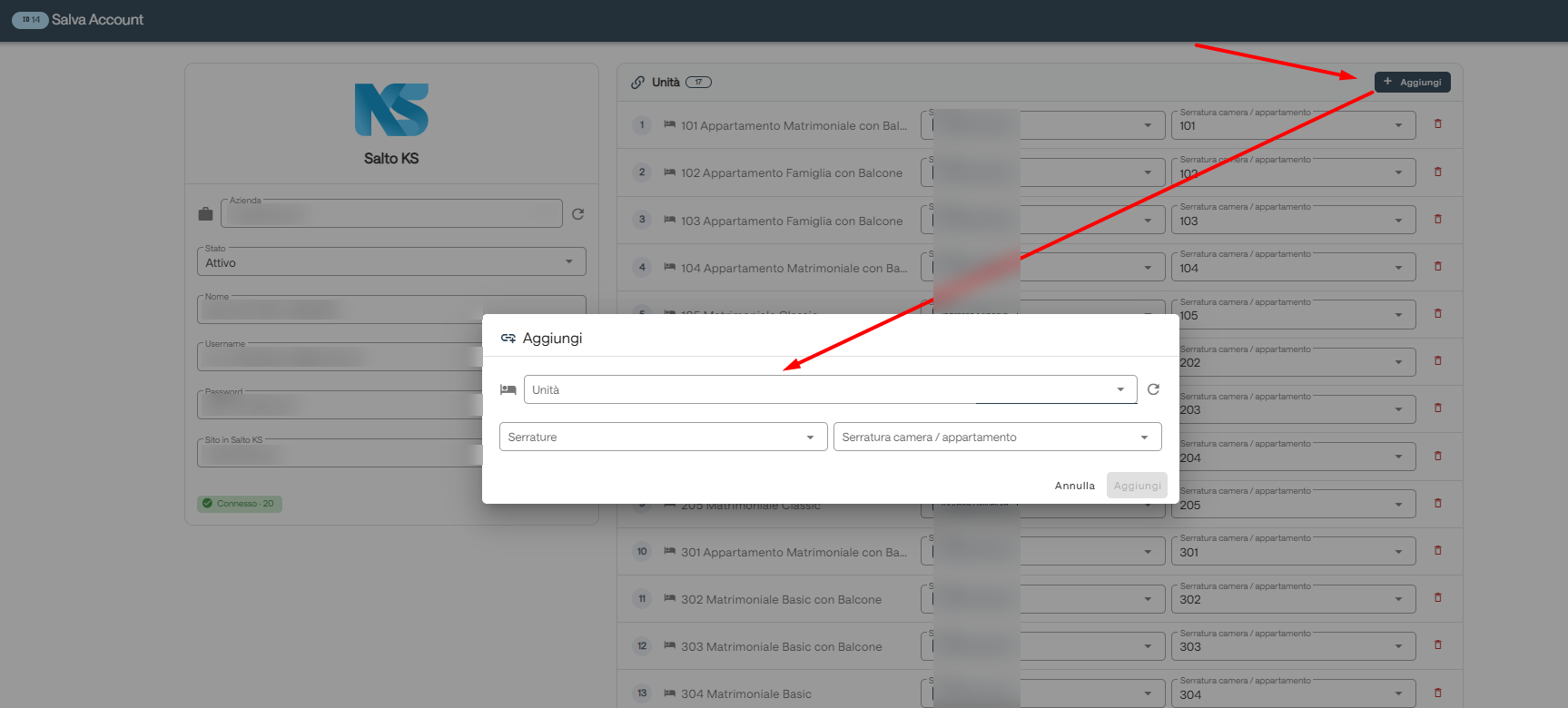
- Click + Add and choose the Unit (room or apartment).
- In Locks, select the access points that the guest of that unit should be able to use, for example, the main door or the common entrance.
- In Room / apartment lock, select the main door of the unit. It is always included in the guest's access, even if you do not repeat it in the Locks field.
- Click Create and repeat for all units.
In the Locks field, you can select multiple access points:
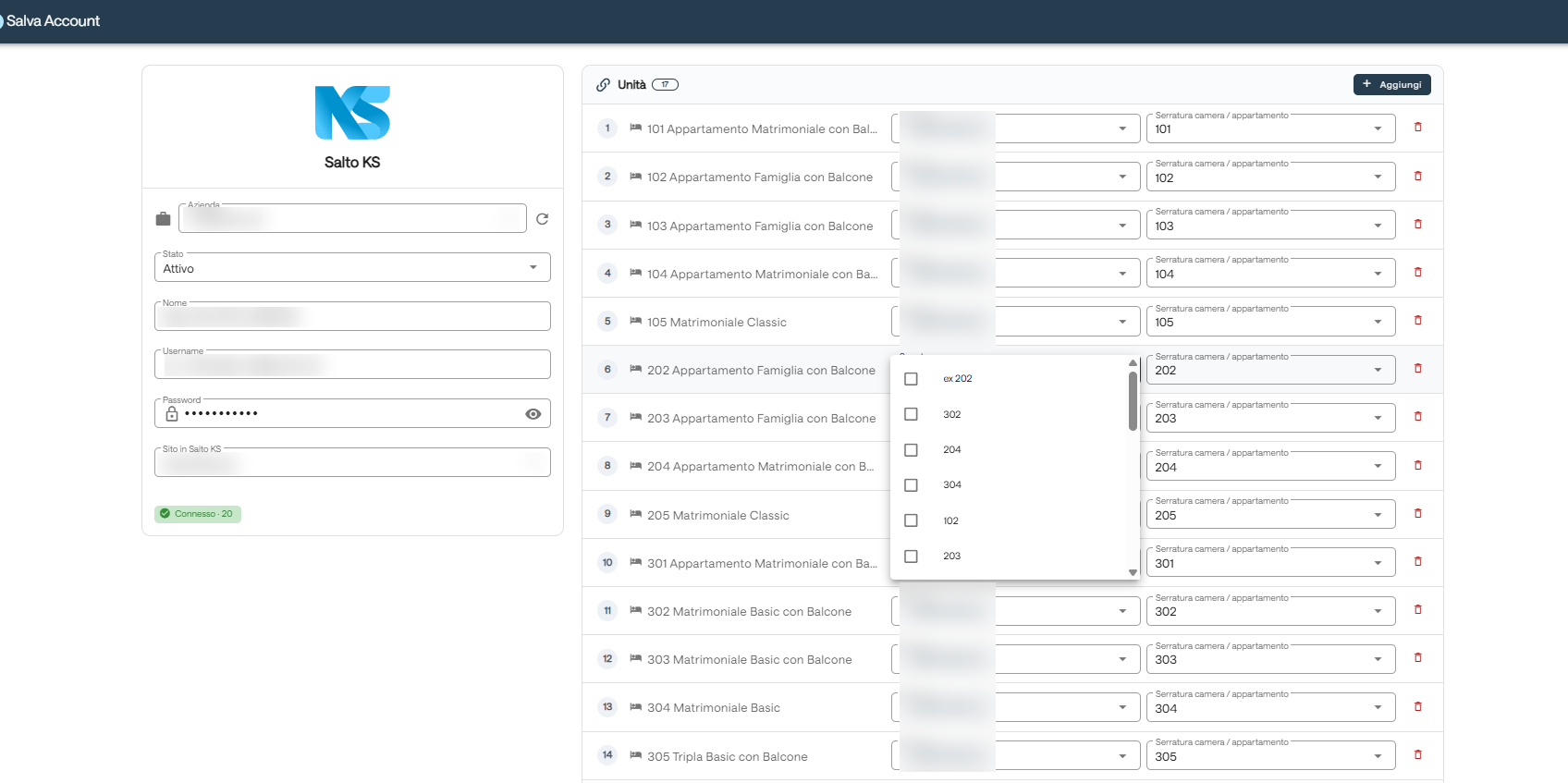
In the Room / apartment lock field, choose only one door, the main one for the unit:
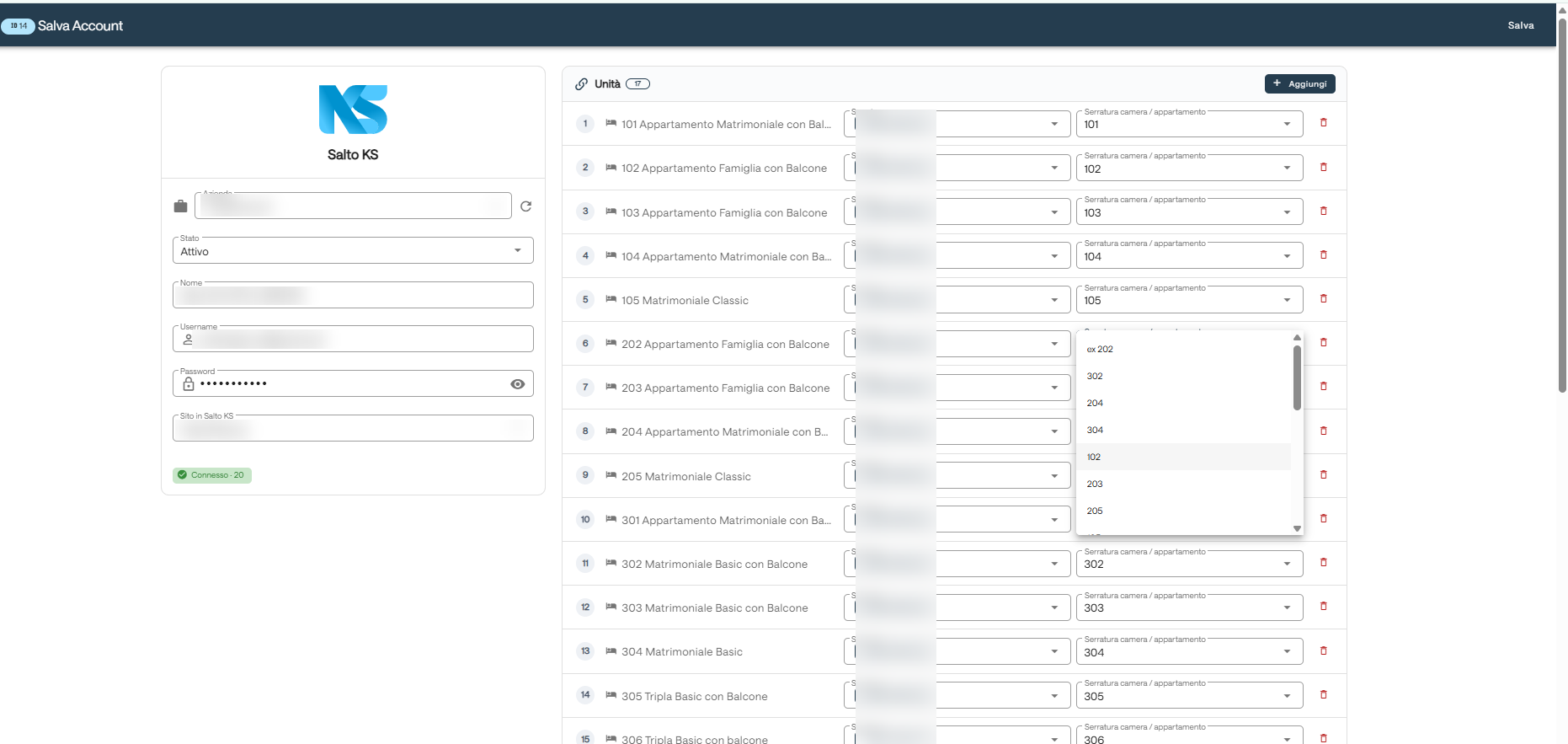
Upon saving, SmartPMS asks you what to do with bookings already present in the calendar:
- Save and resynchronize: generates codes for existing bookings of the associated units as well. The operation takes place in the background and may take a few minutes.
- Save without resynchronizing: codes will be generated only for new or modified bookings from this moment on.
Phase 3 – How the PIN works and how to send it to the guest
For each booking on an associated unit, SmartPMS generates a 6-digit PIN (from 0 to 9). The same PIN opens all locks associated with the unit: room door and common doors.
The PIN is visible in SmartPMS immediately after the booking arrives. On the locks, it is activated automatically about 15 minutes before the check-in time and removed about 15 minutes after check-out. For this reason, before the guest's arrival, the code does not yet appear in Salto KS: this is the expected behavior. Activation depends on synchronization with Salto KS, so it may take a few minutes for the code to work on the lock.
At the time of activation, a Smartpms Guest user appears in your Salto KS Site with the booking PIN, inserted into a dedicated access group with the unit's locks and the stay's times. The user and group are automatically deleted after check-out.
To communicate the code to the guest, configure the template with the access instructions:
- Go to Settings → Property and open the property settings.
- Open Message Templates and edit the access instructions template.
- Insert the dynamic fields:
- Booking - Smart IOT Access PIN (
{{reservation_meta_smart_iot_pins}}): shows the associated locks with the relative PIN. - Client: Hub Link (
{{client_portal_url}}): takes the guest to the Guest Portal, where they can find the PIN and opening buttons in the Digital Key section.
- Save the template.
In the Guest Portal, the PIN appears only during the stay, from check-in time to check-out time: before arrival, the guest does not see it yet, which is why it is advisable to send it to them via an automatic message as well. The opening buttons are visible even before, but they only work during the stay: if the guest uses them before check-in or after check-out, the door will not open.
Phase 4 – Code validity times
The code works from the check-in time to the check-out time, calculated in this order:
- the times set on the individual booking, in the Manage IoT devices window;
- if there are none, the check-in and check-out times of the property booking policy;
- if the property does not have a policy, those of the company booking policy (Settings → Companies → Booking policy).
To advance the entry or postpone the exit of a guest:
- Open the booking from the Calendar.
- Click the device / house icon next to the PIN field to open Manage IoT devices.
- Enter the desired times and click Save.
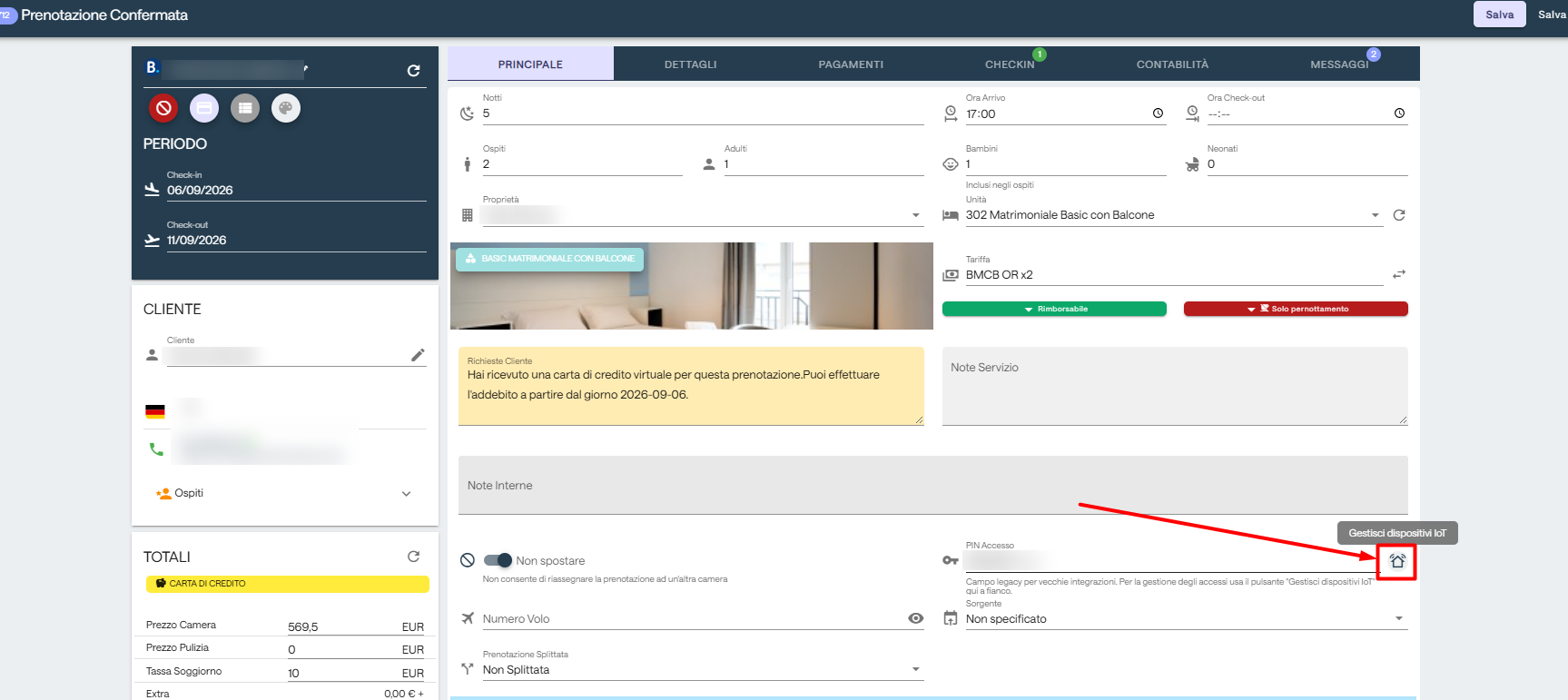
When you save new times, or change dates or units of the booking, SmartPMS automatically updates the code on Salto KS while maintaining the same PIN.
Remote opening and opening history
From the Manage IoT devices window of the booking, you can remotely open the associated locks, for example, if the guest has difficulty with the keypad. The guest can do the same from the Guest Portal during the stay. Remote closing is not available with Salto KS: the lock closes by itself according to the device settings.
Openings made with the booking PIN are imported from Salto KS and appear in the booking's event history.
Frequently asked questions
4I see "Smartpms Guest" users on my Salto KS site: what are they?
These are the guests of current bookings. When the PIN is activated, SmartPMS creates a Smartpms Guest user in your Site with the booking PIN and an access group with the unit's locks and the stay times. After check-out, the user and group are automatically deleted. Do not modify or delete them manually: the guest would lose access.
If your Salto KS plan includes a maximum number of users, keep in mind that each ongoing stay occupies one.
Can I also give the guest access to the main door or common doors?
Yes, if those doors are part of the same Salto KS Site. In the unit configuration, enter the common doors in the Locks field and the room or apartment door in Room / apartment lock. The guest receives a single PIN that opens all locks associated with their unit, only during the stay times.
I have the Salto KS Lite plan: can I use the integration with SmartPMS?
To automatically generate guest codes, you need the Salto KS Pro plan. SmartPMS creates the code for each reservation and sends it to Salto KS, but the Lite plan does not accept codes created by external systems. For this reason, with Lite, the Smartpms Guest user appears in your Site but without a code, and the guest cannot enter.
If you want to activate the integration, ask your Salto dealer to upgrade to Salto KS Pro. When the plan is active, open the Salto KS account in Internet of Things, save it, and choose Save and resynchronize: this will generate codes even for reservations already in the calendar.
Which Salto KS user should I use to connect SmartPMS?
Create a user dedicated to the integration in your Salto KS account, for example SmartPMS, with the Site Admin role on the Site of your locks. Then enter its Username and Password in the Salto KS account in Internet of Things, instead of your personal account credentials.
This way, you continue to use the Salto KS app as before, the integration does not depend on your account, and you can distinguish what SmartPMS does from what you do in the Salto KS history.
Related guides
Configuration
Activation
Activation
Activation
Activation
Configuration