

How to configure a property in SmartPMS: properties, types, units, and rate plans
Explains the four elements on which a property is based in SmartPMS (property, accommodation types, units, and rate plans), how they are connected, and the order in which to create them: from the new property to the prices in the Price Calendar, including the most common causes when something does not save or does not appear in the calendar.
You are in the right place if…25 cases
- “How do I create a new property or a new structure in SmartPMS?”
- “I want to add a new apartment or a vacation home”
- “How do I add a room or a new room type?”
- “What is the difference between a type and a unit?”
- “How do I create a Rate plan?”
- “I created the property but I don't see anything in the calendar”
- “I created the non-refundable plan but I don't see it in the calendar”
- “I cannot add a unit: you have reached the limit of units available in your subscription”
- “Validation error when I create the property”
- “The Create button remains grey”
- “I created the company but it does not appear in the Company field”
- “Why is there a type called BASE in the new property?”
- “What is the difference between base occupancy and maximum occupancy?”
- “In what order do I configure rooms, apartments, and rates?”
- “I cannot find the Type field in the Create Property form”
- “In the property list, my property appears as N/A”
- “How do I change the property type (hotel, villa, apartment)?”
- “Do I need to recreate the property to change its type?”
- “Where do I set the accommodation type for the room types?”
- “In the Room Types list, beds show as 0 even after saving”
- “Total beds remains at zero in the Room Types list”
- “Where do I set the number of beds, rooms, and bathrooms for the room type?”
- “I can no longer find the Beds field when editing the room type”
- “Creating a new Rate plan”
- “How to Configure Your Property in SmartPMS”
A property in SmartPMS is built in four steps, always in this order: property → room types → units → rate plans. Each element depends on the previous one: without room types you cannot create units, without units the property does not appear in the Tape Chart, and without rate plans the Price Calendar has no rows in which to enter prices.
Upon the first activation of SmartPMS, the property is usually configured together with your Onboarding Specialist. This guide is useful when you add a new property independently, or to understand how the one you already have is organized.
The four elements
- Property: the facility (hotel, B&B, apartment, villa…), with name, address, contacts and the company that manages it and issues tax documents.
- Room type: the category of accommodation that the guest books, for example Standard Double Room or Three-room apartment with Balcony. Here you set how many people it can accommodate and the cleaning price.
- Unit: the individual physical accommodation where you place the booking, for example room 101 or the apartment Lake View House. The unit name is internal: you see it in the Tape Chart, not the guest. The guest books a room type; the booking is then assigned to one of its units, automatically or manually. The number of units you can create depends on your subscription.
- Rate plan: the set of conditions with which you sell a room type, for example Standard Rate refundable or Non-Refundable Rate. The plan does not contain daily prices: it defines board, cancellation conditions, deposit, minimum price and default stay values. The prices for each day are entered in the Price Calendar.
When you associate a rate plan with a room type, SmartPMS creates a rate: it is the row of the Price Calendar where you enter price, availability and restrictions. A plan associated with two room types generates two rows, one per room type.
Rows in the Price Calendar=room types×associated rate plans
Example: 2 room types, 2 plans associated with both
2 room types×2 plans=4 rates
Step 1: create the property
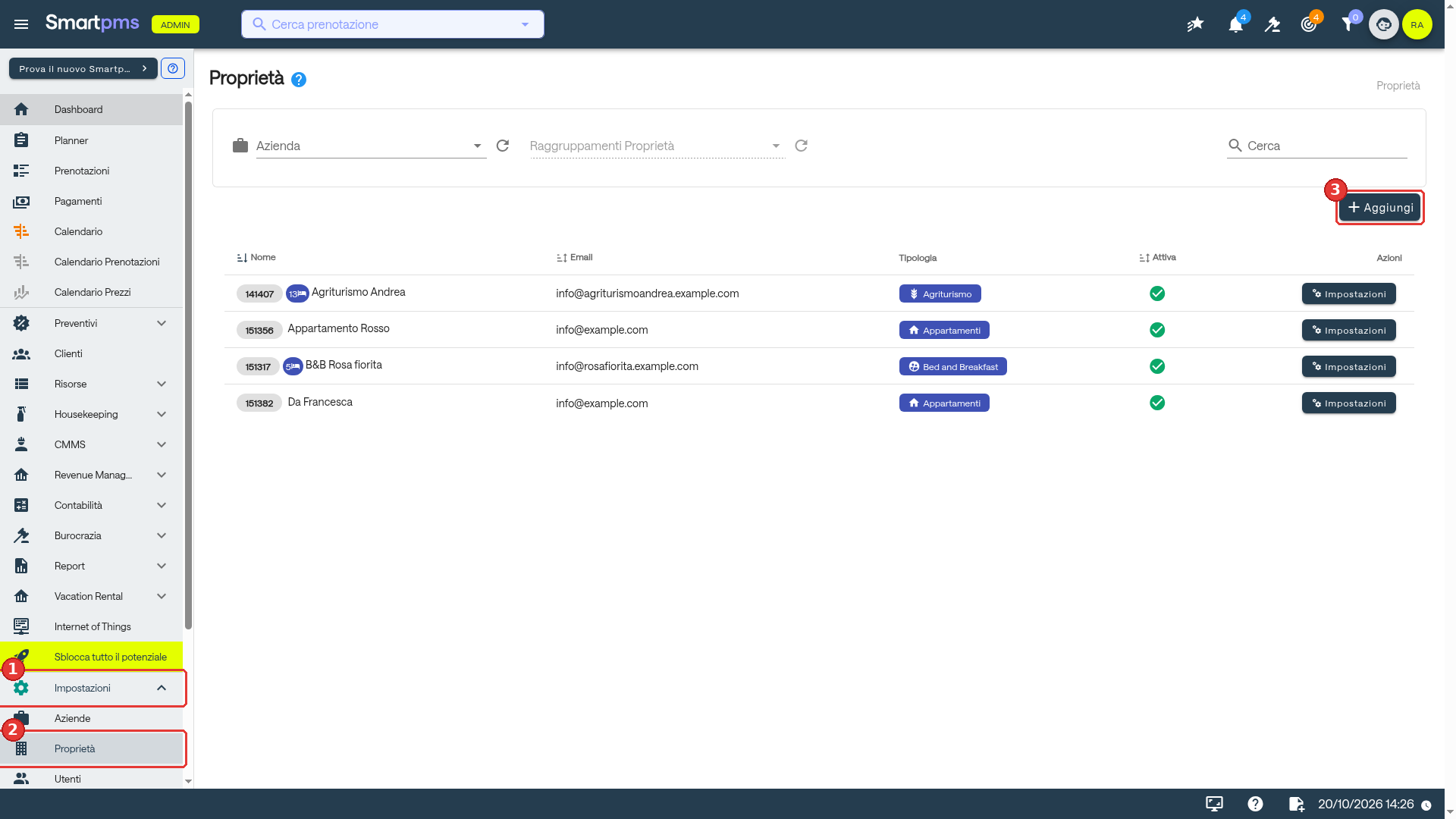
- Go to Settings → Property and click on Add.
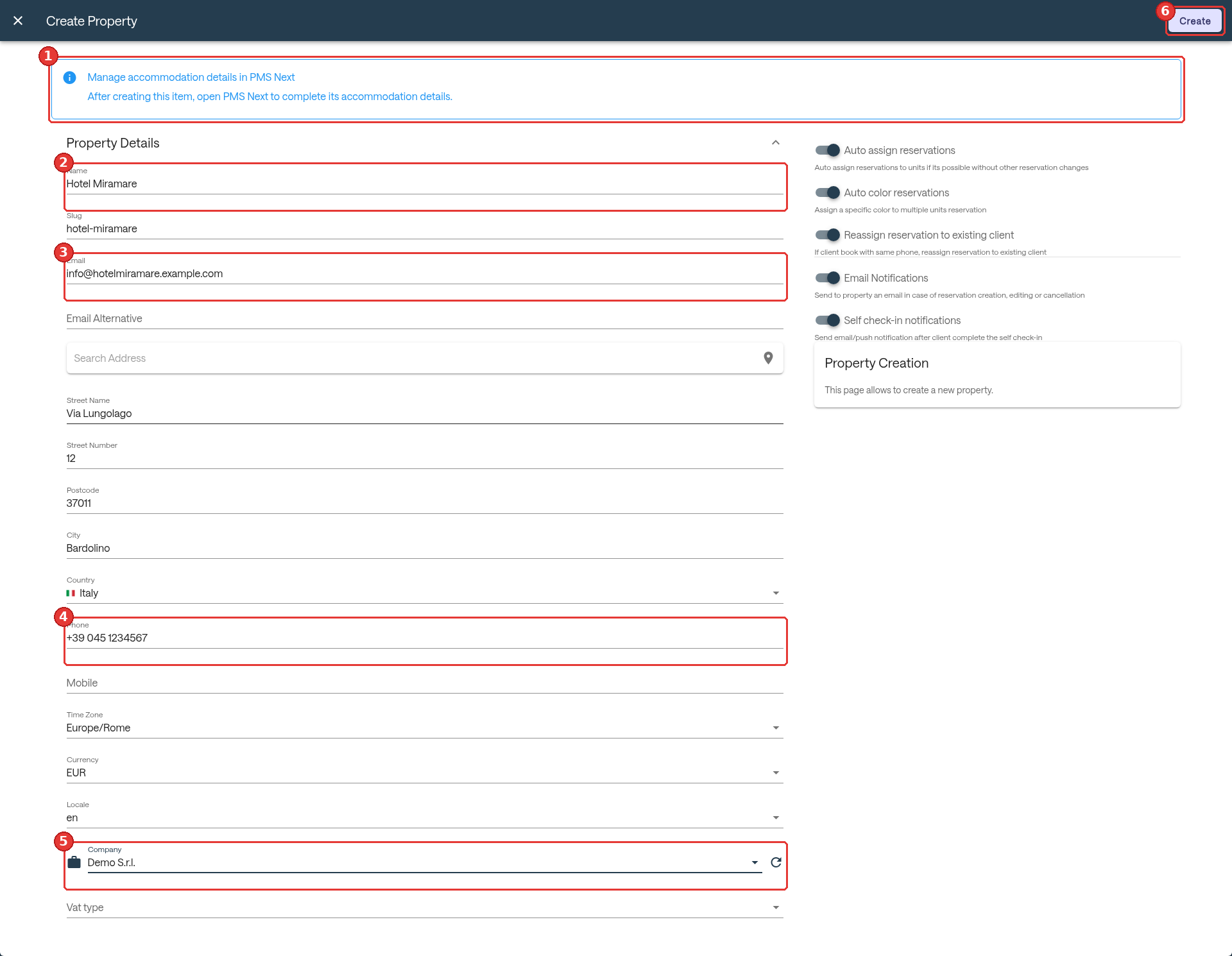
- Fill in Name and Email. The property type is not chosen here: you set it after creation, as explained below in Set the property type.
- For the address, write in the Search address field and choose the suggested entry: this way Street, House Number, ZIP Code and City are filled in. Then check that they are all present.
- Indicate Country and Phone, with the international prefix (for example +39): the phone is mandatory.
- In Company choose the company that manages the property and issues tax documents. If you have just created it and cannot find it, click on the refresh icon next to the field, or exit and re-enter SmartPMS.
- Check the options on the right (Auto assign bookings, Auto color bookings, Reassign bookings to existing customer, Email notifications, Completed self check-in notifications): they are active by default and you can leave them as they are.
- Click on Create.
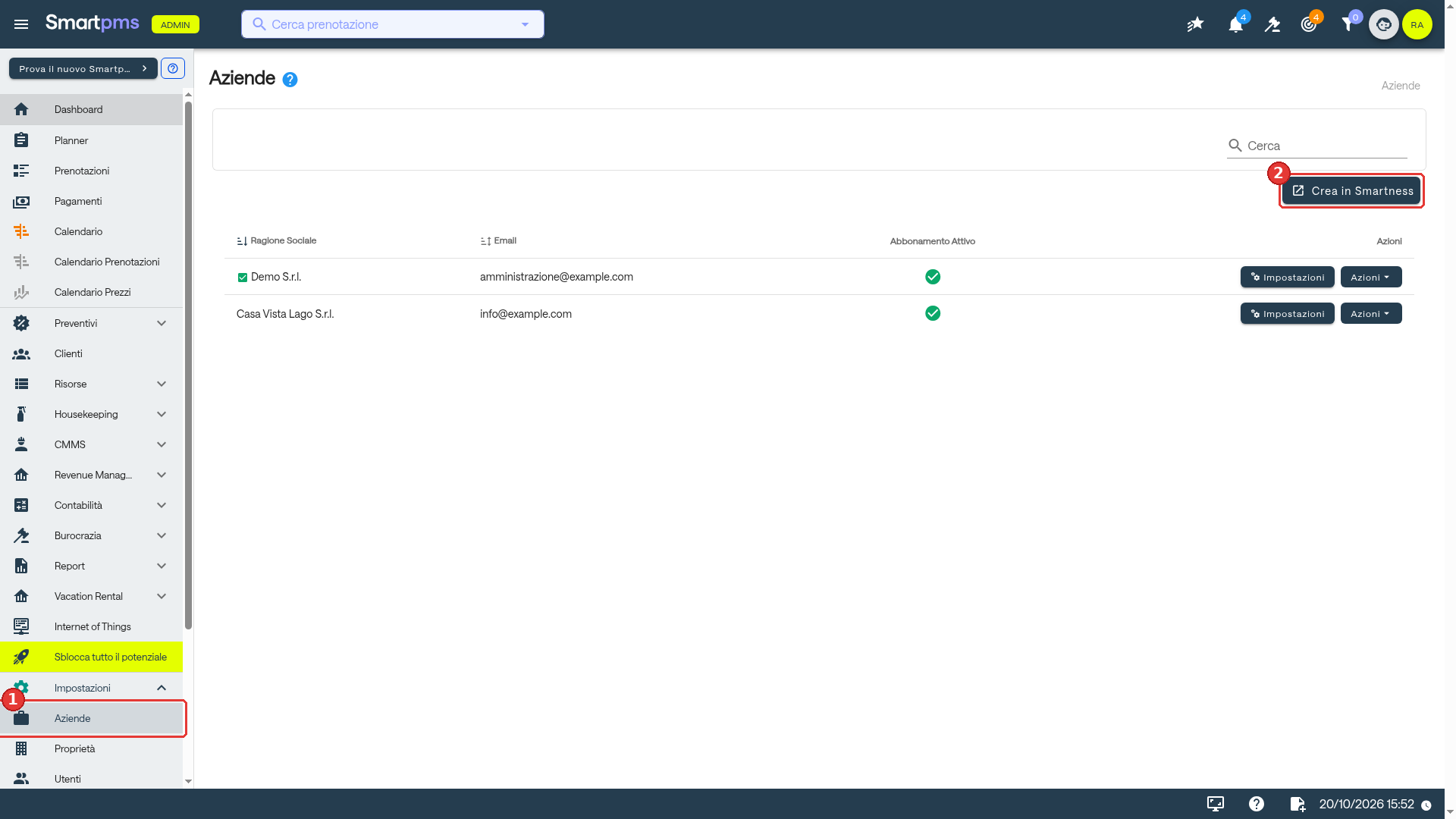
Companies are not created from this form: if you need a new company, go to Settings → Companies and click on Create in Smartness. The Smartness platform (platform.smartness.com) opens, where you create the company. If you are already on the platform, go directly to Administration → Billing → Legal Entities. Then return to SmartPMS and select it in the property.
When you create the property from here, SmartPMS prepares a first room type called BASE (2 guests), with a unit also called BASE. It does not create any rate plan.
Set the property type
The property type (for example hotel, apartment, bed and breakfast or villa) and the accommodation type of each room type are set in PMS Next, after creating the property. They are used to describe the property and its accommodations, and you can set them even if you have no connected portals. In the Create Property module, the banner Manage accommodation features in PMS Next reminds you of this.
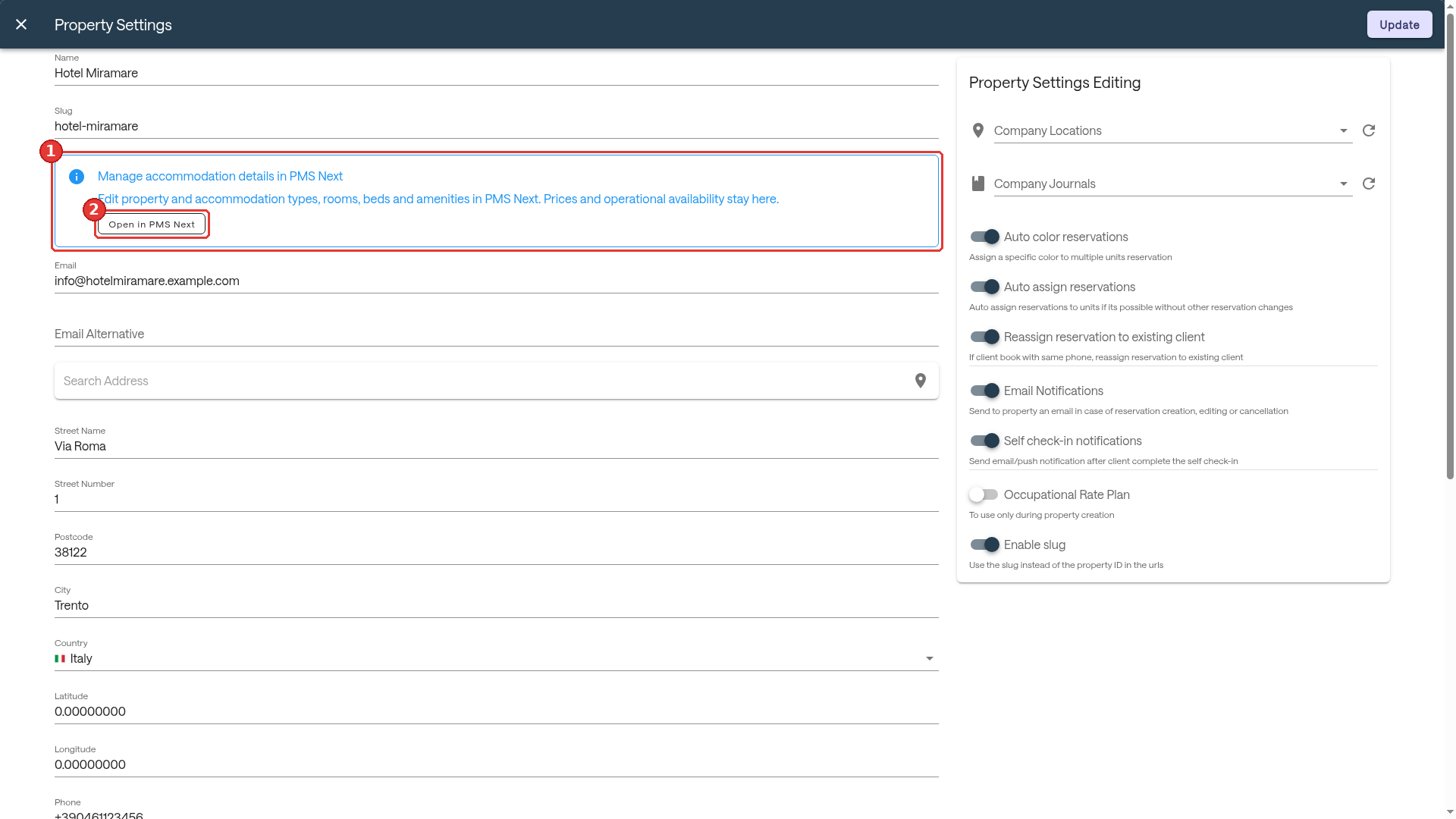
- From the property list click on Settings next to the property, then on Configure in Property Settings. In the banner Manage accommodation features in PMS Next click on Open in PMS Next: the property opens in PMS Next in a new tab.
- In General Settings click on Property type. Under the title you see the saved type and how many room types you have already classified (for example 0 of 2 room types classified): as long as some are missing, To be completed appears.
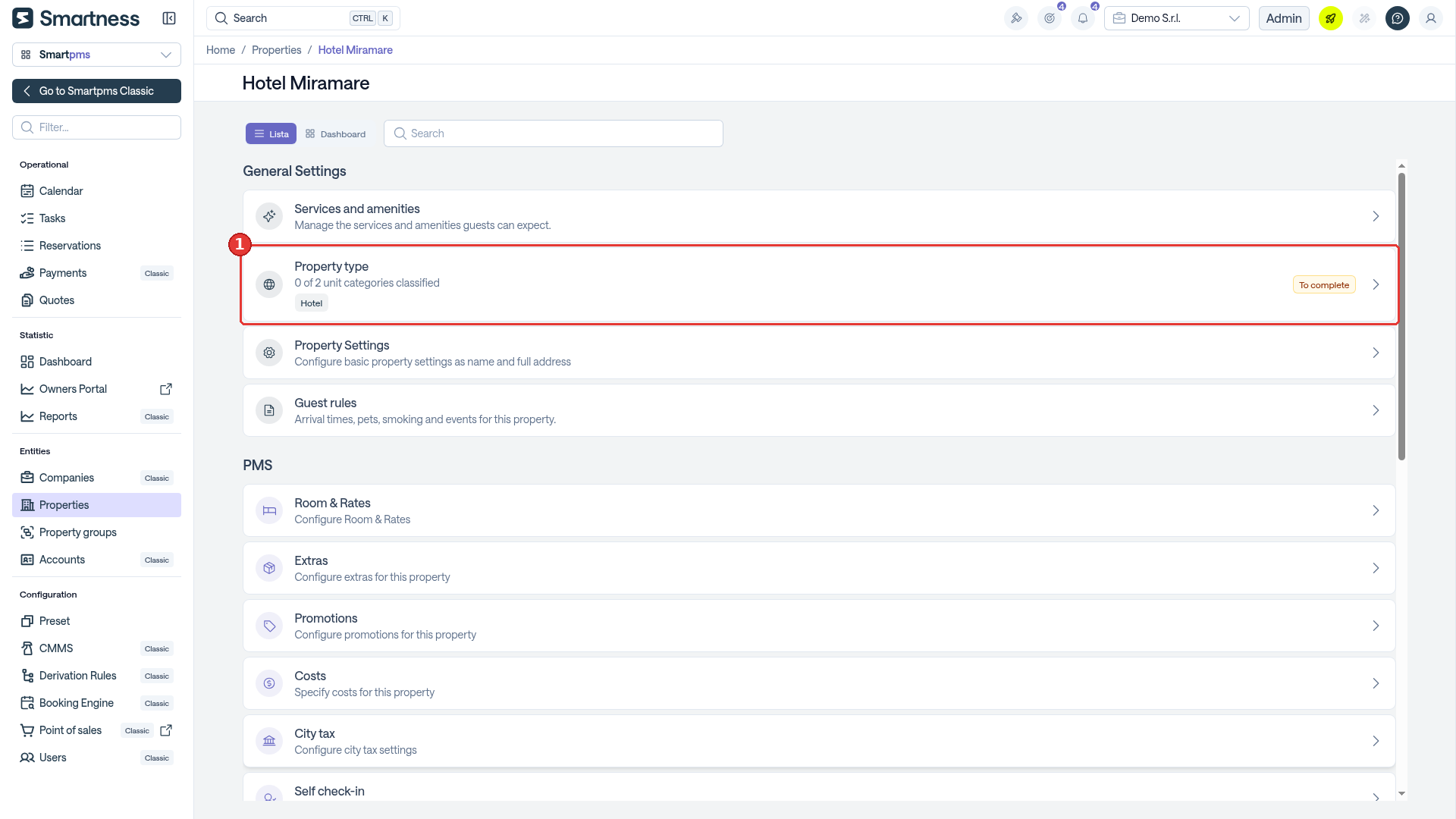
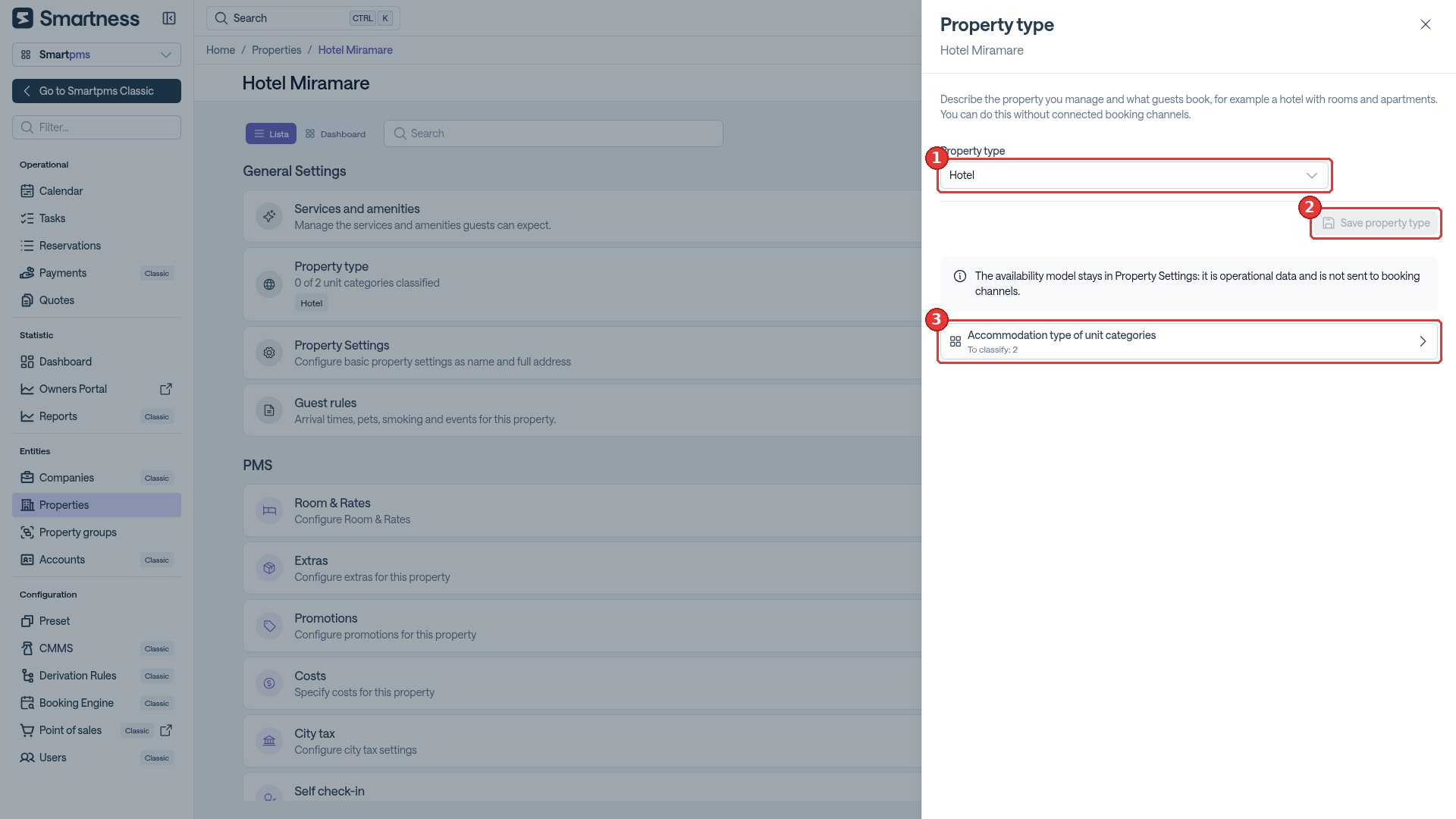
- In the panel that opens choose the Property type and click on Save property type.
- Click on Accommodation type of room types: the list of the property's room types opens.
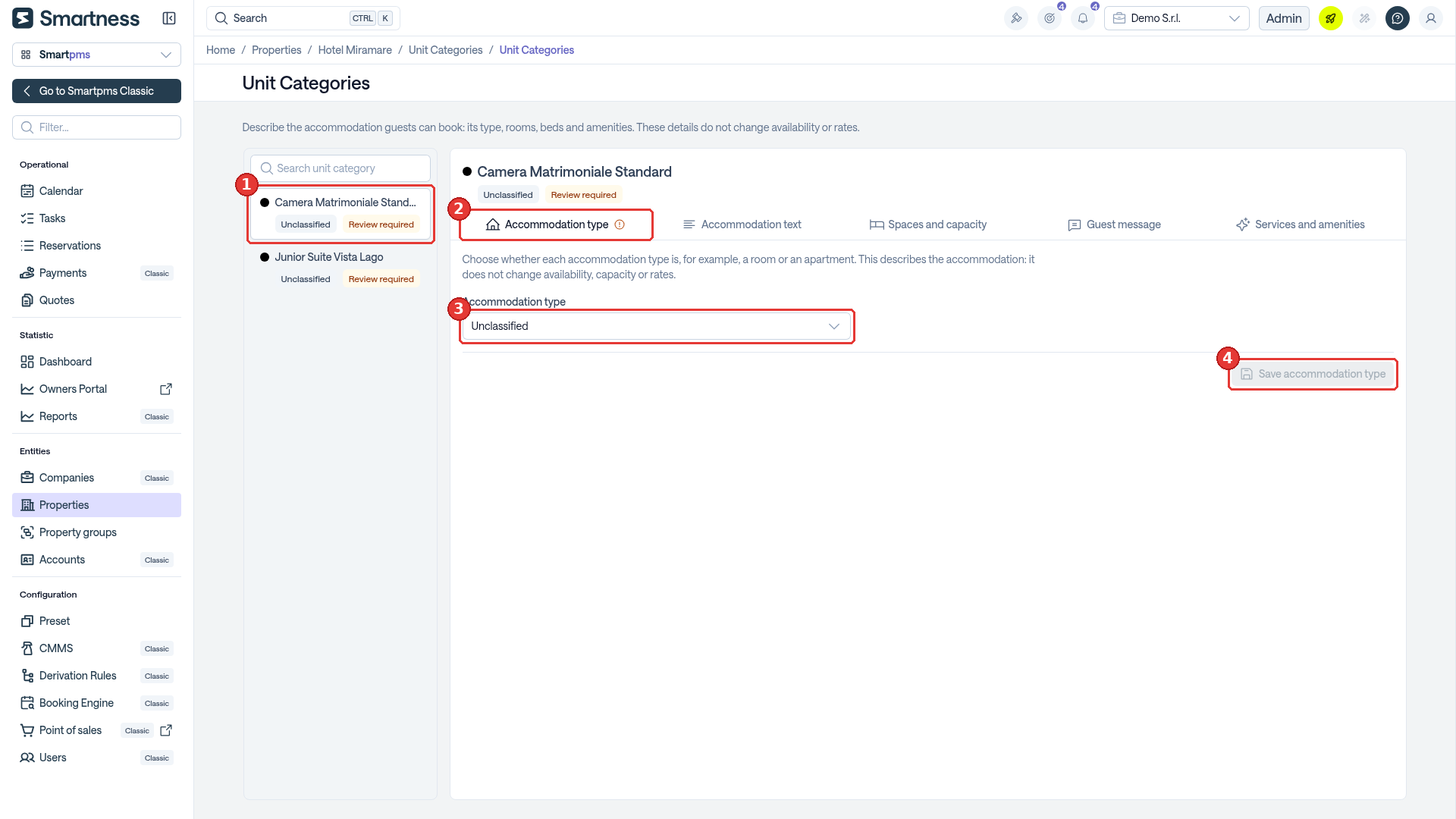
- For each room type: select it in the list, open the Accommodation type tab, choose the type and click on Save accommodation type.
You can set or change these types at any time: you don't need to delete and recreate the property. You can find all the steps, including those on spaces, beds and amenities, in the guide How to set the property type and the accommodation type of room types.
Step 2: configure room types
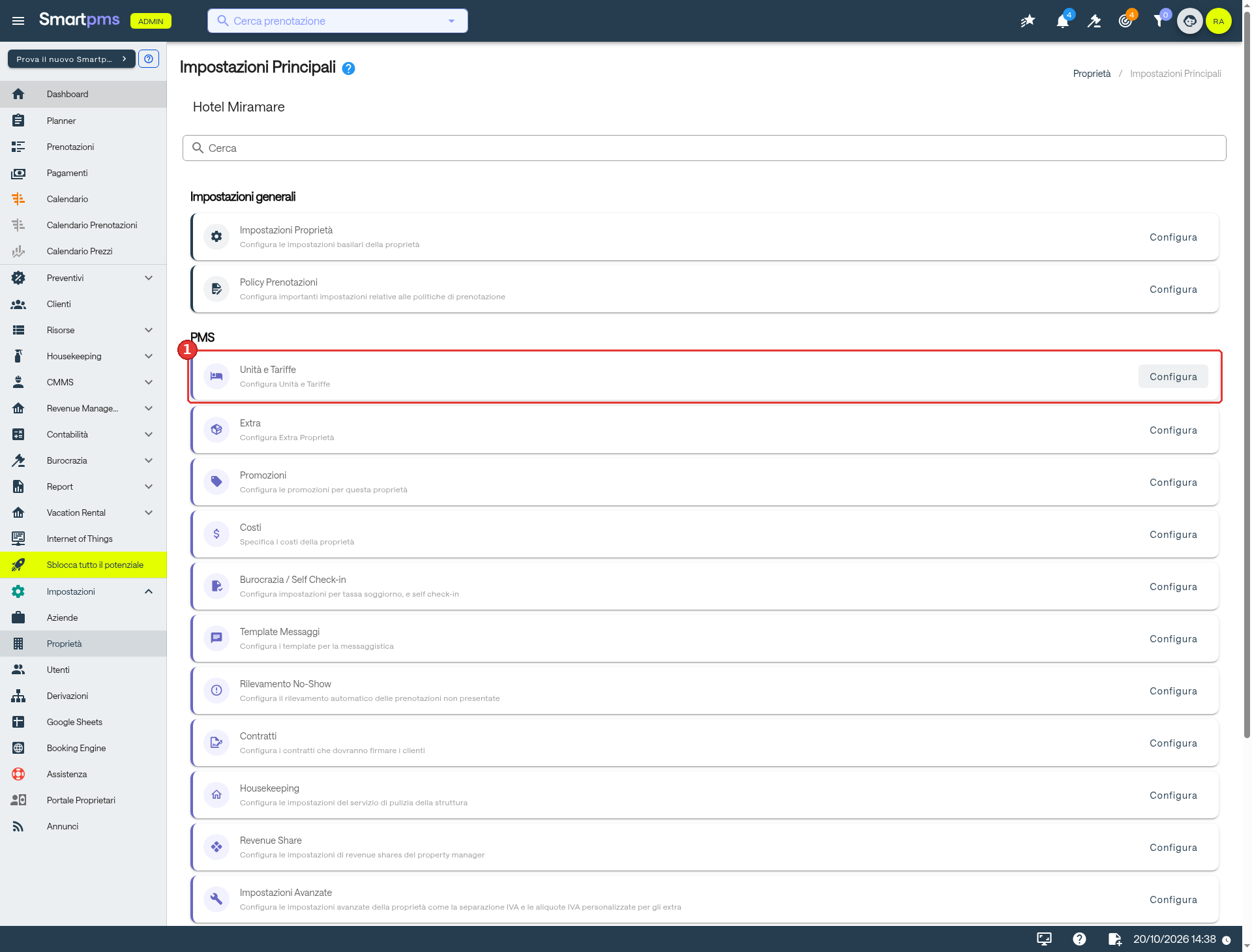
- From the property list click on Settings next to the property, then on Configure in the Units and Rates tab.
- Click on Configure in Room types.
- Use the BASE room type as the first room type: click on Edit and change the name and occupancy. For other room types click on Add. If the property does not have the BASE room type, create the first one with Add.
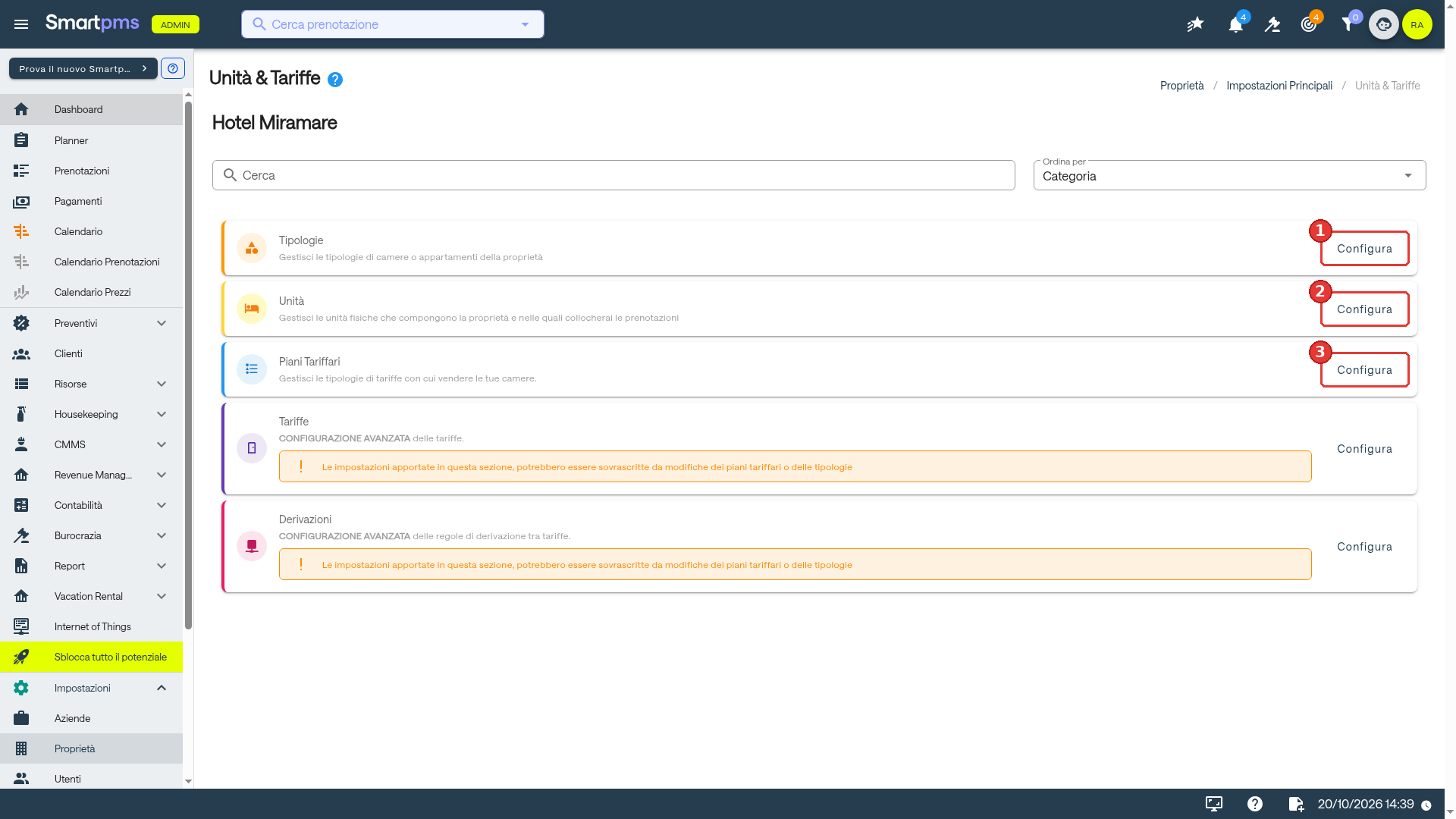
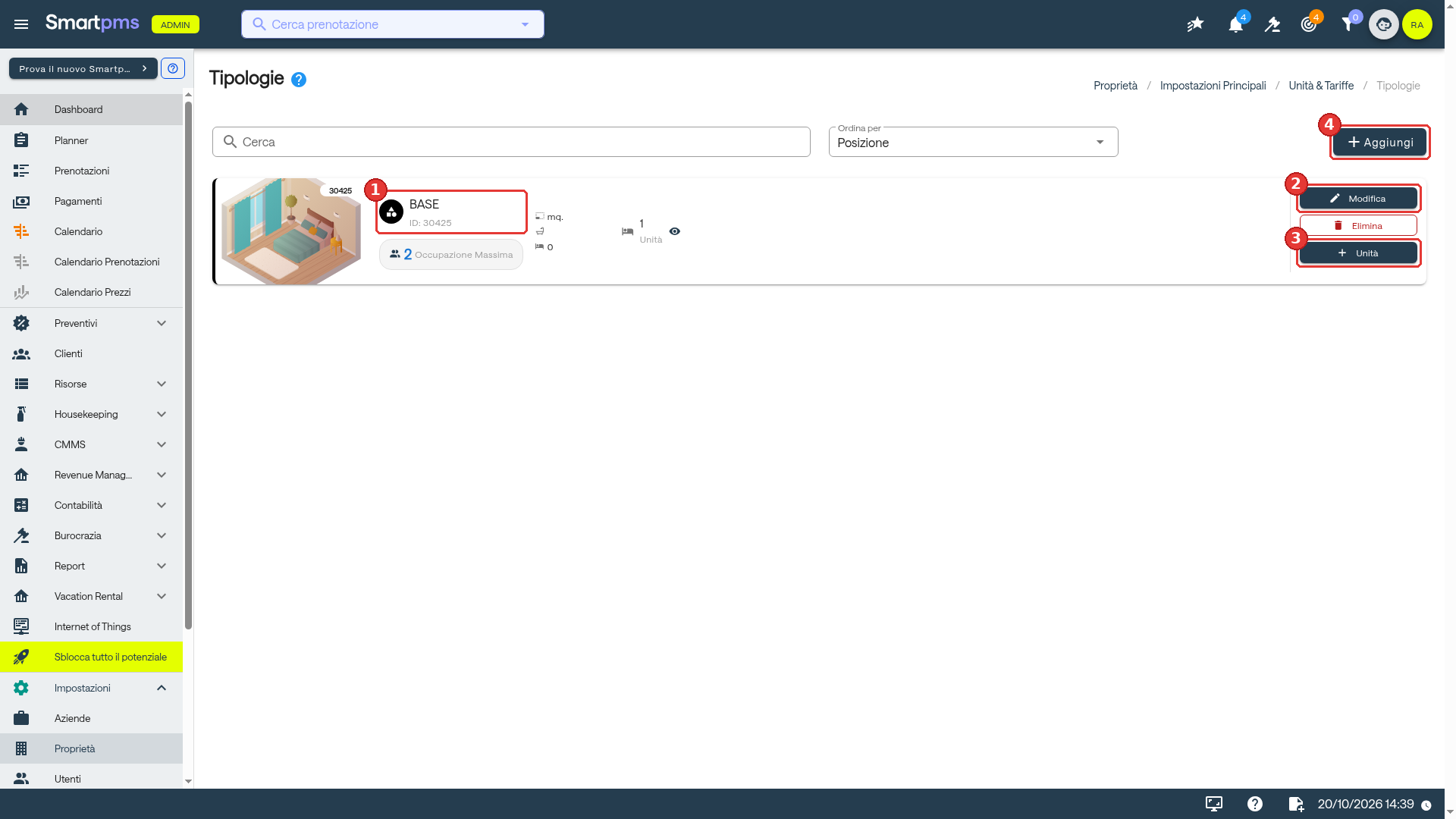
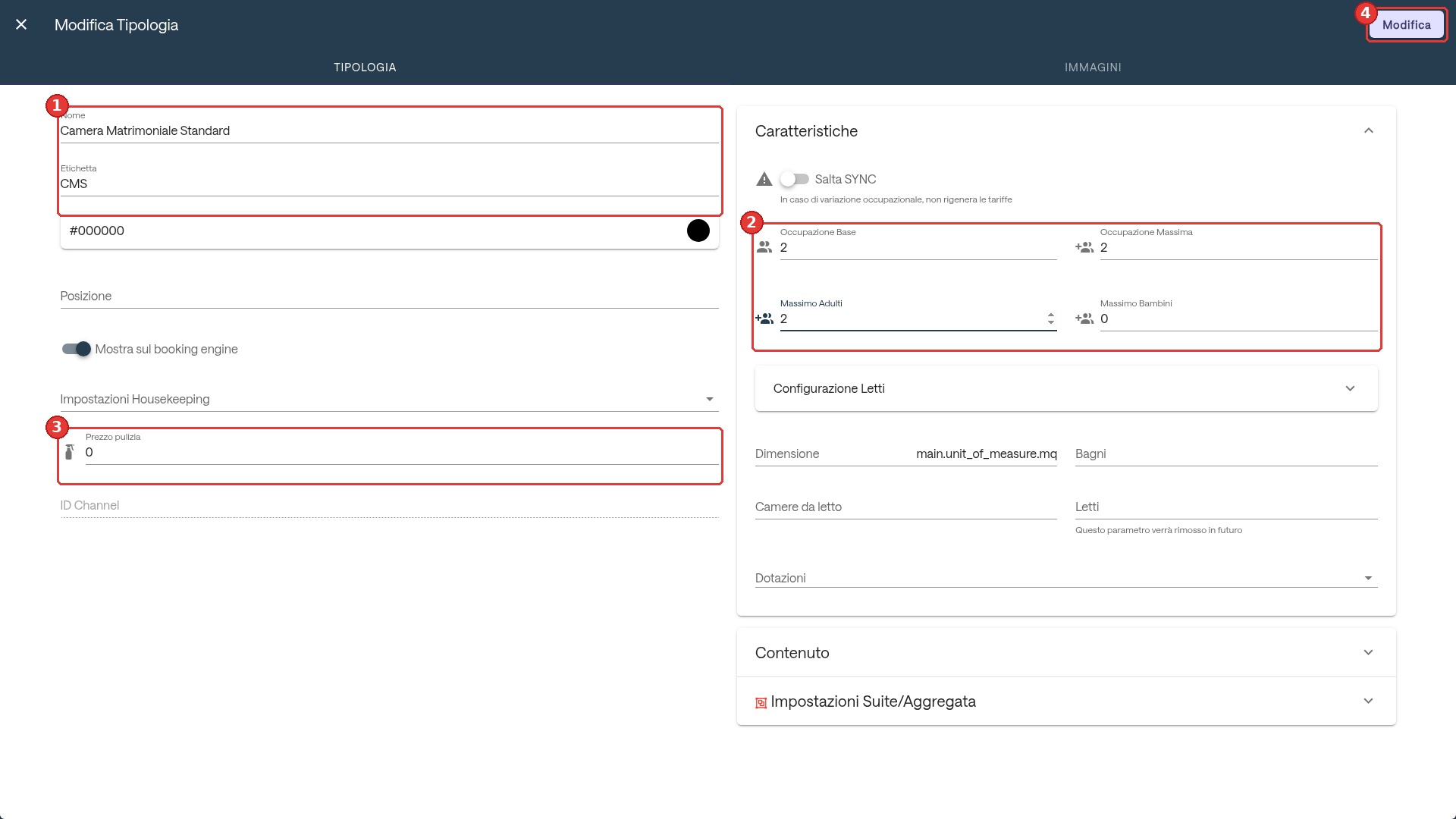
The main fields of the room type:
- Name: the name of the room type, also visible to guests on the Booking Engine.
- Label: an internal and unique code in the property, proposed automatically with the initials of the name.
- Cleaning price: the cleaning cost proposed when you create a booking manually. Leave 0 if you do not apply it, or if you manage it with an Extra.
- Base Occupancy: the number of guests included in the Calendar price. Supplements and discounts for a different number of guests are set from the Price Calendar, with the guest icon next to each rate plan.
- Maximum Occupancy: the maximum number of guests, including adults and children.
- Maximum Adults and Maximum Children: Maximum Adults cannot exceed the maximum occupancy. When you create a new room type they are calculated from the maximum occupancy; when you modify an existing room type, such as BASE, they do not update themselves: check and correct them manually. A Maximum Adults that is too low limits the number of bookable guests.
Fill in all numeric fields: if a field like Maximum Children remains empty, write 0, otherwise saving will give a validation error.
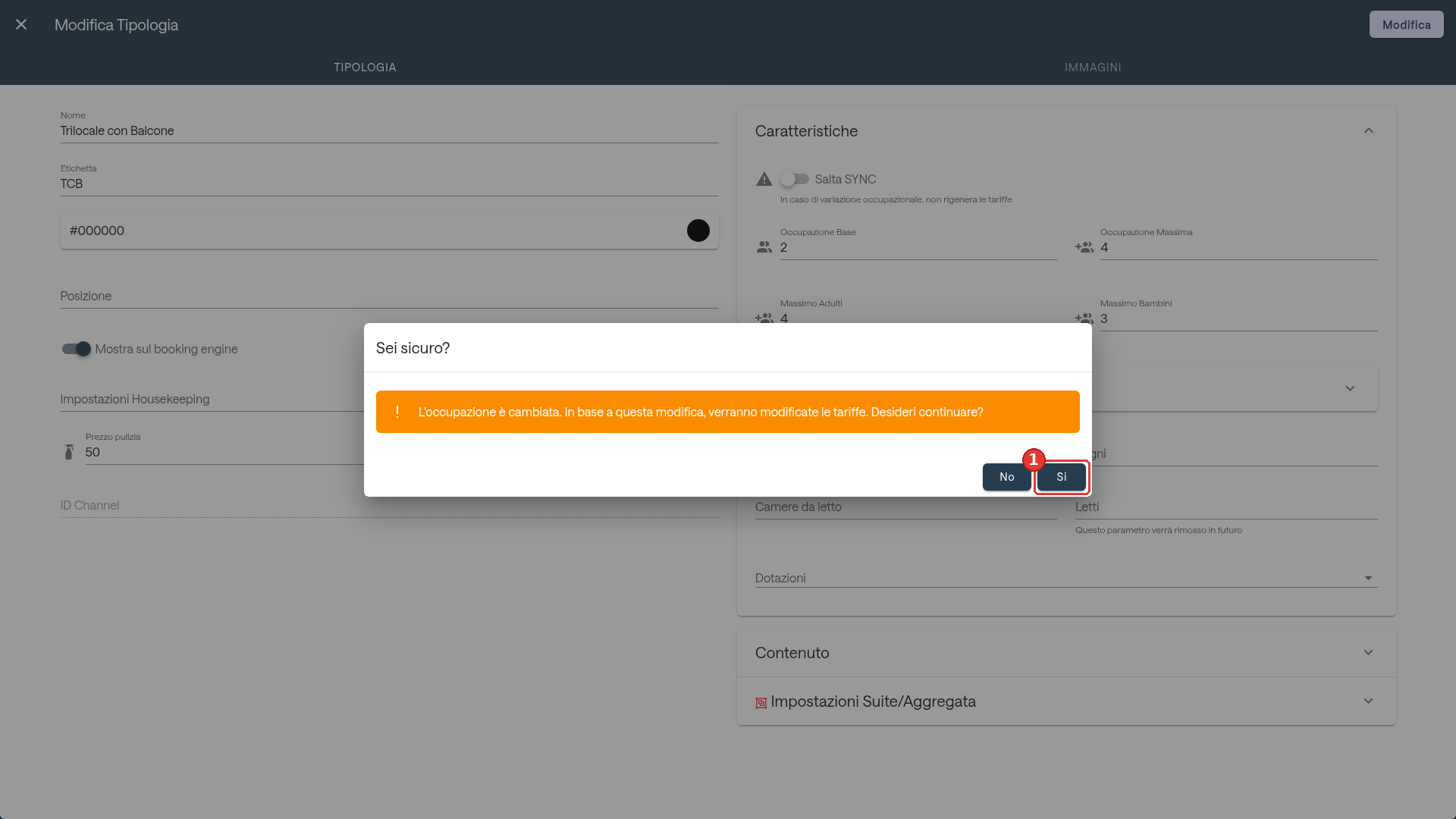
If you modify the occupancy of a room type that already has rate plans, SmartPMS asks for confirmation because the rates are updated: click on Yes to proceed. Occupancy is set per room type: all units of the same room type have the same capacity.
Step 3: add units
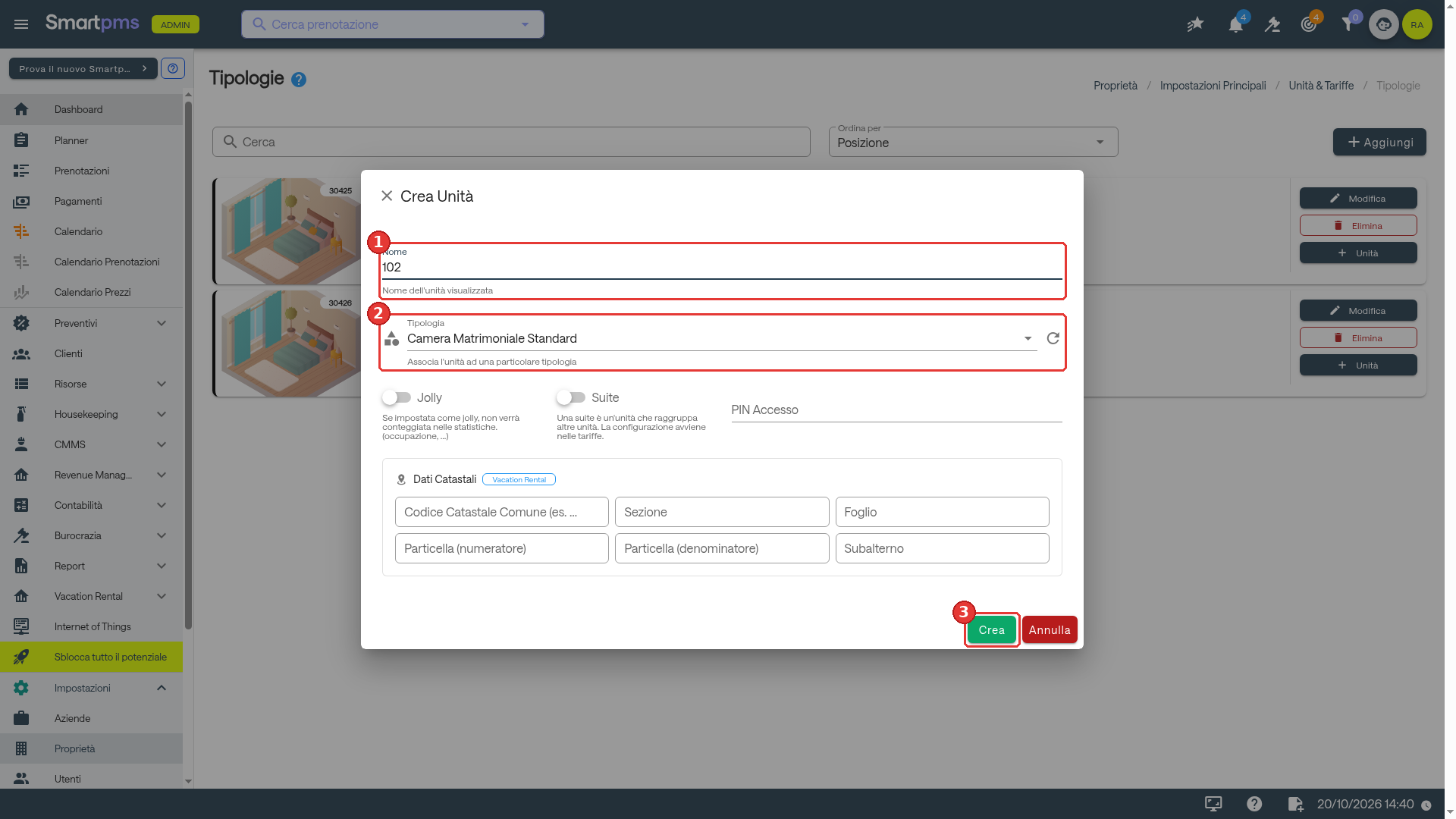
Each new room type is born with one unit that has the same name as the room type. To add others click on + Unit under the room type, write the Name (for example 102) and click on Create.
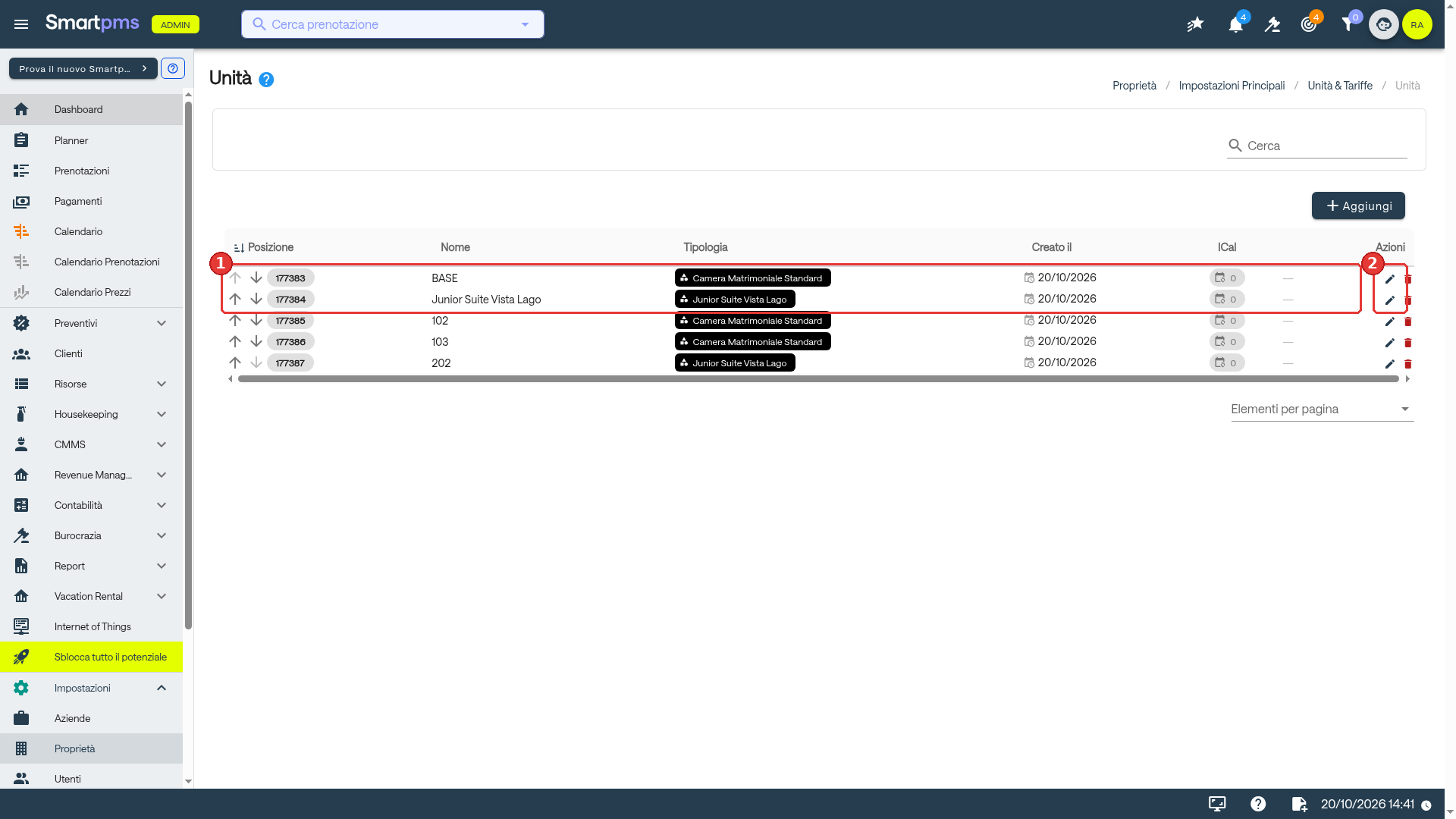
To rename the unit created automatically go to Units and Rates → Units → Configure and click on the pencil icon. Renaming the room type does not change the name of its unit: a unit that is still called BASE must be renamed from here.
If the message You have reached the unit limit available in your subscription appears, you have used all the units provided by your subscription: contact support to increase them. In this case, even a new room type is created without its automatic unit.
Step 4: create rate plans
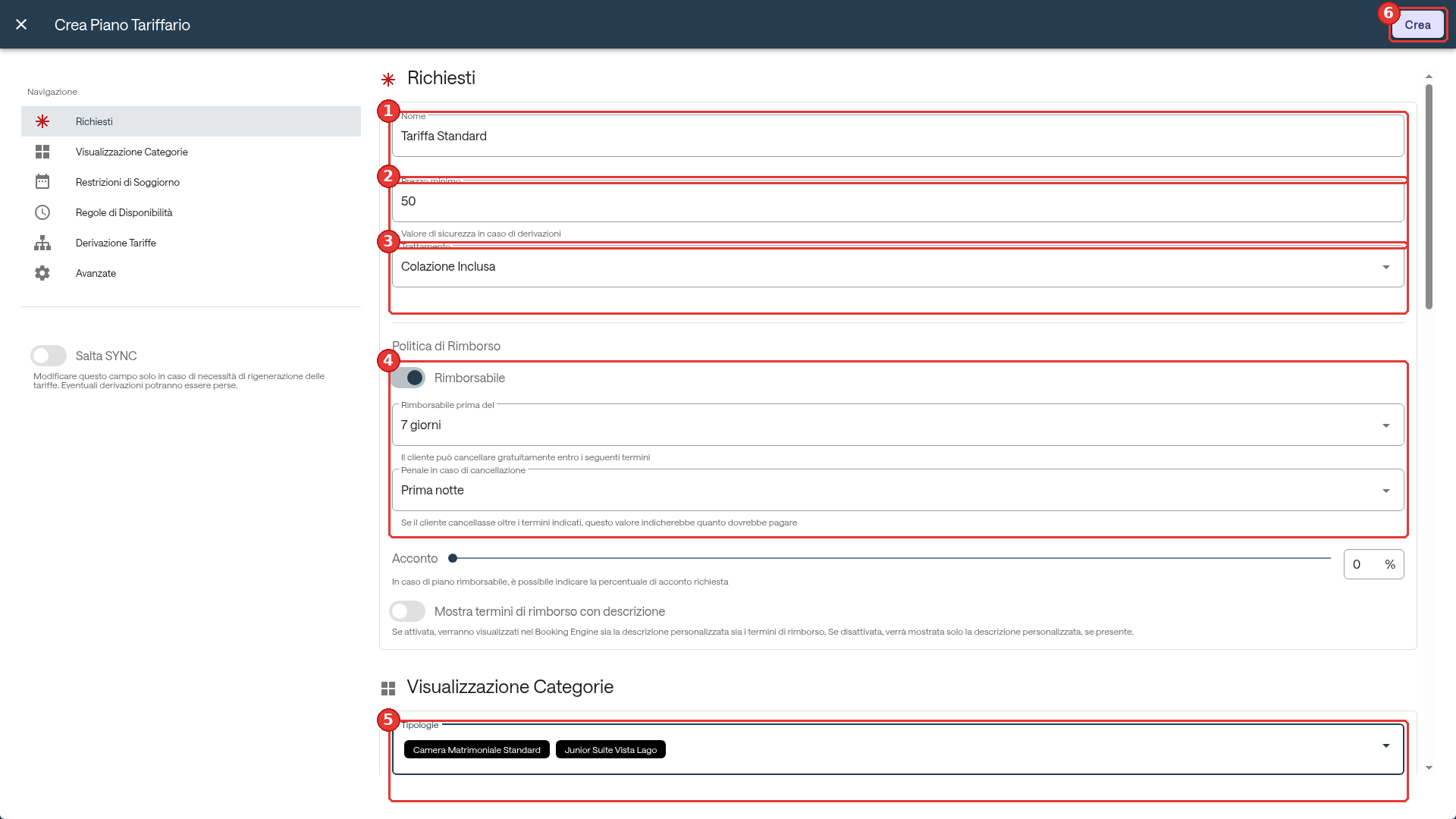
- Go to Units and Rates → Rate Plans → Configure and click on Add.
- Fill in the fields in the Required section:
- Name: how you will see the plan in the Calendar (for example Standard Rate).
- Minimum price: a safety threshold, not the price of the day. The rates of this plan never fall below this value, even when they are calculated from a derivation: set a realistic value, lower than the prices you think you will apply.
- Board: Room only, Breakfast Included, Half Board, Full Board, All-Inclusive and so on.
- Refundable: if active, choose within how many days of arrival the guest can cancel for free (Refundable before), the Penalty in case of cancellation and any Deposit. If you deactivate it, the plan is non-refundable and the guest is required to pay the full amount.
- In Category Display → Room types choose the room types to sell the plan to. Here you also find Show in booking engine, Hide on calendar and Hide rate plan.
- Optional: in Stay Restrictions set default Minimum stay and Maximum stay, in Availability Rules the automatic closing or opening of sales, in Advanced the prices for children by age group.
- Click on Create.
The first plan you create is the parent plan (usually the Standard Rate): you enter its prices in the Calendar.
Derived plans
A derived plan calculates the price automatically starting from the parent plan, for example always 10% less. This way you enter prices only on the parent rate.
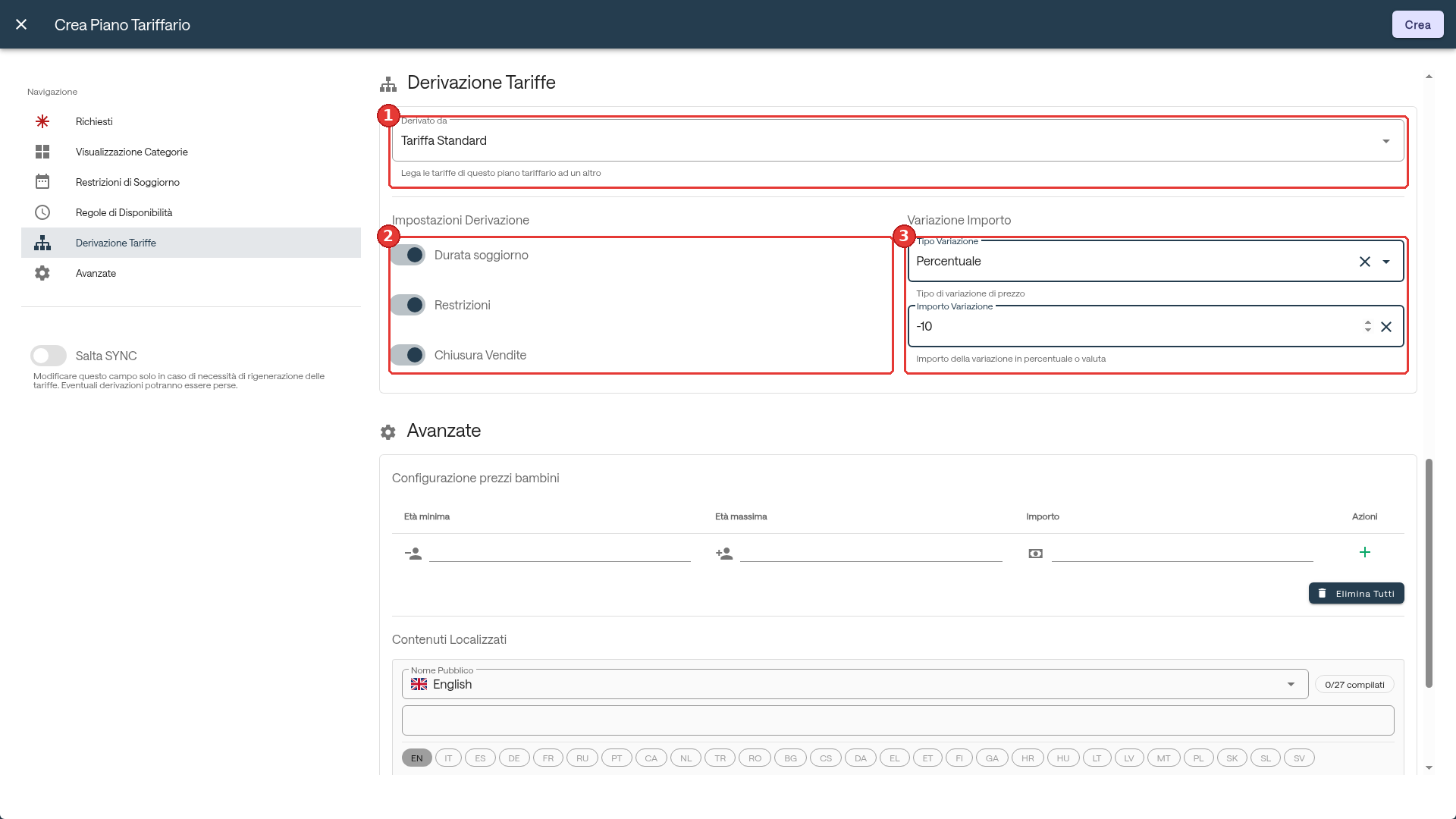
- Create a new plan and associate it with the same room types as the parent plan: for a room type that the parent plan does not have, the rate cannot be derived.
- In the Rate Derivation section, in Derived from, choose the parent plan. Only plans that are not themselves derived appear in this list.
- In Amount Variation choose the Variation Type (Percentage, Currency or Disconnected) and enter the Variation Amount, with a minus sign for a discount (for example -10).
- In Derivation Settings choose what to inherit from the parent plan:
- Stay duration: minimum and maximum stay identical to the parent plan. Deactivate it if the plan must have its own minimum stay, such as a weekly rate.
- Restrictions: same check-in, check-out and minimum advance booking prohibitions.
- Sales Closing: if you close or reopen sales on the parent plan, the same happens on the derived one. Deactivate it if you want to open and close the derived one independently.
- Click on Create.
The discount applies to the base occupancy price. Supplements and discounts for a different number of guests are set on each rate plan, with the guest icon in the Price Calendar.
Set Derived from when you create the plan. To connect already existing plans to each other, or to create more complex derivations, derivation rules are used (Settings → Derivations, or the chain icon in the Price Calendar): see the guide on custom derivations.
The result in the Price Calendar
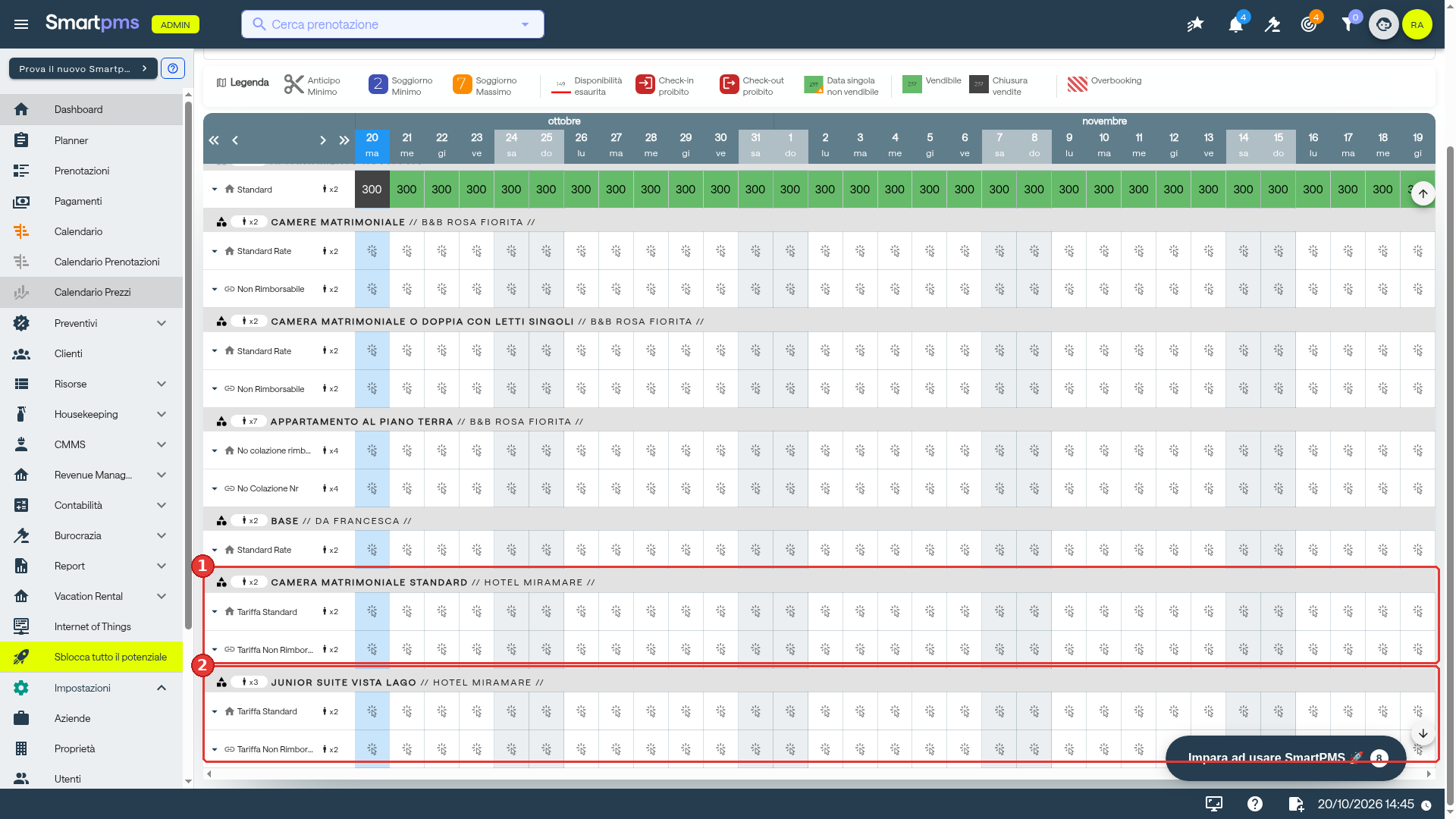
Open Price Calendar: for each room type you find a row for each associated plan. The parent plan row has the house icon, the derived plan row the chain icon. The cells remain empty until you enter prices on the parent rate: without price and without availability the date is not sellable. After the first entry, derived prices may take a few minutes to appear; if they do not update, open the chain icon on the row and use Reprocess prices.
Before connecting portals
- The plan conditions (cancellation, penalty, deposit) apply to direct bookings, the Booking Engine and manually entered bookings. On portals like Booking.com and Airbnb, conditions are set on the portal's extranet: connect each SmartPMS plan to the portal plan with the same conditions.
- The price for base occupancy arrives at the portals: supplements per guest must also be set on each portal's extranet.
- A property connects to only one account per portal (one Booking.com ID, one Airbnb account, one Expedia ID), while multiple properties can use the same account.
- To connect portals, contact support or your Onboarding Specialist.
To see all the steps applied to a concrete case, follow the examples Configuring a hotel and Configuring an apartment.
Frequently asked questions
19I cannot add a unit: the message about the subscription unit limit appears.
Each subscription provides a maximum number of units. When you reach it you cannot create other units, and a new type is created without its automatic unit. Contact support to increase the units of your subscription. The limit counts existing units, so by deleting a unit you don't use, you free up a spot.
I created the property but it does not appear in the Calendar.
Verify that the property has at least one type with at least one unit, that it is active, and that your user has access to the property (Settings → Users, Property field). If you just created it, reload the page.
I have created room types and rate plans, but I cannot see the rate in the Price Calendar.
- Open the plan in Units and Rates → Rate plans and check that the correct room types are selected in the Room types field.
- Check that Hide on calendar is disabled. To view hidden plans as well, enable Hidden rate plans in Calendar Options.
- Refresh the page: new plans may take a few moments to appear.
- If the row exists but is empty, enter the price and availability for the parent rate and open the dates: without a price, the date is not sellable.
Can I change the company of an already created property?
Not by yourself: the move is done by support, which maintains bookings and connections. The entire property is always moved, not individual units. If only one piece of data of the same company changes (for example the VAT number), modify the existing company instead of creating a new one.
Why do I find a type and a unit called BASE in the new property?
SmartPMS creates them automatically when you add a property, so you already have a type to complete. Rename it with Edit (checking Maximum Adults and Maximum Children) and rename the unit from Units and Rates → Units. If you don't need it, you can delete it after creating your types.
What is the difference between base occupancy and maximum occupancy?
Base occupancy is the number of guests to which the Calendar price refers; maximum occupancy is the maximum number of guests the accommodation can host. For example, with base 2 and maximum 4, you enter the price for 2 guests in the calendar and set a supplement for the 3rd and 4th guest with the guest icon next to the plan. Base occupancy can also be changed from the Price Calendar, by clicking on the type name.
I cannot enter 2 adults and 1 child, or I see fewer guests than the maximum occupancy in the calendar.
Open the type with Edit and check Maximum Adults and Maximum Children: if Maximum Adults is lower than the maximum occupancy, you cannot exceed that number of adults. Age groups and prices for children are set in the Rate plan, Advanced section.
Derived rates remain stuck at a high price, or the Non-Refundable costs more than the Standard.
The derived price never drops below the plan's Minimum price. Open the plan in Units and Rates → Rate plans, lower the minimum price and save, then in the Price Calendar open the chain icon on the row and use Recalculate prices.
The derived rate does not apply the plan discount.
Derivation rules modified from the Calendar (chain icon) and prices written manually on a date of the derived rate take precedence over the plan setting. Check the rule from the chain icon or from Settings → Derivations, remove any Ignore derivation and use Recalculate prices.
"Access denied" appears when I modify minimum price, rates, or derivations.
Your user does not have the permissions to modify rates and types. Ask an administrator to assign you a role that includes them (for example Advanced user), from Settings → Users.
Can I duplicate a property or copy Rate plans to another property?
No: types, units, and Rate plans must be recreated in the new property. The configuration examples for a hotel and an apartment help you do it quickly.
Can I recover a unit or a type deleted by mistake?
No, deletion is permanent. You can recreate the unit with + Unit under the type; if it was connected to a portal or other services, contact support to reconnect it.
Can I create a "backup" unit to use only when the others are full?
You can activate Jolly on the unit: it is not counted in occupancy statistics. Avoid dummy units for unconfirmed requests: use options or Quotes.
I have an apartment that I sell as a whole but also divided into rooms: how do I configure it?
Create a room type for each room and a room type for the entire apartment. In the room type for the entire apartment, open Suite/Aggregate Settings, set Type to Suite/Aggregate, and in Suite units choose the units of the rooms that make up the apartment. This way, availability remains aligned: if a room is occupied, the entire apartment is not bookable, and if you book the entire apartment, its rooms are closed.
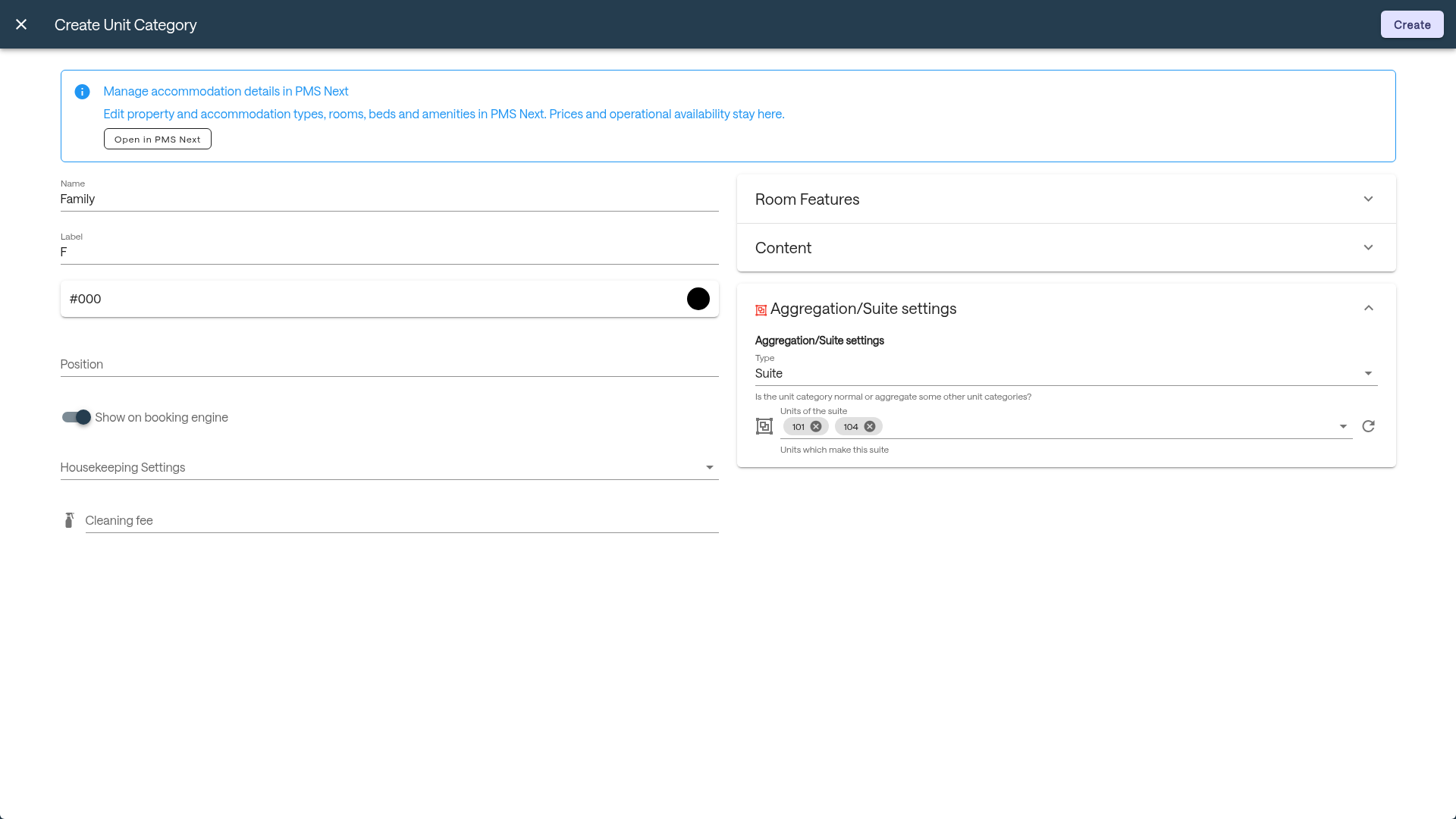
Apartment and rooms close each other only when the booking has an assigned unit: keep Auto-assign bookings enabled in the property settings. All details, including those on suites that share a room, are in the guide How to configure a suite composed of multiple units.
Some portals, such as Booking.com, do not manage aggregate room types: consult with support before connecting them.
I deleted a property by mistake: can I restore it?
No. Deleting a property (trash icon in the Properties list) is permanent and cannot be undone, not even by Smartness support. Along with the property, all linked elements are also deleted: room types, units, Rate plans, bookings, and message templates.
If you need them again, they must be recreated manually in a new property. For this reason, before deleting it, copy everything you want to keep into the new property, for example, the text of the message templates.
If you have simply stopped managing a property, it is usually better to leave it deactivated instead of deleting it. When deactivated, it no longer sells on connected portals and does not receive new bookings, but the history remains available for reports, documents, and future checks. To deactivate a property and disconnect the portals, contact Smartness support.
I cannot find the Type field when I create the property, and in the property list I see "ND": is it an error?
No. The property type is no longer chosen in the creation module, so for new properties in the Settings → Property list ND appears: this is fine and you do not need to correct it.
The valid type is the one set in PMS Next. To see or change it, open the property settings, click on Open in PMS Next and, in General Settings, open Property type (see Set the property type). From there you also set the accommodation type of each room type. You do not need to delete and recreate the property. In the new SmartPMS the actual type of each property also appears in the Type column of the Property list.
I set the number of beds for the room type, but in the Room Types list I still see 0 beds. Was the data saved?
Yes. Bedrooms, bathrooms and beds of room types are managed in PMS Next: the valid number is the one you see there, and it is the one also used for the Booking Engine. The bed counter in the SmartPMS Classic Room Types list does not report the number set in PMS Next, so it may show 0 even if the data is correct: you do not need to correct it.
To check or modify beds:
- Open the room type with Edit and, in the banner Manage accommodation features in PMS Next, click on Open in PMS Next.
- Open the Spaces and capacity tab and scroll to Rooms, bathrooms and beds.
- Check Bedrooms, Bathrooms and beds: Total beds is calculated from the bed types and quantities you enter below. If you modify something, click on Save spaces and capacity.
The summary under the room type name in PMS Next (for example 2 rooms · 2 beds · 2 bathrooms) shows the saved values.
I created a new derived Rate plan, but its rows in the Price Calendar are empty or the prices do not match.
After creating a derived plan (e.g., Breakfast included derived from the Standard Rate), the prices for the new rate must be calculated for the first time starting from the parent rate:
- Open the Price Calendar and find the row for the new plan, the one with the chain icon.
- Click on the chain icon: the rate derivation rule will open.
- Check that Derived from and the price variation are correct, then activate Recalculate prices and save.
Recalculate prices recalculates all prices of the derived rates starting from the parent rate, including the price rows for the number of guests. The new prices may take a few minutes to appear: refresh the page to see them.
If after the recalculation the price remains stuck at a value higher than expected, check the Minimum price of the plan: the derived price will never drop below that threshold.
Related guides
Configuration
Configuration
Configuration
How it works
Configuration
Configuration