

How to set the property type and accommodation type for room types
New SmartpmsOnly available in New Smartpms
In the new SmartPMS, you set the property type (hotel, apartment, villa…) and, for each room type, the accommodation type, guest texts, spaces and capacity (guests, rooms, bathrooms, beds), and services and amenities. This is descriptive information: it does not change availability, rates, or occupancy.
You are in the right place if…10 cases
- “How do I change the property type from hotel to apartment?”
- “Where do I set the accommodation type for room types (room, apartment, villa)?”
- “The room type appears as Not classified or Review required”
- “To be completed appears on the property type”
- “I see ND in the property list”
- “Where do I enter beds, rooms, and bathrooms for the room type?”
- “How do I set the services and amenities for the rooms?”
- “The Save accommodation type button is grey”
- “Do I need to recreate the property to change its type?”
- “Where do I write the room description for guests?”
Property and room types are described separately:
- the property type indicates what kind of property you manage, for example, Hotel, Farmhouse, or Villa;
- the accommodation type indicates what the guest is booking for each room type, for example, Room, Apartment, or Suite.
A room remains a Room even if it is located in a hotel, and the same property can have different types of room types, such as rooms and apartments. You can set this data even if you do not have connected portals. When the property is connected to a portal via our Channel Manager, these are also used to describe your listings.
1. Find the property
In the left menu, open Properties (1). In the Type column (2), you can see the type of each property (Not classified if it has not been set yet). Click on the property name (3).
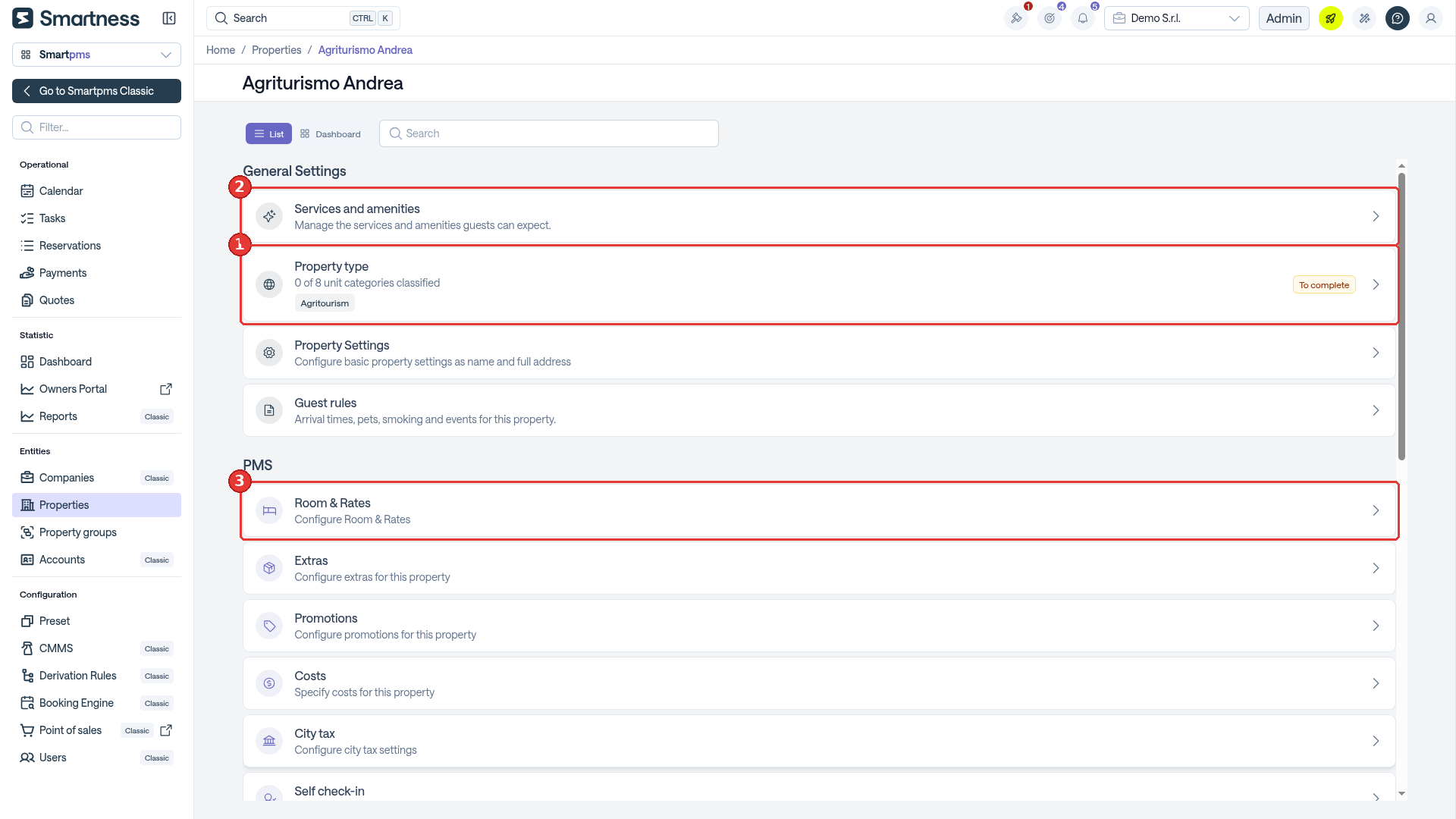
In General Settings, the Property type tab (1) shows the saved type and how many room types you have already classified, for example, 0 of 8 room types classified. As long as some are missing, To be completed appears.
2. Set the property type
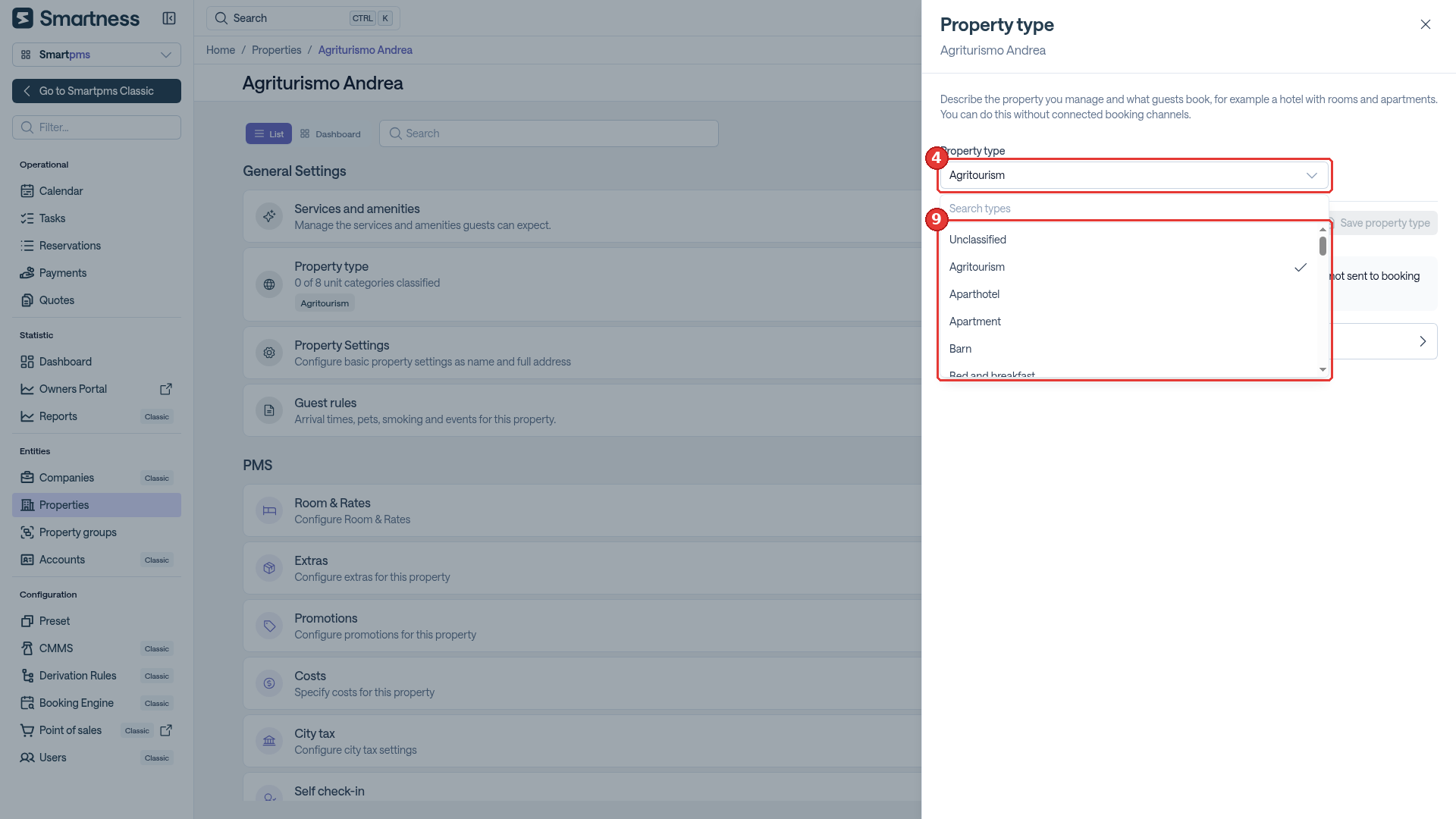
Click on the Property type tab: a panel will open on the right. Open the Property type dropdown (4) and choose the type from the list (9), then click on Save property type (5). The button only activates after you have changed the value.
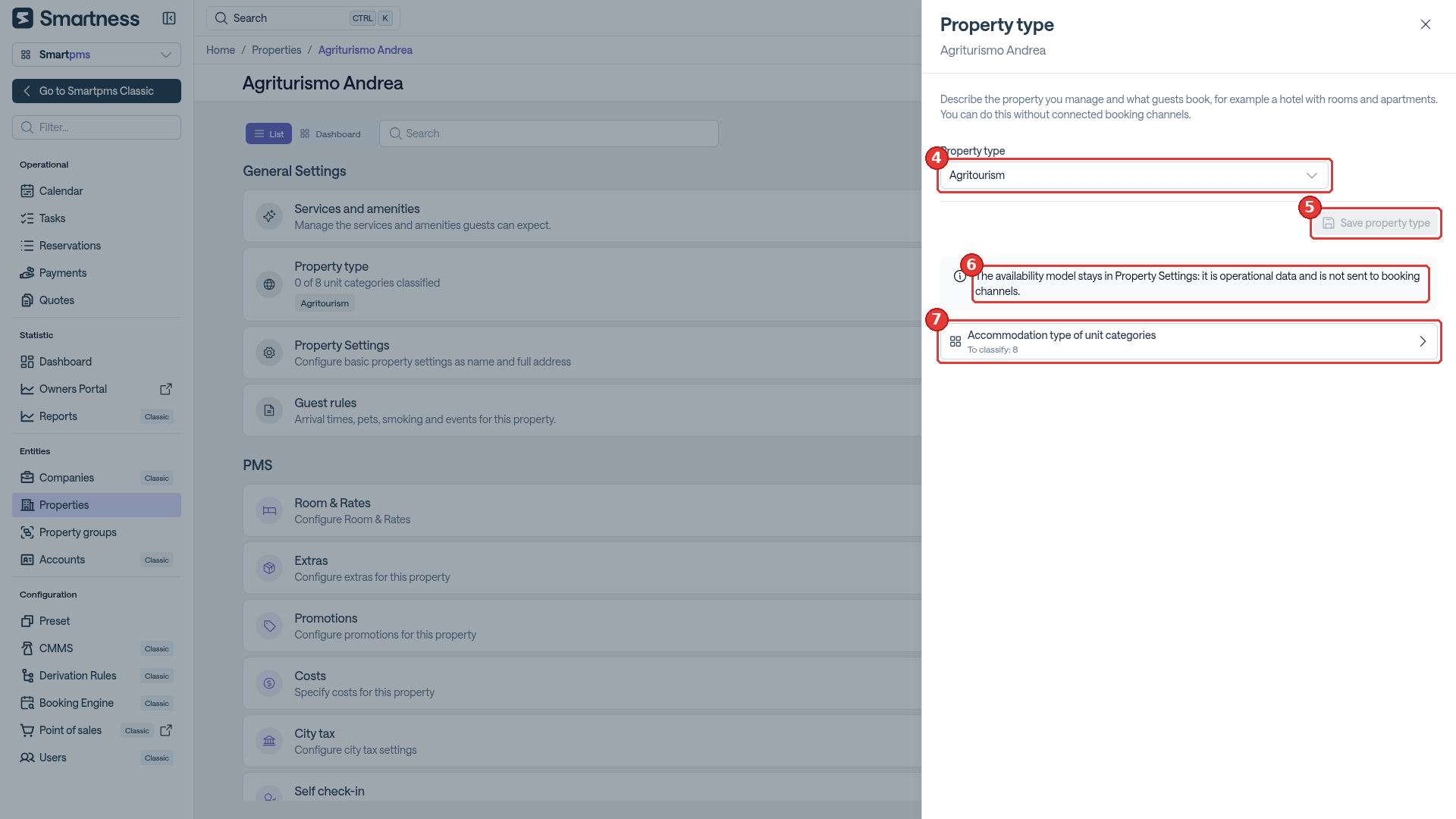
The note (6) reminds you that the property's availability model (for example, suites and aggregated units) is not set here but in Property Settings. To move to the room types, click on Accommodation type of room types (7).
3. Set the accommodation type for each room type
On the Room types page, you will find the list of room types on the left (1). Not classified and Review required indicate that the accommodation type has not yet been chosen. Select a room type (2) and open the Accommodation type tab (3).
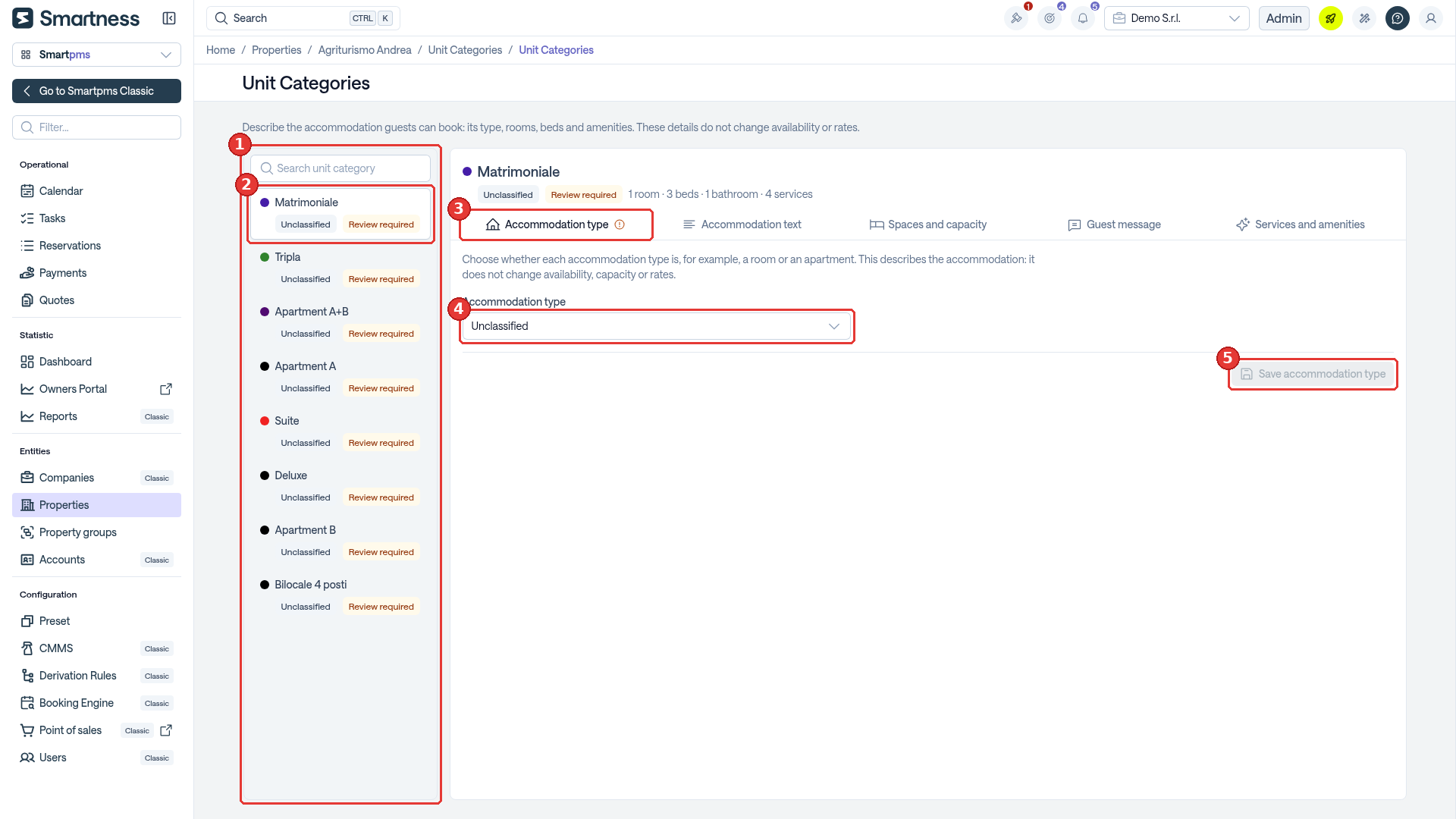
Open the Accommodation type dropdown (4), choose the type from the list (6), and click on Save accommodation type (5). Repeat for each room type: the count on the property tab will increase, and To be completed will disappear once you have classified them all.
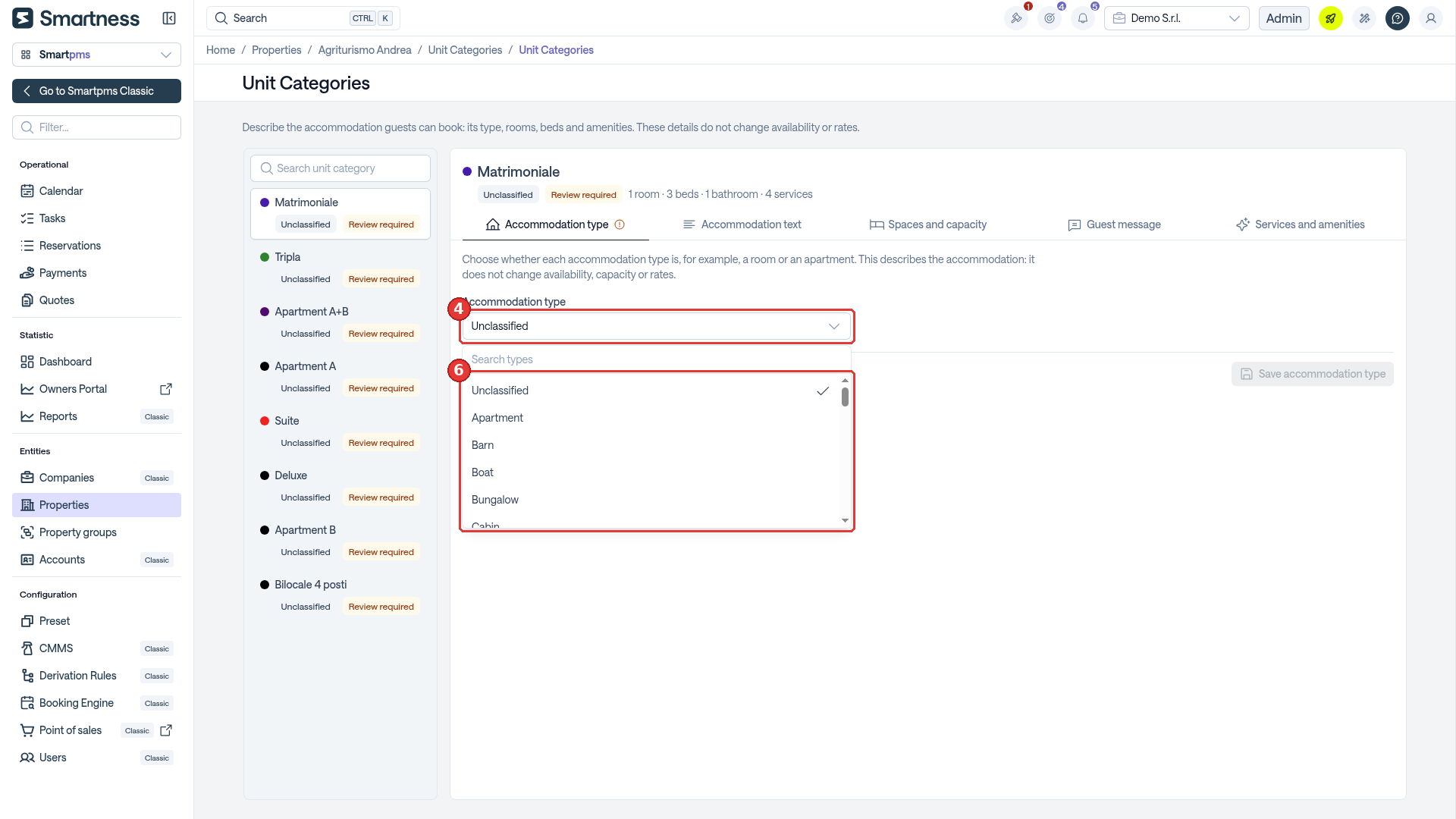
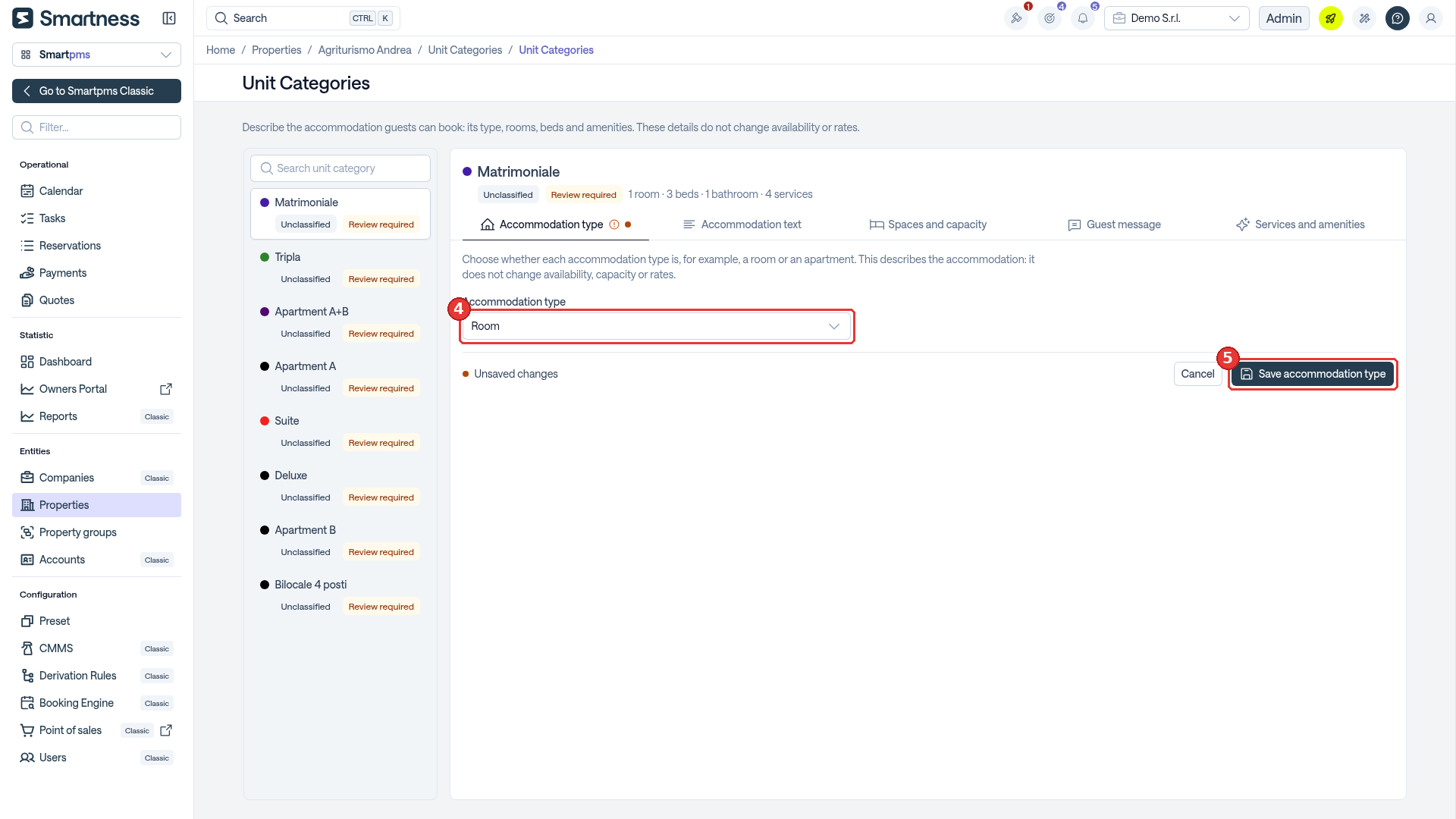
Before saving, Unsaved changes appears: if you change room type or page without saving, the change will be lost.
4. Spaces and capacity
In the Spaces and capacity tab (1), describe the accommodation:
- Guests (2): maximum guests, adults, children, and infants;
- Rooms, bathrooms, and beds (3): bedrooms, bathrooms, and beds, with type, size, and quantity. Total beds is calculated from the beds you enter.
Click on Save spaces and capacity (4). The summary below the room type name (5), for example, 1 room · 3 beds · 1 bathroom, shows the saved values.
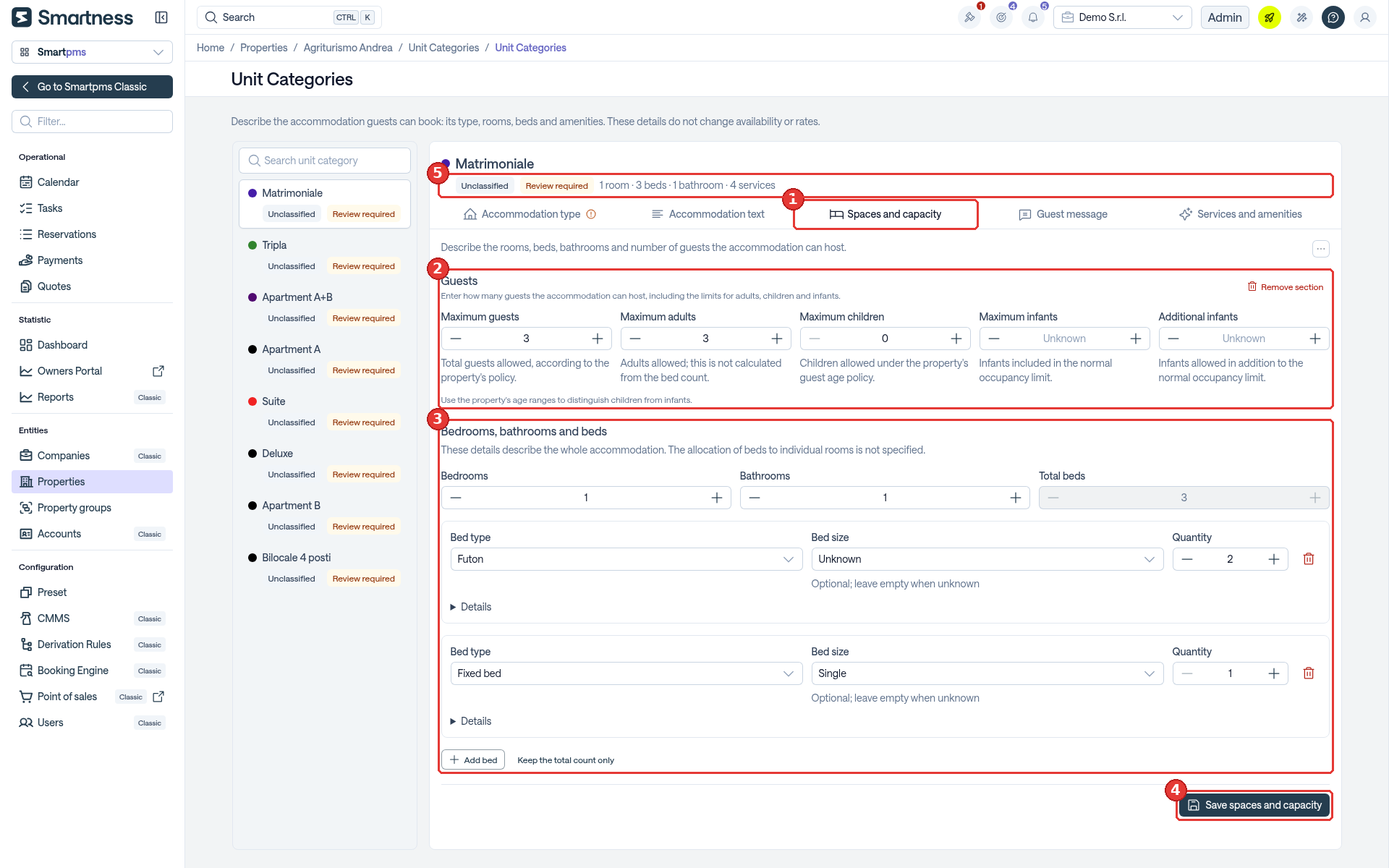
This data describes the accommodation and does not change the occupancy used for bookings and rates: that remains in the room type settings (in SmartPMS Classic).
5. Texts, guest message, and amenities
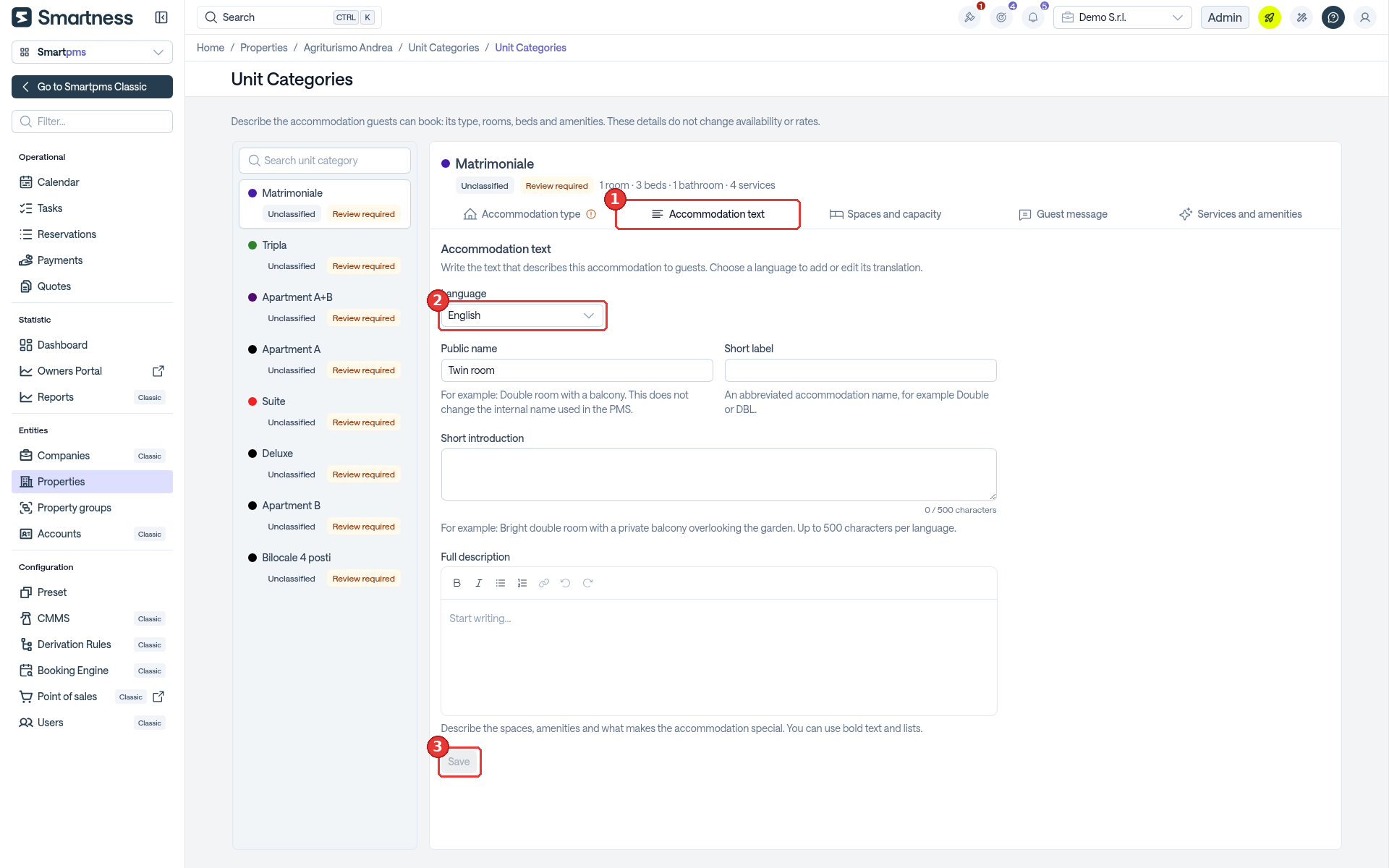
Accommodation texts (1): public name, short label, short presentation, and full description. With Language (2), choose the language to write or translate, then click on Save (3).
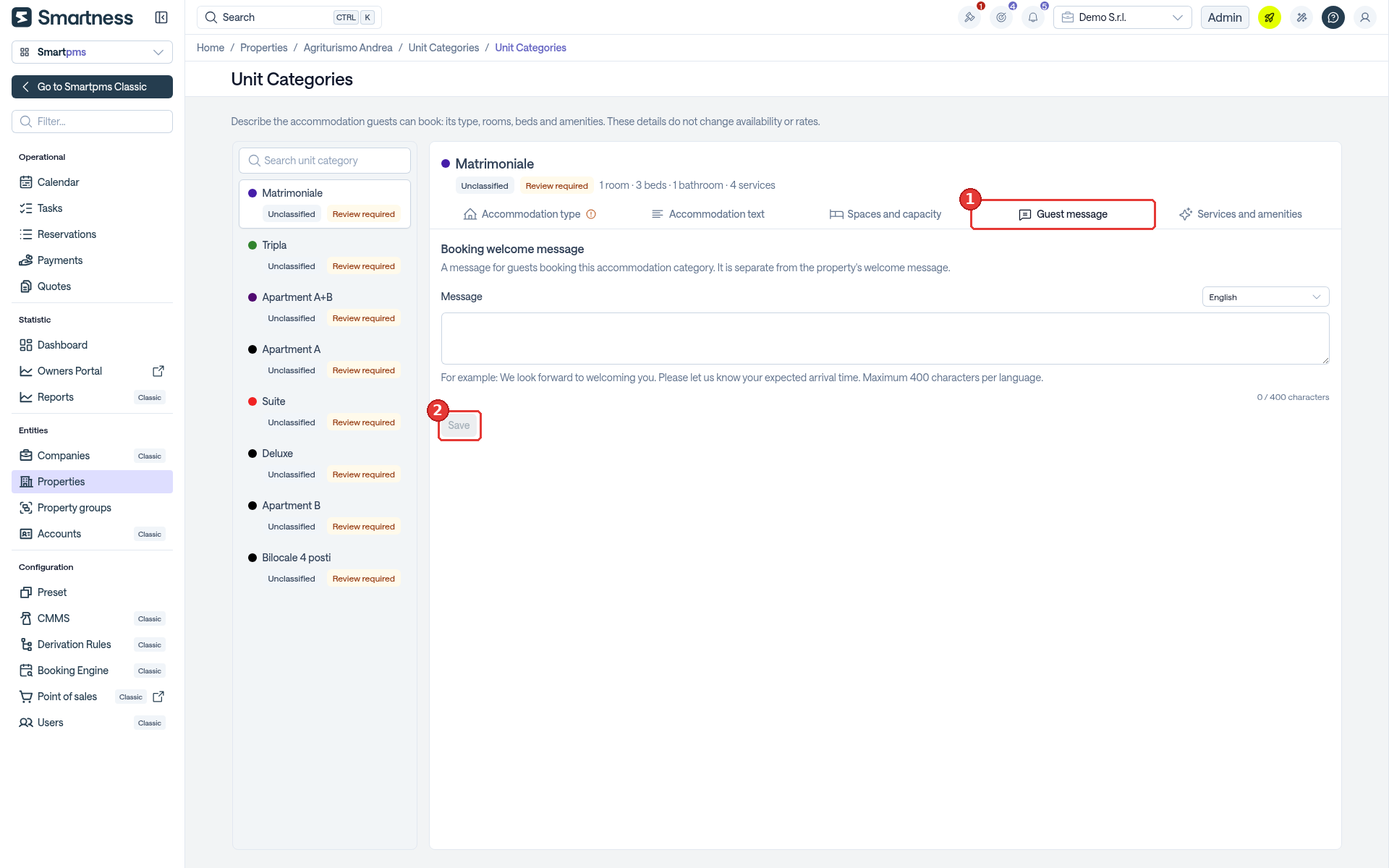
Guest message (1): a welcome message for those booking this room type, distinct from the property's message. Click on Save (2).
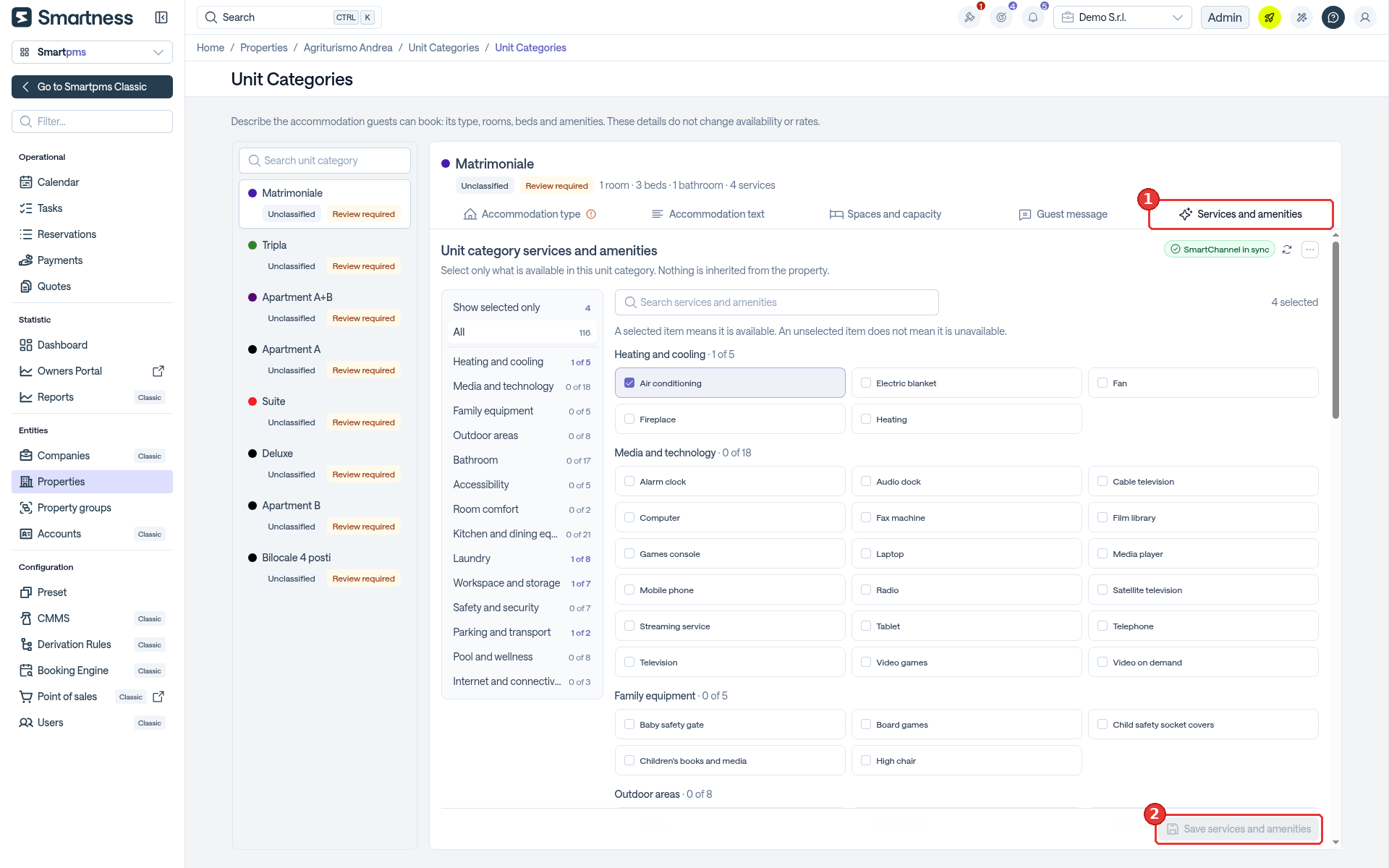
Services and amenities (1): select only what is available in this room type, because nothing is inherited from the property. Click on Save services and amenities (2).
Services common to the entire property, such as parking or the pool, are indicated instead in the Services and amenities tab of the property. The SmartChannel synchronized status (1) indicates that the data has been sent to our Channel Manager. Click on Save services and amenities (2).
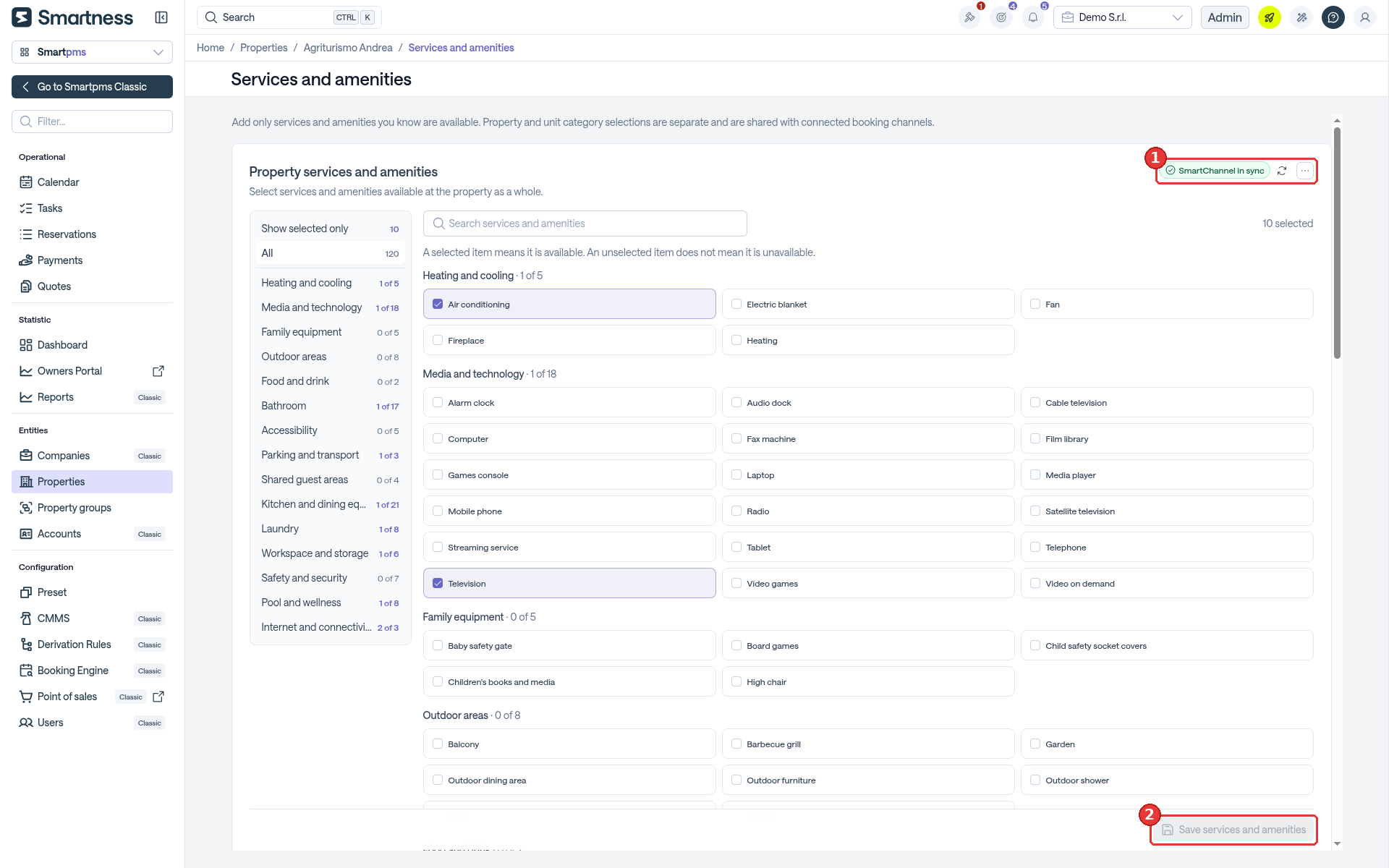
A service not selected does not mean it is missing: select only what you know to be available.
Frequently asked questions
5I set the beds, but in Classic, the Room types list shows 0 beds.
The valid number is the one in the Spaces and capacity tab of the new SmartPMS.
Does changing the accommodation type change prices or availability?
No: accommodation type, spaces, and amenities are descriptive and do not affect availability, capacity, or rates.
Where do I change the name or occupancy of the room type?
Currently in SmartPMS Classic: Go to SmartPMS Classic → Property Settings → Units and Rates → Room types → Edit.
What property types can I choose?
Among others: Guest house, Farmhouse, Aparthotel, Apartment, Bed and breakfast, Campsite, House, Chalet, Hotel, Inn, Hostel, Resort, Villa, and Holiday village. If none match, use Other.
Related guides
Configuration
Configuration
Configuration
Configuration