

Creating and managing extras in SmartPMS
How to create property and preset extras in the new SmartPMS: choose the Extra Type, i.e., what you offer the guest, and the category is assigned automatically. It also explains how to classify existing extras that appear as Unclassified.
You are in the right place if…9 cases
- “How do I create an extra in the new SmartPMS?”
- “Where are property extras configured in the new SmartPMS?”
- “What is the Extra Type field?”
- “How do I assign a category to an extra?”
- “My extras appear as Unclassified”
- “I cannot save the extra: the type is missing”
- “How do I create an extra in presets?”
- “I cannot find the right type for my extra”
- “How do I make an extra mandatory in the booking?”
Extras are the services you add to the stay: breakfast, crib, final cleaning, parking, spa access, late check-out. In the new SmartPMS, every extra has an Extra Type: it indicates in a standard way what you are offering the guest. Based on the type, SmartPMS automatically assigns the category of the extra (for example, Breakfast falls under Food and Beverage).
This way, all extras are described in the same way, regardless of the name you give them: "Continental breakfast", "Breakfast" or "In-room breakfast" all remain of the Breakfast type. This is the basis for more accurate mapping to sales channels and for more organized reports.
You can create extras in two places:
- in the property, for extras of a single structure;
- in the Presets, for extras to be used as a template.
1. Creating an extra in the property
- In the side menu, open Property and open the structure.
- In the PMS section, open Extras ("Configure Property Extras"): the Property Extras page opens, with the list of the structure's extras.
- Click Create: the Create Property Extra wizard opens.
The wizard has four steps, listed on the left: Configure settings, Choose channels, Advanced settings (optional), and Review and save. Use Next to move to the next step, and Cancel to exit without saving.
Configure settings
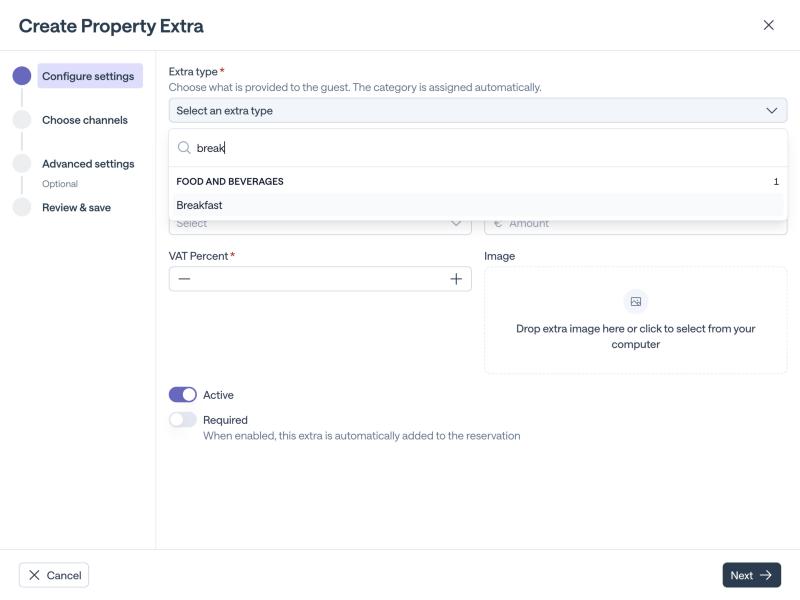
- Extra Type (mandatory): choose what you provide to the guest. Open the list and type a word in the Search type or category box: for example, by typing "break", Breakfast appears, with its category above it. You do not choose the category: it is assigned automatically based on the type.
- Name (mandatory): the name of the extra, the one you see in the booking and in the accounts. It can be different from the type name, for example "Buffet breakfast" with the Breakfast type.
- Type (mandatory): how the amount is calculated, for example Per Booking or Per Person/Booking.
- Amount (mandatory): the price of the extra.
- VAT Percentage (mandatory): the VAT rate of the extra.
- Image: the photo of the extra.
- Active: if turned off, the extra is not offered.
- Mandatory: when active, the extra is automatically added to the booking.
Advanced settings
In the optional Advanced settings step, you can limit the extra to bookings made in a certain period (dates From and To) and link it to a resource.
Review and save
In the last step, you check the summary and save the extra.
2. Creating an extra in Presets
- In the side menu, open Presets and choose Extras.
- Click Add extra.
- Fill in the fields as for property extras, starting with the Extra Type.
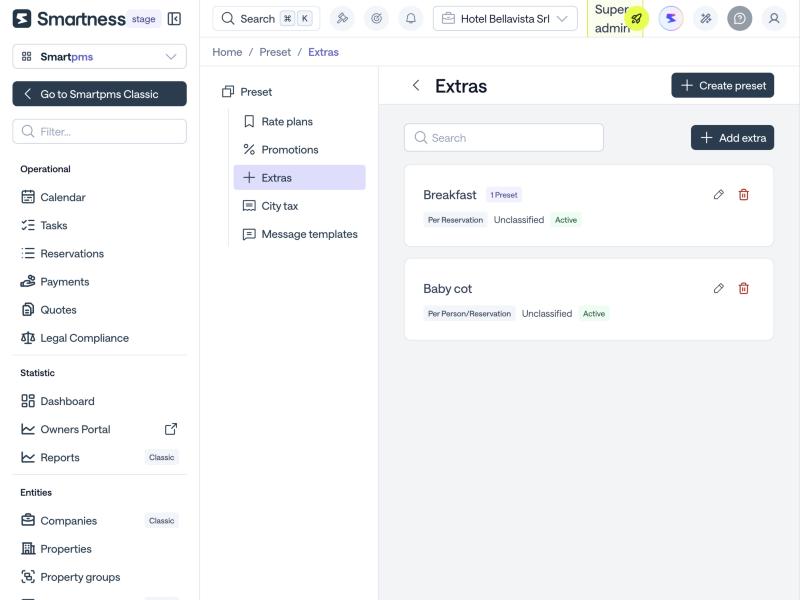
In the list of Presets, each extra shows the calculation Type (e.g., Per Booking), the category, and the Active status. Use the pencil to edit it, and the trash can to delete it.
3. Classifying existing extras
Extras created before the introduction of the Extra Type do not have a type: in the list, they appear with the Unclassified label. They work as before, but it is advisable to classify them:
- Open the list of extras (of the property or Presets).
- On an Unclassified extra, click the pencil to edit it.
- In Extra Type, choose what you offer the guest.
- Continue to Review and save and save.
Repeat for every Unclassified extra.
4. Choosing the right type
Types are grouped into categories, for example:
- Food and beverage: breakfast, lunch, dinner, drinks, packed lunch;
- Wellness: spa access, pool, sauna, gym, Turkish bath, massage;
- stay comfort: crib, extra bed, high chair, early check-in, late check-out, pet;
- cleaning and linen: final cleaning, cleaning during the stay, change of linen and towels;
- mobility: parking, transfer, bike or car rental, electric car charging;
- utilities and connectivity: heating, air conditioning, internet, firewood;
- experiences and access: activities, entrance tickets, beach access, meeting room.
Search by service first ("parking", "crib"); if you don't find anything, try the category. If no type matches your service, choose Other.
Related guides
Configuration
Configuration
Configuration
Configuration
Configuration
How it works