

How to create reservations and modify rates from the Calendar
From the Calendar, you can create reservations, options, and date blocks by selecting cells, open and move a reservation to another unit, modify prices, availability, and restrictions even on derived plans, and search for availability for a quote.
You are in the right place if…15 cases
- “How do I create a reservation from the calendar?”
- “How do I insert an option with an expiry date?”
- “How do I block dates for maintenance?”
- “How do I move a reservation to another room?”
- “I cannot change the dates by dragging the reservation”
- “How do I change the price of a rate from the calendar?”
- “How do I set the minimum stay on certain dates?”
- “How do I close sales for a date?”
- “How do I reopen a closed date?”
- “Does the price change also apply to derived rates?”
- “How do I open or close dates across multiple properties together?”
- “How do I search for availability for a customer?”
- “Where can I find Bulk Edit, Rate History, and Clone prices?”
- “I can no longer find Multi-add”
- “How do I create a group reservation from the calendar?”
This guide explains the operations you perform directly from the Calendar. To read the grid and customize the view, see the guide How the Calendar works: views, grid, and settings.
Creating a reservation, an option, or a block
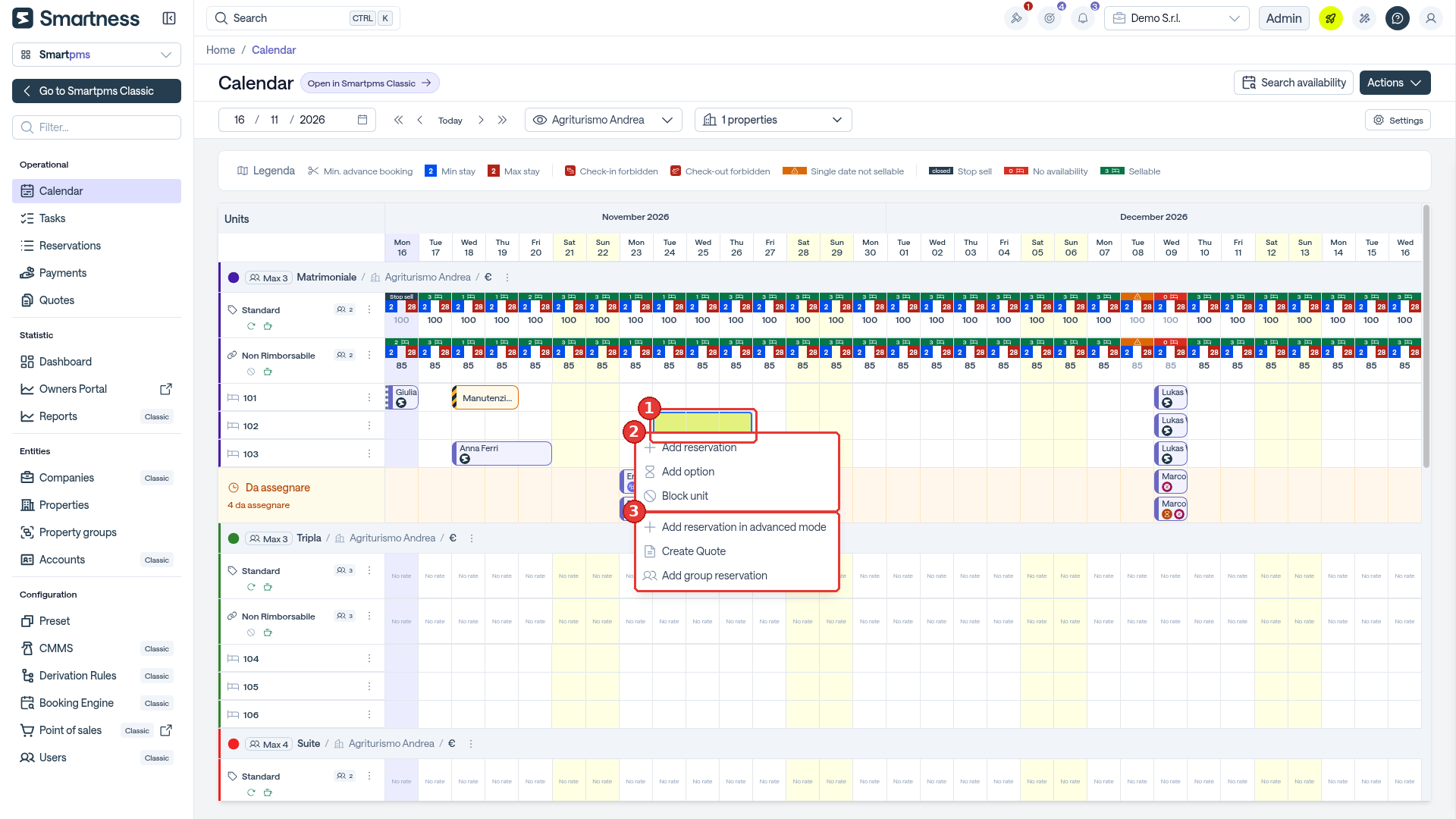
- On a unit row, click an empty cell or click and drag over the stay dates (1). Each cell is one night: selecting from the 18th to the 20th means check-out is on the 21st (3 nights).
- In the menu that opens, choose Add reservation, Add option, or Block unit (2). From the same menu, you can also open Add reservation in advanced mode, Create Quote, and Group reservation (3).
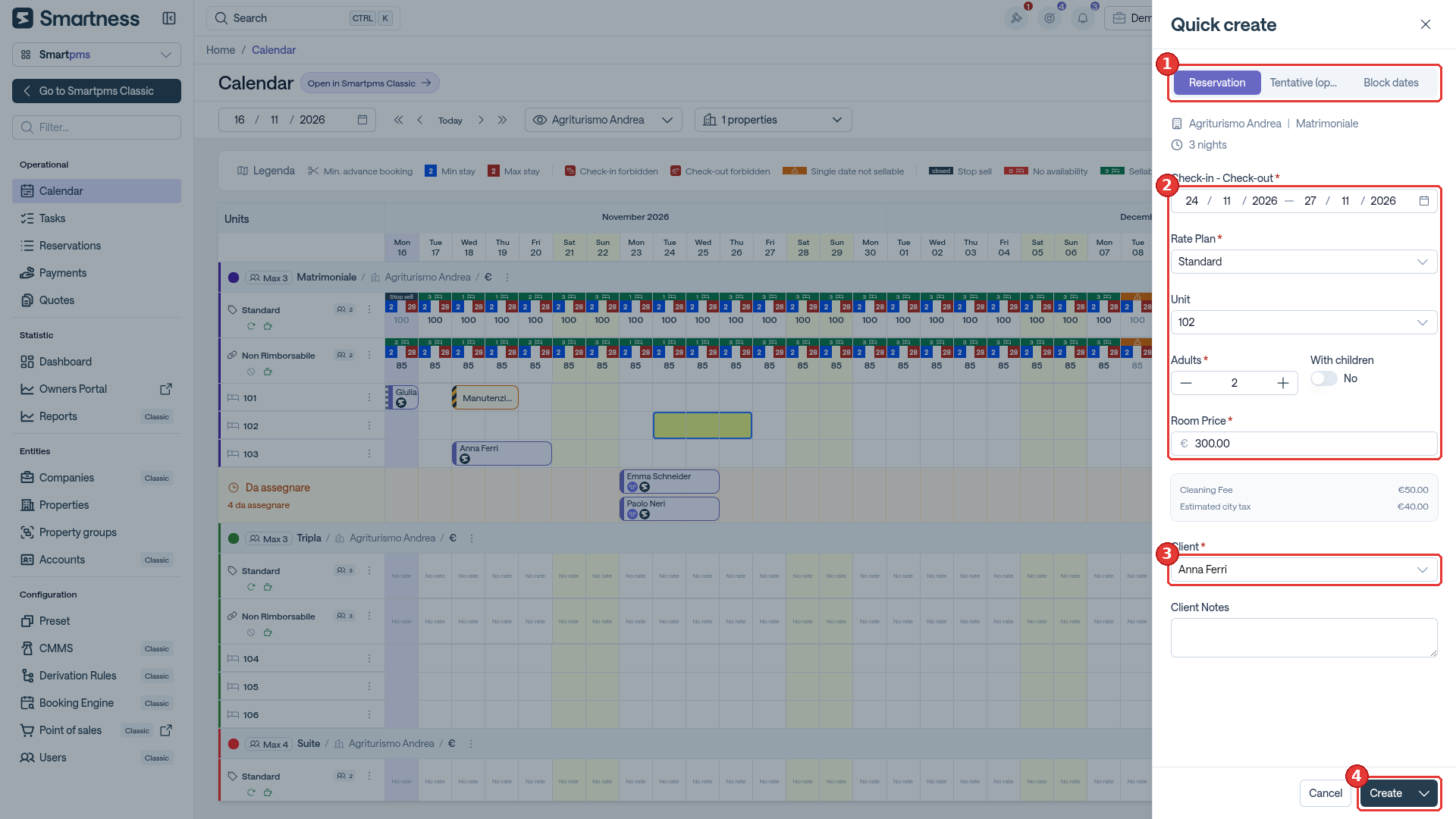
- The Quick creation panel opens, already filled with the property, type, nights, dates, and unit. At the top, you can switch between Reservation, Option, and Block dates.
- For a reservation, check the Rate plan, Unit, Adults, With children, and Room Price; below, you can see the cleaning fee and the estimated City tax. In the Customer field, search for an existing customer or create one with Add new (Type, Name, Language, Email, Phone). You can add Customer Requests.
- Click Create. A message confirms the save, and the reservation appears on the grid; the availability of the type is updated.
In the Quick creation panel, you will find the tabs at the top (1), then dates, rate plan, unit, adults, and price (2), the Customer field (3), and the Create button at the bottom (4). The arrow next to Create also offers Create in advanced mode and Create group reservation. For multi-room reservations, see the guide How to create and manage a group reservation.
For an option, also indicate the Option expiry and Time. For a block, indicate the Reason (e.g., "Boiler maintenance").
The Actions menu at the top right creates the same elements without starting from a cell: Reservation (wizard: Search solution, Set details, Add extras, Add discount and daily details, Review and save), Group reservation, Block dates, and Open/close dates in bulk.
Opening and moving a reservation
Click a reservation to open Manage reservation, with the Main, Details, Payments, Check-in, Accounting, and Messages tabs. Save with Save or Save and close.
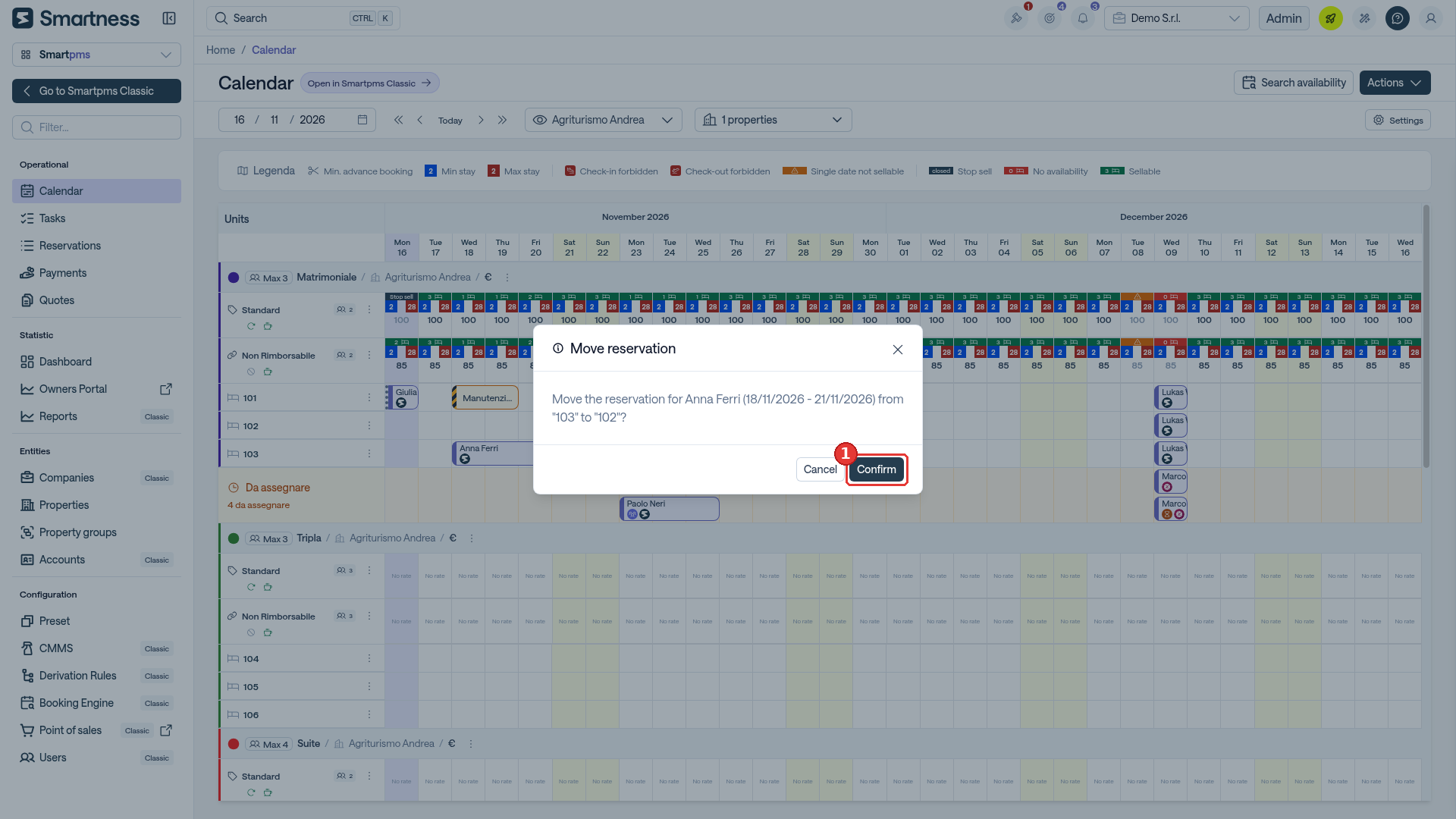
To change the unit, drag the reservation to the row of another unit: SmartPMS asks for confirmation ("Move the reservation of … from 103 to 102?"), click Confirm (1). Dragging only changes the unit: to change the dates, open the reservation.
Modifying prices, availability, and restrictions
- On a rate plan row, click a cell or drag over the days to be modified.
- In the menu, choose Modify rate (or Close to sales to immediately close those dates).
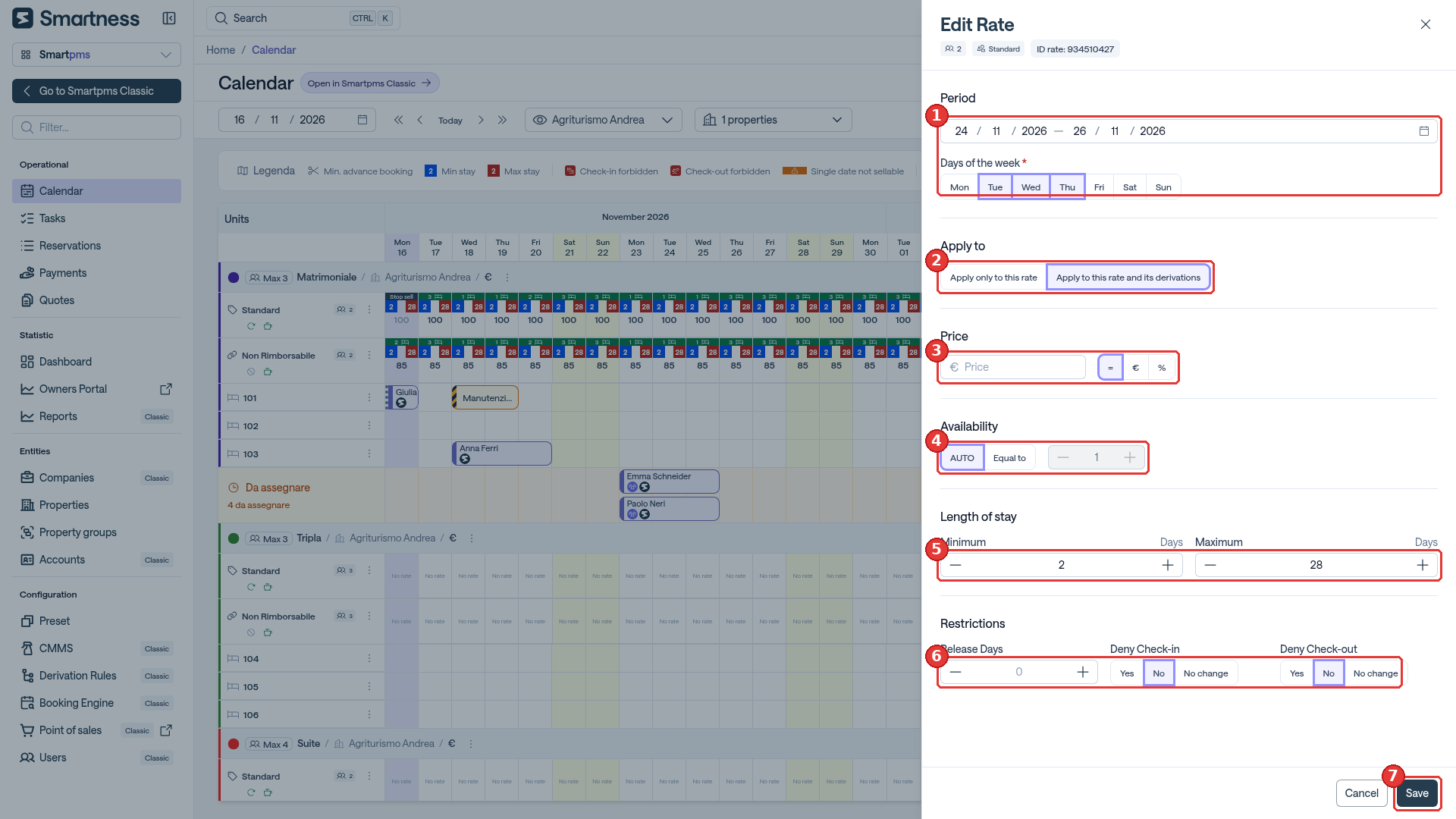
- In the Modify Rate panel, check the Period and the Days of the week (1) to which the modification should be applied.
- In Apply to (2), choose Apply only to this rate or Apply to this rate and its derivations.
- Set the fields to change:
- Price (3): "=" sets the exact price, "€" and "%" increase or decrease it by an amount or a percentage;
- Availability (4): AUTO (calculated from free units) or Equal to a number;
- Length of Stay (5): Minimum and Maximum in days;
- Restrictions (6): Minimum advance, Deny Check-in, and Deny Check-out (Yes, No, or No change).
- Click Save (7): "Rate updated successfully" appears, and the derived plans are updated. For example, by setting Standard to 110 €, the derived Non-Refundable plan at −15% becomes 94 €.
To open or close many dates across multiple properties together, use Actions → Open/close dates in bulk: choose the Properties, the Action (Close dates or Open dates), All rates or Only specific rates, and the Period, then Apply.
Searching for availability and reservations
Search availability opens the Quick availability search: choose property, dates, adults, and children, and click Search. For each solution, you can see the type, plan, total price, and price per night (cleaning included), with the Send quote and Create reservation buttons.
To find a reservation, use Search at the top (or Ctrl+K): type the customer's name or the ID and open the result.
Frequently asked questions
4What does the cell with “closed” or the red 0 mean, and how do I reopen it?
“closed” indicates a date closed to sales; the red 0 indicates that availability is exhausted. To reopen a closed date, select it and use Modify rate or Actions → Open/close dates in bulk.
Where can I find Bulk Edit, Rate History, and Clone prices?
For now, they are only available in SmartPMS Classic: click Open in Smartpms Classic and use them from the Actions menu of the Classic Calendar (guides How to modify prices, availability, and restrictions from the Calendar and How to copy prices from one year to another with Clone prices).
I can no longer find Multi-add.
To create multiple reservations together, use Group reservation (from the Actions menu or the menu that opens when selecting cells): see the guide How to create and manage a group reservation.
Can I change the dates of a reservation by dragging it?
No: by dragging a reservation, you only change the unit. To change the dates, open the reservation and modify them in Manage reservation.
Related guides
How it works
Configuration
Configuration
Configuration
Configuration