

Quotes: how to create, send, and get a quote confirmed
How to propose one or more stays to a guest with SmartPMS Quotes: five-step guided creation, quotes with Alternatives or Multi-room, blocking availability until expiration, extras and discounts, sending via email or WhatsApp, what the guest sees, confirmation and statuses. It also explains why proposals cannot be modified after saving.
You are in the right place if…15 cases
- “How do I send a quote to a guest who asked for availability?”
- “I want to propose multiple accommodations or multiple rates in the same quote”
- “What is the difference between a Multi-room quote and Alternatives?”
- “How do I block the room until the guest confirms the quote?”
- “After saving the quote, I see Pending bookings with source Quotes”
- “I cannot modify the proposals of an already saved quote”
- “How do I delete an option from a quote already sent to the guest?”
- “Proposals are not modifiable”
- “How do I send the quote via WhatsApp or copy the link?”
- “The guest confirmed the quote with bank transfer but the booking is still Pending”
- “The City tax is not included in the quote total”
- “Can I change the room price in the quote?”
- “I cannot apply a discount and a promotion together in the quote”
- “Multi-room quote with alternatives is not supported”
- “What happens to blocked options if I delete the quote?”
What Quotes are for
With Quotes, you can prepare a tailored offer for those who have requested availability via email, phone, or chat. The guest receives a link to a dedicated page, chooses the solution, and confirms. SmartPMS creates the booking with the source Quotes.
In a quote, you can propose:
- multiple rate plans for the same accommodation (e.g., refundable and non-refundable): the guest chooses one;
- multiple accommodations, even from different properties;
- extras and a discount or promotion for each option.
Where to find them
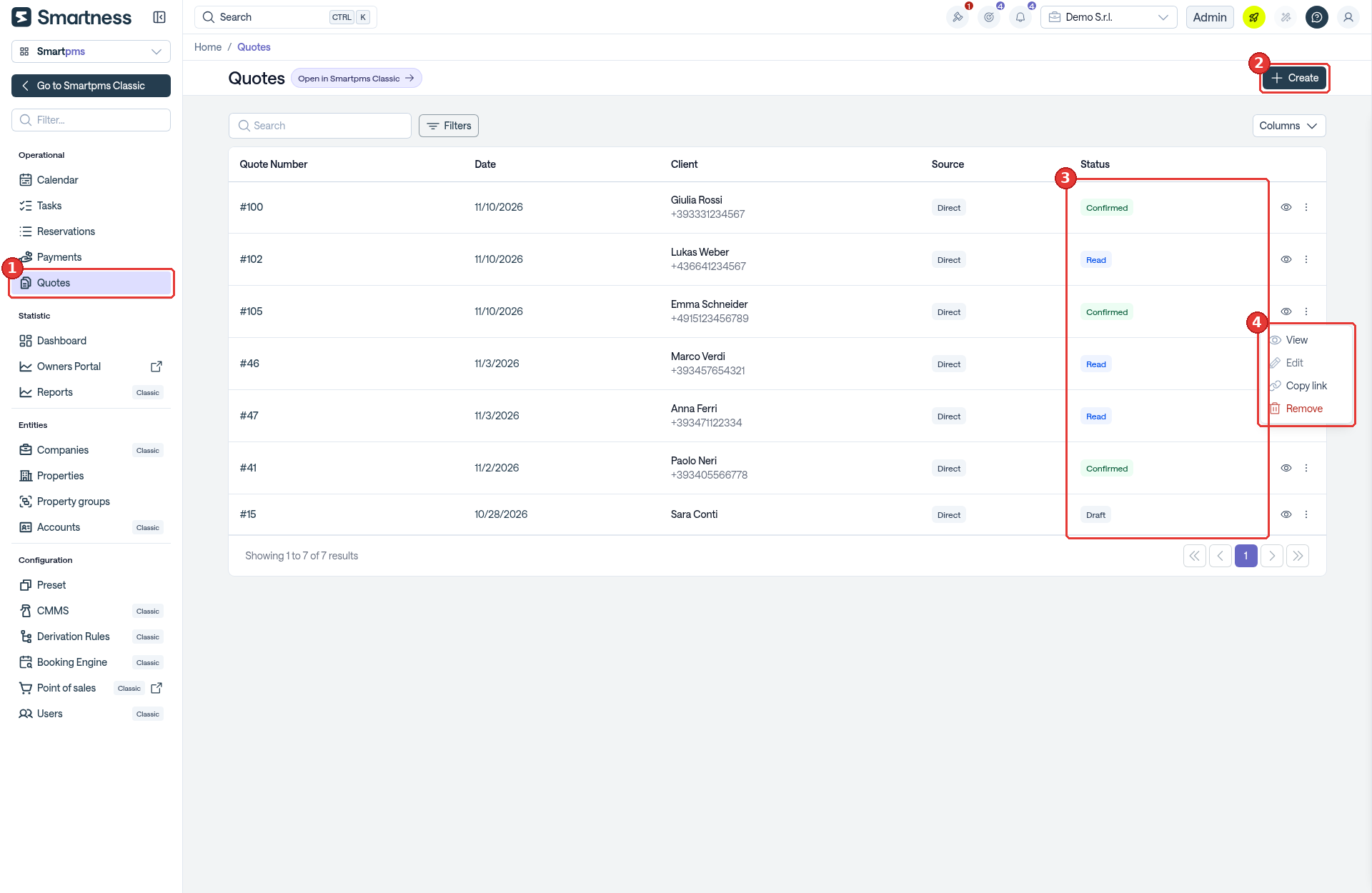
New quotes are created from the new SmartPMS. If you are still working in the Classic version, switch to the new SmartPMS using the dedicated banner. Then open Quotes from the side menu, in the Operations section (1). The list shows Quote No., Date, Customer, Source, and Status (3). For each quote, you will find the eye icon for the preview and the ⋮ menu with View, Edit, Duplicate, Copy link, and Delete (4). To create a new one, click Create (2).
Quote Requests (requests that guests send from the "Quote request" page of the Booking Engine or from the widget on your website) and the Generate Widget button are currently only found in SmartPMS Classic, under Quotes > Quote Requests: in the new SmartPMS, the Quotes menu contains only the list of quotes. Read the request in Classic and then prepare the quote from the new SmartPMS.
1. Select accommodations and rates
The quote is created in five steps. Add extras and Add discount and promotions are optional.
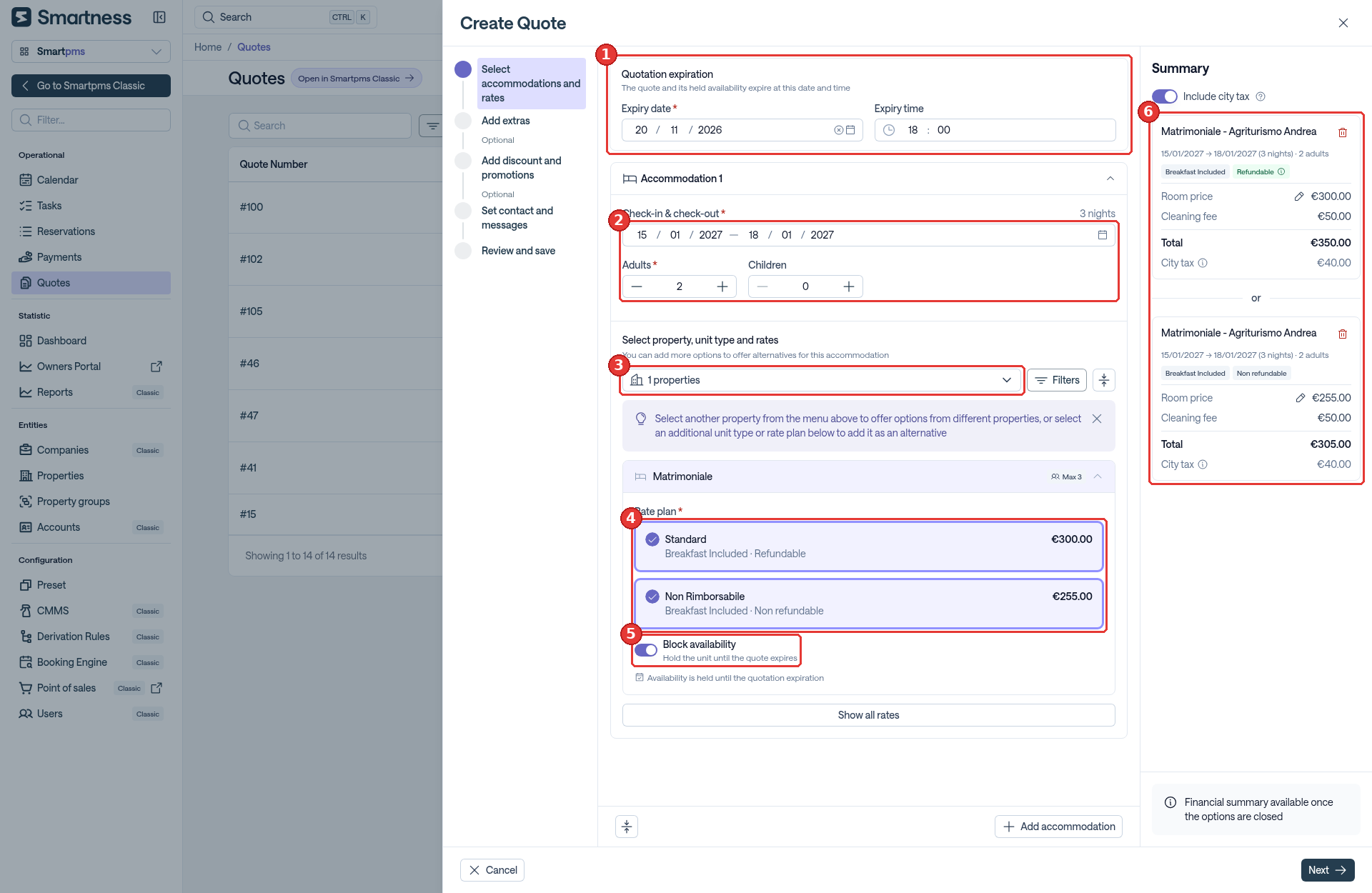
- In Quote expiration (1), set the date and time. This is the expiration of the offer and, if you block availability, also of the hold.
- In Accommodation 1, enter the check-in and check-out dates, adults, and children with their ages (2).
- Choose one or more properties from the selector (3). You can narrow down the search with Filters.
- Open the category and select one or more rate plans (4). If you select more than one, you create alternatives: the guest will choose one.
- If you want to reserve the accommodation for the guest until the expiration date, activate Block availability (5). Until the expiration, the accommodation is no longer available for other bookings. The switch requires the quote expiration date.
In the Summary on the right (6), you can see the room price, cleaning fee, extras, discounts, and the total for each option. With the pencil icon next to the room price, you can change it: the new total is distributed equally across all nights. With Include city tax, you decide whether to show the estimated tax to the guest.
With Show all rates, you can also see Sold out rates. You can include them in the quote, but if the accommodation is already booked, you risk an overbooking.
Multiple accommodations: Multi-room or Alternatives
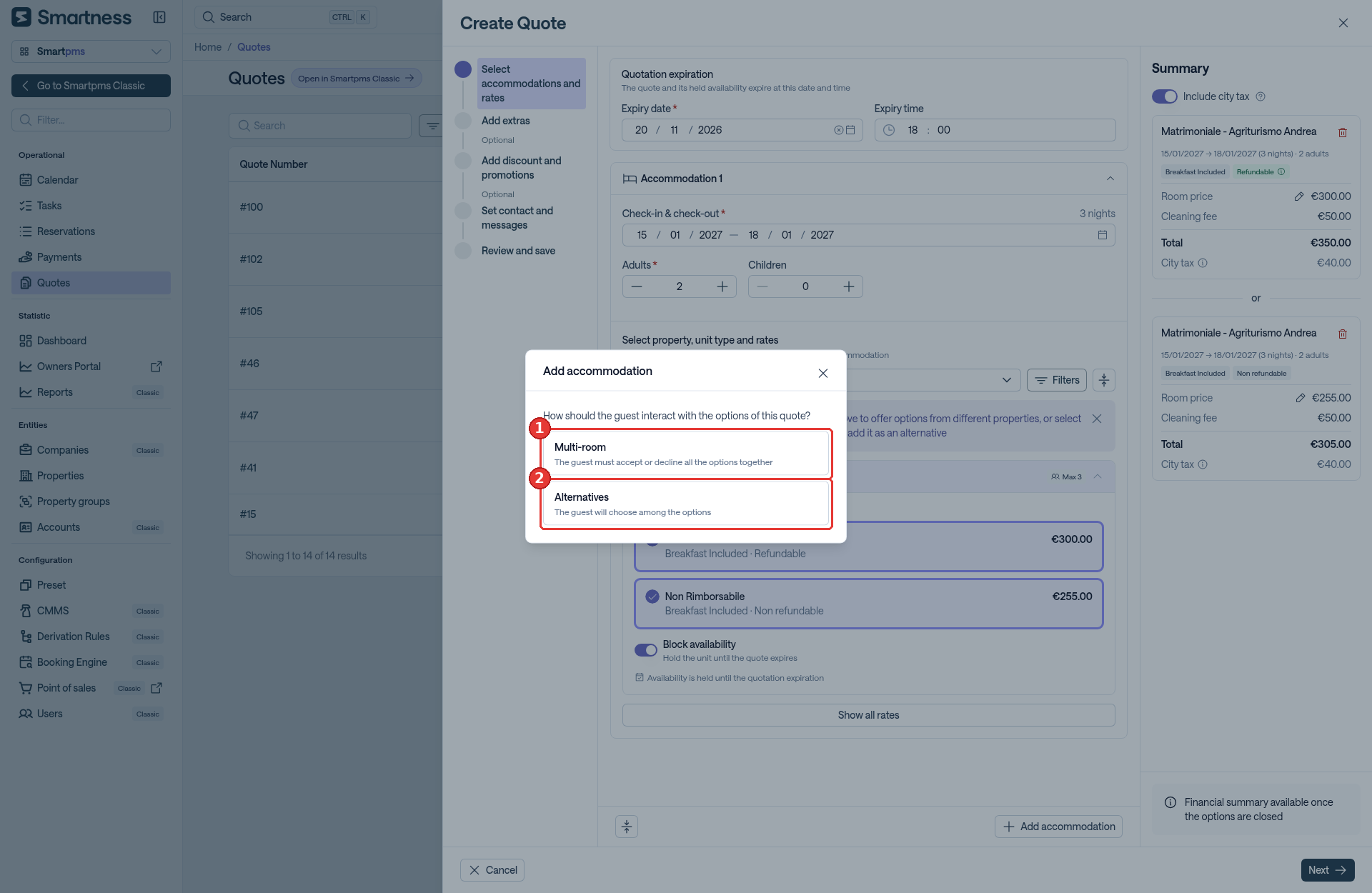
To propose a second accommodation, click Add accommodation. SmartPMS asks you how the guest should behave:
- Multi-room (1): the guest accepts or rejects all options together, for example, two rooms for a group;
- Alternatives (2): the guest chooses only one of the options.
A Multi-room quote requires only one rate plan for each accommodation. If you have already selected multiple rates for the same accommodation, remove the alternatives before switching to Multi-room.
2. Add extras (optional)
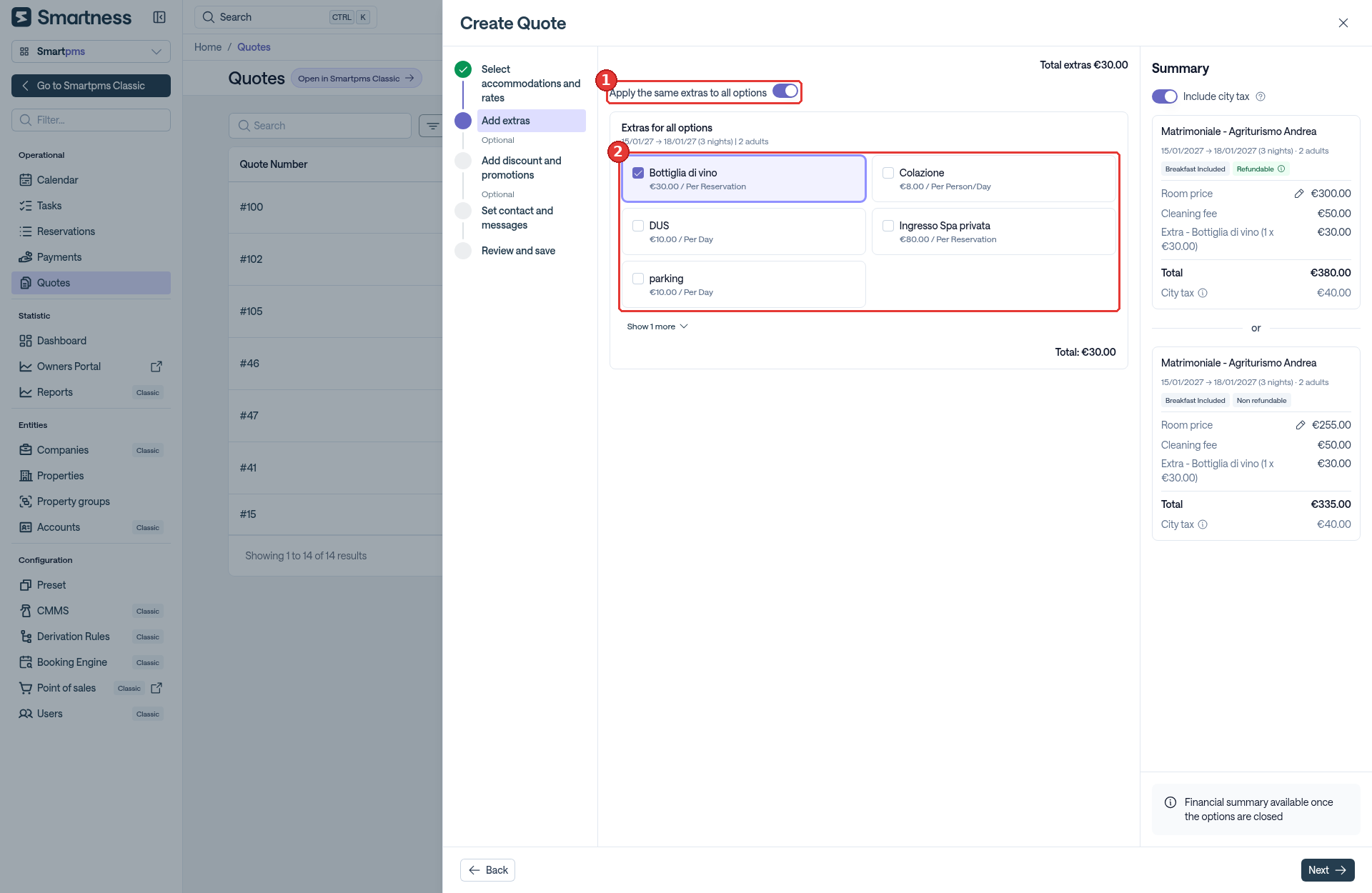
Select the property extras to include and, if necessary, the quantity (2). With Apply the same extras to all options (1), the same extras apply to every option. If you deactivate it, choose the extras option by option.
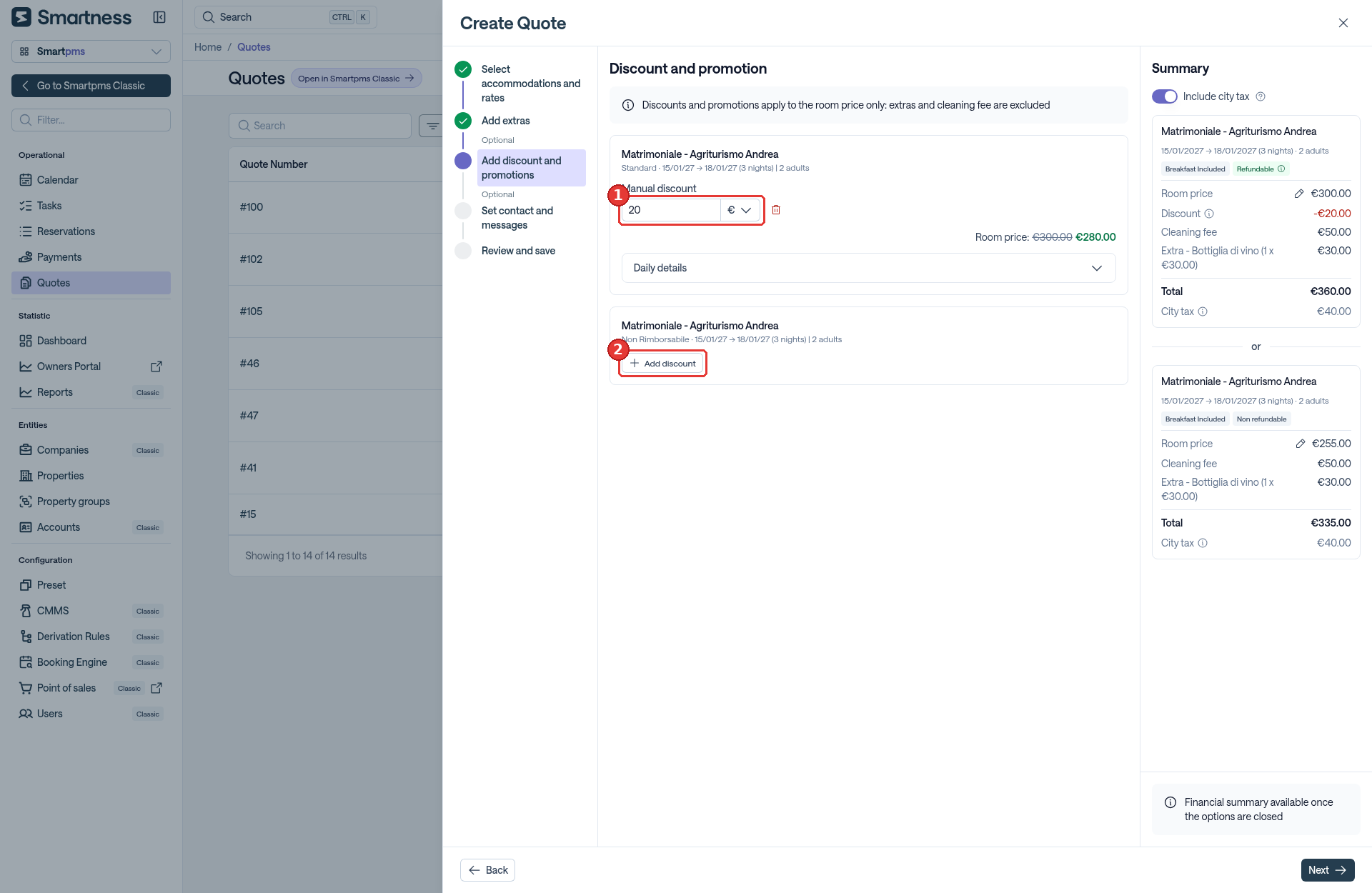
3. Add discount and promotions (optional)
For each option, you can add a manual discount, as a euro value or a percentage (1), or apply a promotion available for those dates. Click Add discount on the option you are interested in (2).
- Discounts and promotions apply only to the room price: extras and cleaning fees are excluded.
- On the same option, you cannot apply a discount and a promotion together.
4. Set contact and messages
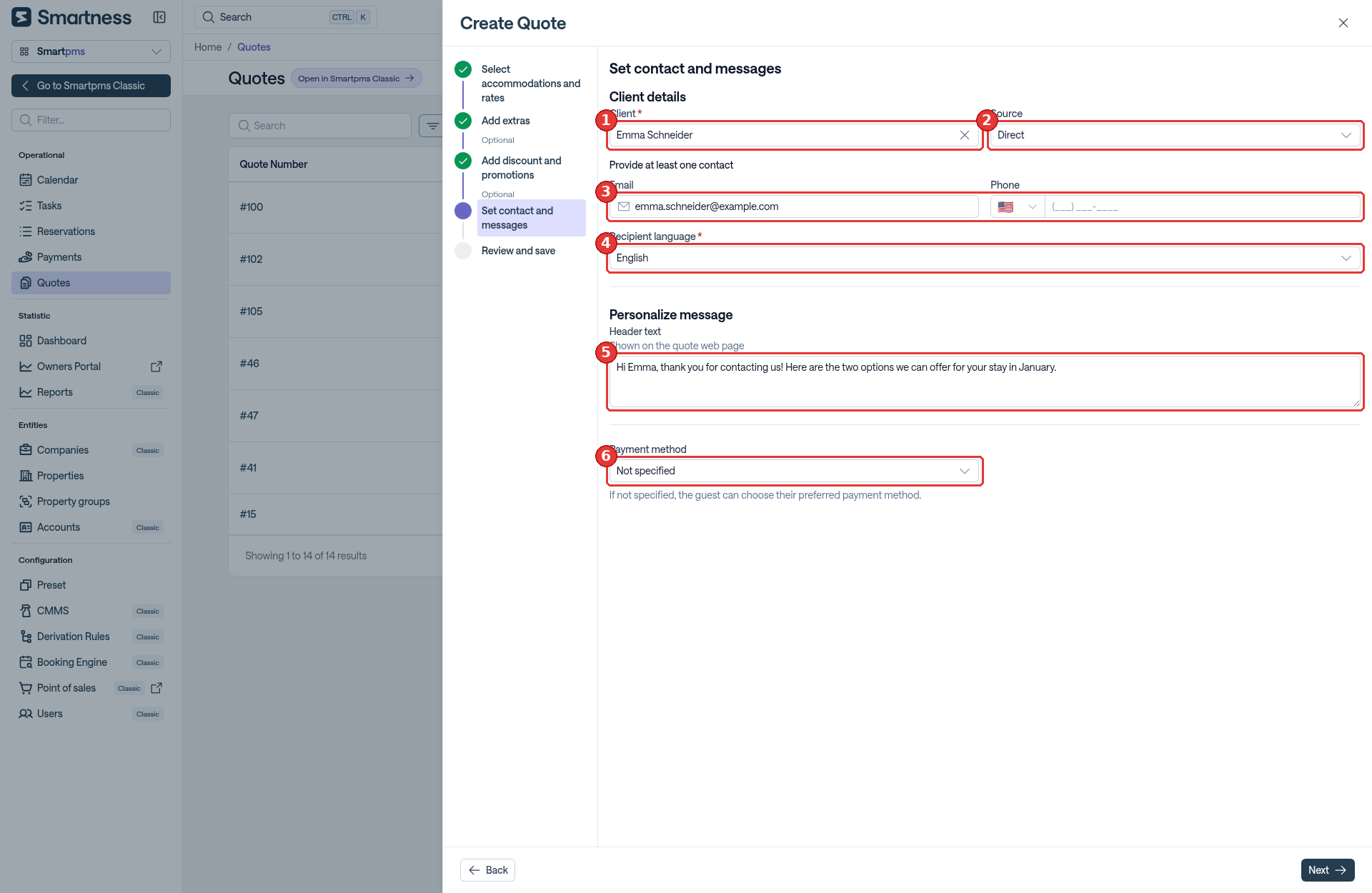
- In Customer (1), search for the profile by name. If the guest is new, choose Add "Name Surname".
- Indicate the Source of the request (2).
- Enter at least one contact between Email and Phone (3): the email is used for sending via email, the phone for WhatsApp.
- Choose the Recipient's language (4).
- In Header text (5), write a message for the guest: it appears on the quote page.
- In Payment method (6), you can set the method. If you leave it as Not specified, the guest chooses from the available methods.
If there are properties with different Smartpay accounts in the quote, you will also be asked which account to collect from. To collect with different accounts, create separate quotes.
5. Review and save
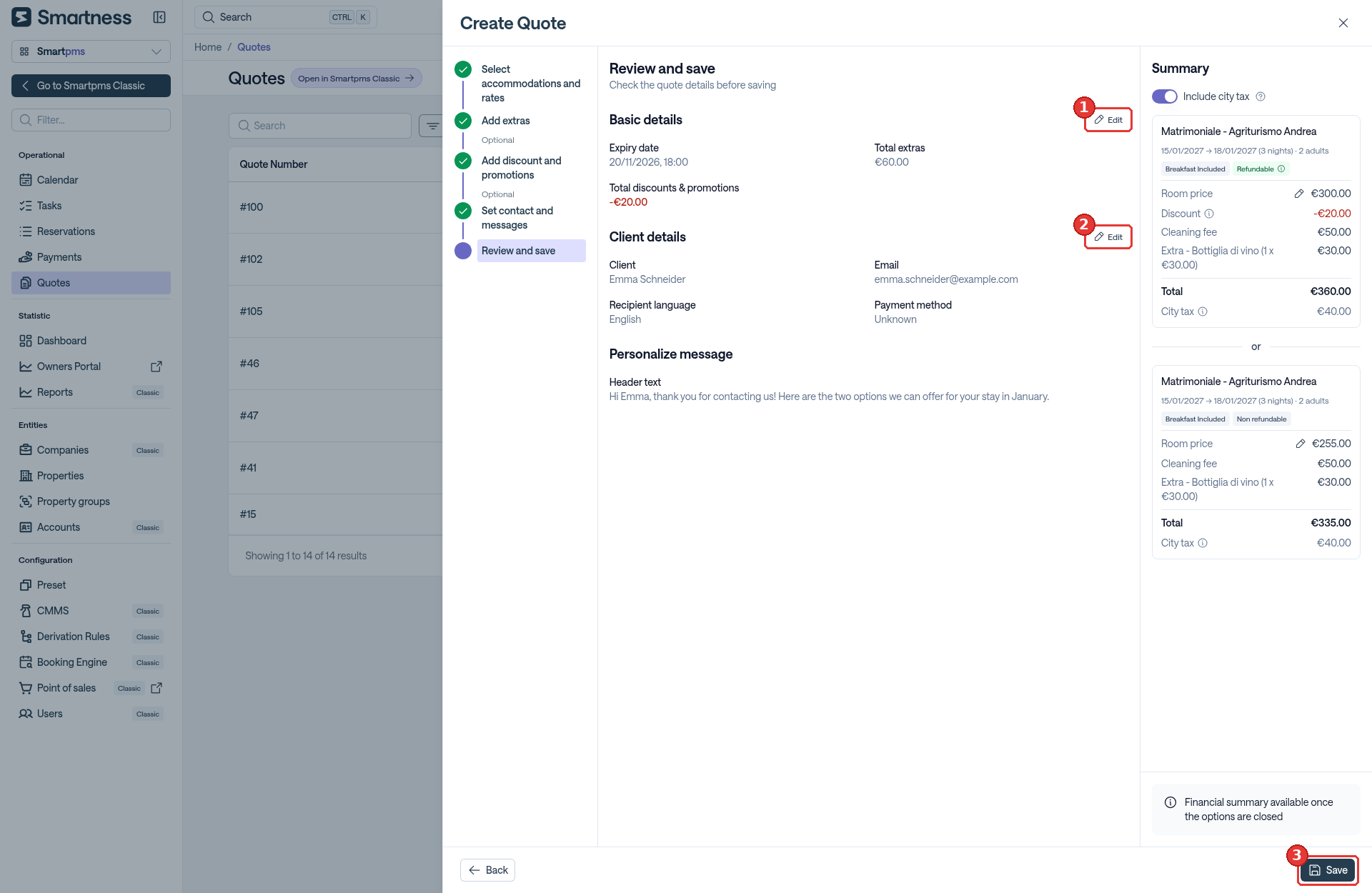
Check the summary. With Edit (1 and 2), you return to the previous steps. Click Save (3): the quote is saved as a Draft and the preview opens.
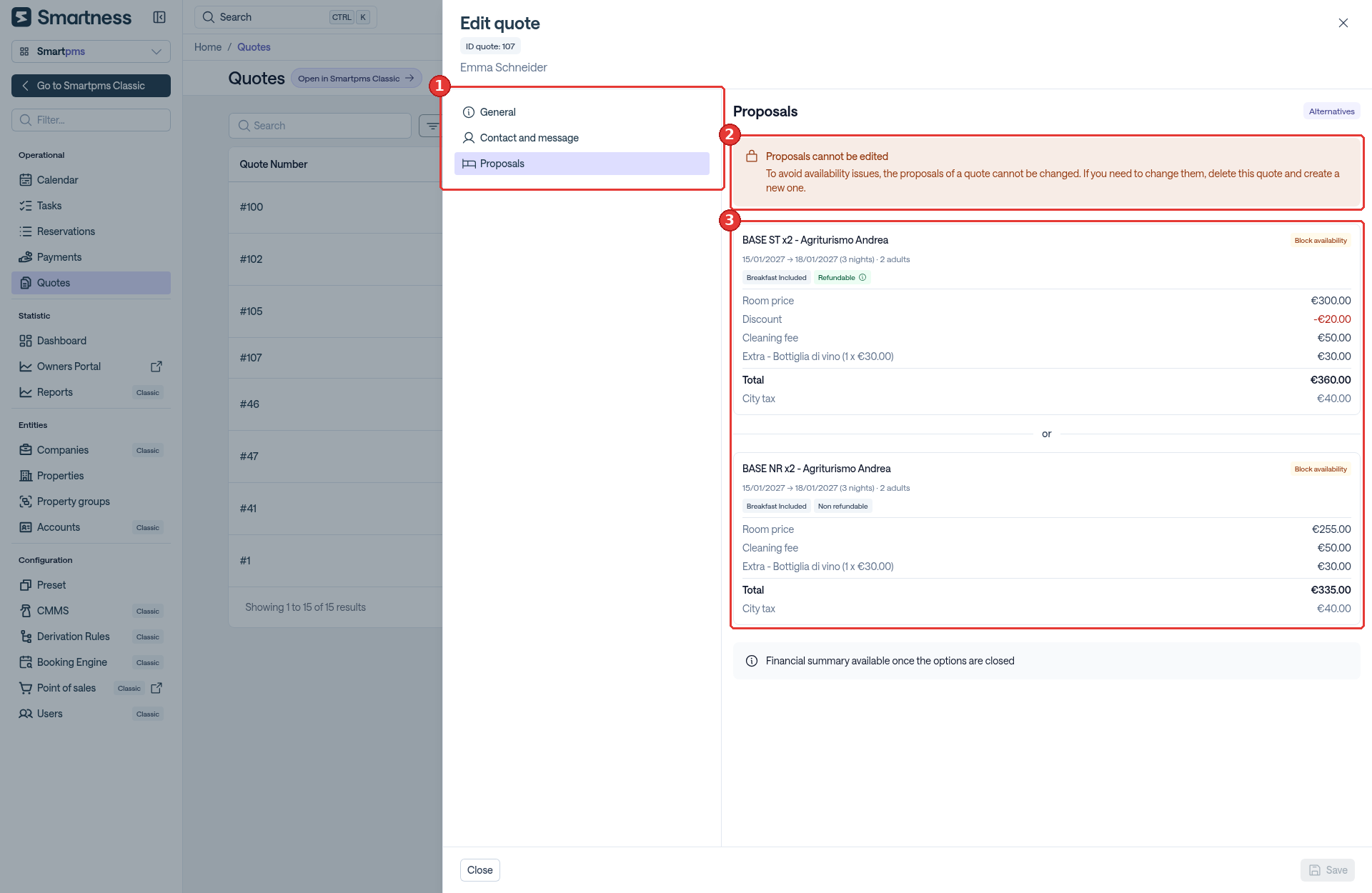
Important: after saving, the proposals (accommodations, dates, rates, extras, and discounts) can no longer be modified. This way, the blocked availability remains consistent with what the guest sees. If you need to change them, you don't need to redo it from scratch: use Duplicate from the ⋮ menu in the list (or from the Duplicate button in Edit > Proposals). A new quote opens, already filled with the same data, which you can modify, save, and send; then delete the old one (see the FAQs).
6. Send the quote to the guest
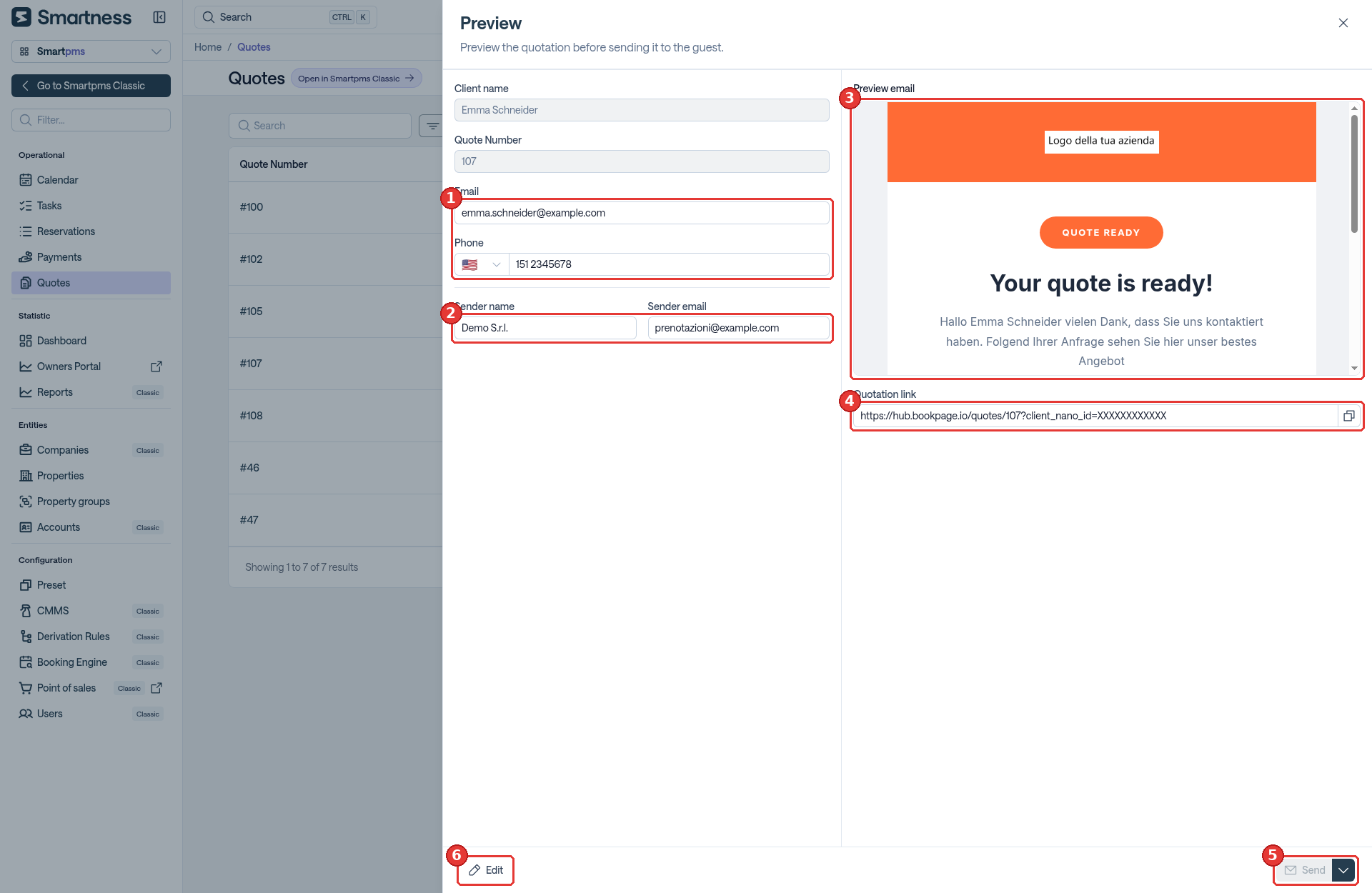
In the Preview you will find:
- recipient's email and phone (1) and sender's name and email (2);
- the email preview (3);
- the Quote link with the button to copy it (4);
- Send (5): sends the email. From the arrow next to it, choose Send via email or Send via WhatsApp. After sending, the quote status changes to Sent.
With Edit (6), you return to the quote. You can reopen the preview at any time from the eye icon or from View in the list.
7. What happens with Block availability
Upon saving, for each option with Block availability, SmartPMS creates a Pending booking with the source Quotes, with an automatically assigned unit. You can find it in Bookings (1 and 2) and in the Calendar.
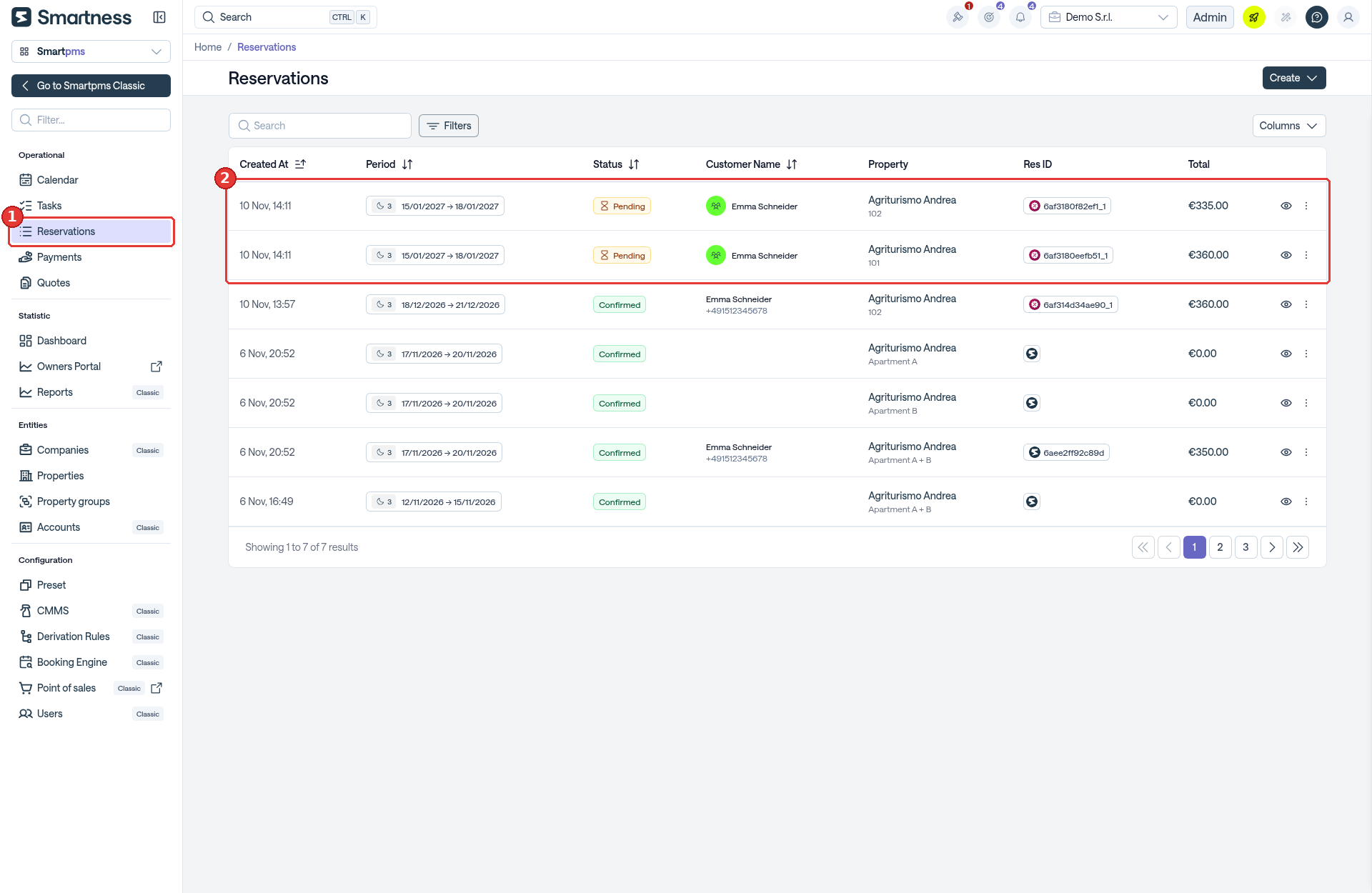
These Pending bookings:
- are confirmed when the guest chooses that option;
- are deleted immediately, freeing up availability, when the guest chooses another option or when you delete the quote;
- expire together with the quote.
Without Block availability, the availability remains open: the booking is created only when the guest confirms.
8. What the guest sees
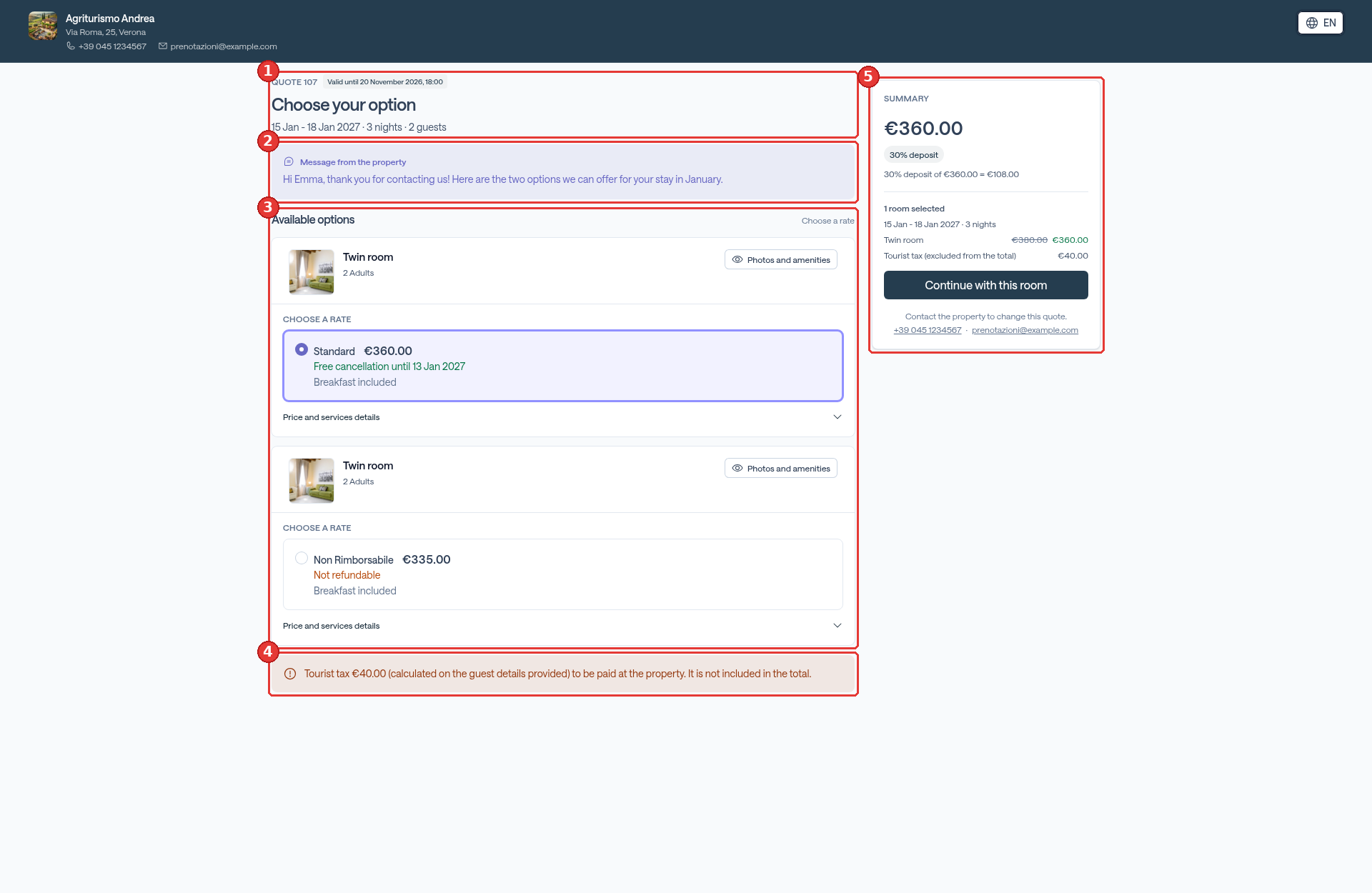
By opening the link, the guest sees:
- number, expiration, and dates of the quote (1);
- your Header text (2);
- the proposed options, with photos and amenities of the accommodation, cancellation policies, and board basis of each rate (3). If the category and the rate plan have a description in their content, the guest sees it in the page language (or, if missing, in the default one): the accommodation description opens from a collapsible panel, the rate plan description shows the first three lines and expands with the button to read everything;
- the estimated city tax, to be paid at the property and not included in the total, if you have activated Include city tax (4);
- the summary with the amount to be paid now, for example, the deposit, and the button to continue (5).
The guest can change the page language from the button at the top right.
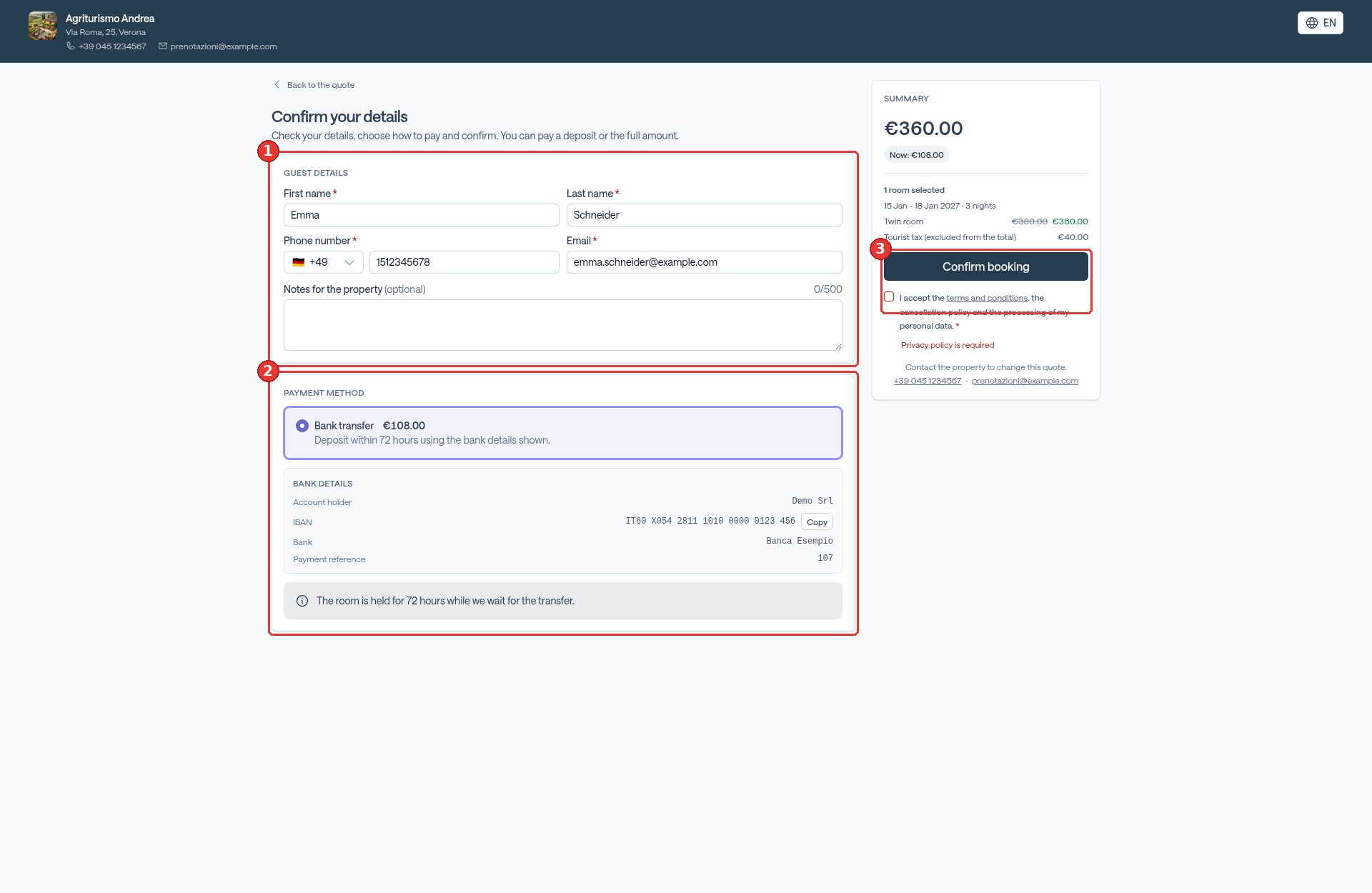
Then the guest checks their details (1). Name, surname, phone, and email are mandatory. They choose the payment method among those available (2): with bank transfer, they see the bank details. They accept the terms and conditions and click Confirm booking (3).
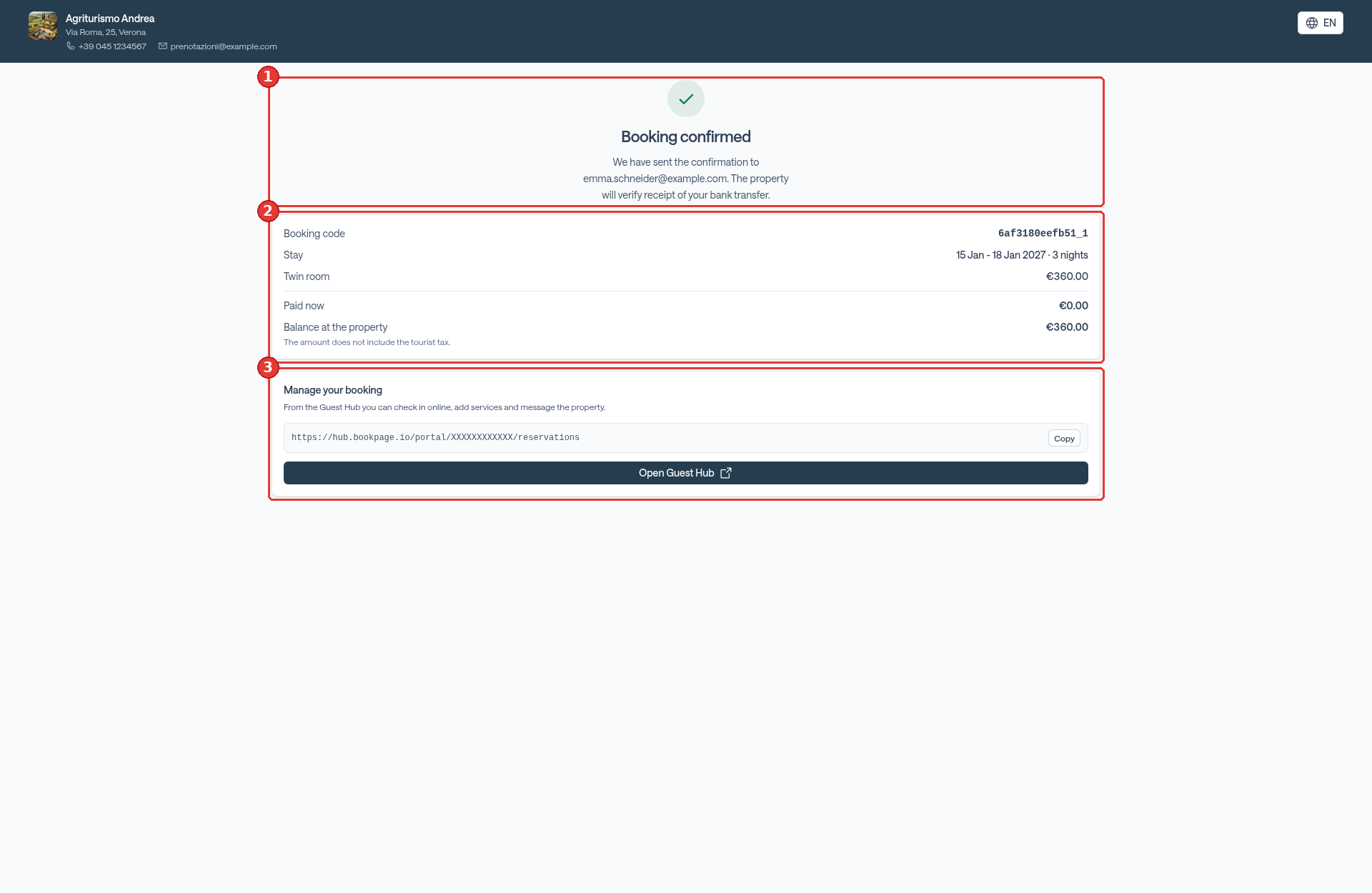
At the end, they see the confirmation with the booking code (1), the summary of what has been paid and the balance at the property (2), and the link to the Guest Hub for the Online Check-in (3).
9. Confirmation and statuses
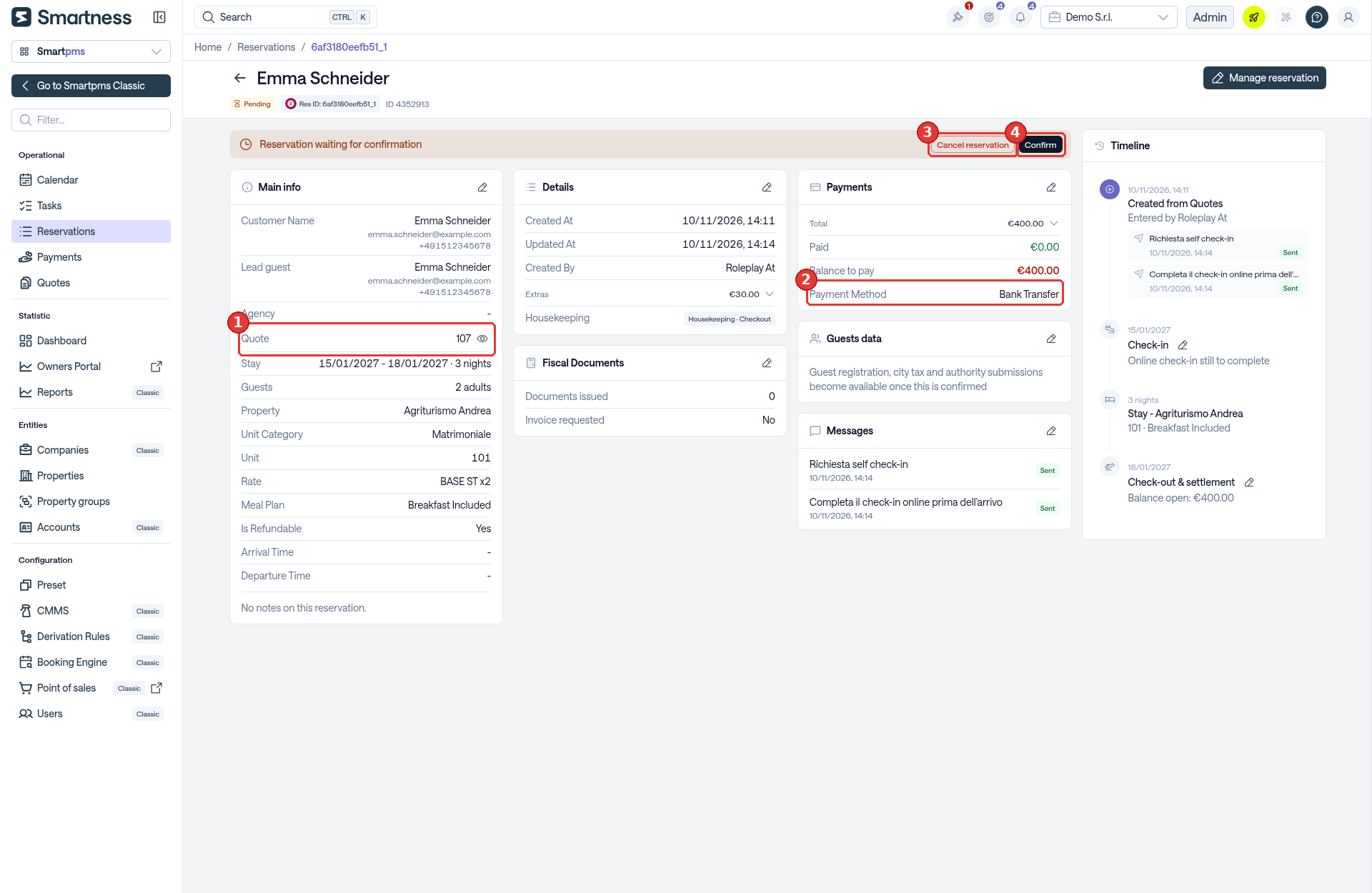
When the guest confirms, the quote changes to Confirmed and SmartPMS creates the booking with the source Quotes. In the booking details, the Quote field (1) shows the original quote number.
If the guest has chosen a payment to be verified, such as a bank transfer (2), the booking remains Pending confirmation. When you receive the payment, click Confirm (4). If the guest does not pay, you can use Cancel booking (3).
Status | When |
|---|---|
Draft | The quote is saved but not yet sent. |
Sent | You sent it from the preview. |
Read | The guest has opened the quote page. |
Confirmed | The guest has confirmed. |
Expired | The expiration date has passed. |
Cancelled | The quote has been cancelled. |
You can change status and expiration from Edit > General. In Edit, you will also find Contact and message, while the Proposals section is read-only (2): here you will find the Duplicate button to create a new quote starting from this one.
Confirmed or cancelled quotes can no longer be modified.
Frequently asked questions
5After saving the quote, I see Pending bookings with source Quotes: what are they?
These are the availability blocks created by options with Block availability active, one for each blocked option. They reserve the accommodation for the guest until the quote expires: in the meantime, it is not available for other bookings.
- The one chosen by the guest becomes the booking.
- The others are deleted when the guest confirms, when you delete the quote, or upon expiration.
If you do not want to block availability, leave the switch off when you create the quote.
I have quotes created in the Classic version of SmartPMS: where can I find them and can I continue using Classic for quotes?
Quotes already created in the Classic version remain there: you can find them in Classic under Quotes > Quotes and you can continue to edit them for as long as Classic remains active.
New quotes, however, can only be created from the new SmartPMS. The Classic version no longer receives new features or fixes: all functions, including quotes, are being moved to the new SmartPMS. If something doesn't look right with your quotes, work in the new SmartPMS and write to support from there.
The guest receives the new quote page, with the deposit and the estimated City tax already included in the offer summary.
Which payment methods can the guest choose on the quote page?
The quote page only proposes these methods, if they are active among the property's payment methods:
- Smartpay: card as a guarantee without charge, deposit by card (the balance is then charged to the saved card), or full payment by card;
- Bank transfer: the guest sees the bank details and the booking remains Pending until you confirm the payment;
- Cash: payment at the property.
Other methods, such as a payment gateway other than Smartpay, do not appear on the quote page.
Which methods the guest sees also depends on how much they have to pay immediately:
To pay immediately | Proposed methods |
|---|---|
Full amount | Card (full payment) or bank transfer |
Deposit | Deposit by card or bank transfer |
Nothing | Payment at the property, card as a guarantee, or bank transfer |
If the guest chooses multiple options, they only see the methods available for all of them.
How is the deposit that the guest sees in the quote calculated?
The deposit comes from the payment rules of the proposed rate plan: if the plan requires, for example, a 30% deposit, the guest sees 30% as the amount to be paid now, in the summary of the quote page.
When the guest chooses multiple options together:
- if at least one is non-refundable, they pay the full amount of all chosen options immediately;
- otherwise, if at least one has a deposit, the highest deposit percentage is applied to all;
- if none have a deposit, they pay nothing at the time of confirmation.
The city tax is not included in the deposit or the total: the guest sees it as a separate estimate if you have activated Include city tax.
Can I ask the guest for a credit card as a guarantee when they confirm the quote?
Yes, with Smartpay active on the property. On the quote page, the guest enters their card securely and, depending on the rate plan, the card is held as a guarantee without being charged, or it is used for a deposit or full payment. Any subsequent charges, such as the balance or a penalty after the free cancellation period, are processed automatically according to the rate plan rules, without you having to re-enter the card details.
Without Smartpay, the quote page does not ask for a card: the Credit card - View only method is not available for new quotes, and the guest confirms without leaving card details. In that case, you can suggest a Bank transfer or payment at the property.
To activate Smartpay, follow the dedicated guide for online payments with Smartpay or contact your Smartness representative.
Related guides
Activation
Configuration
Configuration
Configuration
How it works