Update company billing details (company name, VAT number, PEC, recipient code)
How to modify the details used by Smartness to issue your subscription invoices from the Smartness platform Administration: company name, VAT number, address, email, PEC, phone number, and SDI recipient code, and how to add another billing profile.
You are in the right place if…8 cases
- “How do I change the company details on Smartness invoices?”
- “I need to update the company name and VAT number of my subscription”
- “Smartness invoices are addressed to the old company”
- “Where do I enter the SDI recipient code or PEC for Smartness invoices?”
- “We have changed our registered office: how do I update the billing address?”
- “I want to add another billing profile”
- “Where do I modify the billing details for my SmartPMS subscription?”
- “I am not receiving Smartness invoices in my tax drawer”
The data used by Smartness to issue your subscription invoices (company name, VAT number, address, PEC, and recipient code) is stored in a billing profile, which is unique for all Smartness products. Keeping this information up to date ensures you receive correct invoices and that they are correctly delivered to the SDI and your tax drawer.
These operations are reserved for the subscription owner and account administrators.
Finding the billing profile
- Open the Administration section of the Smartness platform (platform.smartness.com → Administration).
- In the side menu, click on Billing: the Overview tab will open.
- On the left, in the Billing profiles list, click on the profile you wish to check (1). Its details will appear on the right: email, PEC, VAT number, recipient code, address, and phone number.
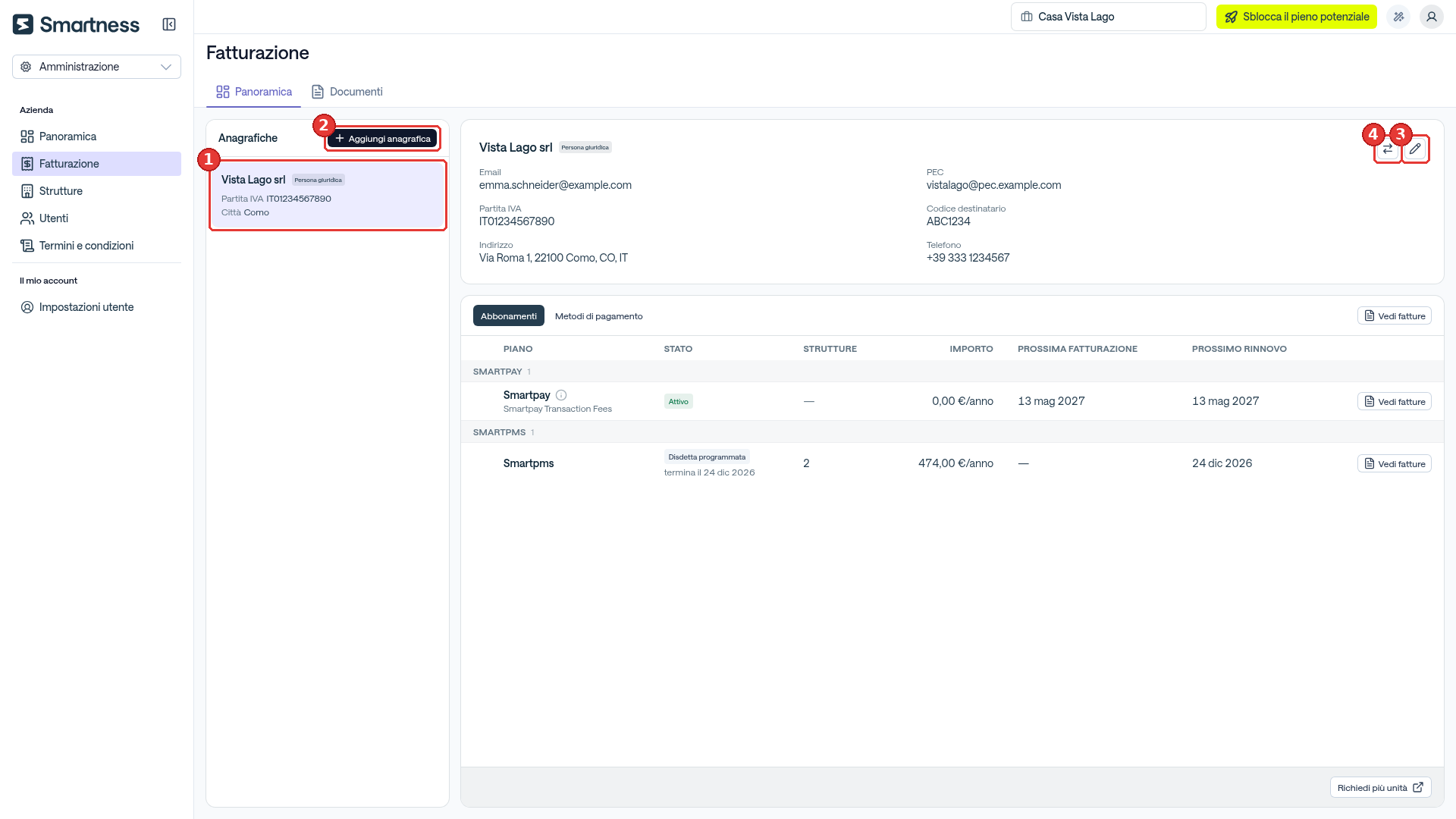
From the same screen, you can:
- create another profile using Add billing profile (2);
- edit the selected one using the Edit pencil icon (3);
- use Transfer to another company (4), located next to the pencil icon.
Editing data
- Click the Edit pencil icon in the top right of the billing profile details. The Edit billing profile window will open.
- Update the necessary fields (1): Profile type, Company name (or First name and Last name), Email, PEC, Phone prefix and Phone, Address, Postal code, City, Province, Country, VAT prefix, and VAT number.
- In the Recipient code field (2), enter the 7-character SDI code. If your invoices are delivered via PEC, enter
0000000and ensure the PEC field is correct. - Click Save changes (3). Use Cancel to close the window without saving.
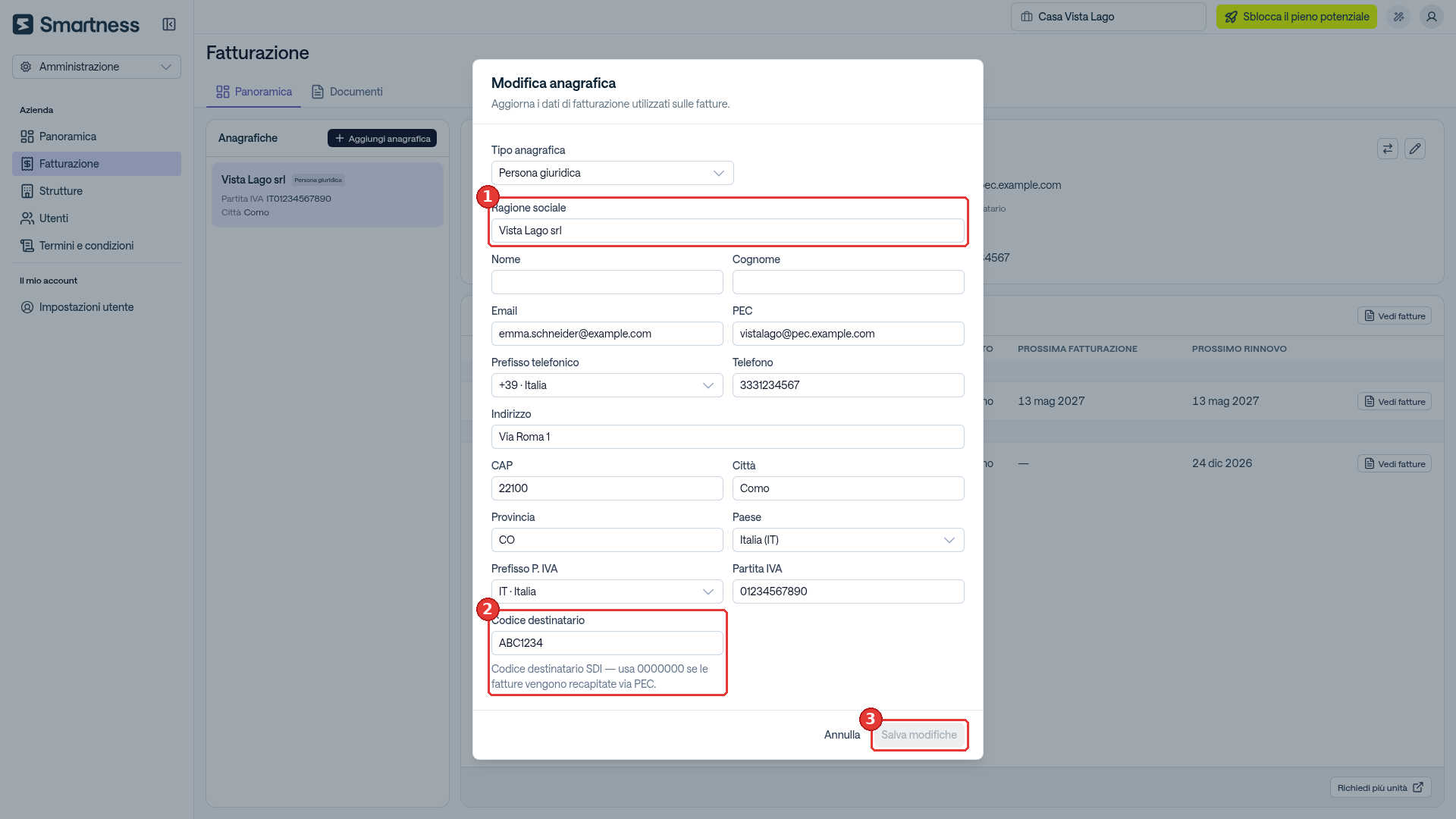
The updated data will be used for invoices issued from that moment on: previously issued invoices will remain addressed as they were at the time of issuance.
If you use SmartPMS, the same data will automatically sync within a few minutes to the company linked to Smartness (Settings → Companies): there is no need to update them again in the management software.
Frequently asked questions
1Do I need to update this data in SmartPMS as well?
No. The company name, VAT number, address, email, PEC, and recipient code from the billing profile are automatically synced within a few minutes to the company linked to Smartness in SmartPMS (Settings → Companies), which also uses them for invoices and receipts for your guests. Always correct them here: any changes made directly in SmartPMS will be overwritten by the next update. A company's tax code, however, is filled in the company details in SmartPMS.
Related guides
How it works
How it works
Configuration
Configuration
SmartPMS · Configuration
SmartPMS · Activation