

How to merge duplicate guests with Guest Merge
How to find and merge duplicate guest profiles (duplicate records of the same guest) using the SmartPMS Guest Merge tool: how to choose comparison criteria for name, email, and phone, which profile remains after the merge, which data is kept, and what happens to linked bookings, accounts, and documents.
You are in the right place if…10 cases
- “I have duplicate guests in my database”
- “How do I merge two guest profiles for the same guest?”
- “After the import, I see the same guest twice”
- “The booking history does not appear on the guest profile”
- “Guest Merge does not find any duplicates”
- “I cannot delete a duplicate guest”
- “I want to clean up the guest database from duplicates”
- “How does Merge all work?”
- “After the merge, the guest profile no longer has the address”
- “Every booking created a new guest with only the name”
It happens that the same guest has multiple profiles, for example, one created from a booking and one from a database import. With the Guest Merge tool, you can find these profiles and combine them into one: this way, the guest's bookings, accounts, and documents are all in the same place.
Before you start: what happens when you merge
- From each group of duplicates, only one profile remains: the one indicated as Main. The other profiles in the group are deleted.
- Bookings, accounts, documents, and everything else linked to the duplicates are moved to the Main profile.
- Only name, email, and phone are carried over from the duplicates to the Main profile. Other data from the duplicates (address, zip code, city, country, tax ID, VAT number, notes, tags) are not transferred: if you need them, write them down before merging and then enter them into the remaining profile.
- The merge cannot be undone.
1. Open the Guest Merge tool
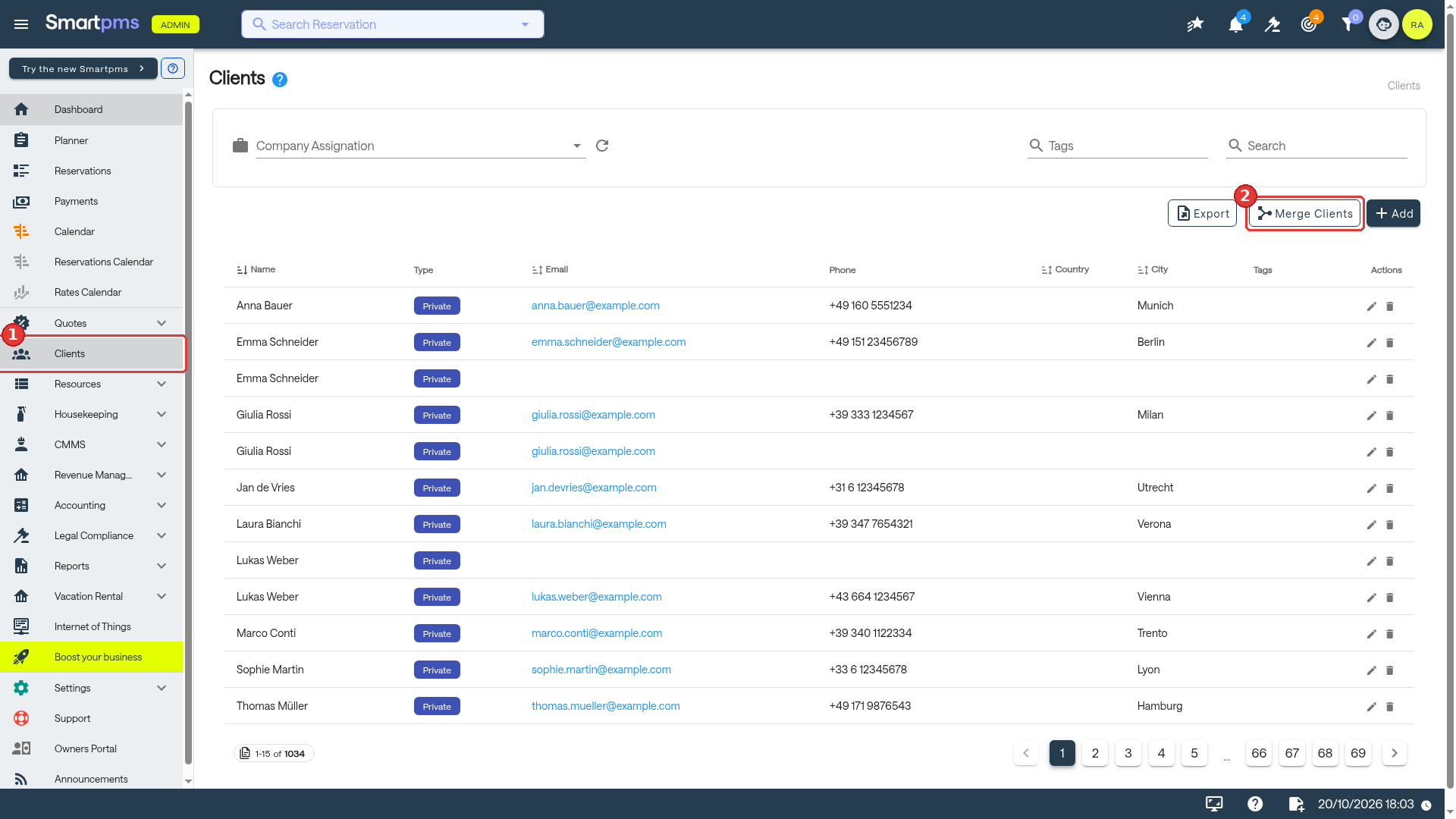
In the left menu, open Guests (1) and click Guest Merge (2), at the top right above the guest list.
2. Choose comparison criteria
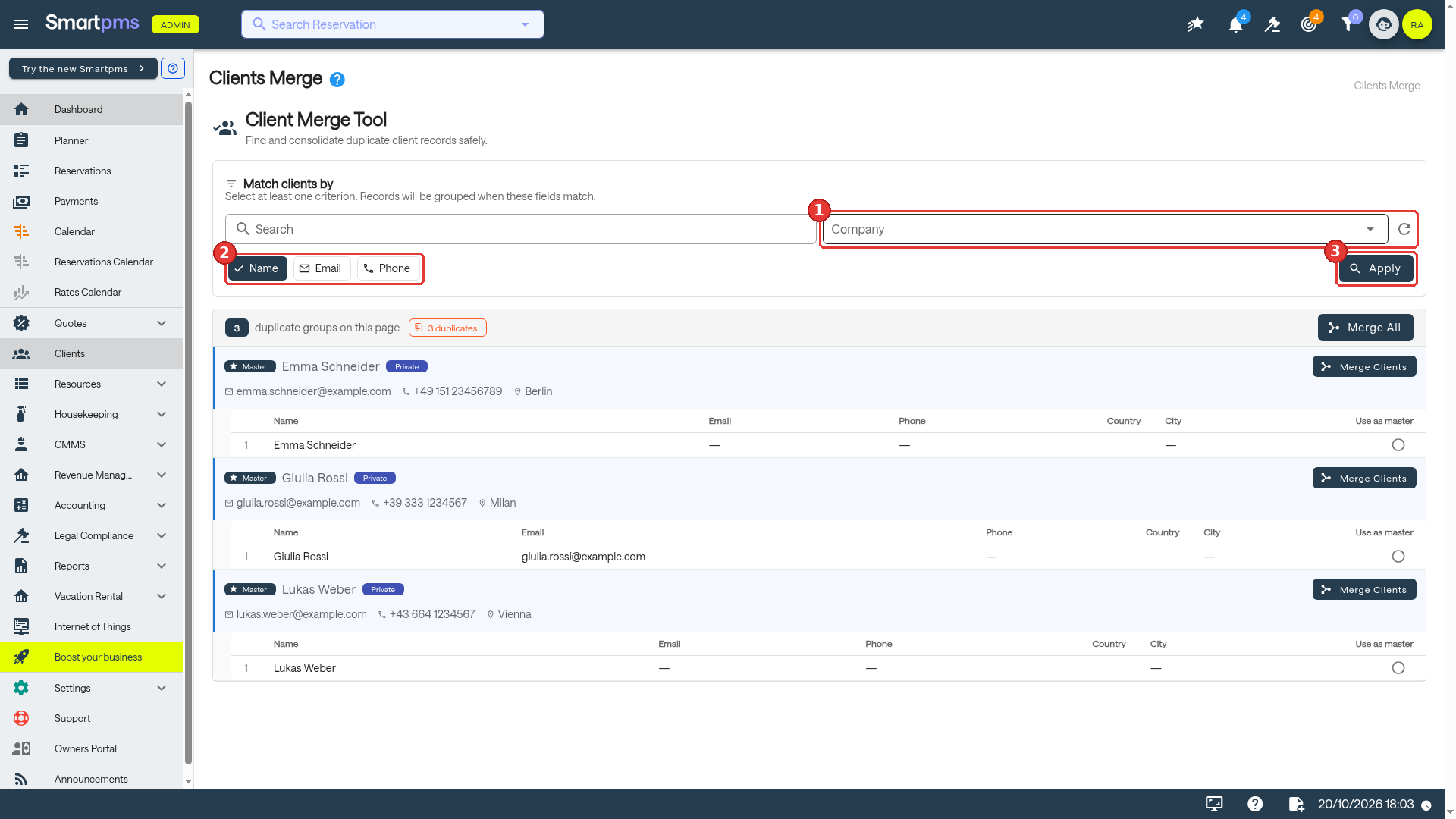
In the Compare guests by section, select one or more criteria among Name, Email, and Phone (2). Two profiles end up in the same group only if all selected criteria match exactly. Profiles that have one of the selected fields empty are not considered: if you enable Email, guests without an email will not appear.
- For guests who only have a name, for example, those created from imported bookings without contact details, select Name only.
- If you manage multiple companies, choose the Company (1): profiles from different companies are never merged with each other.
- With the Search field, you can limit the results to a name, an email, or a phone number.
Then click Apply (3).
3. Check the duplicate groups
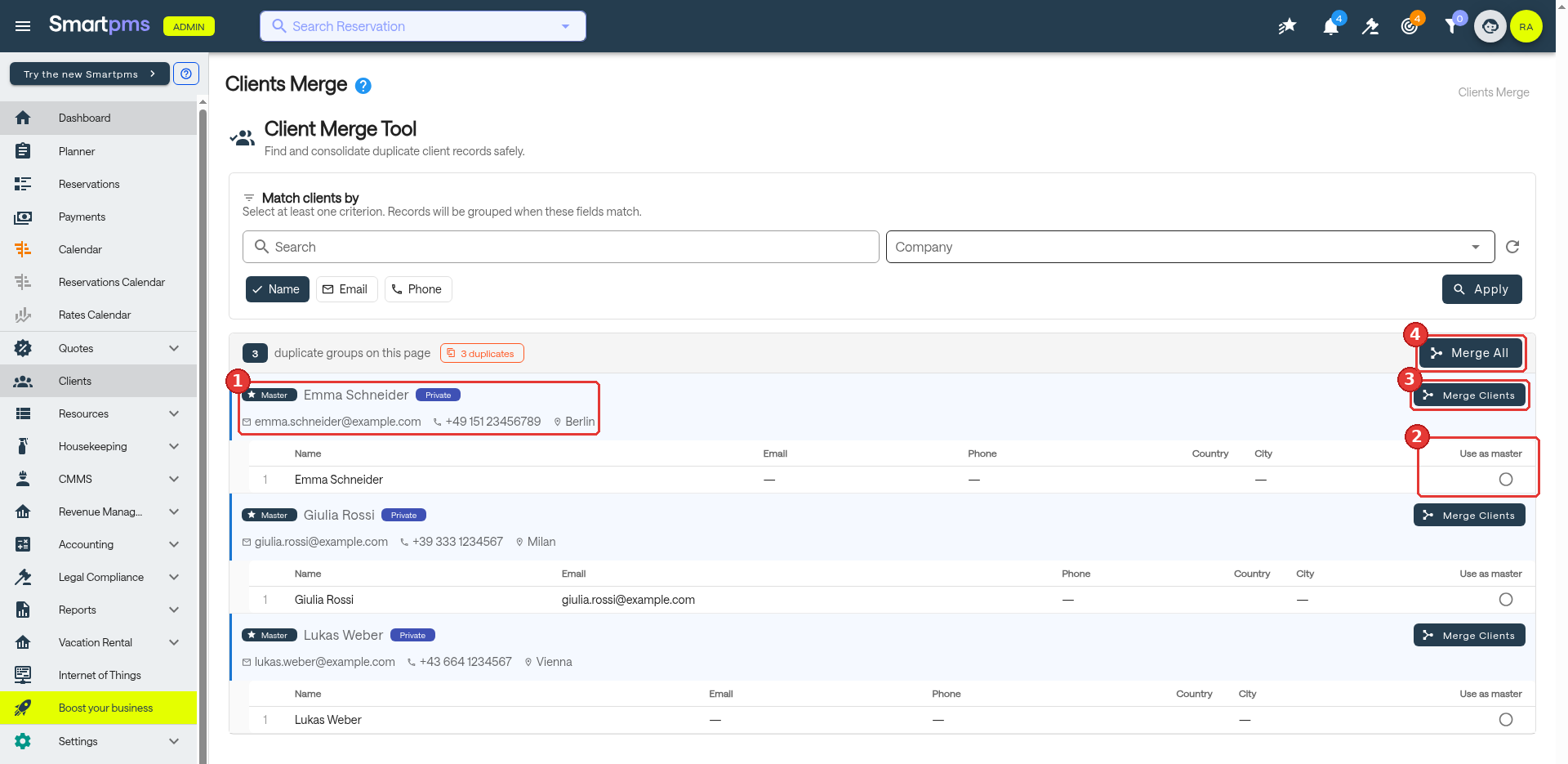
Each group shows the Main profile (1) at the top, with its contact details, and the list of duplicates below. Before merging, check that they are truly the same person: with the Name criterion only, two people with the same name will end up in the same group.
In the Set as main column (2), you can choose the duplicate from which to take the name, email, and phone. The profile that remains is still the one indicated as Main at the top of the group.
4. Merge the duplicates
- To merge a single group, click Guest Merge (3) on the group and confirm with Yes, merge.
- Merge all (4) merges all groups shown on the page in a single operation. Use this only after checking the groups one by one.
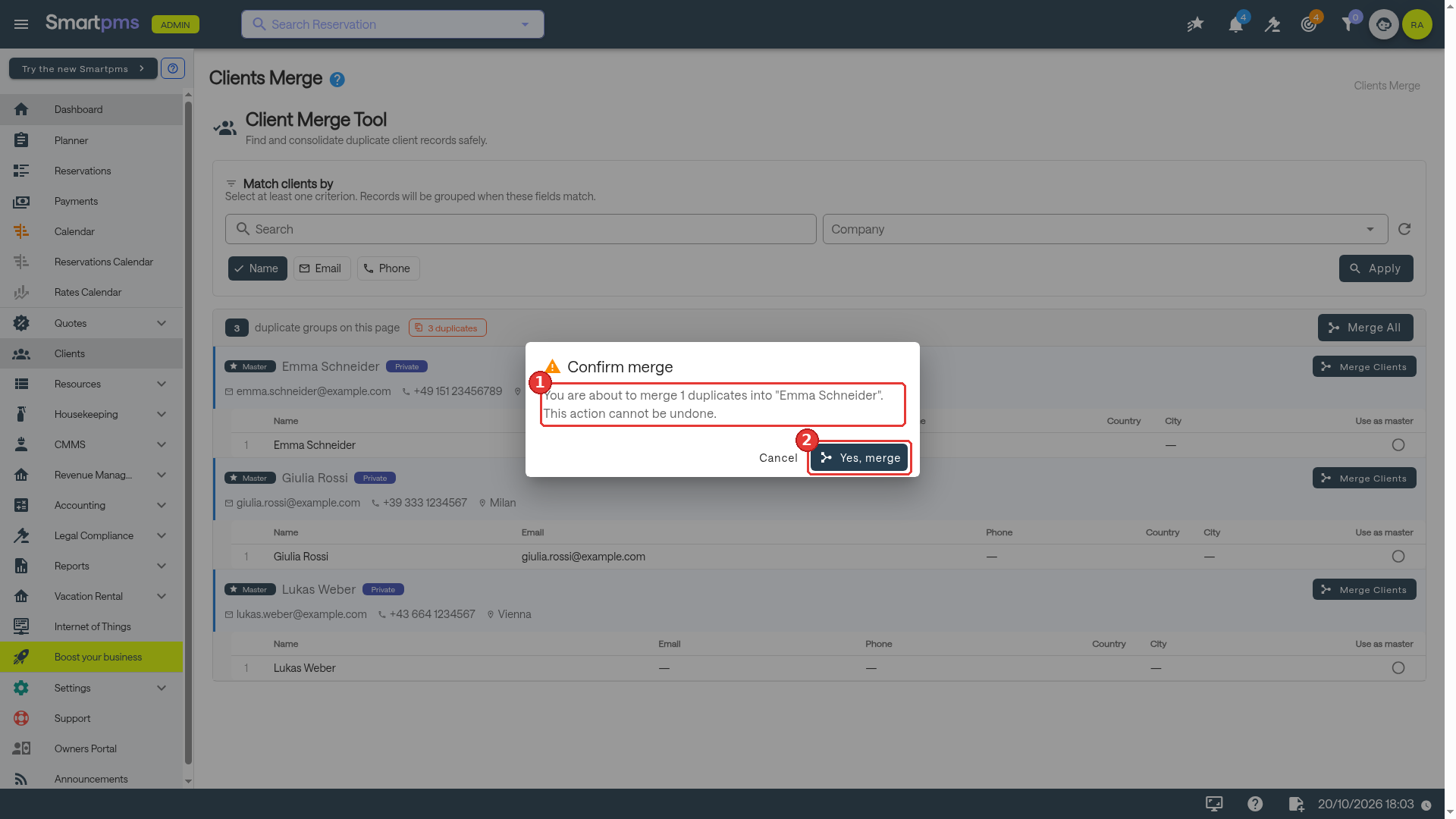
Before confirming, the Confirm merge window summarizes how many duplicates will be merged and into which profile (1). Click Yes, merge (2) to proceed.
5. Verify the result
Open the remaining profile from Guests and check that the guest's bookings appear. If address, country, or tax data are missing, complete them by editing the profile.
Frequently asked questions
4Why do I have duplicate guests in my database?
The most common causes are:
- the guest database import and the booking history import do not link to each other if common email or phone numbers are missing in the two files: each imported booking without contact details creates a new guest profile;
- bookings arriving from portals create a new profile when the guest's contact details do not match those of an already existing profile.
In both cases, you can combine the profiles with Guest Merge.
Guest Merge does not find duplicates that I see in the guest list: why?
This usually happens for one of these reasons:
- a criterion is active that one of the two profiles has not filled out (for example, Email, when one of the two profiles does not have an email): leave only the criterion that the profiles have in common selected, for example, only Name;
- the names are written differently (accents, middle name, first and last name inverted): the comparison requires that the values match exactly.
Profiles with different names and no email or phone in common are not grouped. In this case, correct the name of one of the two profiles so that it matches the other and repeat the search.
What happens to the bookings, accounts, and documents of the merged guests?
They all move to the Main profile, which remains the only profile for the guest. After the merge, you can find them by opening that profile from the Guests section.
Can I merge guests from different companies?
No. The guest database is separate for each company and the tool only merges profiles from the same company. It is normal for the same guest to have a profile in each of the companies they have booked with.
Related guides
Activation
Activation
Configuration
Configuration
Configuration
How it works