Connecting and reconnecting an email inbox to SmartChat
How to connect an email account to SmartChat using your credentials and how to reconnect it when it stops receiving messages, for example after a password change. Messages from Booking.com and Airbnb guests also pass through this account. It also explains what to do when a sent email appears as Not confirmed or Not sent.
You are in the right place if…15 cases
- “How do I connect my email account to SmartChat?”
- “I want to add another email in SmartChat”
- “I changed the email password and SmartChat is no longer receiving anything”
- “The email account appears disconnected”
- “In the email settings, the folders are Discarded”
- “Booking messages are no longer arriving in SmartChat”
- “I am no longer receiving Airbnb guest messages”
- “A warning appears with problems on the email account”
- “Can support enter my email password for me?”
- “I cannot find the sent mail in SmartChat”
- “The account connection test fails after the password change”
- “How do I see which properties my email is connected to?”
- “Under the account, No property connected appears”
- “Not confirmed appears next to the sent email”
- “The email to the guest appears as Not sent because the account is disconnected”
SmartChat reads and sends messages through the email accounts you connect. Your guests' emails and notifications from Booking.com and Airbnb pass through here: if an account disconnects, those messages stop arriving in SmartChat until you reconnect it.
Before you start
- Keep your email address and password handy.
- If you use it for Booking.com or Airbnb, it must be the same account where the portal sends guest message notifications.
- You are the only one who enters the credentials: the connection is encrypted and, to protect your account, support cannot enter or change them for you.
Connecting an account
- Open Settings from the side menu (1 in the image).
- Go to Email, then to Accounts (2).
- On the account to be configured, click Configure and enter the credentials: with IMAP/SMTP (host, ports, user, and password; Detect attempts to fill in the server data automatically starting from the address) or with Connect with Google or Connect with Microsoft. The connected credential appears in the Credential row (3). If you need other folders besides the Inbox (INBOX), add them with Add folder.
- Save and check that the account status shows no warnings.
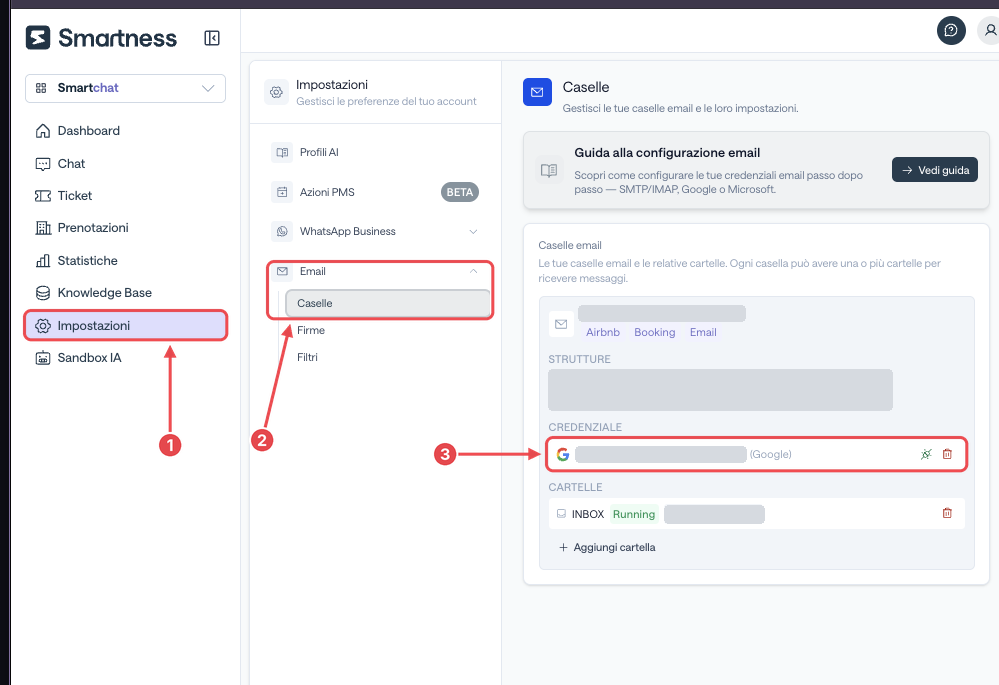
Accounts are not added from this page: they are added by the Smartness team based on the information you provided. If the account you need does not appear in the list, ask support to add it: once added, you complete the connection with Configure.
When an account disconnects
An account disconnects when SmartChat can no longer access it with the saved credentials. This usually happens in two cases:
- the account password has been changed, even by a colleague;
- the email provider has changed its security or access rules, even without you touching anything.
You will notice this because in the email settings the account folders appear as Discarded and a warning appears with the detected problems (for example "The folder … has stopped: we can no longer access this account…"), because the warning Email messages are not arriving appears in the conversations, or because Booking.com, Airbnb, or email messages are no longer arriving.
Reconnecting the account
- Open Settings → Email → Accounts.
- On the account that appears disconnected, update the credential: enter the new password (for IMAP/SMTP accounts) or reconnect the account with Connect with Google or Connect with Microsoft. Alternatively, delete the credential and create a new one with the updated data.
- If the folder remains stopped, use Retry on the folder: if the account works, messages will start arriving again within a few minutes.
- Check that the status changes from Pending to Running (usually within about a minute) and that new messages arrive in SmartChat.
Every time you change the password of a connected account, you will need to repeat these steps.
Sent emails: Not confirmed and Not sent
Every email sent from SmartChat (your replies, those from the AI agent, and those from automations) waits for confirmation from the account it is sent from. Usually, the confirmation arrives in a few seconds.
Not confirmed. If after about a minute the confirmation has not yet arrived, the Not confirmed label appears next to the email. Opening the email you read: "We do not have confirmation that this email has been sent. If it does not change, it might not have reached the guest." What to do:
- Wait a few minutes: if the confirmation arrives, the label disappears.
- If it remains, check in Settings → Email → Accounts that the account is connected.
- If you are not sure the guest received it, write to them again or contact them on another channel.
Emails sent before November 24, 2026, do not show this label.
Not sent. If sending fails, the email shows the red Not sent label and, by opening it, the reason. If the account is disconnected you read: "The account from which this email is sent is disconnected, so it cannot send anything. Reconnect it in Settings, then send the message again." Reconnect the account as described above, then send the message to the guest again.
If the problem persists
If after reconnecting the account it disconnects again or messages do not arrive, open a support request indicating the account address, since when you have not been receiving messages, and a screenshot of the email settings.
Frequently asked questions
7I changed the password only on my computer: do I need to do anything in SmartChat as well?
Yes. SmartChat accesses the account with the credentials you saved in Settings. After a password change, the account disconnects: in Settings → Email → Accounts update the credential with the new password (or delete it and create a new one), then use Retry on the folder if it remains stopped.
The email signature does not appear in the replies sent by the AI agent or in new emails: why?
Today, the account signature is added to the replies you send from the conversation, but not to the replies that the AI agent sends autonomously nor to new emails opened with the + button. If you want the agent to always sign, add an Instruction to your AI Profile with the signature text.
The signature is valid only for email conversations: replies to Booking.com and Airbnb guests do not receive it, even if their messages pass through the same account, because they are delivered as portal messages. If you want to sign those too, use an AI Profile Instruction limited to the Booking.com and Airbnb channels, or write the signature by hand in the replies. The signature is set in Settings → Email → Signatures, one for each address: you can write it in Visual mode or paste a signature in HTML, using the Preview to check it, and save it with Save Signature.
I have a filter or label that moves Booking.com or Airbnb emails to a folder: does SmartChat read them anyway?
No, not automatically. SmartChat only reads the folders configured for the account, usually the Inbox (INBOX). If a Gmail, Outlook, or your provider's rule moves portal notifications or booking confirmations to another folder, those messages do not enter SmartChat and chats may not link to bookings.
You have two options:
- delete the filter or the folder, so the emails remain in the Inbox;
- or add the folder to those read by SmartChat: in Settings → Email → Accounts use Add folder on the account and indicate the exact name of the folder (requires a user who can modify Settings). If you cannot, write to support indicating the folder name.
After the change, check that the next notification appears in SmartChat.
I want to change the connected account or add a new one, but SmartChat tells me to contact support: what should I do?
This is the intended operation: adding a new address and choosing the channels that pass through that account (Booking.com, Airbnb, email) is set by support. Write to support indicating:
- the new address and the one to be replaced, if any;
- for which channels and for which properties it should be used.
When support confirms that the address is ready, open Settings → Email → Accounts, click Configure on the account, and enter the credentials. Then set the same address as the notification email on Booking.com and Airbnb. Each property must receive notifications from a portal on only one account.
For a period, some messages did not arrive in SmartChat: can they be recovered?
SmartChat imports emails as they arrive in the account. When the import resumes, messages from the missing period are not recovered on their own. They can only be recovered if the original emails from that period are still in the account, in the folder read by SmartChat (not deleted or moved). Verify this and write to support indicating the account and the dates. If the emails are no longer there, reply to those guests directly from the portal.
How do I see which properties each email account is connected to? Can I change it myself?
In Settings → Email → Accounts, under each account you will find the Properties entry with the properties served by that account and the Connected Channels (Booking.com, Airbnb, Email). If No property connected appears, the AI agent cannot understand which property the messages of that account refer to.
Properties and channels of an account are set by support: if you see a missing or wrong association, write to support indicating the account and the correct properties.
I entered the new password but the account does not reconnect: what should I check?
- Verify that the password is correct by accessing your provider's webmail.
- In Settings → Email → Accounts open the account credential, clear the password fields with Clear, and write the new password by hand in both the sending (SMTP) and receiving (IMAP) fields: the browser's autofill sometimes reinserts the old password.
- Press Test connection and, if the test succeeds, save.
- If the folder remains stopped, use Retry.
If the webmail accepts the password but the test continues to fail, ask your email provider if the account has temporary blocks after too many access attempts, then write to support with a screenshot of the error.
Related guides
Activation
Configuration
How it works
How it works
How it works